How to Connect Windows 11 to Ubuntu: A Guide to XRDP

You can connect your Windows 11 PC to an Ubuntu machine graphically using XRDP.
XRDP is a free and open-source Remote Desktop Protocol server that allows you to control your Ubuntu desktop from your Windows 11 computer.
You’ll be able to run Ubuntu applications and manage files as if you were directly in front of the Ubuntu machine. This integration is especially useful for developers or anyone needing to access Ubuntu resources from their primary Windows environment.
This tutorial walks you through setting up XRDP on Ubuntu, typically version 20.04 LTS or later, and then establishing a connection from your Windows 11 client. You’ll use your existing local network for this remote access.
Install XRDP on Ubuntu using `sudo apt install xrdp` and configure it by adding the xrdp user to the ssl-cert group and editing the startwm.sh file. Then, connect from Windows 11 using the “Remote Desktop Connection” app with your Ubuntu IP address.
Why use xrdp?
With xrdp, you can work on your Linux computer from the comfort of your Windows desk. It is great for managing files, running apps, or helping a friend with their Ubuntu setup without being in the same room.
What happens when done?
Once you finish these steps, you’ll have a direct, secure window to your Ubuntu desktop right on your Windows 11 computer.
For more about xrdp, please visit its homepage.
Installing xrdp on Ubuntu
Installing xrdp on Ubuntu is the first step to letting your Windows 11 computer connect to your Ubuntu machine.
sudo apt update
sudo apt install xrdp
After installing, check that the service is running with this command:
sudo systemctl status xrdp
You should see that the service is active and running. Here’s what that output looks like:
xrdp.service - xrdp daemon
Loaded: loaded (/lib/systemd/system/xrdp.service; enabled; vendor preset: enabled)
Active: active (running)
Configuring xrdp
Properly configuring xrdp helps ensure your Windows 11 computer can connect to Ubuntu without any problems.
sudoadduser xrdp ssl-cert
Next, we will fix a common issue where the screen might show up black. Edit the startup script (requires admin privileges):
sudo nano /etc/xrdp/startwm.sh
Add these two lines to the end of the file:
unset DBUS_SESSION_ADDRESS
unset XDG_RUNTIME_DIR
Save the file and exit. Now, restart the service to apply the changes (requires admin privileges):
sudo systemctl restart xrdp
Finally, make sure your firewall allows the connection (requires admin privileges):
sudo ufw allow from 10.0.2.0/24 to any port 3389
sudo ufw reload
Note: Log out of your Ubuntu user account before trying to connect. You cannot be logged in at the computer itself and through remote desktop at the same time.
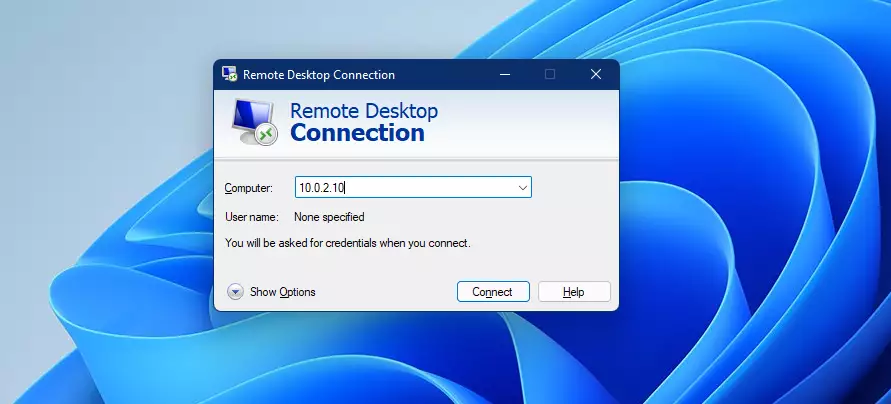
Connecting from 🪟 Windows 11
On your Windows 11 PC, open the “Remote Desktop Connection” app. Type in the IP address of your Ubuntu machine and click connect.
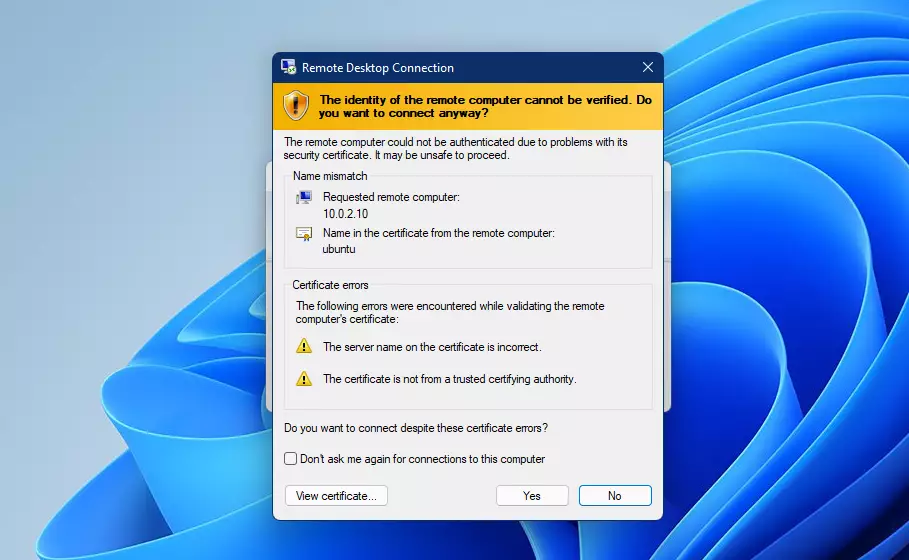
If you see a security warning about a certificate, click Yes to proceed.
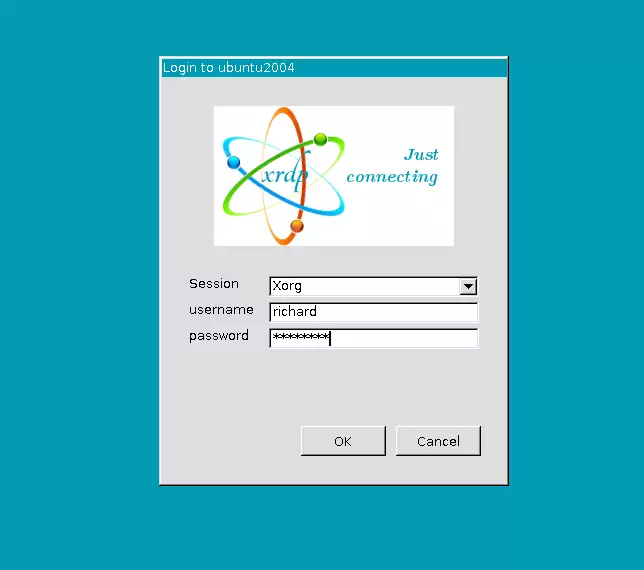
Enter your Ubuntu username and password when prompted.
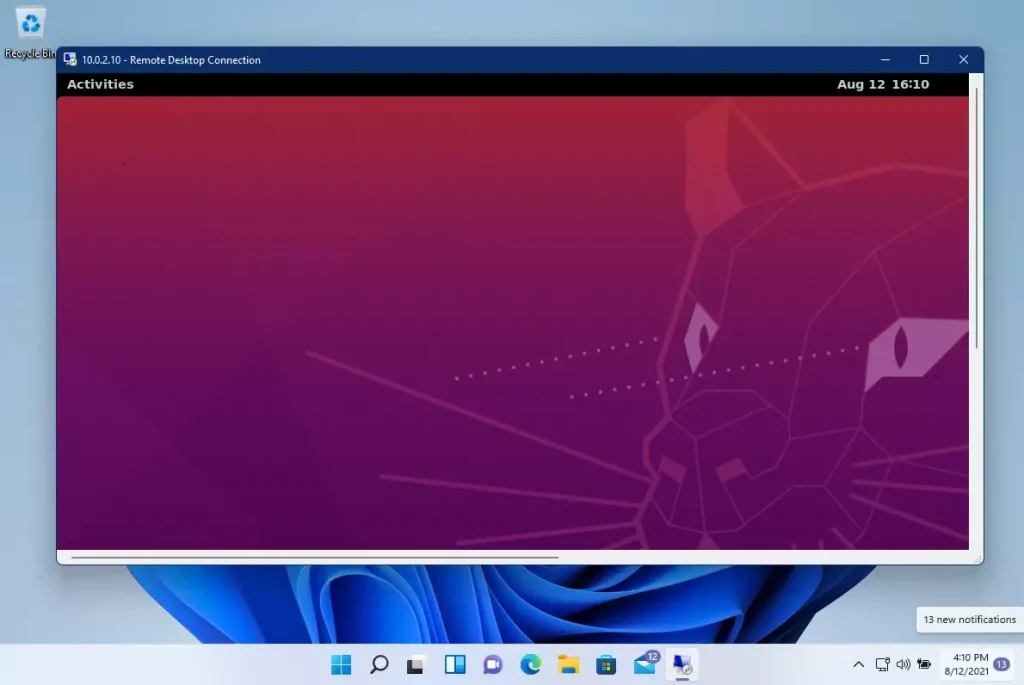
Summary
Connecting Windows 11 to Ubuntu using XRDP gives you remote control of your Ubuntu desktop right from your PC.
Was this guide helpful?

About the Author
Richard
Tech Writer, IT Professional
Richard, a writer for Geek Rewind, is a tech enthusiast who loves breaking down complex IT topics into simple, easy-to-understand ideas. With years of hands-on experience in system administration and enterprise IT operations, he’s developed a knack for offering practical tips and solutions. Richard aims to make technology more accessible and actionable. He's deeply committed to the Geek Rewind community, always ready to answer questions and engage in discussions.



Followed the same steps but I get an error.
connecting to sesman ip 127.0.0.1 port 3350 sesman connect ok sending login info to session manager please wait login successful for display 10 started connecting connection problem giving up some problem
Hello! I’ve encountered the same error as well. I’ve tried all ways and means, but it is still not connecting. Please help. Thank you
Hi,
I followed the exact instruction but getting the following error:
connecting to sesman ip 127.0.0.1 port 3350
sesman connect ok
sending login info to session manager, please wait…
xrdp_mmprocess_login_response:login failed
Is there a way to access Linux from Windows 10, but without logging out from Ubuntu?
I have followed the steps once while i was logged in Ubuntu through Powershell and then with closed. In both cases it doesn’t open GUI Desktop and xorg window just closes no error.
This was very helpful and worked perfectly. Thank you!