Auto-Start Applications on Ubuntu Login


Startup applications in Ubuntu are programs that launch automatically the moment you log in to your desktop. This built-in feature saves you time by opening your favorite tools like email clients or music players right away, so you never have to launch them by hand.
You can set up any installed program to start with your session by picking from a list or by browsing for a custom script or application file.
Open Startup Applications from the Activities overview or by running `gnome-session-properties`. Click Add, then enter the application’s name and command to have it launch automatically on login.
How to get applications to startup at login in Ubuntu Linux
To auto-start applications Ubuntu users can use the built-in Startup Applications tool to launch programs automatically upon sign-in. Open the app menu, search for Startup Applications, click Add, and enter the command for the program you want to open. This saves you time by loading your favorite web browser or chat app the moment your desktop appears.
Here’s how to set up applications to start automatically when you log into Ubuntu Linux.
Ubuntu includes a dedicated manager for controlling background processes and login items.
To open Startup Applications, click the Activities overview (the dashboard where you can see all your open applications and search for new ones) and search for Startup Applications.
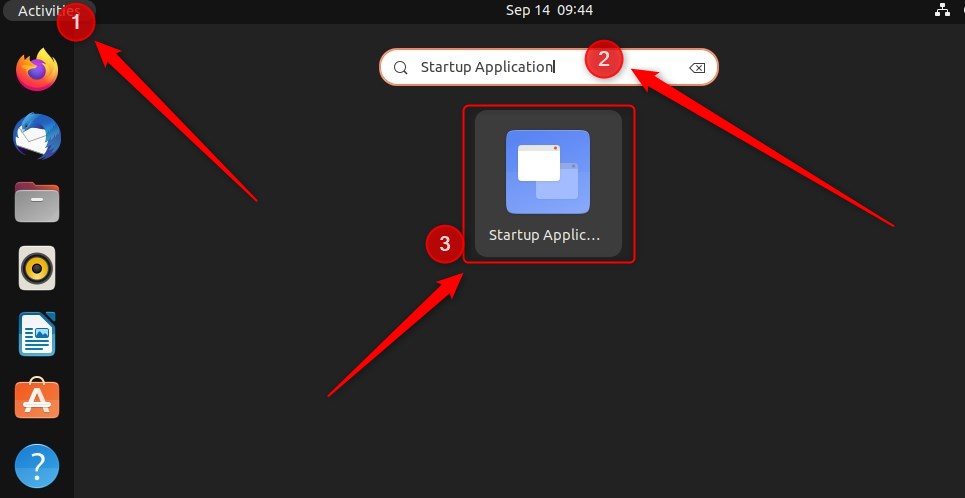
Alternatively, press ALT + F2 and type `gnome-session-properties` to launch the same tool.
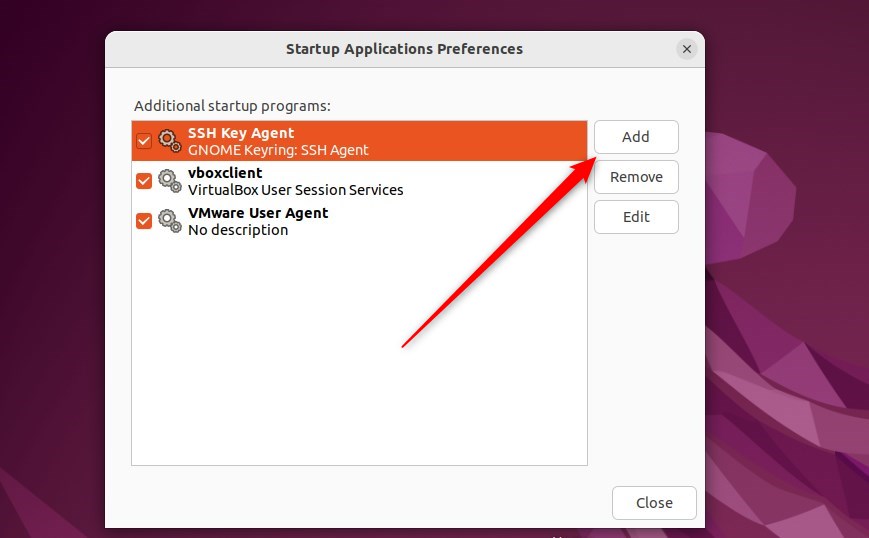
Once Startup Applications opens, click Add. Then, enter the command that runs when you log in (you can skip the Name and Comment fields if you like).
For example, to make Firefox start automatically, type Firefox in the Command field and confirm with Add.
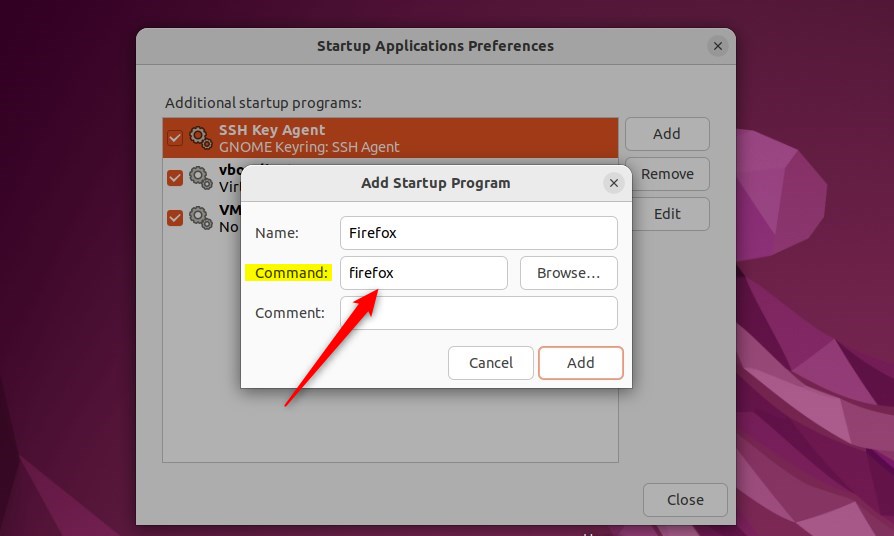
You can type the command, or click the Browse... button and select a command.
If you don't know the command for the application you want to automatically startup, use the Browse... button and go to the /usr/bin directory.
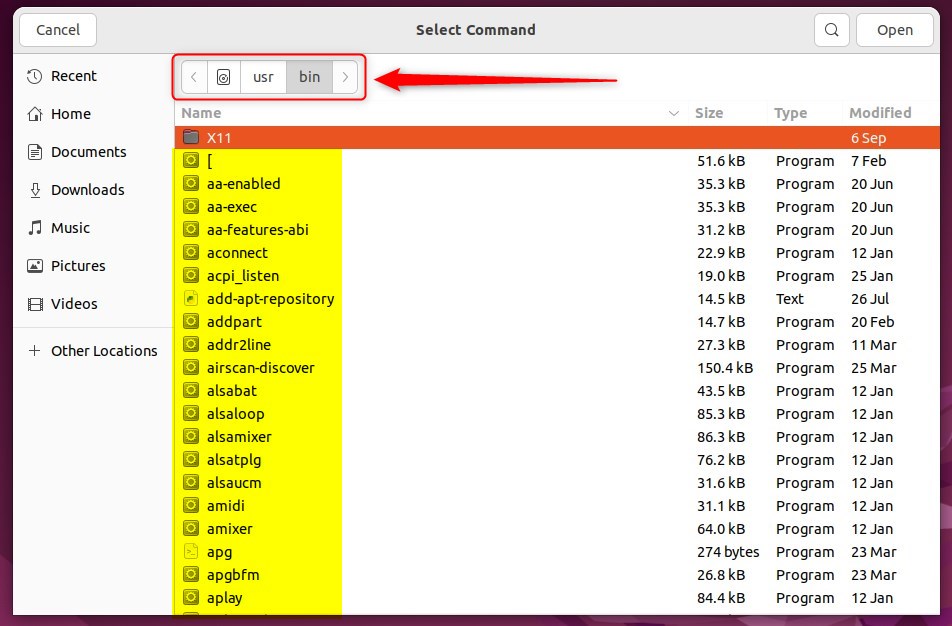
Auto-start applications list: Select an application from the auto-start applications list that you wish to run automatically when you log into Ubuntu. After choosing an application, click the Add button to include that specific application in your auto-start list.
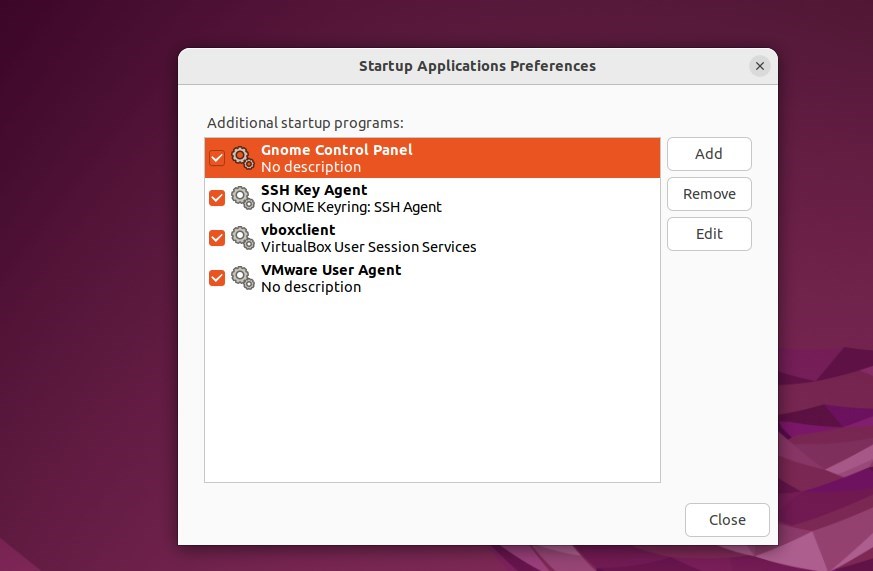
The application will automatically start the next time you boot up and log in.
That should do it!
Configuring startup applications enhances your daily workflow by loading preferred tools immediately.:
- Configuring startup applications in Ubuntu Linux is a straightforward process that enhances user experience.
- The Startup Applications tool simplifies the setup by allowing users to automatically add application commands to start at login.
- Users can also browse the /usr/bin directory to find the commands for applications they wish to set for auto-start.
- This customization ensures that preferred applications are readily available upon logging in, streamlining workflow and saving time.
Was this guide helpful?

About the Author
Richard
Tech Writer, IT Professional
Richard is a writer at Geek Rewind who turns complex IT tasks into clear, step-by-step guides. He draws on years of hands-on experience in system administration and enterprise IT operations, focusing on Windows, Linux and WordPress: the problems people actually run into, and the fixes that work. His server and WordPress guides come from systems he runs himself. Richard builds and maintains the platform behind Geek Rewind, from its Ubuntu servers and Nginx configuration to its custom WordPress plugins. Many new tutorials start with readers' questions, and he's always glad to answer them in the comments.


No comments yet — be the first to share your thoughts!