
Do you want to share photos from your Windows 11 computer? Large image files can be slow to send and take up lots of storage space. Good news: Windows 11 lets you make images smaller before sharing them. This is called compression. Let’s learn why you’d want to do this and how to use it.
Why Compress Images?
When you compress an image, you reduce its file size. Smaller files send faster over email or messaging apps. They also take up less storage space on your devices. Windows 11 makes this simple by letting you pick how much compression you want.
What’s New in Windows 11?
Windows 11 has a feature called Windows Share. It helps you send files to apps, emails, phones, and nearby devices. Microsoft recently added an easy way to compress images when sharing. Instead of picking a number from 0 to 100, you simply choose High, Medium, or Low quality.
This feature is available starting with Windows 11 build 26120.4151. To use it, you need to turn it on using a small tool called ViVeTool (don’t worry, it’s easy!).
Step 1: Enable the Compression Feature with ViVeTool
ViVeTool unlocks hidden or new features in Windows 11. Here’s how to get started:
- Download and learn how to use ViVeTool here: How to enable hidden features with ViVeTool
- 🔒 ADMIN REQUIRED: Open the Windows Terminal app as an administrator. Click the Start button and type “Windows Terminal.” Right-click the result and choose Run as administrator. Need help? Check here: Open Windows Terminal as admin
- In the terminal, type this command and press Enter:
vivetool /enable /id:55390938 - Restart your computer to apply the change.
Note: Only do this if you feel comfortable typing commands. If not, you can wait for Microsoft to release this feature automatically in future updates.
Step 2: Compress Images When Sharing
Now that the feature is enabled, here’s how to compress an image when you share it:
- Find the image file you want to share (like a photo or screenshot).
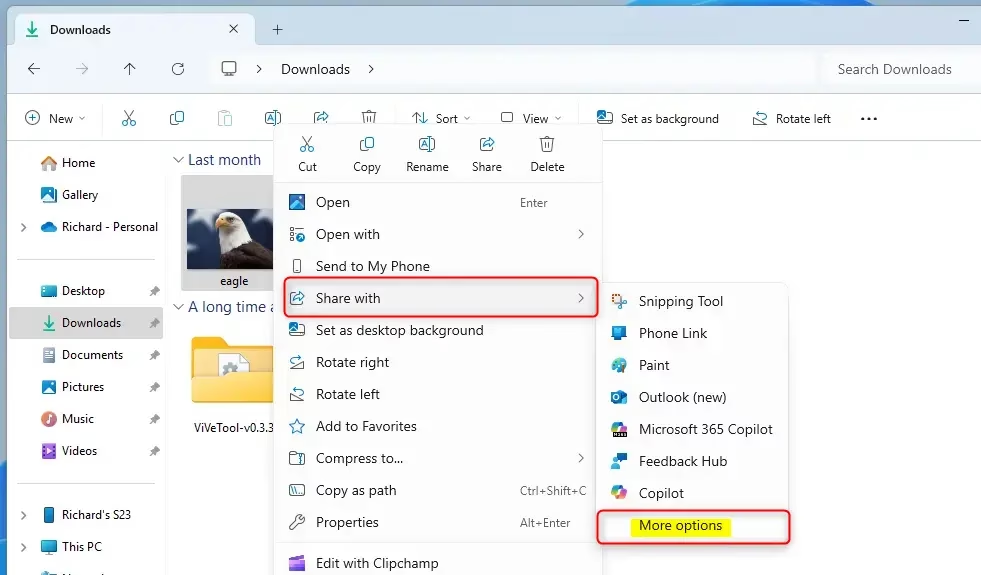
- Right-click on the image file.
- Choose Share from the menu.
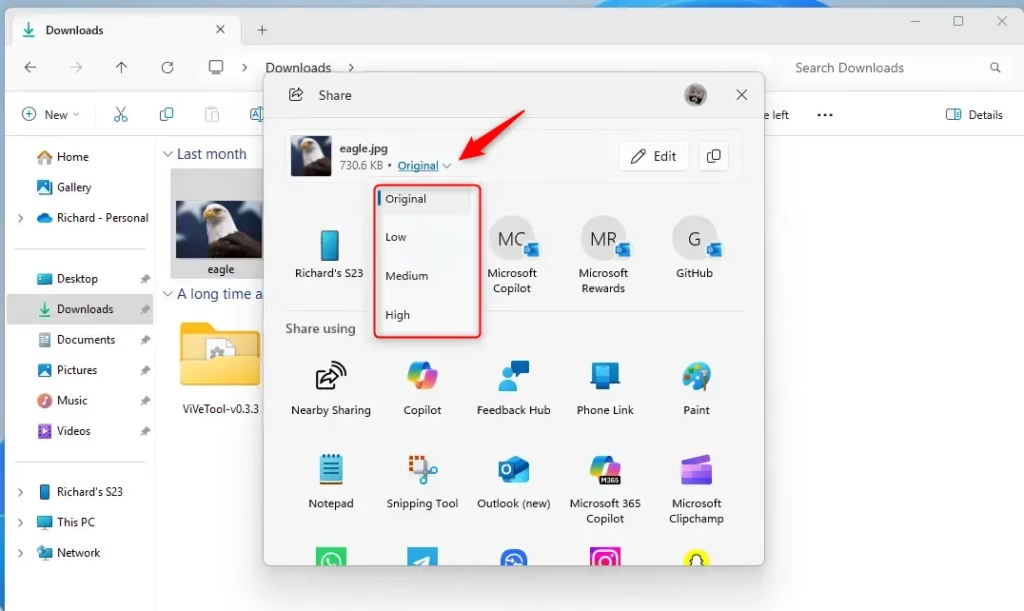
- In the sharing window, click on More options (usually a dropdown menu).
- Pick the quality you want: Original (no compression), High, Medium, or Low.
This lets you make the file smaller if you choose Medium or Low. Smaller files send faster and save storage space.
Summary
- Windows 11 lets you pick image quality when sharing pictures to control file size.
- You can choose from High, Medium, or Low compression levels.
- Use ViVeTool and a simple command to enable this feature if you don’t see it yet.
- Compressing images helps you share pictures faster and saves storage space.
Want to read more? Check out the official Microsoft blog here: Microsoft Blog on Windows 11 build 26120.4151



Leave a Reply