How to Change Your Product Key in Windows 11

You change your Windows 11 product key to activate a different edition of Windows or to switch from a generic key to a retail one.
A Windows product key is a unique 25-character code that verifies your copy of Windows is genuine and unlocks its full features.
This process is straightforward and can be completed directly within Windows 11 Settings, even if you have a digital license for an upgrade. We’ll show you exactly how to input your new 25-character key.
Open Settings, navigate to System, then Activation. Click “Change product key” and enter your new 25-character key. Click “Activate” to complete the process.
Change the Product Key Using Windows Settings
Changing your Windows 11 product key is simple using the Settings app.
- Open Settings: Press the Windows key + I on your keyboard. Or click the Start button and select the gear icon (Settings).
- Go to System: On the left menu, click System.
windows 11 system tile - Click Activation: On the right side, find and click Activation.
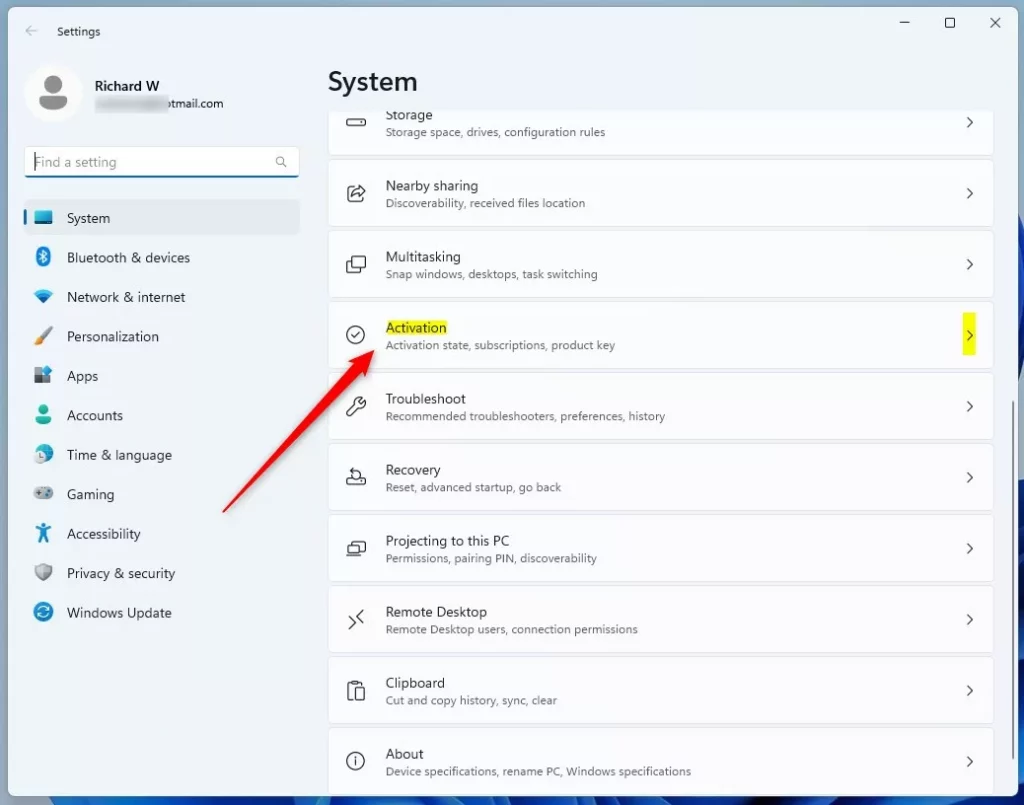
windows activation tile - Change Product Key: Look for the Change product key button and click it. If you have Windows 11 Home, you might see Upgrade your edition of Windows first. Click to expand, then find the change key option.
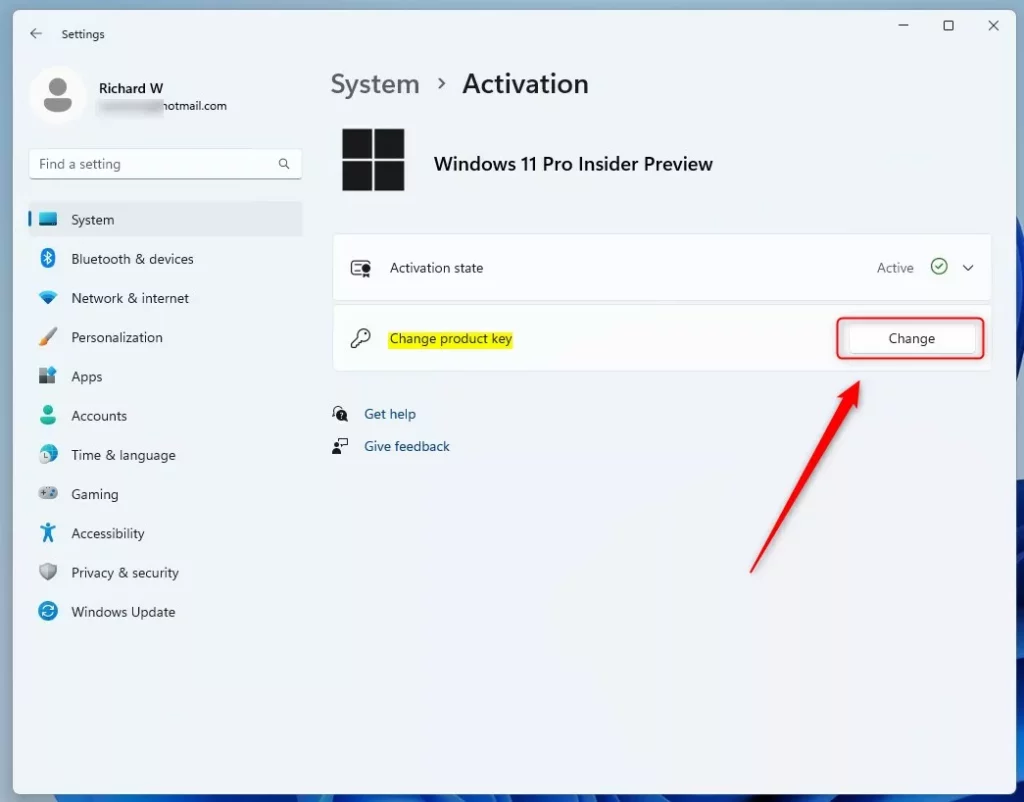
windows change product key button - Enter Your New Key: Type your 25-character product key here. Need help finding your key?
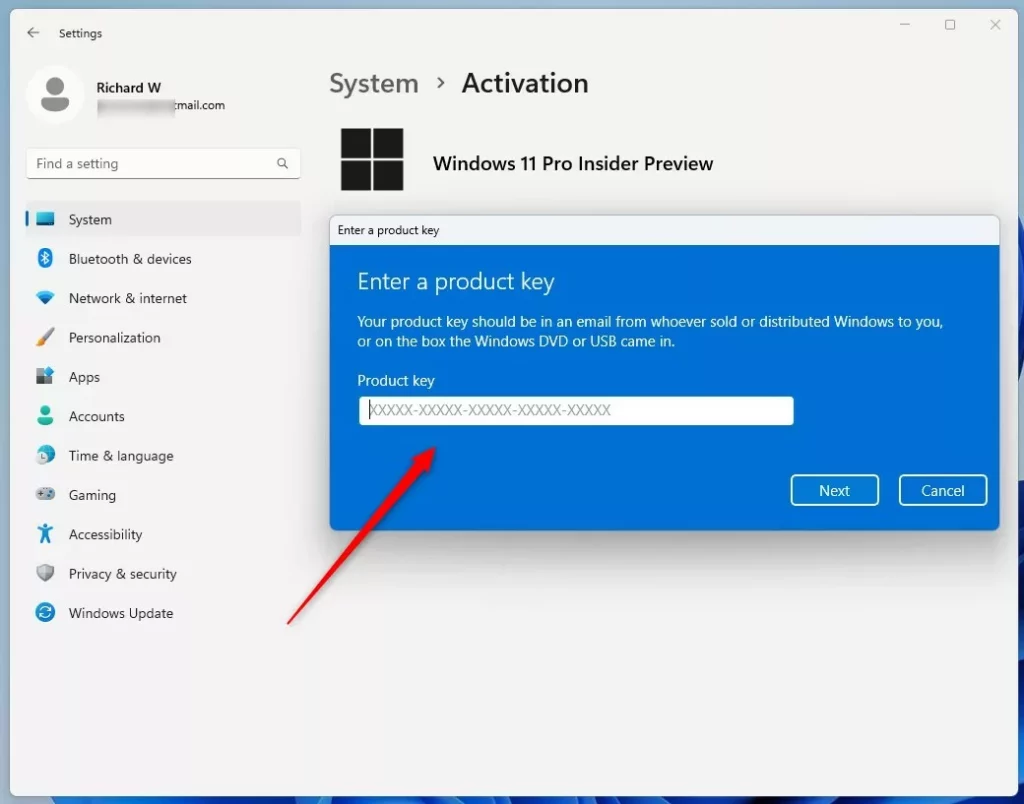
windows change product key enter field - Activate: Click the Activate button to finish.
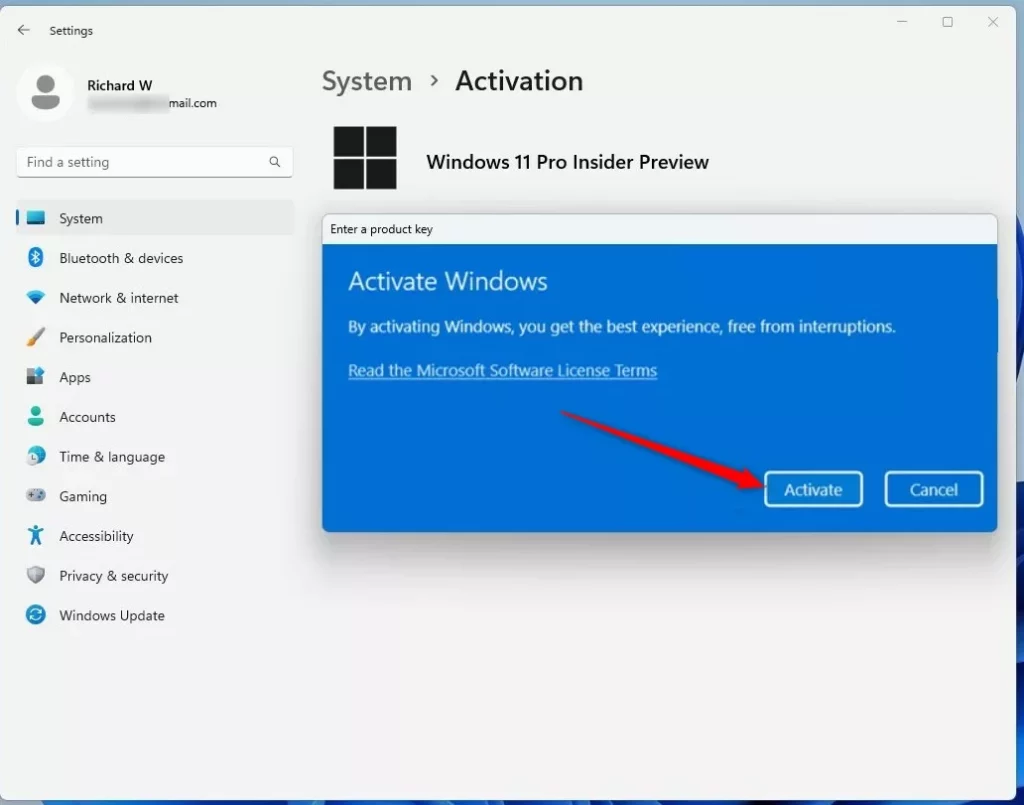
windows change product key activate button - Close Settings: Click Close when done.
Change the Product Key Using Command Prompt
You can change your Windows 11 product key using the Command Prompt if you prefer typing commands.
- Open Windows Terminal (Admin): Press Windows key + X and choose Windows Terminal (Admin). Or search for “Windows Terminal” in the Start menu and run it as administrator. Learn more about opening Windows Terminal. ⚠️ Admin privileges required
- Type the Command: Enter this command. Replace XXXXX-XXXXX-XXXXX-XXXXX-XXXXX with your actual product key:
slmgr /ipk XXXXX-XXXXX-XXXXX-XXXXX-XXXXX - Press Enter: Hit Enter to run the command.
- Confirm: A confirmation message will appear. Click OK.
What happens next? Your product key will update, and Windows will activate with the new key.
Need More Help?
For full details on Windows activation, visit Microsoft’s official page: Windows 11 Activation Support.
Summary
- A product key is a 25-character code that activates Windows 11.
- The easiest way to change it is through the Windows Settings app.
- You can also use Command Prompt with the
slmgr /ipkcommand (requires admin privileges). - Visit Microsoft’s official support page for detailed guidance.
Can I change my 🪟 Windows 11 product key?
Select the Start button, and then select Settings > System > Activation . Select Change product key. Type in the product key found on the COA and follow the instructions.
Can I transfer my 🪟 Windows 11 product key to another computer?
A: No, a Windows 11 license can only be activated on one computer at a time. When you transfer Windows 11 to a new PC, you'll need to deactivate it on the old computer and reactivate it on the new one.
Was this guide helpful?
100% of readers found this helpful (1 votes)

About the Author
Richard
Tech Writer, IT Professional
Richard, a writer for Geek Rewind, is a tech enthusiast who loves breaking down complex IT topics into simple, easy-to-understand ideas. With years of hands-on experience in system administration and enterprise IT operations, he’s developed a knack for offering practical tips and solutions. Richard aims to make technology more accessible and actionable. He's deeply committed to the Geek Rewind community, always ready to answer questions and engage in discussions.


No comments yet — be the first to share your thoughts!