
This easy guide will help you change the PIN you use to sign into your Windows 11 computer.
What is a PIN and Why Use It?
Windows Hello is a feature in Windows 11 that lets you sign in quickly and securely using a PIN, your face, or your fingerprint. Setting up a PIN is required if you want to use fingerprint or facial recognition, but you can also just use a PIN on its own.
A PIN is safer than a password because:
- It’s only for your device. If someone steals your PIN, they can’t use it on another device.
- It stays on your computer. Your PIN isn’t sent over the internet, so it can’t be intercepted by hackers.
- Your device keeps it extra safe. Windows uses a special chip (called TPM) to protect your PIN from being guessed or stolen.
- You can make it as simple or complex as you want. You can include numbers, letters, and symbols.
- It works with biometrics. You need a PIN as a backup in case fingerprint or face recognition doesn’t work.
Learn more about Windows Hello here: Windows Hello – Microsoft Support
How to Change Your PIN in Windows 11
- Open Settings: Press Win + I on your keyboard.
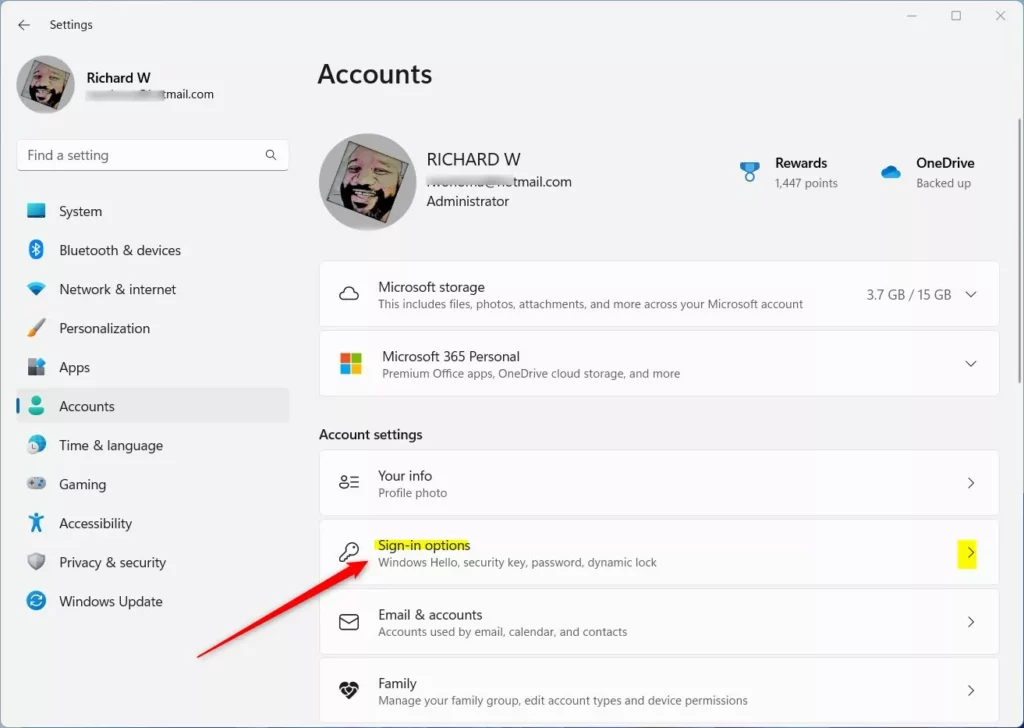
- Go to Accounts: Click Accounts from the left menu.
- Choose Sign-in options: On the right side, click Sign-in options.
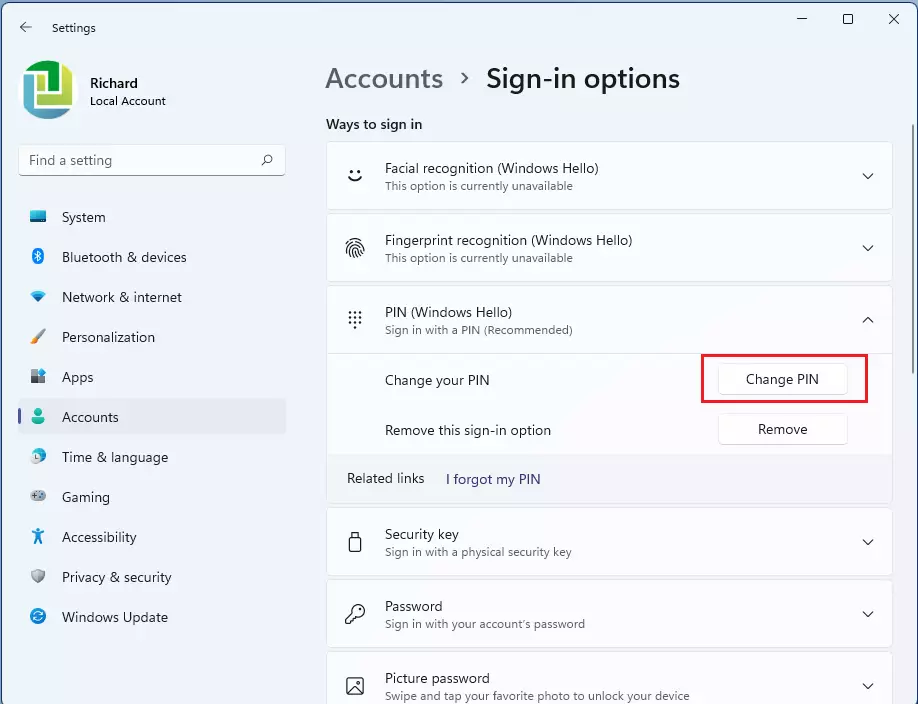
- Find PIN (Windows Hello): Under Ways to sign in, click to expand PIN (Windows Hello).
- Click Change PIN: Press the Change PIN button.
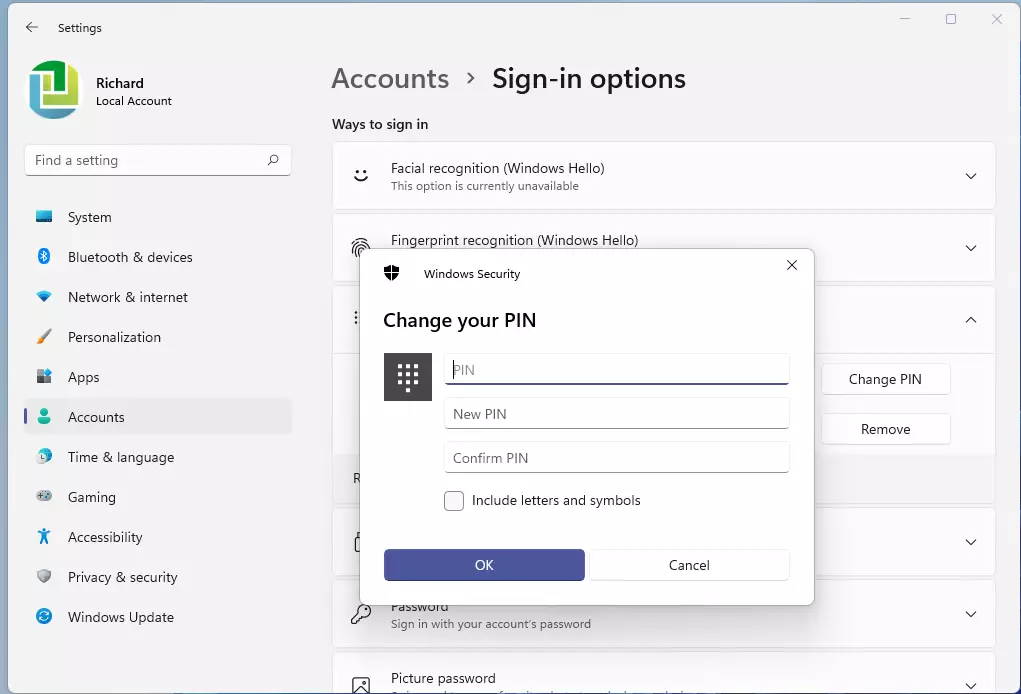
- Enter your current PIN.
- Type your new PIN: You can also check Include letters and symbols if you want a more complex PIN.
- Confirm your new PIN by typing it again.
- Click OK to save your new PIN.
When you’re done, you can close the Settings window.
Why Change Your PIN?
- Keep your device safe: Changing your PIN regularly adds security.
- Make it easier to remember: Choose a new PIN that you find easier to recall but still secure.
- Update your security: If you think someone else knows your PIN, change it right away.
Quick Tips
- Make your PIN at least 6 characters long with a mix of numbers, letters, and symbols if possible.
- Never share your PIN with others.
- If you forget your PIN, you can reset it from the sign-in screen (you’ll need your Microsoft account password).
Helpful Links
- How to Change or Reset Your PIN – Microsoft Support
- Windows Sign-in Options – Microsoft Support
- Windows Hello PIN Errors and Troubleshooting
Remember: Your PIN is a quick and secure way to sign into your Windows 11 device. Keep it safe and update it whenever you feel it’s needed!

Leave a Reply