
This guide will help you change the country or region setting on your Windows 11 computer. This setting is called your geographic location (GeoID).
Why does this matter? Your country or region setting tells Windows and apps where you are. This helps show you the right local content like apps, games, movies, and services.
When should you do this? Sometimes, if you move or travel to a different country, you might want to update this setting so everything works properly.
Option 1: Change Country or Region in Settings
- Press Windows key + I to open Settings.
- Click on Time & language on the left side.
- Then click Language & region on the right side.
- Under Country or region, click the drop-down menu and pick your new location.
- Close Settings when you’re done.
Click here to open Language & Region Settings directly
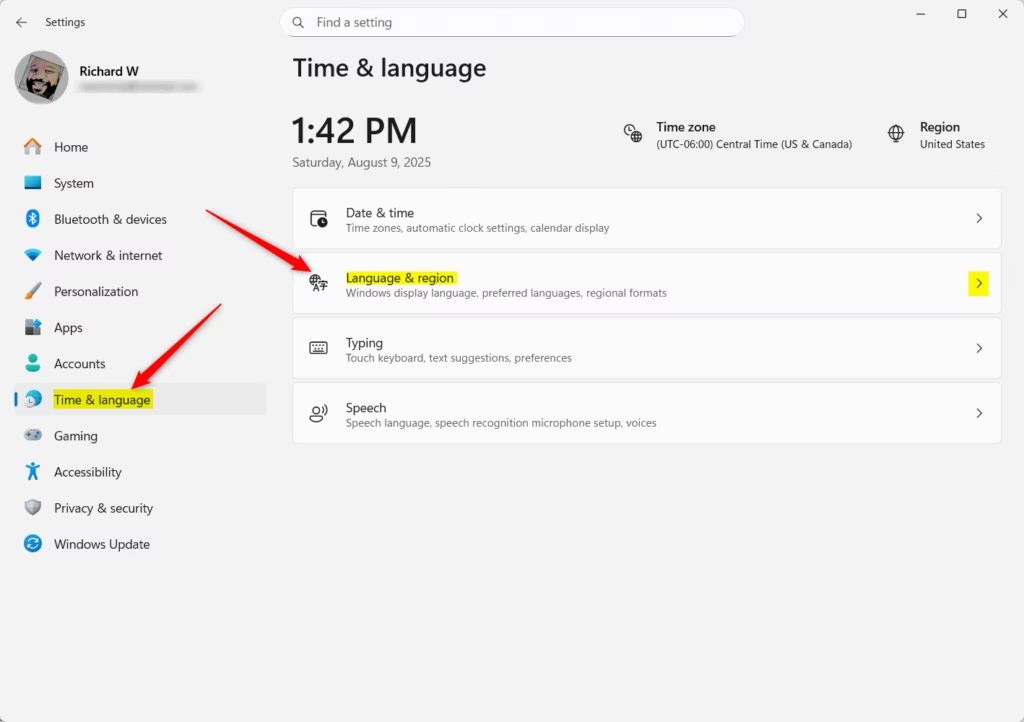 Windows 11 Language & Region Settings
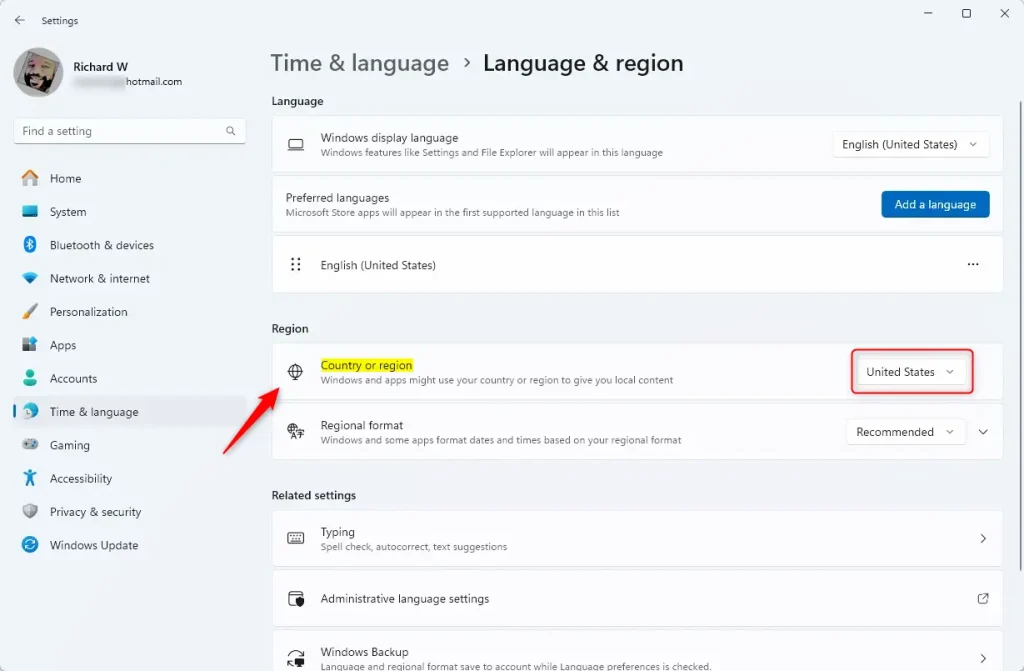 Select your country or region from the list
Option 2: See Your Current Country or Region Using a Command
- Open Windows Terminal by searching for it in the Start menu.
- Choose either Windows PowerShell or Command Prompt tab.
- Type or paste this command and press Enter:
Get-WinHomeLocation - You will see your current country or region code.
- Close Windows Terminal when done.
Option 3: Change Your Country or Region Using a Command
⚠️ Note: This step requires admin privileges.
If you want to change your location using a command, follow these steps:
- Open Windows Terminal and pick PowerShell or Command Prompt.
- Type this command and press Enter:
Set-WinHomeLocation -GeoID <GeoID number> - Replace <GeoID number> with the correct number for your country.
- Close Windows Terminal when finished.
You can find the list of GeoID numbers on Microsoft’s website here: Geographical Location Identifiers
Example: To set your location to the United States, use:
Set-WinHomeLocation -GeoID 244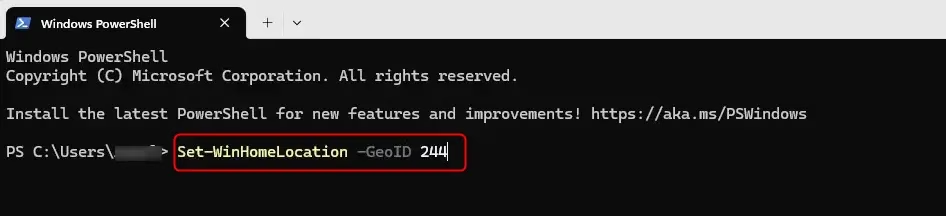 Changing your location using a command
Summary
- Your country or region setting controls what apps and services you can access in Windows 11.
- You can change it easily in Settings or by using commands in Windows Terminal.
- Make sure to pick the correct location so Microsoft Store, Xbox, and other apps show the right content for you.
- When using commands, check the official GeoID list to find the right number for your country.
That’s all! Changing your country or region in Windows 11 is simple and helps make your PC feel more local and personal.


Leave a Reply