How to Change Wireless Adapter Power Saving Mode in Windows 11

You can adjust your wireless adapter’s power saving mode in Windows 11 to optimize your Wi-Fi speed and how long your battery lasts.
This setting controls how aggressively Windows powers down your Wi-Fi adapter to conserve energy. Windows 11 often defaults to a ‘Power Saving Mode.’ This can sometimes make your Wi-Fi slower and take longer to reconnect.
Many users report better network stability and faster speeds by switching this setting from “Maximum Power Savings” to “Medium” or “Maximum Performance.”
Open Control Panel, navigate to Power Options, and adjust the Wireless Adapter Settings within your chosen power plan’s advanced settings. Alternatively, use the powercfg command in Windows Terminal with administrator privileges to set your desired mode.
What Is Wireless Adapter Power Saving Mode?
Wireless adapter power saving mode in Windows lets you choose how much energy your Wi-Fi connection uses, balancing battery life with internet speed.
Power Saving Options
| Mode | What It Does |
|---|---|
| Maximum Performance | Best Wi-Fi speed, uses more power. (Default when plugged in) |
| Low Power Saving | Good balance between speed and saving power |
| Medium Power Saving | More power saving but may reduce speed. (Default on battery) |
| Maximum Power Saving | Saves the most power but Wi-Fi may slow down |
How to Change Power Saving Mode via Control Panel
You can change your wireless adapter’s power saving mode using the familiar Control Panel by adjusting your power plan settings.
- Open Control Panel: Press ⊞ Win+R on your keyboard. Type
controland press Enter. Switch the view to Small icons or Large icons. Click Power Options. - Choose your active power plan: Look for the plan you are using (like “Balanced”). Click Change plan settings next to it.
- Open advanced settings: Click Change advanced power settings.
Find Wireless Adapter Settings: Scroll down and expand Wireless Adapter Settings. Then expand Power Saving Mode.- Pick your preferred mode: Choose from the dropdown menus for On battery and Plugged in options. For example, select Maximum Performance for best Wi-Fi speed. Click OK to save your changes.
Note: Desktop computers may not have separate battery and plugged-in options.
How to Change Power Saving Mode Using Commands
For those who prefer typing commands, you can adjust the wireless adapter power saving mode using Windows Terminal with specific commands.
Open Windows Terminal as administrator: ⚠️ Admin privileges required. Right-click the Start button and select Windows Terminal (Admin) or search for “Windows Terminal” and open it as administrator.
Copy and paste a command: Choose one of the commands below based on your preferred power saving mode. Paste it into the terminal and press Enter.
For Laptop on Battery:
When your laptop is running on battery, you can set different wireless adapter power saving modes to either save more battery or get the fastest Wi-Fi speed.
powercfg /SETDCVALUEINDEX SCHEME_CURRENT 19cbb8fa-5279-450e-9fac-8a3d5fedd0c1 12bbebe6-58d6-4636-95bb-3217ef867c1a 0Low Power Saving:
powercfg /SETDCVALUEINDEX SCHEME_CURRENT 19cbb8fa-5279-450e-9fac-8a3d5fedd0c1 12bbebe6-58d6-4636-95bb-3217ef867c1a 1Medium Power Saving:
powercfg /SETDCVALUEINDEX SCHEME_CURRENT 19cbb8fa-5279-450e-9fac-8a3d5fedd0c1 12bbebe6-58d6-4636-95bb-3217ef867c1a 2Maximum Power Saving:
powercfg /SETDCVALUEINDEX SCHEME_CURRENT 19cbb8fa-5279-450e-9fac-8a3d5fedd0c1 12bbebe6-58d6-4636-95bb-3217ef867c1a 3For Desktop or When Plugged In:
For desktop computers, or when your laptop is plugged in, you can also adjust the wireless adapter power saving mode to prioritize performance or energy conservation.
powercfg /SETACVALUEINDEX SCHEME_CURRENT 19cbb8fa-5279-450e-9fac-8a3d5fedd0c1 12bbebe6-58d6-4636-95bb-3217ef867c1a 0Low Power Saving:
powercfg /SETACVALUEINDEX SCHEME_CURRENT 19cbb8fa-5279-450e-9fac-8a3d5fedd0c1 12bbebe6-58d6-4636-95bb-3217ef867c1a 1Medium Power Saving:
powercfg /SETACVALUEINDEX SCHEME_CURRENT 19cbb8fa-5279-450e-9fac-8a3d5fedd0c1 12bbebe6-58d6-4636-95bb-3217ef867c1a 2Maximum Power Saving:
powercfg /SETACVALUEINDEX SCHEME_CURRENT 19cbb8fa-5279-450e-9fac-8a3d5fedd0c1 12bbebe6-58d6-4636-95bb-3217ef867c1a 3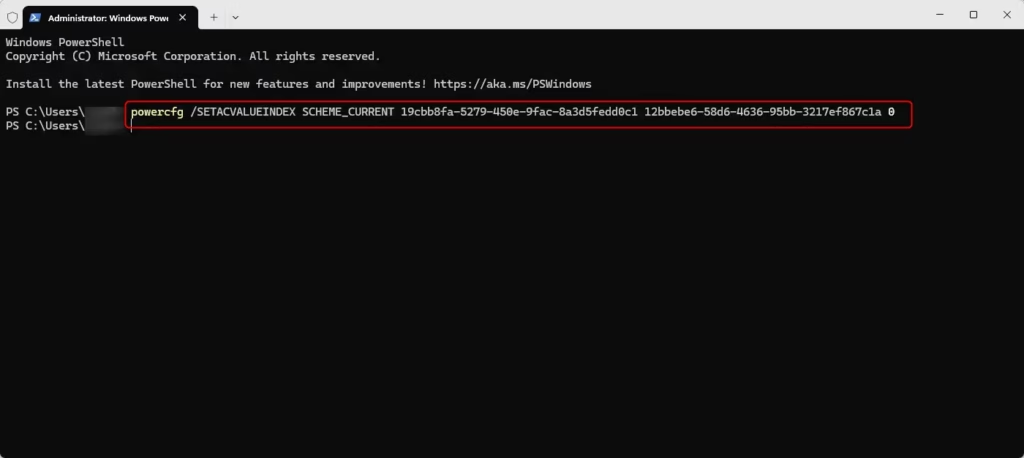
Summary
- Balance speed and battery life: Choose a power saving mode that fits what you need. Do you want faster Wi-Fi or longer battery life?
- Changing settings is easy: Use the Control Panel or Windows Terminal to make changes.
- Know what each mode means: More power saving means less Wi-Fi performance.
- For laptops: You can set different modes for when on battery or plugged in.
- Learn more: Check Intel’s official guide on wireless power management.
Changing your wireless adapter power saving mode lets you balance Wi-Fi speed and battery life, and you can do it easily through Control Panel or commands.
Was this guide helpful?

About the Author
Richard
Tech Writer, IT Professional
Richard, a writer for Geek Rewind, is a tech enthusiast who loves breaking down complex IT topics into simple, easy-to-understand ideas. With years of hands-on experience in system administration and enterprise IT operations, he’s developed a knack for offering practical tips and solutions. Richard aims to make technology more accessible and actionable. He's deeply committed to the Geek Rewind community, always ready to answer questions and engage in discussions.




No comments yet — be the first to share your thoughts!