How to Change Windows Startup Settings in Windows 11

Windows Startup Settings help you fix problems by changing how your PC begins. These settings offer a special way to start Windows, letting you test different startup environments to troubleshoot issues.
When your computer acts up, like a slow startup or a program that won’t run right, Startup Settings gives you options to try. For example, you can boot into Safe Mode, which only loads essential drivers and services.
This mode is incredibly useful for diagnosing problems, as it helps pinpoint if a third-party app or driver is causing the trouble.
Getting to Windows Recovery Environment (WinRE)
To change startup settings, you’ll first need to access a special area called the Windows Recovery Environment, or WinRE. It’s like a mini-Windows that runs outside your normal one. It gives you tools to fix your PC.
Start a Restart
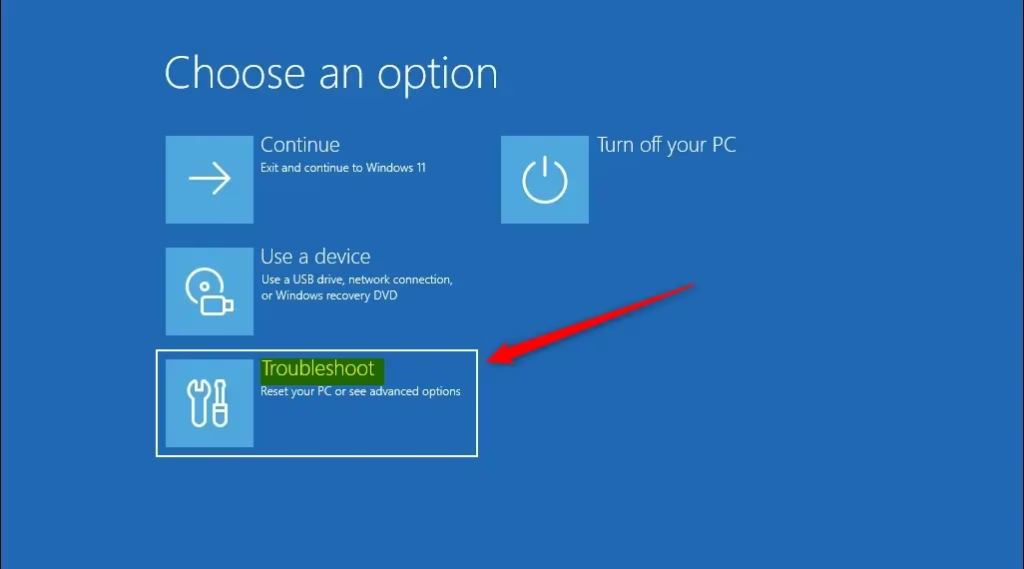
The most accessible way to get to WinRE is to restart your computer. If Windows is running, click the Start button. Then click the Power icon. Hold down the Shift key while you click Restart. Keep holding Shift until you see a blue screen.
Go to Startup Settings
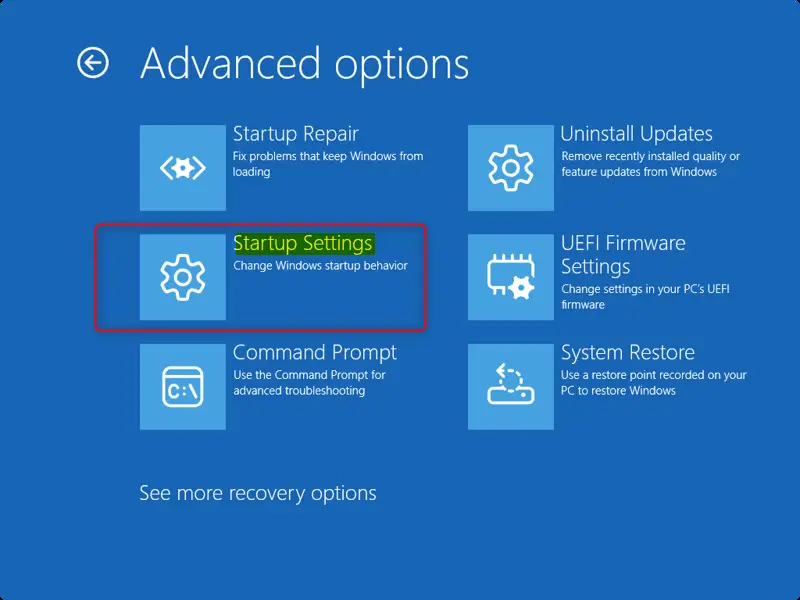
On the blue WinRE screen, you’ll see options. You want to get to the advanced tools. Click on Troubleshoot. On the next screen, choose Advanced options. Finally, click on Startup Settings.
Get Ready to Reboot
The next screen states you can restart your PC to change how Windows starts. This includes options like Safe Mode. Click the Restart button. Your computer will then restart.
Exploring Your Startup Options
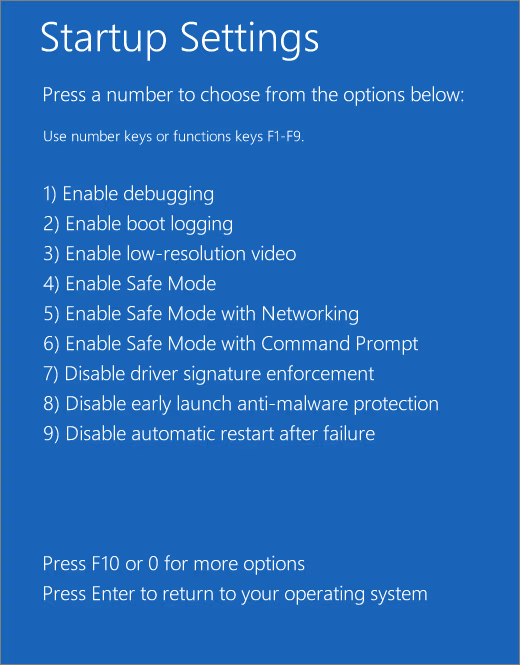
After your PC restarts from the “Startup Settings” screen, you’ll see a list of numbered options. This is where you choose what to do. Use the number keys (1-9) or function keys (F1-F9) on your keyboard. Pressing Enter without choosing a number will start Windows normally.
Common Startup Settings
Windows has several helpful startup settings you can use to fix problems. A common one is Safe Mode, which starts your PC with only the essential parts. This is really useful if your computer is acting strange, like crashing or not starting up properly.
Option 4Enable Safe Mode
This is used most often. Safe Mode starts Windows with only the basic drivers and services needed. It’s like a stripped-down mode for your PC.
Why use it: If your computer is acting weird, like crashing or not starting, Safe Mode is your first step. If the problem doesn’t happen in Safe Mode, it means a program, driver, or setting you added is likely causing the issue, not Windows itself.
Option 5Safe Mode with Networking
This is like Safe Mode but adds network support. You can use the internet and other network resources.
Why use it: If you suspect a network problem is causing issues, or if you need to download tools or drivers in Safe Mode, use this. For example, if you need to download a new graphics card driver because the current one is unstable, you’d use this mode.
Option 6Safe Mode with Command Prompt
This option is suited for users comfortable with command-line interfaces. Rather than the familiar Windows desktop, you’ll see a command prompt window where you can enter commands.
Why use it: If you are comfortable with command-line tools, this mode is powerful for fixing your system. You can use commands to check for disk errors, restore system files, or do other advanced tasks.
Advanced Startup Settings (Use Carefully)
Windows also offers advanced startup settings, but these are usually for tech experts and should be used with caution. Options like enabling debugging or boot logging help diagnose complex system issues. It’s best to avoid these unless you’re told to use them or know exactly what they do.
Option 1Enable debugging
This mode is for advanced troubleshooting, often used by developers to diagnose system crashes and complex issues by sending diagnostic information to another computer over a network.
Option 2Enable boot logging
Choosing this option prompts Windows to create a text file that logs every driver loaded during startup, helping you pinpoint problematic drivers.
Option 3Enable low-resolution video
This starts Windows with basic video settings and a low screen resolution. It’s useful if your screen settings are corrupted. By starting with basic video, you can go into your display settings and correct them.
Option 7Disable Driver Signature Enforcement
Normally, Windows verifies drivers are signed by a trusted source as a security measure. Disabling this allows you to install drivers without this signature, though it’s rarely needed and carries a security risk.
Option 8Disable early launch anti-malware protection
Windows starts your anti-malware software early in the boot process. This protects against malicious code that might load before your security software is ready. Disabling this allows you to bypass that protection.
Why use it: In rare instances, your anti-malware software might interfere with startup. Temporarily disabling this protection can help determine if your security software is causing startup problems.
Option 9Disable automatic restart on system failure
When Windows encounters a serious error (a “Blue Screen of Death” or BSOD), it typically restarts automatically. If the error occurs right at startup, this can lead to a loop. Disabling automatic restart stops this cycle. It allows you to see the error message, which aids in diagnosing the problem.
Why use it: If your computer is stuck in a restart loop after an error, use this setting. It halts the cycle so you can view the error code and troubleshoot.
Exiting Safe Mode
When you’re finished in Safe Mode or any other startup setting, returning to normal Windows is straightforward.
Restart Your PC
Restarting your PC is the simplest way to get out of Safe Mode and back to your normal Windows experience. Just click the Start button, go to the Power icon, and choose Restart. Your computer will then boot up as usual.
Reference:
Summary
Windows Startup Settings and the Recovery Environment are great tools for fixing computer issues. Knowing how to use options like Safe Mode helps you solve problems caused by software or settings. Always remember to restart your PC normally when you’re done troubleshooting to get back to your regular Windows setup.
Was this guide helpful?

About the Author
Richard
Tech Writer, IT Professional
Richard, a writer for Geek Rewind, is a tech enthusiast who loves breaking down complex IT topics into simple, easy-to-understand ideas. With years of hands-on experience in system administration and enterprise IT operations, he’s developed a knack for offering practical tips and solutions. Richard aims to make technology more accessible and actionable. He's deeply committed to the Geek Rewind community, always ready to answer questions and engage in discussions.

No comments yet — be the first to share your thoughts!