

The Search button on your taskbar/” class=”sal-link” rel=”noopener” target=”_blank” data-sal-id=”1014″>Windows 11 Taskbar helps you quickly find files, apps, and settings on your PC.
Windows Search is a built-in tool that lets you search your whole computer or specific folders.
By default, Windows 11 shows a search box on the Taskbar. But you can change how it looks or even hide it if you want.
Some users in Microsoft’s Insider Preview program may see new search button styles, and these options will be available to everyone soon.
You can choose to show:
- Only a search icon
- A search box (the default)
- A search button
- Or hide the search feature completely
Here’s how to change or hide the Search box or button on your Taskbar in Windows 11.
Change the Search Button Style Using Settings
To update your Search button style, follow these easy steps:
- Open the Settings app: Click the Start menu (Windows icon) at the bottom-left of your screen, then click Settings. Or press Windows key + I on your keyboard to open Settings directly.

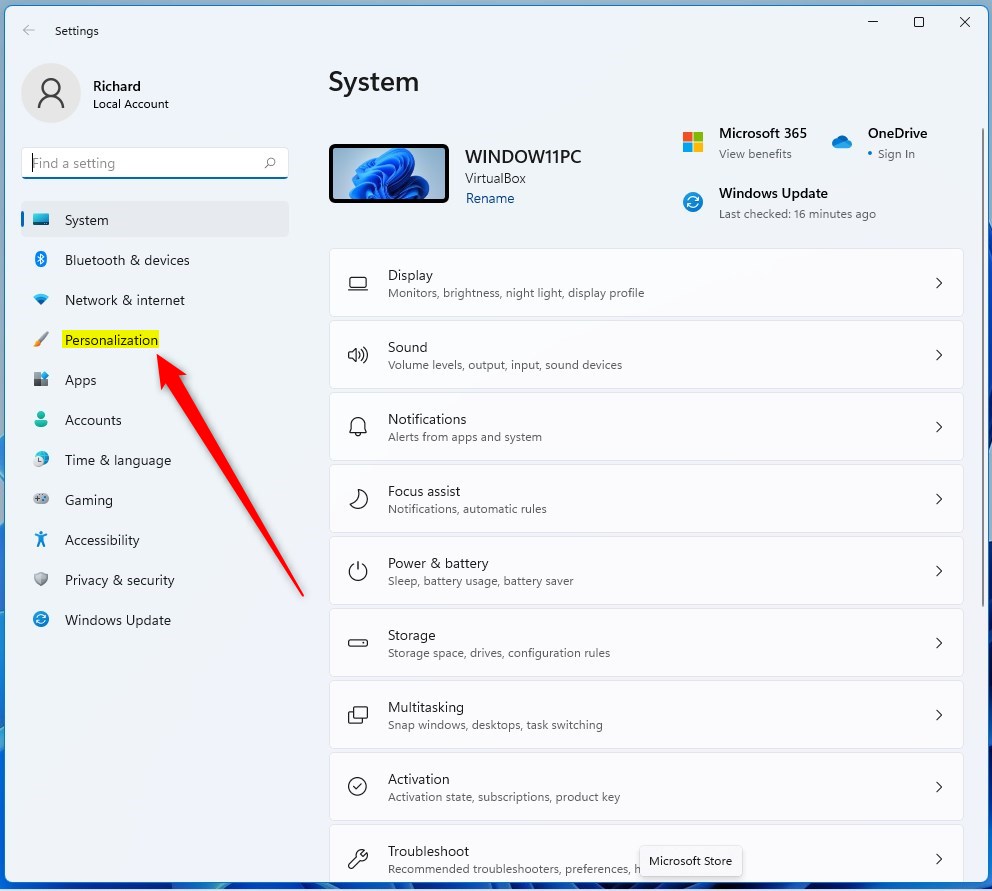
- In Settings, click Personalization on the left side menu.
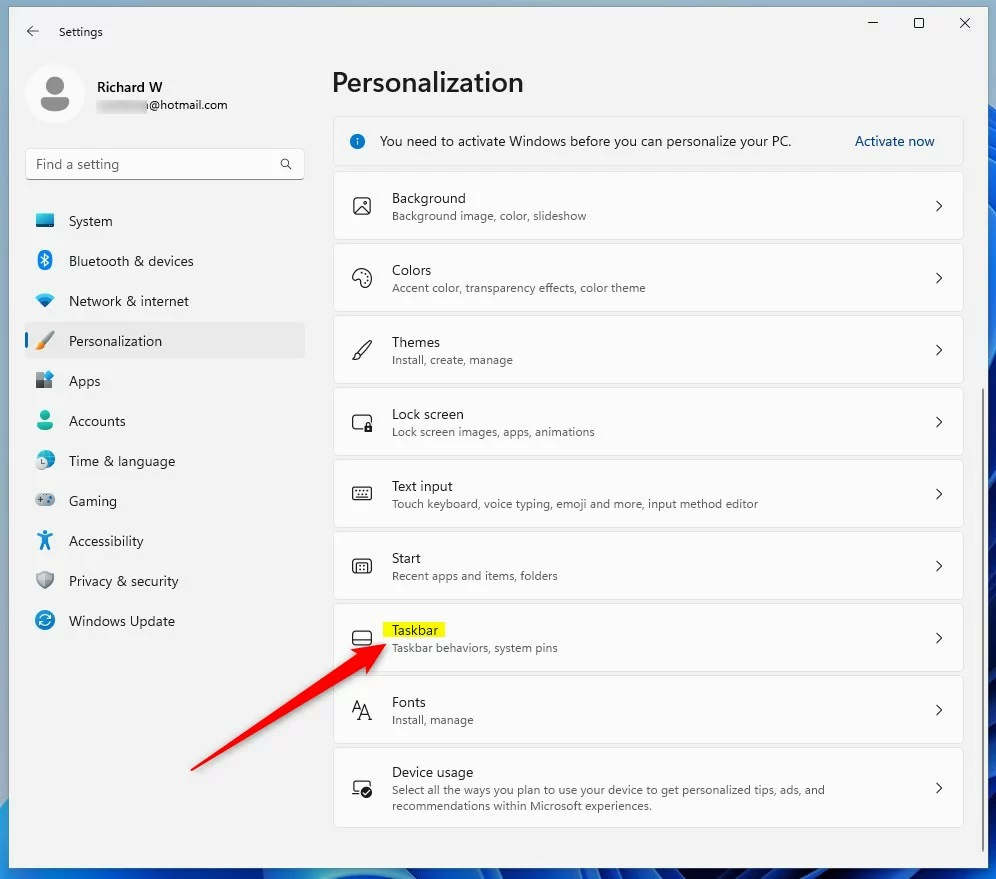
- On the right, click Taskbar.
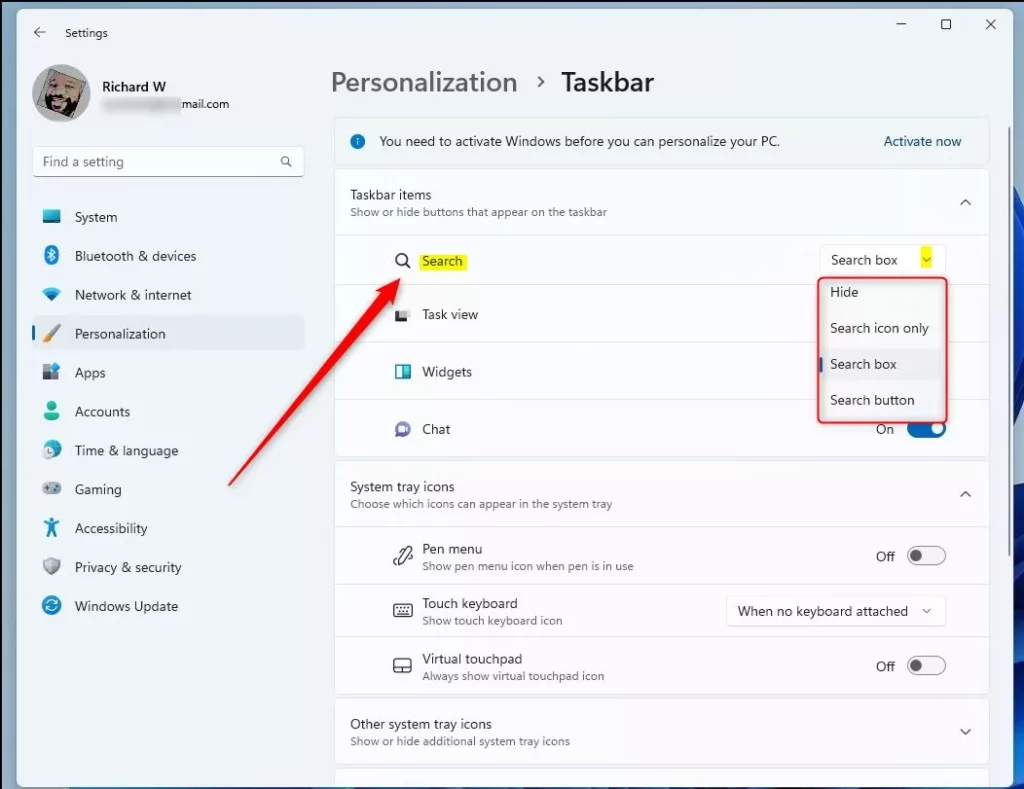
- Scroll to the Taskbar items section, find Search, and click it.
- Pick how you want the Search to look on your Taskbar:
- Hide – No Search button shown
- Search icon only – Just a small magnifying glass icon
- Search box – A box where you can type your search (default)
- Search button – A button style different from the box
Change the Search Box Layout Using Registry Editor (Advanced)
If you want to change the Search button style for all users on your PC, you can use the Windows Registry Editor. Be careful — editing the Registry can cause problems if done incorrectly.
Follow these steps:
- Open the Windows Registry Editor:
- Press Windows key + R, type
regedit, and press Enter. - You can also read how to open the Registry in Windows 11.
- Press Windows key + R, type
- In the Registry Editor, go to this path:
HKEY_CURRENT_USERSoftwareMicrosoftWindowsCurrentVersionSearch
- If you do not see the Search folder under CurrentVersion, right-click CurrentVersion, select New > Key, and name it Search.
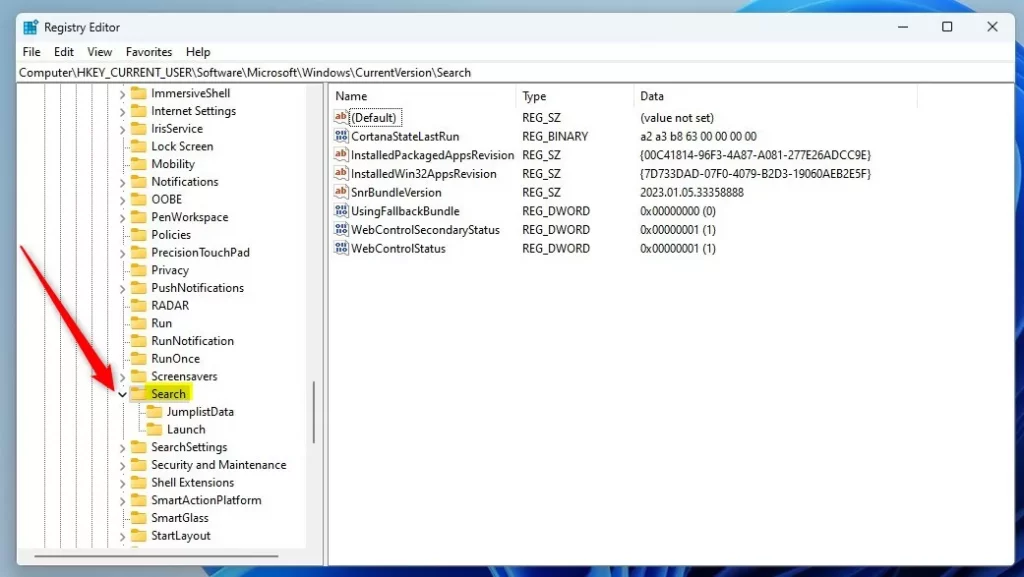
- Click on the Search folder on the left.
- On the right side, right-click in the empty space and choose New > DWORD (32-bit) Value.
- Name this new value SearchboxTaskbarMode.
- Double-click SearchboxTaskbarMode and set its value to one of these numbers:
- 0 – Hide the search box
- 1 – Show search icon only
- 2 – Show search box (default)
- 3 – Show search button
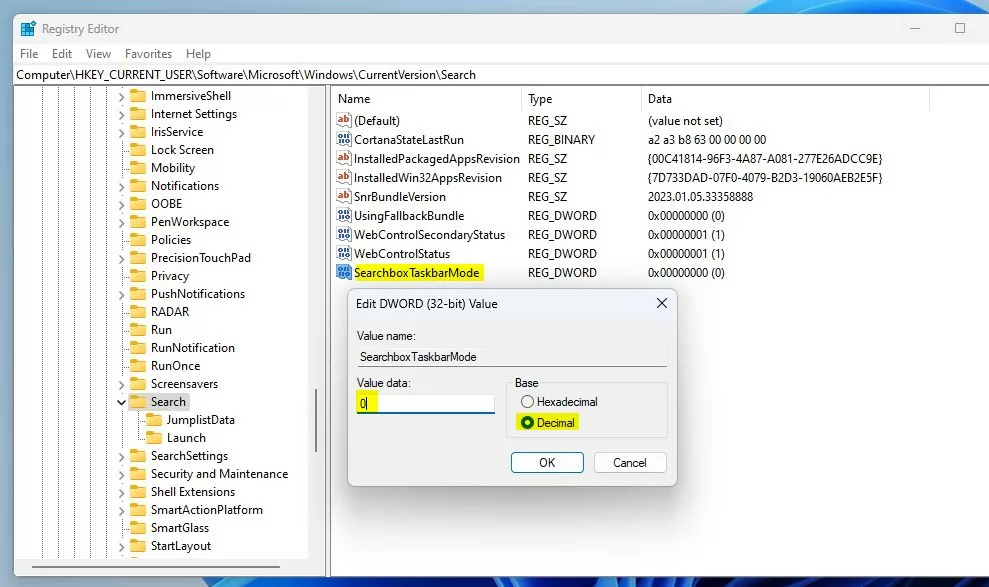
After you set the value, the Taskbar will update right away.

You can now close the Registry Editor.
Summary
- You can change how the Search button looks on your Windows 11 Taskbar using the easy Settings app or the advanced Registry Editor.
- Options include hiding the Search button, showing a small icon, a search box, or a search button.
- If you’re part of Microsoft’s Insider Preview, you might see new styles coming soon.
If you want to learn more about the Search feature in Windows 11, check out this helpful guide: How to Search and Find Documents in Windows 11.



Leave a Reply