
Sometimes, your Windows 11 computer’s clock may show the wrong time. Don’t worry! This guide will show you simple ways to fix it.
⚠️ Admin Required: You need to be signed in as an administrator to change the time on your PC.
Why Does Your PC’s Time Matter?
Your computer’s clock does important work behind the scenes. It stamps the date and time on every file you create or change. It also helps your PC run scheduled tasks at the correct moment. If your time is wrong, your files may show incorrect dates.
Option 1: Change Time Using Windows Settings
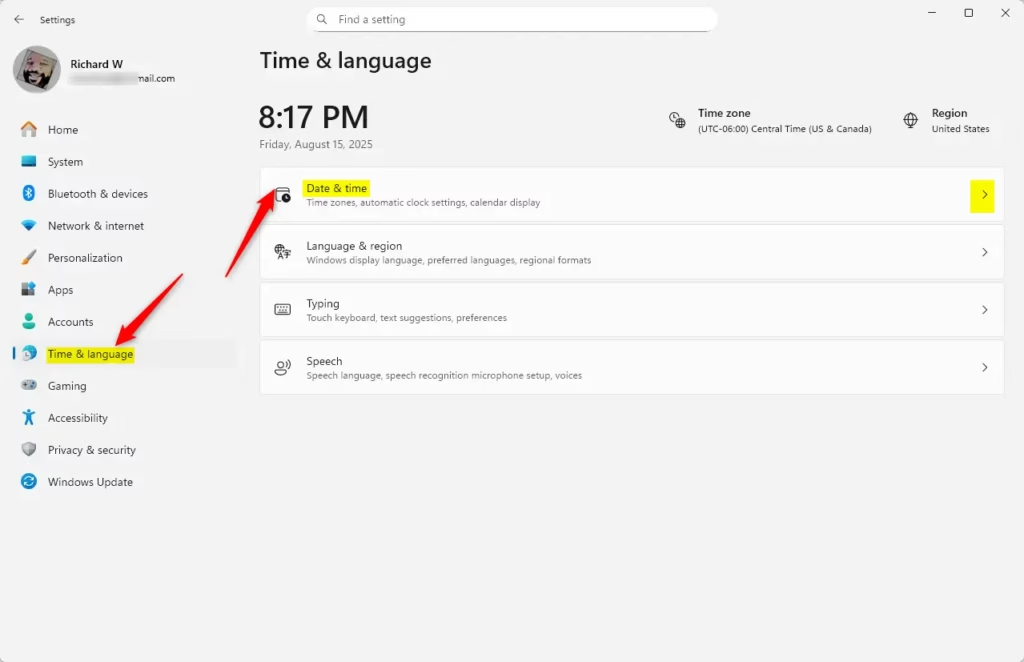
- Press
Win + Ion your keyboard to open Settings. - Click Time & language on the left side.
- Click Date & time on the right side.
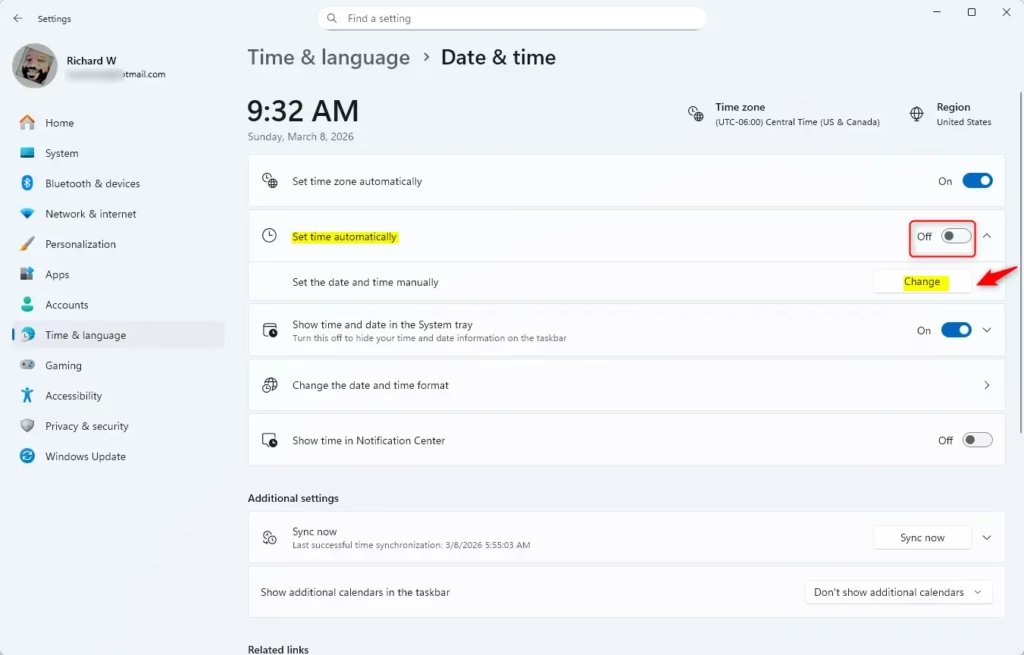
- Turn off Set time automatically if it’s turned on. This lets you make changes manually.
- Click the Change button under “Set the date and time manually.”
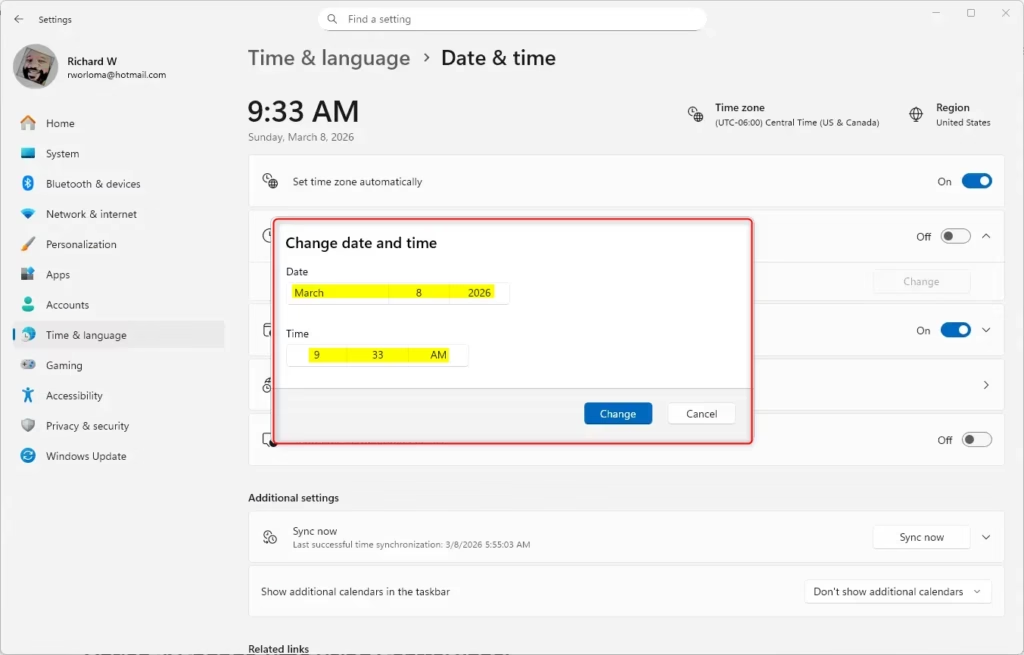
- Pick the correct date and time from the popup window.
- Click Change to save your new time.
- Close the Settings window.
Option 2: Change Time Using Control Panel
- Search for Control Panel in the Start menu and open it.
- Make sure the view is set to Large icons or Small icons.
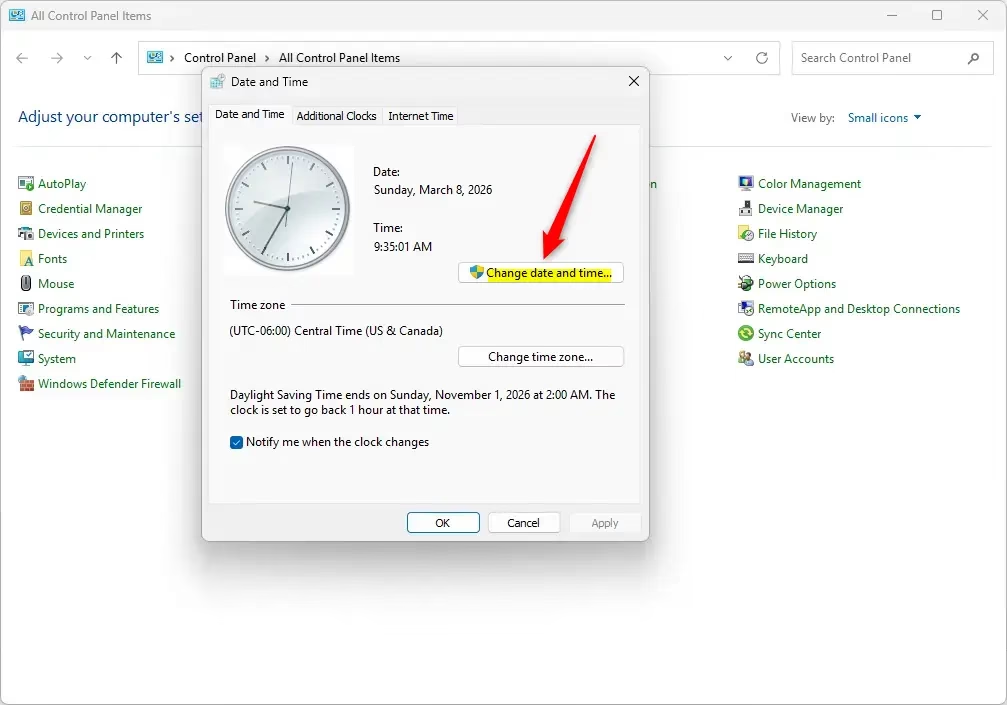
- Click Date and Time.
- In the Date and Time window, click Change date and time… button.
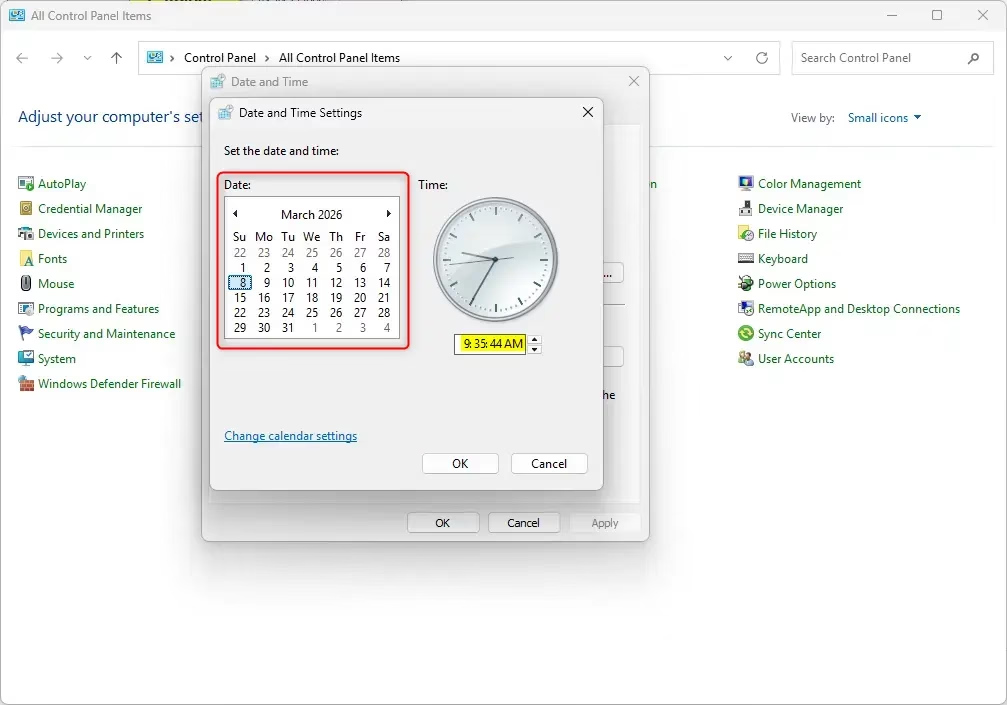
- Select the correct date and time from the calendar and clock.
- Click OK to save.
- Click OK again to close the window.
Option 3: Change Time Using Command Prompt
⚠️ Admin Required: You must run Command Prompt as an administrator for this method.
This method uses text commands to set your time. Follow these steps carefully:
- Right-click the Start button and select Terminal (Admin) or Command Prompt (Admin).
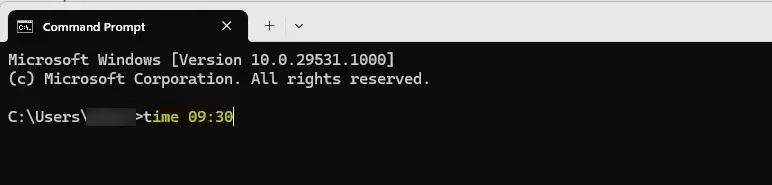
- Type this command and press Enter:
time HH:MM - Replace
HHwith the hour andMMwith the minutes. Use 24-hour format (for example, 14:30 for 2:30 PM).
Examples:
time 10:34– sets time to 10:34 AMtime 22:15– sets time to 10:15 PM
Close the terminal window when you’re done.
Option 4: Change Time Using PowerShell
⚠️ Admin Required: You must run PowerShell as an administrator for this method.
PowerShell is another way to set the time using commands:
- Right-click the Start button and select Terminal (Admin).
- From the dropdown menu at the top, select Windows PowerShell.
- Type this command and press Enter:
Set-Date -Date "HH:MM" - Replace
HHandMMwith the hour and minutes you want. You can add AM or PM if you like.
Examples:
Set-Date -Date "10:34 AM"Set-Date -Date "3:45 PM"
Close the terminal when finished.
Things to Remember
- You need admin rights to change the time.
- Be careful when changing the time. Wrong time settings can cause problems with your files and tasks that run on a schedule.
- After changing the time, double-check it to make sure it’s correct.
- If you want to learn more about what time is, check out this Wikipedia page.
Summary
Changing the time on your Windows 11 PC is easy. You have four options: use the Settings app, Control Panel, Command Prompt, or PowerShell. Each method works well. Remember that you need admin rights to make these changes. Pick the method that feels easiest for you, set the correct time, and verify your changes. Your PC will now show the right time!



Leave a Reply