
The text cursor is the blinking line you see when you type in Windows. It flashes on and off to help you see where you are typing.
The cursor blink rate controls how fast or slow that line blinks. By default, it blinks about every half second. But you can make it blink faster, slower, or not at all.
Why change it? Some people find a slower blink easier on their eyes. Others prefer a faster blink to see the cursor more clearly.
Option 1: Change the Cursor Blink Rate Using Settings
Note: This option only works if your Windows 11 is updated to build 26100.7309 (24H2) or 26200.7309 (25H2) or newer.
- Press the Windows key + I on your keyboard to open Settings.
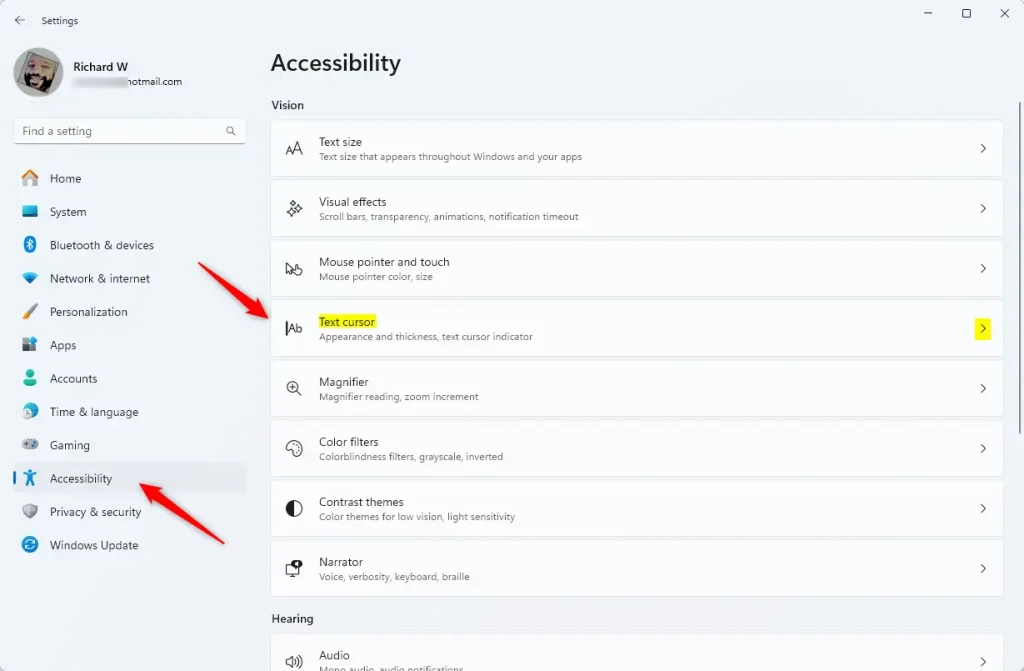
- On the left side, click Accessibility.
- On the right, scroll down and click Text cursor.
- Or click this link to open the Text cursor settings directly: Open Text Cursor Settings
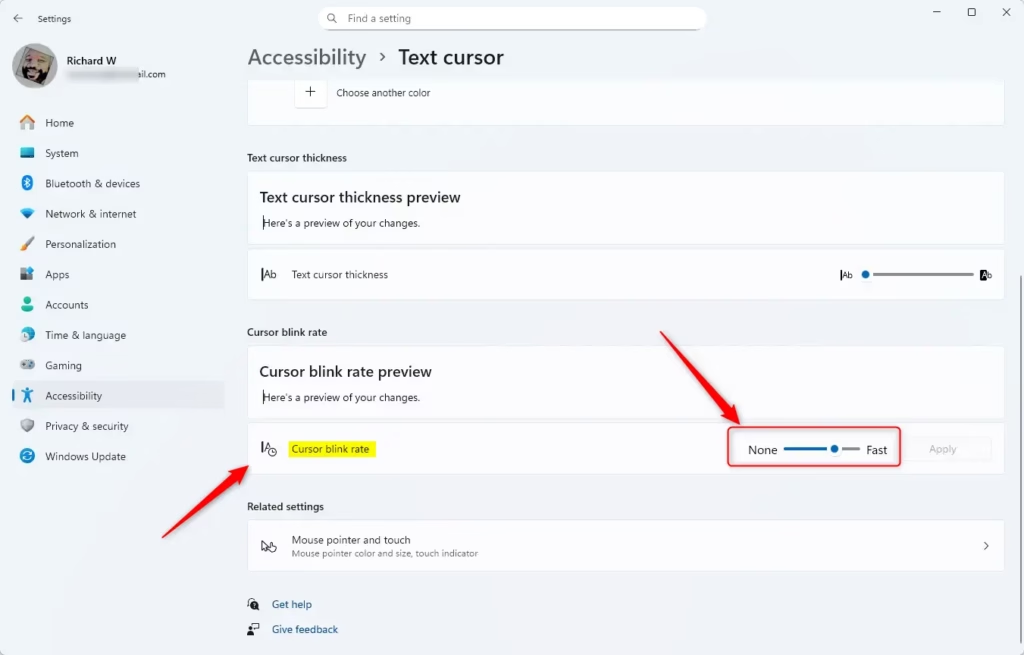
- Find the slider under Cursor blink rate.
- Move the slider left or right. Choose a speed between 200 (fast) and 1300 (slow) milliseconds.
- Click Apply to save your changes.
- Close the Settings window when done.
Tip: The default blink rate is around 970 milliseconds.
Option 2: Change the Cursor Blink Rate Using Control Panel
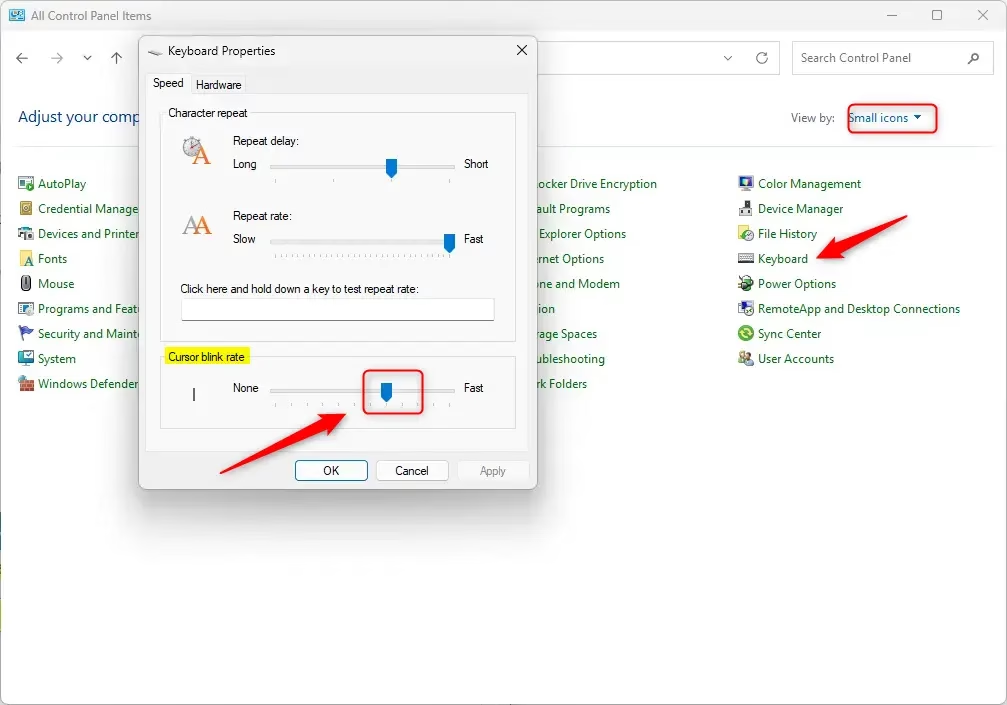
- Open Control Panel by typing it in the Start menu search and clicking it.
- Make sure the view is set to Icons (not Category).
- Click on the Keyboard icon.
- Click the Speed tab.
- Under Cursor blink rate, move the slider to your preferred speed.
- Click OK to save.
Option 3: Change the Cursor Blink Rate Using Registry Editor (Advanced)
Warning: This method is for advanced users only. Be careful when changing registry settings. One wrong change can cause problems.
- ⚠️ ADMIN PRIVILEGES REQUIRED Press Windows key + R, type
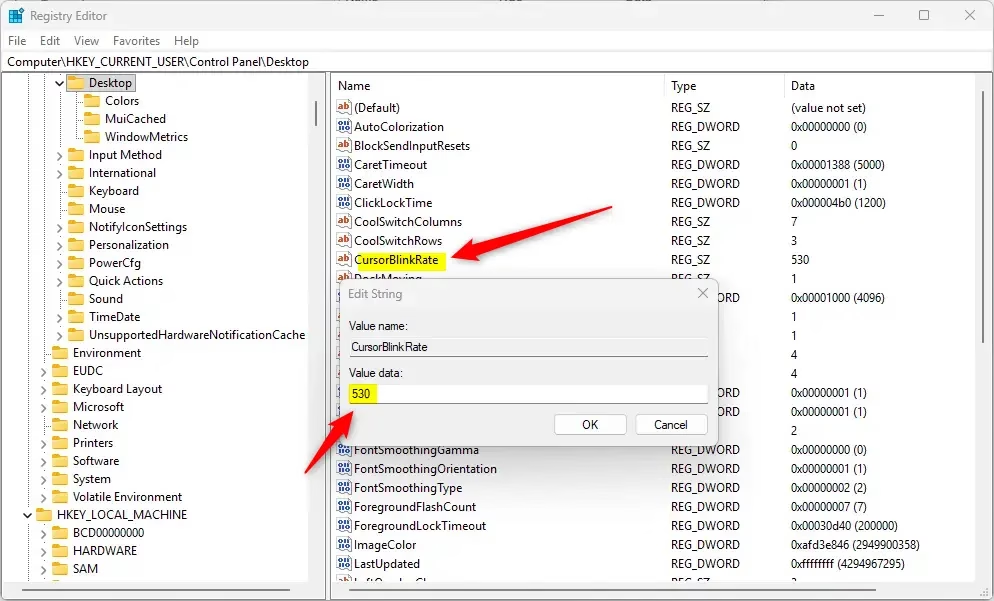
regedit, and press Enter to open the Registry Editor. - Use the panel on the left to go to this folder:
HKEY_CURRENT_USER\Control Panel\Desktop - On the right side, find CursorBlinkRate and double-click it.
- Type a number between 200 (fast) and 1200 (slow) to set the blink rate in milliseconds.
- Type
-1if you want to stop the cursor from blinking completely. - Click OK to save.
- Close the Registry Editor.
- Sign out and sign back in, or restart your computer for the change to take effect.
Summary
The text cursor blink rate controls how fast the blinking line flashes while you type. You have three ways to change it: through Settings, Control Panel, or Registry Editor.
What you learned:
- The default blink speed is about 970 milliseconds.
- You can set the blink rate between 200 (fast) and 1300 (slow) milliseconds.
- You can set it to
-1to stop the cursor from blinking at all. - Settings is the easiest method if your Windows version supports it.
- If you use Registry Editor, you need to sign out or restart your PC for changes to take effect.
Try adjusting the blink rate to what feels best for you while typing!


Leave a Reply