Change Voice and Speed for Read Aloud in Microsoft Edge

You can change the voice and speed of Microsoft Edge’s Read Aloud feature directly from the toolbar that appears when the feature is active.
Microsoft Edge’s Read Aloud is a built-in text-to-speech tool that converts written content into spoken audio, perfect for listening to web pages, PDFs, and eBooks.
This feature offers accessibility benefits and a more convenient way to consume information. When Read Aloud is running, a simple toolbar surfaces.
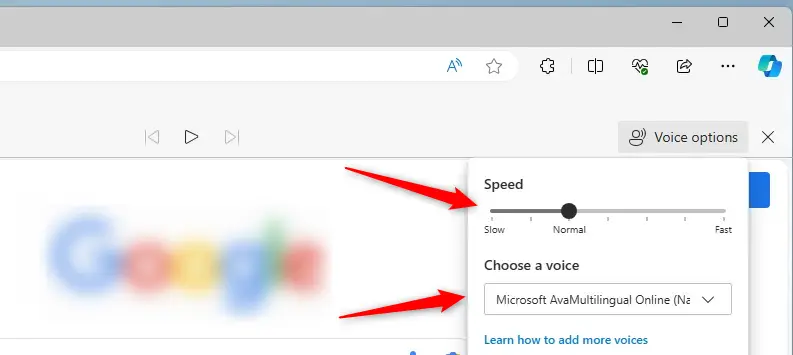
Click “Voice options” on this toolbar to access a slider for adjusting narration speed and a selection of different voices and accents, including options like “Hazel” and “Guy” in various regional accents.
Access the Read Aloud toolbar when the feature is active. Click “Voice options” to adjust the narration speed with a slider and select different voices and accents.
Change Read aloud voice and speed in Edge
Changing the voice and speed is possible once you know where to look. Here’s how.
First, open Microsoft Edge and start Read aloud.
Then, on the “Read aloud” toolbar, under the address bar, click the Voice options button.
From the voice options, you can adjust the speed and pick a voice. You might need to download language packs for different accents. Good news: these settings work online and offline.
And that’s all there is to it!
Conclusion:
- Microsoft Edge’s Read Aloud feature provides a text-to-speech tool for web pages, PDFs, and eBooks, catering to users with difficulty reading or prefer audio content.
- Users can easily change the Read Aloud voice and reading speed to suit their preferences, with the option to choose from various voices and accents and adjust the narration pace to their liking.
- Accessible settings for different accents and languages, coupled with the ability to use these features online and offline, make the Read Aloud feature in Microsoft Edge an inclusive and versatile tool for diverse users.
How do I get Microsoft Edge to Read Aloud from a specific page?
Yes—launch Read aloud from the address bar or the Settings and more menu. To hear specific content, select the text of what you'd like to hear, then right-click (or press and hold) and select Read aloud selection.
Was this guide helpful?

About the Author
Richard
Tech Writer, IT Professional
Richard, a writer for Geek Rewind, is a tech enthusiast who loves breaking down complex IT topics into simple, easy-to-understand ideas. With years of hands-on experience in system administration and enterprise IT operations, he’s developed a knack for offering practical tips and solutions. Richard aims to make technology more accessible and actionable. He's deeply committed to the Geek Rewind community, always ready to answer questions and engage in discussions.




No comments yet — be the first to share your thoughts!