How to Use Read Aloud in Microsoft Edge

Microsoft Edge’s Read Aloud feature lets you have web pages, PDFs, and eBooks read to you with natural-sounding voices.
This built-in text-to-speech tool transforms written content into spoken audio, making browsing more accessible for everyone.
It’s perfect if you learn better by listening or find reading difficult. You can customize your experience by adjusting the reading speed, choosing different voices, and controlling the volume.
To use it, simply open a webpage or PDF in Edge and click the Read Aloud button, usually found in the address bar or browser toolbar.
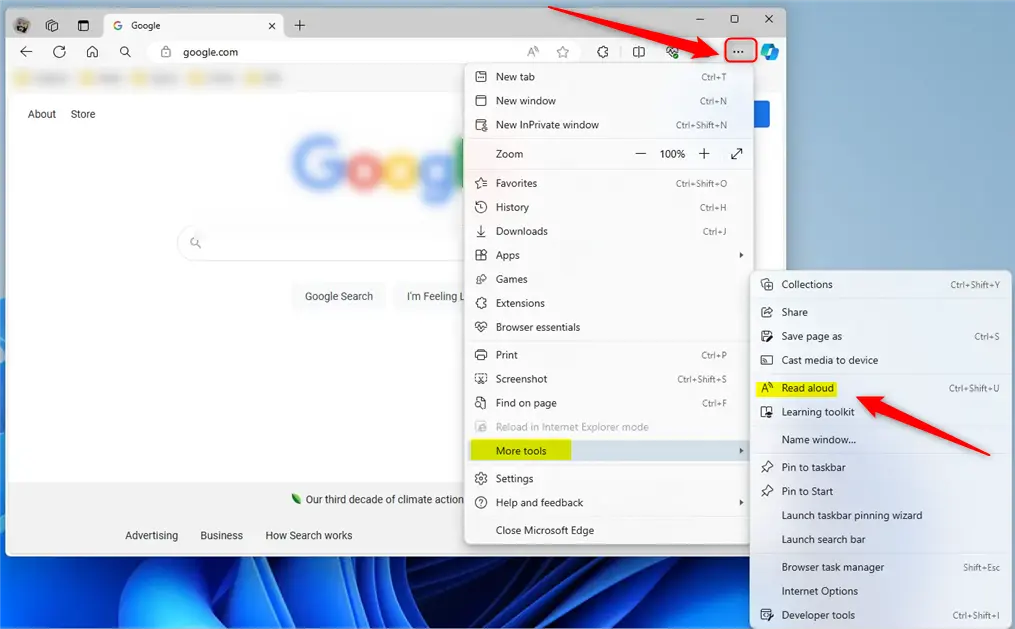
Activate Read Aloud by right-clicking any webpage and selecting “Read Aloud,” or by pressing Ctrl+Shift+U. Use the same shortcut or the toolbar that appears to pause, resume, and close the feature. You can also find it under the three-dot menu in “More tools.
Start and close the “Read Aloud” feature in Microsoft Edge
You can easily start and stop the Read Aloud feature in Microsoft Edge to have web pages read to you.
Here’s how:
Open Microsoft Edge. To begin, right-click anywhere on the page and choose ‘Read Aloud.’ You can also use the keyboard shortcut: Ctrl+Shift+U.
To stop the reading, press Ctrl+Shift+U again. You’ll see a ‘Pause’ button you can click, and then a ‘Close’ button to exit the feature.
Another way to start is by clicking the three dots for ‘Settings and more’ in the top-right corner. Then, select ‘More tools’ and click ‘Read aloud.’
Read selected text
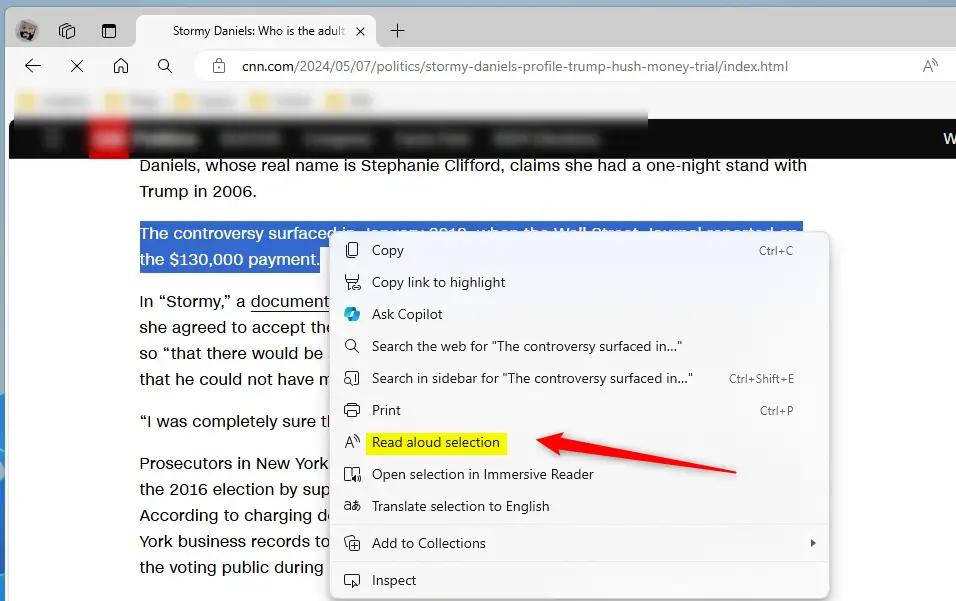
If you only want a specific part of a web page read aloud, you can select just that text in Microsoft Edge.
Use the ‘Read aloud’ toolbar, located under the address bar, to Pause, Continue, go to the Previous or Next section, or Close the feature.

That should do it!
Reference:
Conclusion:
- The “Read Aloud” feature in Microsoft Edge is a valuable tool for people with difficulty reading or who prefer audio content.
- This feature allows users to have web pages, PDFs, and eBooks read out loud with natural-sounding voices.
- Users can adjust the reading speed, voice, and volume, making it a customizable experience.
- Following the simple steps, users can easily start and close the “Read Aloud” feature in Microsoft Edge and read the selected text on web pages.
- The post also includes helpful images to guide users through the process, ensuring a seamless experience.
- Users can refer to the provided Microsoft.com link for further customization and additional features.
How do I get Microsoft Edge to Read Aloud from a specific page?
Yes—launch Read aloud from the address bar or the Settings and more menu. To hear specific content, select the text of what you'd like to hear, then right-click (or press and hold) and select Read aloud selection.
What is the shortcut for Read Aloud in Edge?
To use the Read Aloud tool in Microsoft Edge, right click on the text you want to start reading and select Read aloud (the keyboard shortcut is Ctrl+Shift+U).
Was this guide helpful?

About the Author
Richard
Tech Writer, IT Professional
Richard, a writer for Geek Rewind, is a tech enthusiast who loves breaking down complex IT topics into simple, easy-to-understand ideas. With years of hands-on experience in system administration and enterprise IT operations, he’s developed a knack for offering practical tips and solutions. Richard aims to make technology more accessible and actionable. He's deeply committed to the Geek Rewind community, always ready to answer questions and engage in discussions.
📚 Related Tutorials




No comments yet — be the first to share your thoughts!