

This article explains how to change the display name of your account in Windows 11. Your display name is the full name shown on the Sign-in screen, Start Menu, and Settings. It’s different from your username, which is what you use to sign in.
When you first create a Microsoft account, you set a full name that becomes your display name. If you use a Local accounts, Windows uses your username as the display name by default.
Why does this matter? Your display name helps other people recognize your account when they look at your computer. It also appears in different places on your computer, making it easier to identify your profile.
Why Change Your Display Name?
You might want to update your display name if you got married, prefer a different name, or want your account to show a professional name instead of a username.
Method 1: Using Netplwiz
Here’s the easiest way to change your display name.
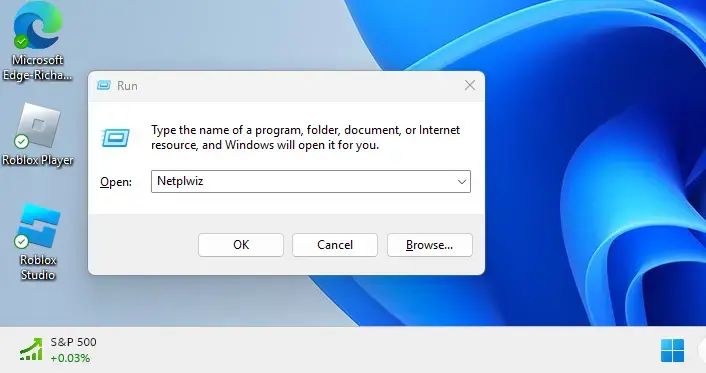
- Press the Windows key + R on your keyboard to open the Run window.
- Type
Netplwizand press Enter. Or, you can search for “Netplwiz” using Windows search.
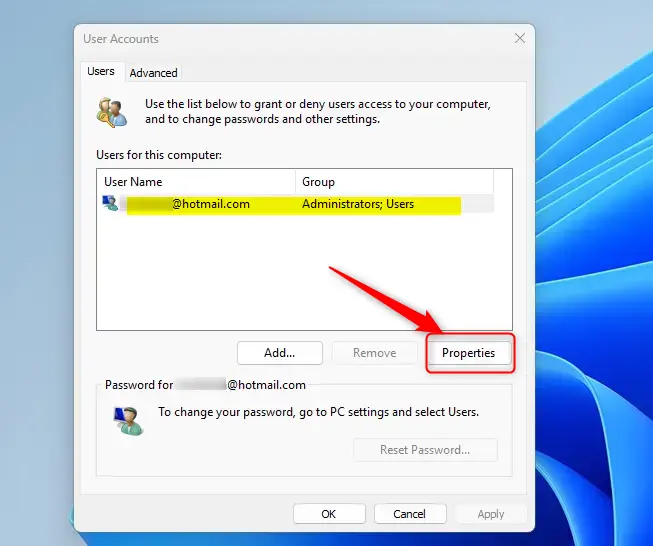
- A window will open showing all user accounts on your computer. Click the account you want to change.
- Click the Properties button.
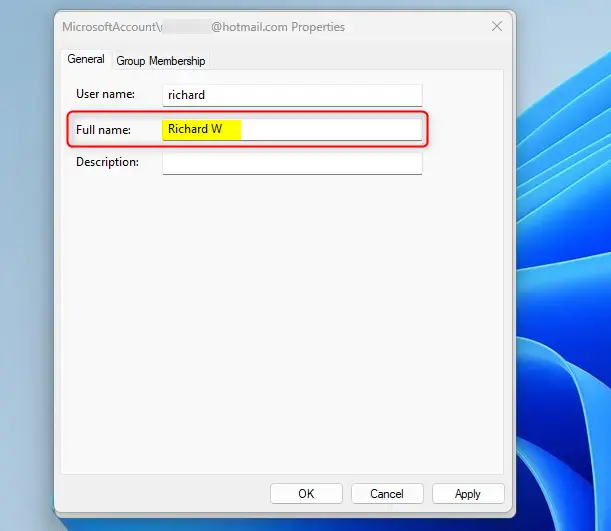
- Under the General tab, you’ll see a box labeled Full name. Delete the current name and type your new display name.
- Click OK to save your changes.
Method 2: Using Local Users and Groups Console
This method gives you more control over your account settings. Note: This method requires admin privileges.
- Press Windows key + R to open the Run window.
- Type
lusrmgr.mscand press Enter. This opens the Local Users and Groups console.
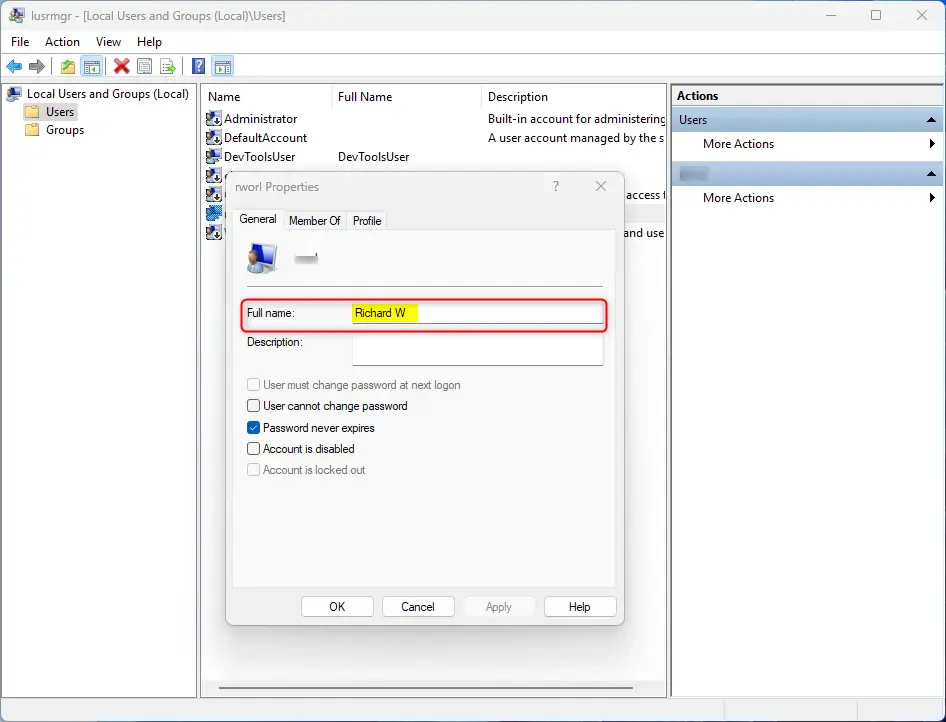
- In the left panel, click the Users folder to see all accounts.
- Find the account you want to change and double-click it to open it.
- Find the Full name field, delete the current name, and type your new display name.
- Click OK to save your changes.
What Happens After You Change Your Display Name?
Your new display name will show up in several places right away. You’ll see it on the Windows Sign-in screen, in the Start Menu, and in your Settings. Any other people who share your computer will also see the new name.
Summary
Changing your display name in Windows 11 is simple. You can use either the Netplwiz tool or the Local Users and Groups console. Both methods take just a few clicks. Your new display name will appear on your Sign-in screen, Start Menu, and Settings. Microsoft accounts use the name you set when you created the account, while local accounts use the username by default. Make sure to use a name you’re happy with, as it’s what others will see on your computer.
Frequently Asked Questions
How do I change my display name in Windows 11?
What is the difference between display name and username in Windows 11?
Can I change my display name for a Microsoft account in Windows 11?
What is the purpose of changing the display name in Windows 11?
Is it possible to change the display name for local accounts in Windows 11?



Leave a Reply Cancel reply