How to Change Text Cursor Thickness in Windows 11

You can change the thickness of your cursor-indicator-in-windows-11/" class="sal-link" rel="noopener" target="_blank" data-sal-id="7376">text cursor in Windows 11 to improve visibility while typing.
The text cursor, also known as the caret, is that blinking vertical line indicating where your next character will appear.
Unlike the mouse pointer, which is an arrow for navigation, the text cursor is crucial for precise text input. Many users find the default thin line difficult to spot, especially on high-resolution displays or for those with visual impairments.
Windows 11 allows you to adjust this thickness, with options ranging from 1 to 20. This simple adjustment can significantly boost your typing comfort and accuracy.
Why Adjust Text Cursor Thickness?
Why? Modern high-resolution monitors make small elements like the default text cursor hard to see. If you have vision impairments or simply find the thin line difficult to track, increasing its size reduces eye strain and helps you maintain focus while typing.
What happens when done? Once you increase the thickness, the cursor becomes a bold, easy-to-spot line. This makes it much faster to locate your place in long documents or web forms.
How to Change Text Cursor Thickness in Windows 11
The easiest way to change this is through the Windows Accessibility settings.
- Open the Settings app by pressing Windows Key + I.
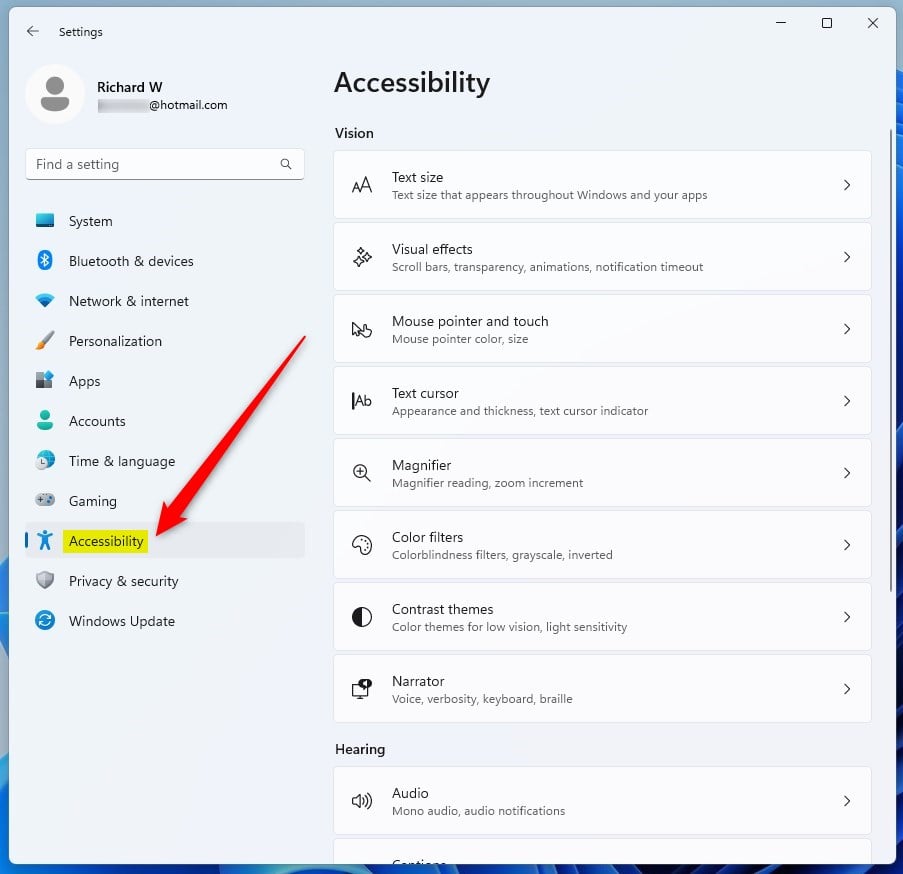
- Click on Accessibility in the left menu.
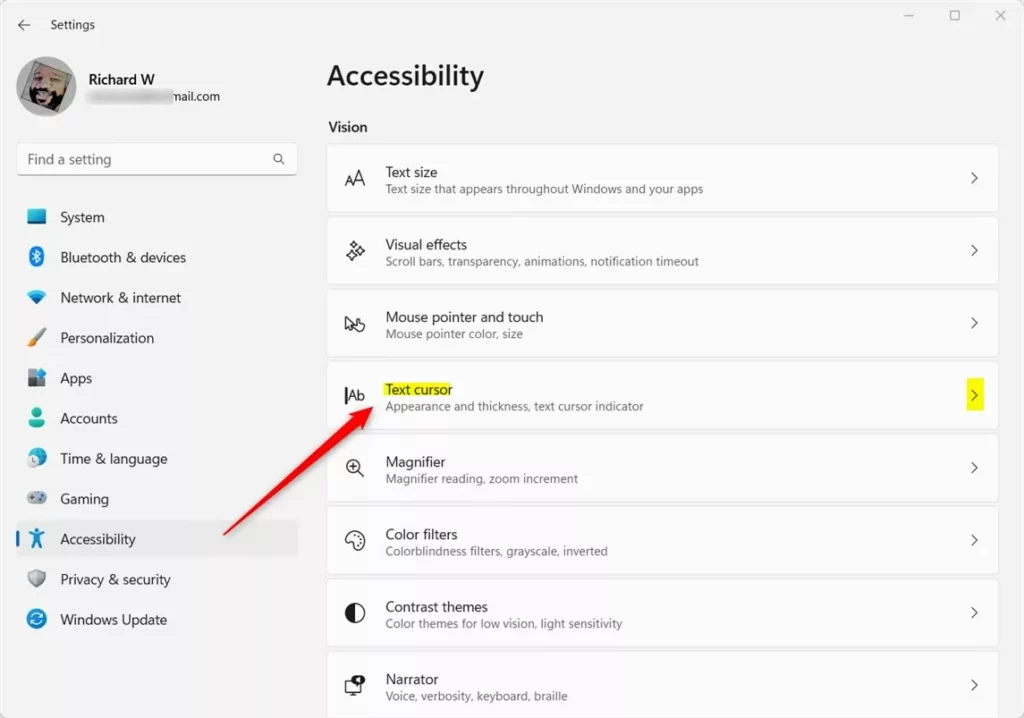
- Select the Text cursor tile on the right side.
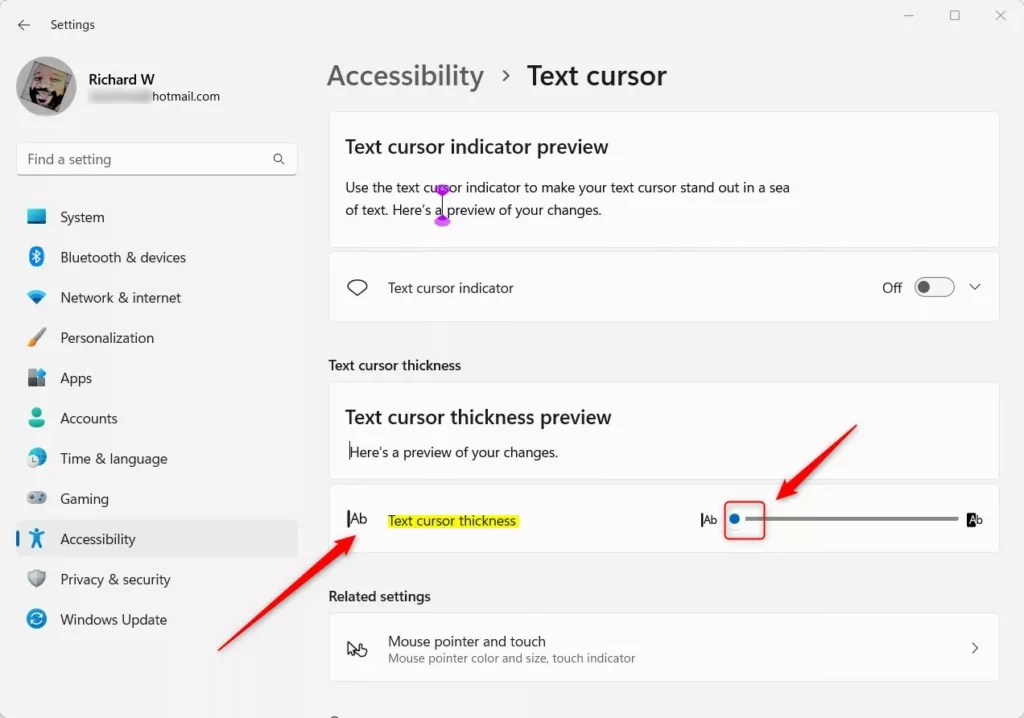
- Use the slider under Text cursor thickness to make the line wider.
Pro Tip: Use the Text Cursor Indicator
If you do not want a thick line, try the Text Cursor Indicator. This feature adds a colored circle around your cursor. It is often more effective than just making the line thicker because it draws your eye to the exact spot without blocking your text. You can find this option right above the thickness slider in the Accessibility menu.
Troubleshooting: Why is my cursor a thick block?
If your cursor suddenly looks like a large, solid block, you may have accidentally enabled ‘Insert’ mode in some applications, or your accessibility settings might be set to maximum thickness. Check your Accessibility settings to ensure the slider is set to your preferred width. For more details on accessibility, visit the official Microsoft Accessibility support page.
Advanced: Changing Cursor via Registry
Note: This step requires admin privileges. Editing the registry incorrectly can cause system issues. Proceed with caution.
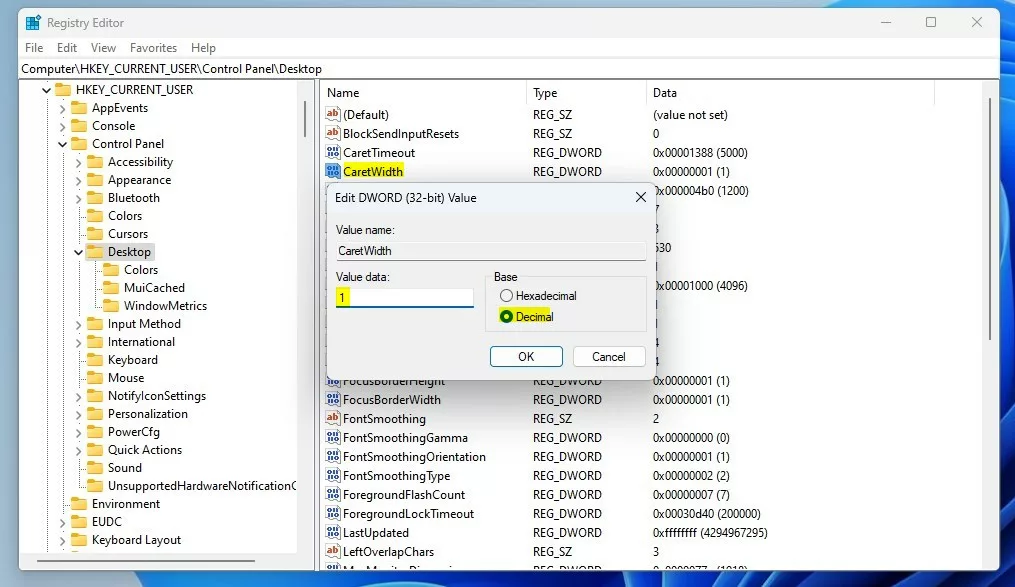
- Press Windows Key + R, type
regedit, and hit Enter. - Navigate to:
HKEY_CURRENT_USER\Control Panel\Desktop
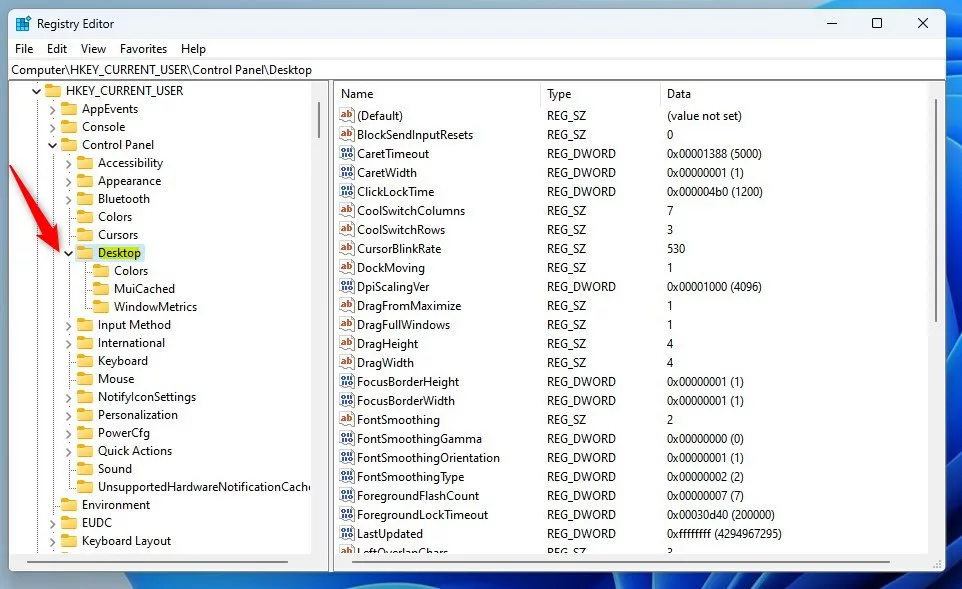
- Right-click in the empty space, select New > DWORD (32-bit) Value.
- Name it
CaretWidth. - Double-click it, set the Base to Decimal, and enter a value between 1 and 20.
Summary
Adjusting your text cursor makes typing more comfortable and efficient. Whether you use the simple slider in the Accessibility menu or the advanced Registry method, you can customize the cursor to suit your needs. Remember that the Text Cursor Indicator is a great alternative if you prefer not to change the thickness of the line itself.
What is the difference between the mouse pointer and the text cursor?
The mouse pointer is the arrow used to navigate and click items on your screen. The text cursor, or I-beam pointer, is the blinking vertical line that indicates your current position in a document or text field. While the mouse pointer interacts with the interface, the text cursor shows where your typed characters will land.
How do I change the color of the text cursor?
You can change the color by enabling the Text Cursor Indicator in the Accessibility settings. Once turned on, you can choose a custom color from the suggested palette or pick a specific color that stands out against your background. This adds a colored bubble around the cursor to make it highly visible.
Was this guide helpful?

About the Author
Richard
Tech Writer, IT Professional
Richard, a writer for Geek Rewind, is a tech enthusiast who loves breaking down complex IT topics into simple, easy-to-understand ideas. With years of hands-on experience in system administration and enterprise IT operations, he’s developed a knack for offering practical tips and solutions. Richard aims to make technology more accessible and actionable. He's deeply committed to the Geek Rewind community, always ready to answer questions and engage in discussions.




No comments yet — be the first to share your thoughts!