

This article describes changing the Task Manager app theme in Windows 11.
Task Manager app has been part of Windows since early Windows NT 4.0 / 2000, allowing users to view tasks (processes), start-up programs, services, and the computer’s overall performance.
Starting with Windows 11 build 25247, Microsoft has added the ability to use your preferred theme in Task Manager regardless of the active system’s theme in Windows.
Task Manager now also supports themes for in-app dialog. You can use light, dark, or system-setting app themes for Task Manager.
Below is how to change the Task Manager app theme in Windows 11.
Change the task manager app theme in Windows 11
As described above, Microsoft has added the ability to use your preferred theme in Task Manager regardless of the active system’s theme in Windows.
Here’s how to change the theme for the Task Manager app.
First, open the Task Manager app. You can also use the keyboard shortcut (Ctrl + Shift + Esc) to launch the app.
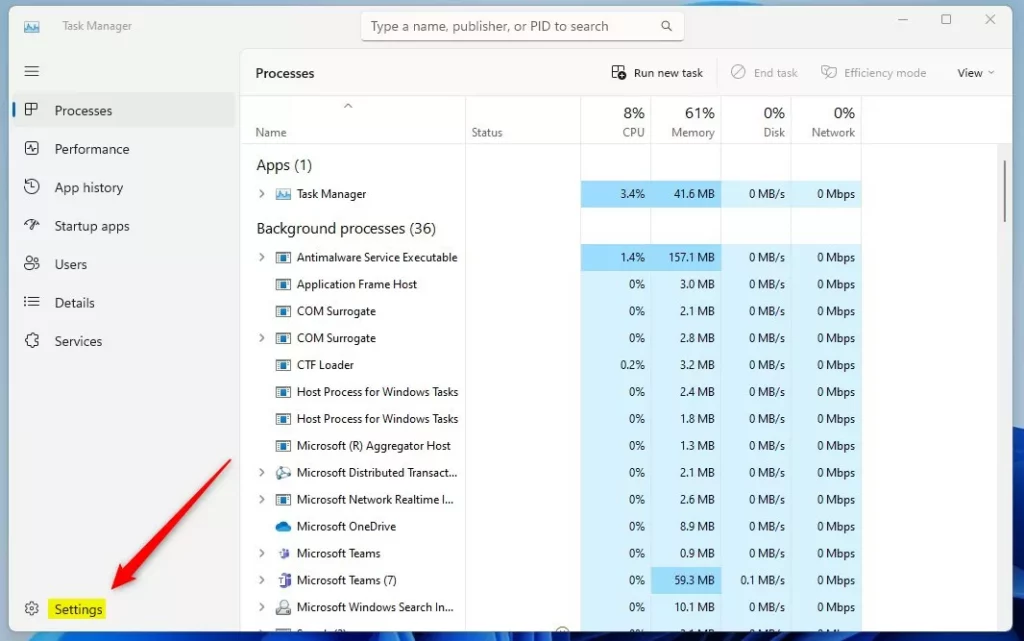
When the app opens, click Settings at the bottom left corner.
On the Settings page, under App theme, choose a theme from Light, Dark, or Use system settings.
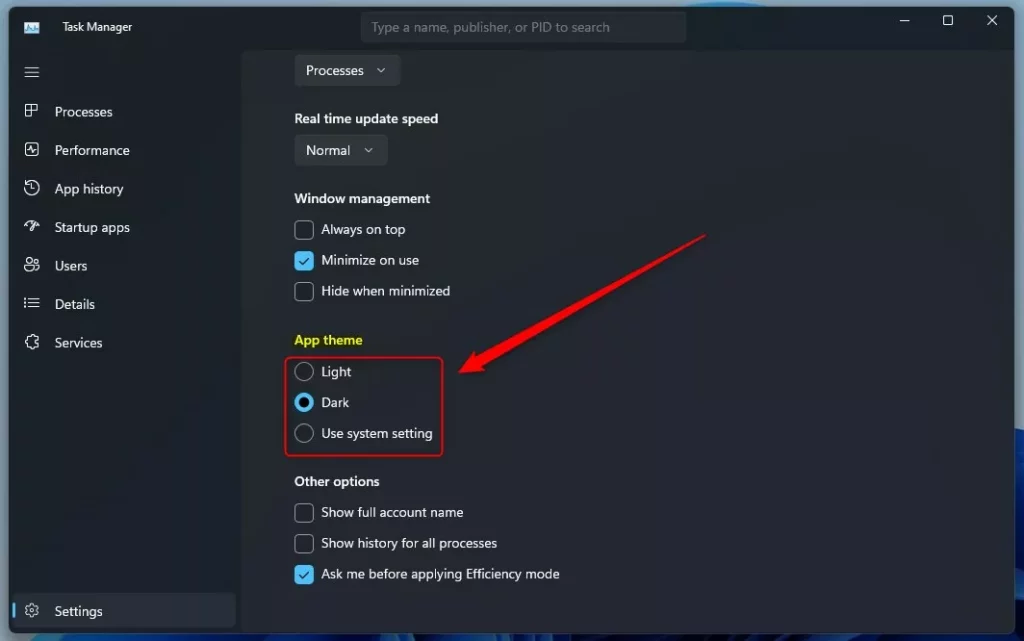
Your selection will immediately apply after you choose.
That should do it!
Conclusion:
- Windows 11 task manager theme can now be customized with the addition of the latest update
- Users can select from light, dark, or system-setting themes for the task manager app.
- The chosen theme applies immediately, providing a seamless customization experience for users.
Leave a Reply to How to Enable or Disable Task Manager Always On Top in Windows 11 - Geek Rewind Cancel reply