

This article explains how to change the keyboard character Repeat rate in Windows 11.
Most keyboards allow you to repeat a key just by holding it down. For example, when you hold down a key on your Keyboard, the letter or symbol will be repeated until you release the key.
The Repeat rate is the speed at which it repeats. Repeat rate settings let you adjust the repeat rate or disable it altogether.
Alternatively, adjust the Repeat delay slider to control how long you have to hold a key down to begin repeating it and adjust the Repeat rate slider to control how quickly the key presses repeat.
Adjust the keyboard character repeat rate via Control Panel
As described above, Windows lets you adjust or change the repeat rate for characters using the keyboard settings.
Here’s how to do that.
First, launch the Control Panel app in Windows 11.
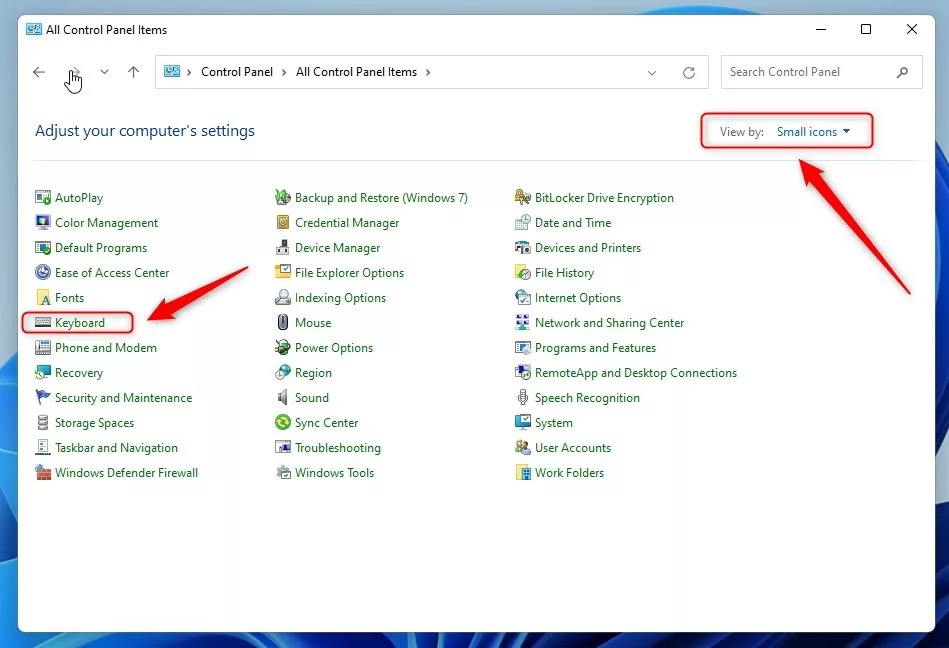
When the Control Panel app opens, select View by: Icons to list individual icons for each setting, on the list, select Keyboard as highlighted below.
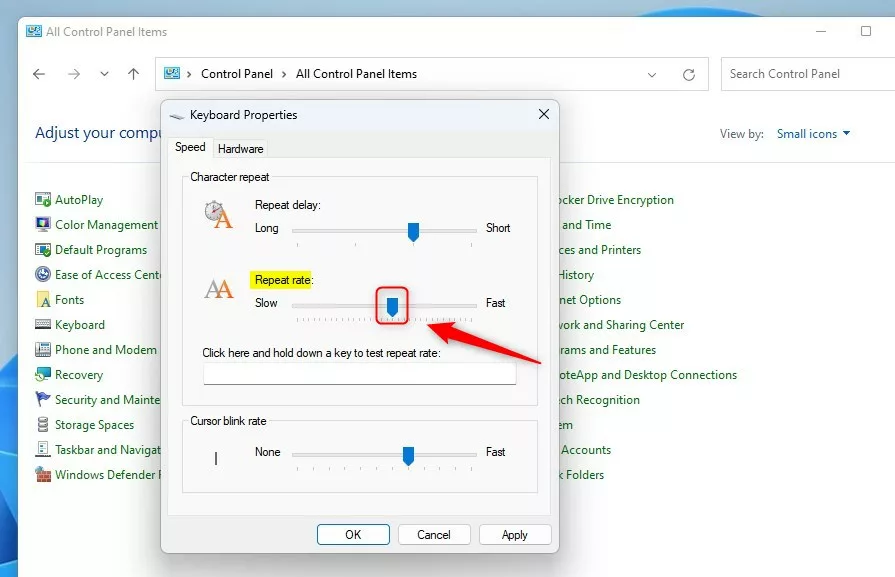
On the Speed tab in the Keyboard Properties window, under Character repeat, select the Repeat rate slider to adjust the keyboard character repeat rate.
Move the slider to the left to slow the speed and to the right to increase the speed.
Click OK to apply.
Change keyboard character repeat rate via Windows Registry Editor
Alternatively, users can use the Windows registry editor to change the keyboard character repeat rate in Windows 11.
To do that, first, 0pen the Windows Registry, and navigate to the folder key path as listed below.
HKEY_CURRENT_USERControl PanelKeyboard
If you don’t see the Keyboard folder key, right-click on the Control Panel parent key, then create the subkey (Keyboard) folder.
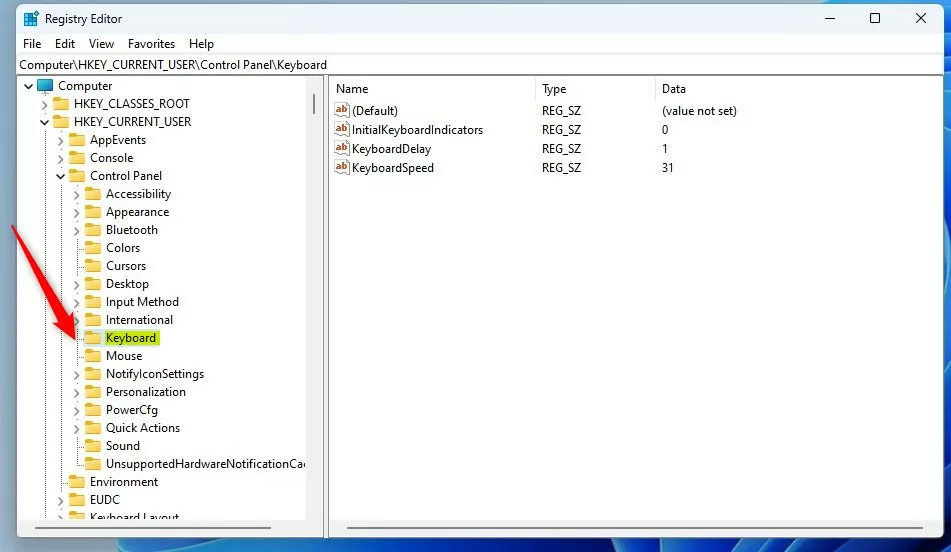
On the right pane of the Keyboard folder key, right-click and select New -> String Value. Type a new key named KeyboardSpeed.
Double-click the new value name (KeyboardSpeed) and enter the Value data in a number between 0 (slow) and 31 (fast).
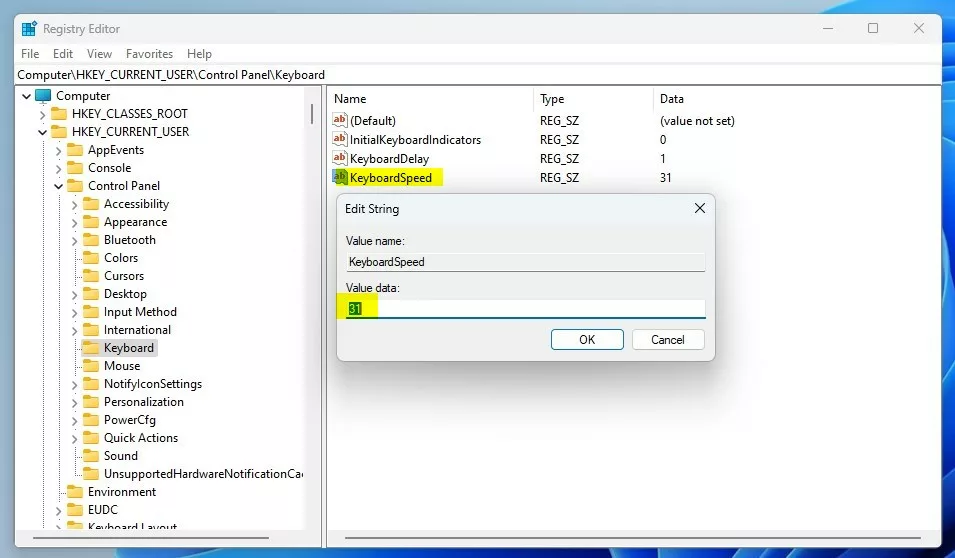
That should do it. Restart your computer to apply the changes.
Conclusion:
- Adjusting the keyboard character repeat rate in Windows 11 can improve typing efficiency and accuracy.
- Users can modify the repeat rate via Control Panel or Windows Registry Editor, according to their preference and comfort.
- Experimenting with different repeat rates can help individuals find the ideal setting for their typing styles and needs.


Leave a Reply