How to Change Braille Display Input and Output Types in Windows 11

What is Narrator?
Narrator is a free app built into Windows 11. It reads text on your screen out loud. This helps people who have trouble seeing or are blind. Narrator also works with braille displays.
Why Change Input and Output Table Types?
Changing your braille display settings helps you in several ways:
- Make braille easier to read and understand.
- Choose how special symbols and letters appear in braille.
- Use different languages or technical braille formats.
How to Change Braille Input and Output Table Types in 🪟 Windows 11
Follow these simple steps to change your braille settings:
- Open Windows Settings. Click the Start menu and select Settings. Or press the Windows key + I on your keyboard.
- Go to Accessibility. In the Settings window, click Accessibility on the left side.
- Open Narrator settings. Scroll down and click Narrator to expand its options.
- Find Braille settings. Under “Braille,” click on Use a braille display with Narrator to open braille options.
- Install braille support (if needed). Click Download and install braille if you haven’t set it up yet. Learn more about setting up a braille display
- Add your braille display. Under Braille displays and drivers, click Add a braille display. Choose your device’s manufacturer and connection type.
- Change input and output table types. In the Braille display input and output section, pick the table type you want from these options:
- Computer braille: Shows braille using computer standards.
- Uncontracted braille: Shows every braille character fully with no shortcuts.
- Contracted braille: Uses braille contractions for faster reading.
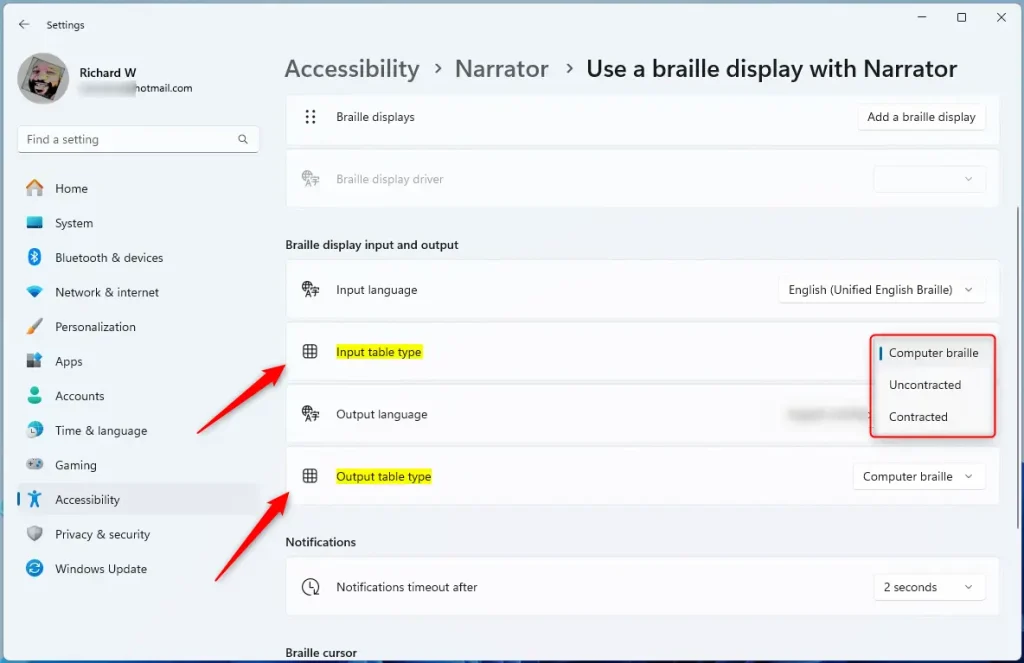
That’s it! Your braille display will now use the input and output types you selected.
Summary
Changing your braille input and output types makes reading and navigating easier. You can customize how braille characters and symbols are shown. Different table types support different languages and braille formats. These changes help you work faster and more comfortably with your braille display.
If you want to learn more about Narrator or braille displays, check out the full guide here.
Was this guide helpful?

About the Author
Richard
Tech Writer, IT Professional
Richard, a writer for Geek Rewind, is a tech enthusiast who loves breaking down complex IT topics into simple, easy-to-understand ideas. With years of hands-on experience in system administration and enterprise IT operations, he’s developed a knack for offering practical tips and solutions. Richard aims to make technology more accessible and actionable. He's deeply committed to the Geek Rewind community, always ready to answer questions and engage in discussions.




No comments yet — be the first to share your thoughts!