How to Change Screen Timeout in Ubuntu Linux

This post describes steps to change the time when the Screen goes blank in Ubuntu Linux.
Ubuntu Linux comes with a Blank Screen Delay feature that controls the period of inactivity, after which the Screen will go blank.
Blank Screen Delay and Automatic Screen Lock are set for 5 minutes by default. So after 5 minutes of inactivity, your Ubuntu Linux screen goes blank and locks itself.
Automatic Screen Lock is a security feature that ensures no one can sign into your computer while away, thus protecting your data. Blank Screen Delay enhances your privacy so no one can view your desktop while you are away.
Blank Screen Delay is also used to save energy, lower your power bills, or extend your device’s battery life.
Below is how to change Blank Screen Delay in Ubuntu Linux.
How to change when your computer screen goes blank in Ubuntu Linux
As mentioned above, a Blank Screen Delay controls the period of inactivity, after which the Screen will go blank.
Below is how to control it when your screen goes blank.
Ubuntu Linux has a centralized location for the majority of its settings. From system configurations to creating new users and updating, all can be done from the System Settings panel.

Alternatively, click on the System menu at the top-right corner of the top bar on your desktop.
On the System menu, select Settings, as highlighted below.

In the Settings app, click on the Privacy tile to expand.
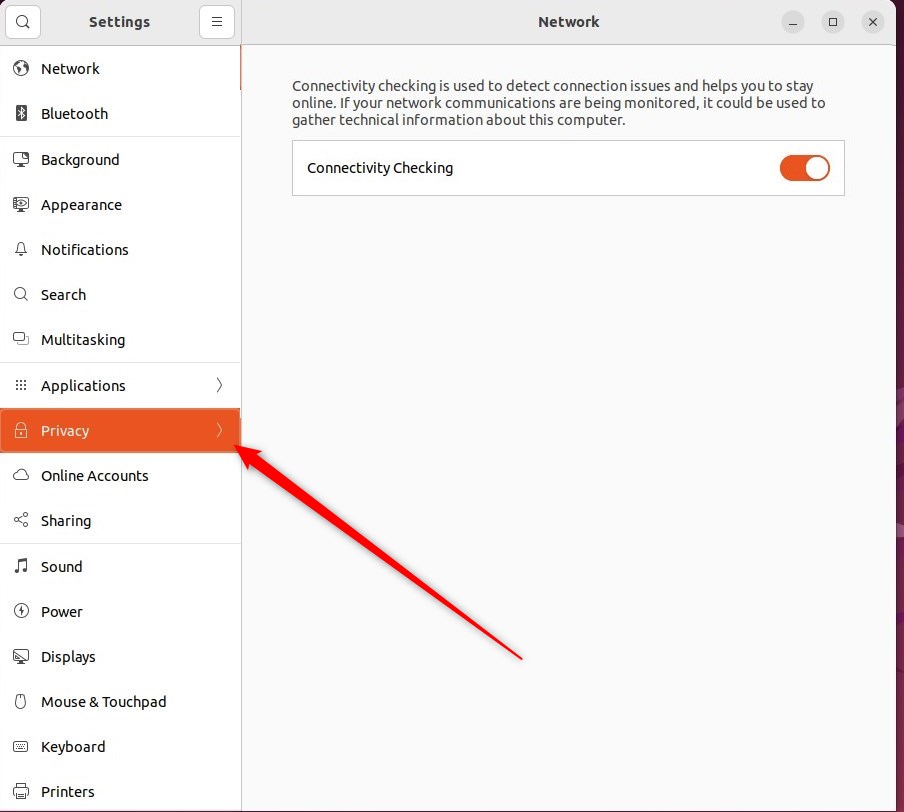
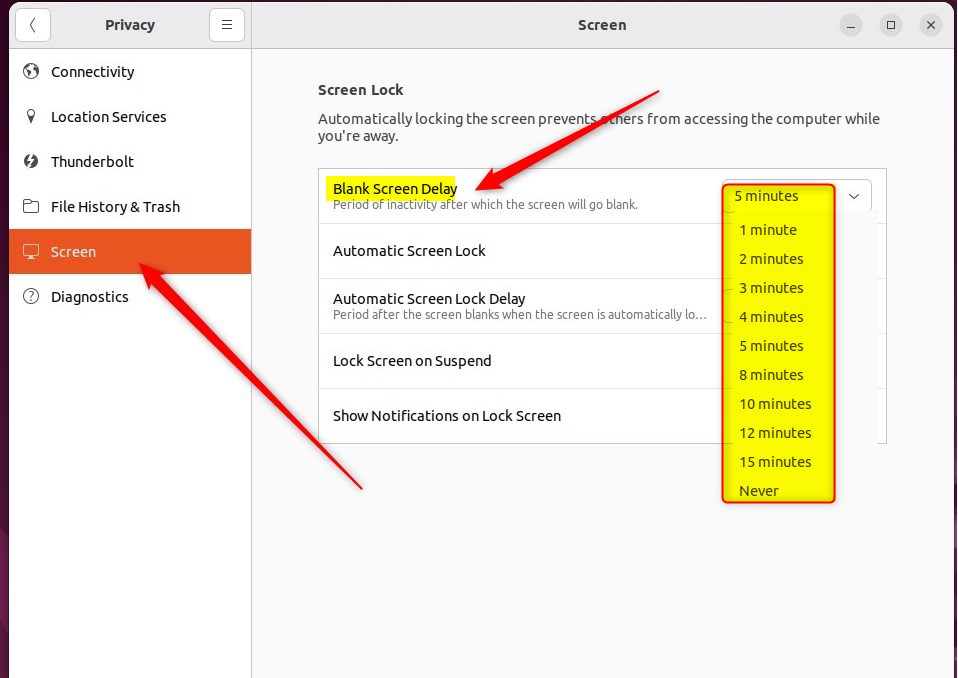
In the System Settings -> Privacy settings pane, click on Screen to open the panel.
In the System Settings -> Privacy -> Screen settings pane, use the Blank Screen Delay drop-down list under Screen Lock to set the time until the screen blanks or disable the blanking altogether.
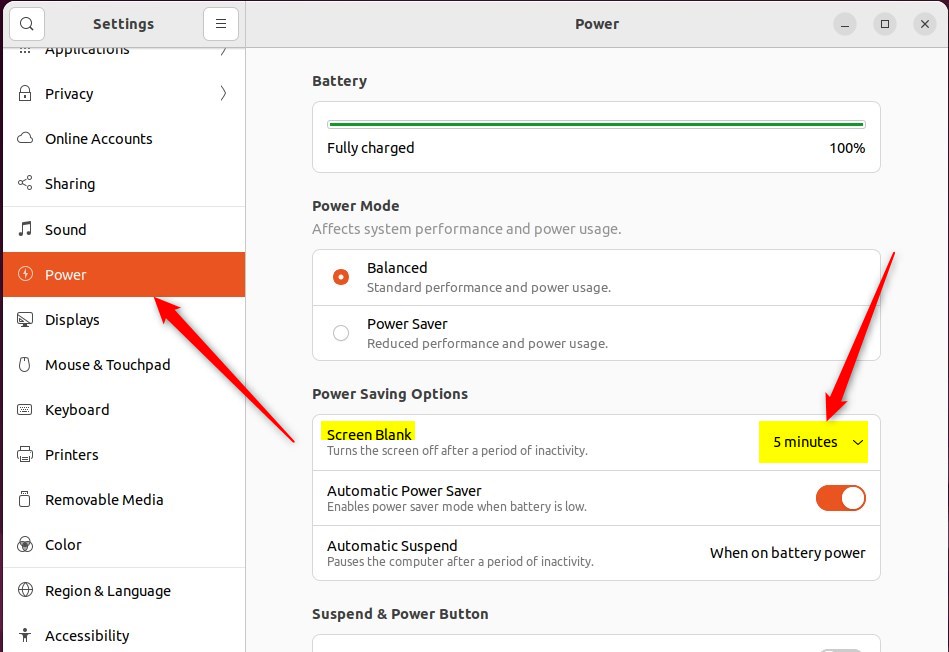
Alternatively, go to System Settings -> Power to open the penal. Then use the Screen Blank drop-down list under Power Saving Options to set the time until the screen blanks or disable the blanking altogether.
You can set the Blank Screen Delay independently of Automatic Screen Lock in Ubuntu Linux.
That should do it. You can now close the Settings app.
Conclusion:
- Adjusting Blank Screen Delay and Automatic Screen Lock settings in Ubuntu Linux can enhance privacy and security.
- Modifying the Blank Screen Delay can also help save energy and extend device’s battery life.
- Changing the Blank Screen Delay in Ubuntu Linux involves accessing the System Settings -> Privacy -> Screen or System Settings -> Power panels.
- Ubuntu Linux’s centralized location for settings makes it convenient to customize various aspects of the system.
Frequently Asked Questions
How do I change the screen timeout in Ubuntu Linux?
What is the default screen timeout setting in Ubuntu Linux?
Can I disable the screen blanking feature in Ubuntu Linux?
What is the purpose of the Blank Screen Delay in Ubuntu Linux?
Is the Blank Screen Delay setting independent of Automatic Screen Lock in Ubuntu Linux?
Was this guide helpful?

About the Author
Richard
Tech Writer, IT Professional
Richard, a writer for Geek Rewind, is a tech enthusiast who loves breaking down complex IT topics into simple, easy-to-understand ideas. With years of hands-on experience in system administration and enterprise IT operations, he’s developed a knack for offering practical tips and solutions. Richard aims to make technology more accessible and actionable. He's deeply committed to the Geek Rewind community, always ready to answer questions and engage in discussions.



No comments yet — be the first to share your thoughts!