How to Change BitLocker Encryption in Windows 11

You can change BitLocker encryption methods in Windows 11 to enhance drive security.
BitLocker is a built-in Windows feature that scrambles your entire drive. This protects your sensitive data from anyone who shouldn’t see it. This is crucial for both personal computers and removable drives like USB sticks.
For example, Windows 11 supports advanced encryption methods like XTS-AES-256. This offers strong protection against clever attacks. You might consider switching to a stronger algorithm if you work with highly classified information.
This guide shows you the exact steps to modify your drive’s encryption settings, ensuring your data remains secure with the latest protection methods.
Change BitLocker encryption by opening the Local Group Policy Editor. Navigate to BitLocker Drive Encryption settings and select “Choose drive encryption method and cipher strength.” Enable the setting and choose your desired encryption strength, then click OK and restart your PC.
What is BitLocker?
BitLocker is a Windows feature that scrambles your files, making them unreadable to anyone without the right key, and it can protect your main computer drive, USB sticks, and other storage.
When you turn on BitLocker for your main Windows drive, it can unlock automatically using a special chip in your PC called the Trusted Platform Module (TPM). This means you won’t have to enter a password every time you start your computer. Learn more about TPM here.
Why Change the Encryption Method?
BitLocker uses a type of encryption called XTS-AES 128-bit by default. While this is already quite secure, you can switch to a stronger 256-bit encryption for extra protection. This makes it even harder for someone to break into your data.
How to Change BitLocker Encryption Using Group Policy
You can change how BitLocker encrypts your drives using the Local Group Policy Editor, a built-in Windows tool that lets you adjust these security settings.
- Open the Group Policy Editor: Click the Start button, type
Edit group policy, and press Enter. ⚠️ Admin privileges required - In the window that opens, follow this path:
Computer Configuration → Administrative Templates → Windows Components → BitLocker Drive Encryption - On the right side, find and double-click “Choose drive encryption method and cipher strength (Windows 10 Version 1511 and later)”.
- In the window that opens:
- Select Enabled.
- Now you can choose the encryption method and strength for:
- Operating system drives
- Fixed data drives
- Removable data drives
- Pick the desired encryption type from the drop-down menus (for stronger encryption, pick a 256-bit option).
- Click OK to save.
- Restart your computer to apply the changes.
How to Change BitLocker Encryption Using Registry Editor
Changing BitLocker encryption settings is also possible using the Windows Registry Editor, though you should be careful as incorrect changes can cause system issues.
- Open the Registry Editor: Click Start, type
regedit, and press Enter. ⚠️ Admin privileges required - If prompted, click Yes to allow changes.
- Go to this folder path:
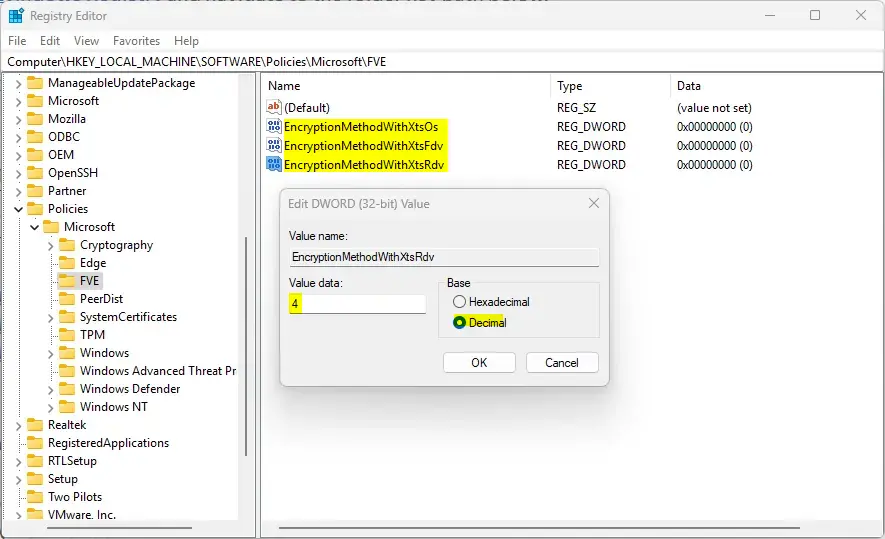
HKEY_LOCAL_MACHINE\SOFTWARE\Policies\Microsoft\FVE - Look for these three entries on the right side:
- EncryptionMethodWithXtsOs
- EncryptionMethodWithXtsFdv
- EncryptionMethodWithXtsRdv
- If you don’t see them, right-click on an empty space, choose New → DWORD (32-bit) Value, and create these three names exactly as above.
- Double-click each entry and set its value to:
- 4 for AES-CBC 256-bit encryption
- 7 for XTS-AES 256-bit encryption
- Click OK for each, then close the Registry Editor.
- Restart your PC to apply changes.
Reset to Default Encryption
If you want to go back to the original BitLocker encryption (XTS-AES 128-bit), delete the three registry entries you created:
- EncryptionMethodWithXtsOs
- EncryptionMethodWithXtsFdv
- EncryptionMethodWithXtsRdv
Then restart your PC.
Summary
You can customize BitLocker encryption in Windows 11 to make your files more secure by changing its settings through tools like the Group Policy Editor or Registry Editor.
Was this guide helpful?

About the Author
Richard
Tech Writer, IT Professional
Richard, a writer for Geek Rewind, is a tech enthusiast who loves breaking down complex IT topics into simple, easy-to-understand ideas. With years of hands-on experience in system administration and enterprise IT operations, he’s developed a knack for offering practical tips and solutions. Richard aims to make technology more accessible and actionable. He's deeply committed to the Geek Rewind community, always ready to answer questions and engage in discussions.




No comments yet — be the first to share your thoughts!