How to Change Drive Letters in Windows 11

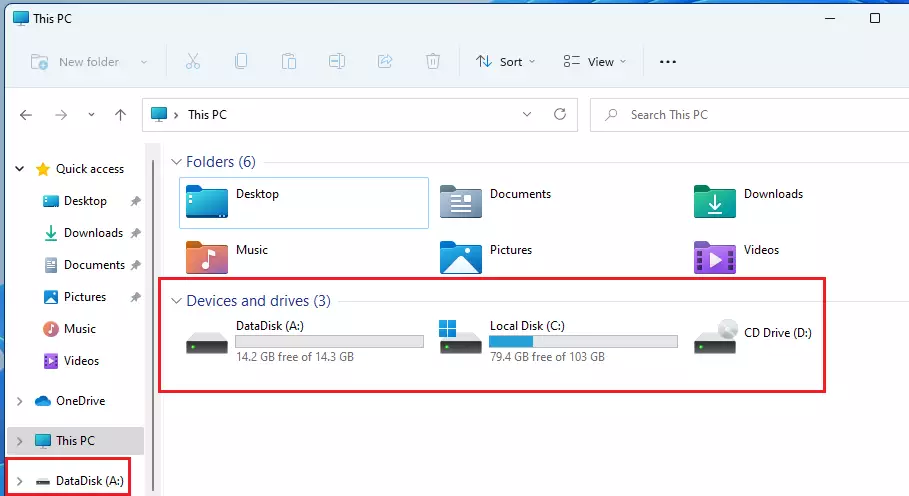
Windows 11 gives every hard drive, USB stick, or memory card a letter, such as D: or E:. This helps your computer find your files. You can change these letters to keep your storage organized.
Why Change a Drive Letter?
Windows assigns letters like D: or E: to your storage devices. You might want to change these to keep your files organized, make it easier to identify external hard drives, or fix conflicts where two devices try to use the same letter.
What Happens When Done?
Your computer will immediately recognize the drive by its new letter. However, any programs installed on that drive or shortcuts pointing to the old letter will stop working. You will need to update those links manually.
Method 1: Using Disk Management
This method requires Administrator privileges. The Disk Management utility is the most reliable way to manage partitions and volumes.
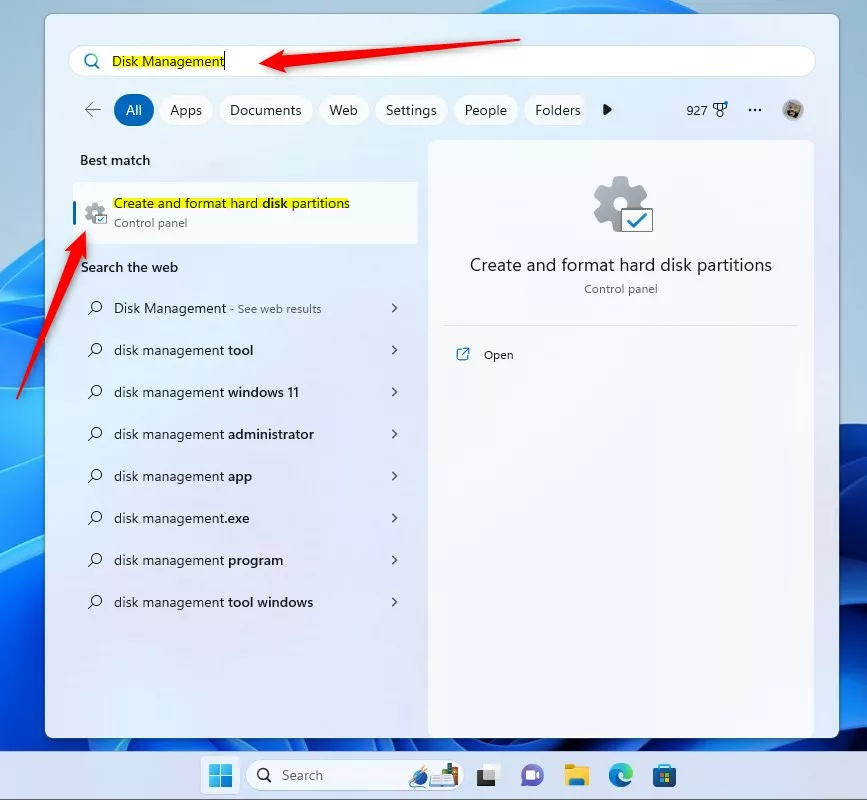
- Right-click the Start button and select Disk Management.
- Locate the volume you wish to change in the list.
- Right-click the partition and select Change Drive Letter and Paths…
- Click Change, select a new letter from the dropdown, and click OK.
Method 2: Using Command Line (Diskpart)
Advanced users can use the diskpart tool. This requires Administrator privileges.
- Open Command Prompt as Administrator.
- Type
diskpartand press Enter. - Type
list volumeto see your drives. - Type
select volume X(replace X with your volume number). - Type
assign letter=Z(replace Z with your desired letter).
Method 3: Using PowerShell
You can also use PowerShell for a faster approach. This requires Administrator privileges.
- Right-click Start and select Terminal (Admin).
- Type
Get-Partitionto list your drives. - Type
Set-Partition -DriveLetter D -NewDriveLetter E(replace D and E with your specific letters).
Troubleshooting and Risks
If the Change drive letter and paths option is greyed out, it is usually because the drive is a system partition or a recovery partition that Windows needs to function. Do not force changes on these volumes. If you encounter registry conflicts, ensure no programs are currently running from that drive before making changes.
Summary
Changing a drive letter in Windows 11 is a helpful way to manage your storage. Whether you use the graphical Disk Management tool or the command line, always ensure you have Administrator privileges and avoid modifying the C: drive. Remember to update your shortcuts after the change to keep everything running smoothly.
Can I change the drive letter of the system drive (C:)?
No, you should never change the drive letter of the C: drive. Windows relies on this specific path to locate system files and boot configurations. Changing it will cause critical system errors and prevent your computer from starting correctly. Always keep the system drive as C:.
Do I need to restart my computer after changing a drive letter?
In most cases, no. Windows 11 updates the drive letter assignment instantly across the system. However, if you have programs currently open that are accessing files on that drive, you may need to restart those specific applications for them to recognize the new path correctly.
Was this guide helpful?



[…] post describes changing a drive or volume letter in Windows […]
[…] post describes the steps to mount a drive in a folder rather than a drive letter in Windows […]
[…] example, if you have an external drive attached to your Windows 11 computer using the drive letter F: you can mount it in WSL using the commands […]
[…] the next screen, enter the Label or name. Select a Drive Letter to assign to the Dev Drive, type in the drive size (at least 50GB), and click […]
[…] service will not index content from any drive or partition with the A and B drive letters, even when included in the index location, because A and B drive letters are reserved for floppy […]
[…] you boot the virtual machine and log in, you should see a mapped folder with the G: drive letter in the Windows virtual […]
[…] find it on your computer? If your new drive does not show up in File Explorer, you may need to add a drive letter or initialize it. This process prepares a blank drive so Windows can recognize […]