How to Map Shared Folders in VirtualBox on Windows 11

You map shared folders in VirtualBox on Windows 11 to easily access files between your host computer and your virtual machine.
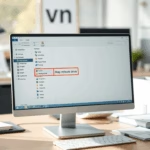
Map shared folders by selecting your virtual machine, going to Settings, then Shared Folders. Click the Add button, choose your folder path, and check Auto-mount. Assign a drive letter in the Mount point field and click OK.
Shared folders act like a virtual drive inside your guest OS, directly linking to a folder on your main Windows 11 PC. This makes transferring large files or entire folders much faster than copy-pasting.
This feature is incredibly useful for seamless file access. Imagine needing to grab a large project file from your main machine while working within your virtual environment.
Setting this up involves installing the VirtualBox Guest Additions inside your virtual machine, which provides crucial drivers for this functionality.
Was this guide helpful?

About the Author
Richard
Tech Writer, IT Professional
Richard, a writer for Geek Rewind, is a tech enthusiast who loves breaking down complex IT topics into simple, easy-to-understand ideas. With years of hands-on experience in system administration and enterprise IT operations, he’s developed a knack for offering practical tips and solutions. Richard aims to make technology more accessible and actionable. He's deeply committed to the Geek Rewind community, always ready to answer questions and engage in discussions.

No comments yet — be the first to share your thoughts!