How to Add Windows 11 Resource Widgets Using Dev Home

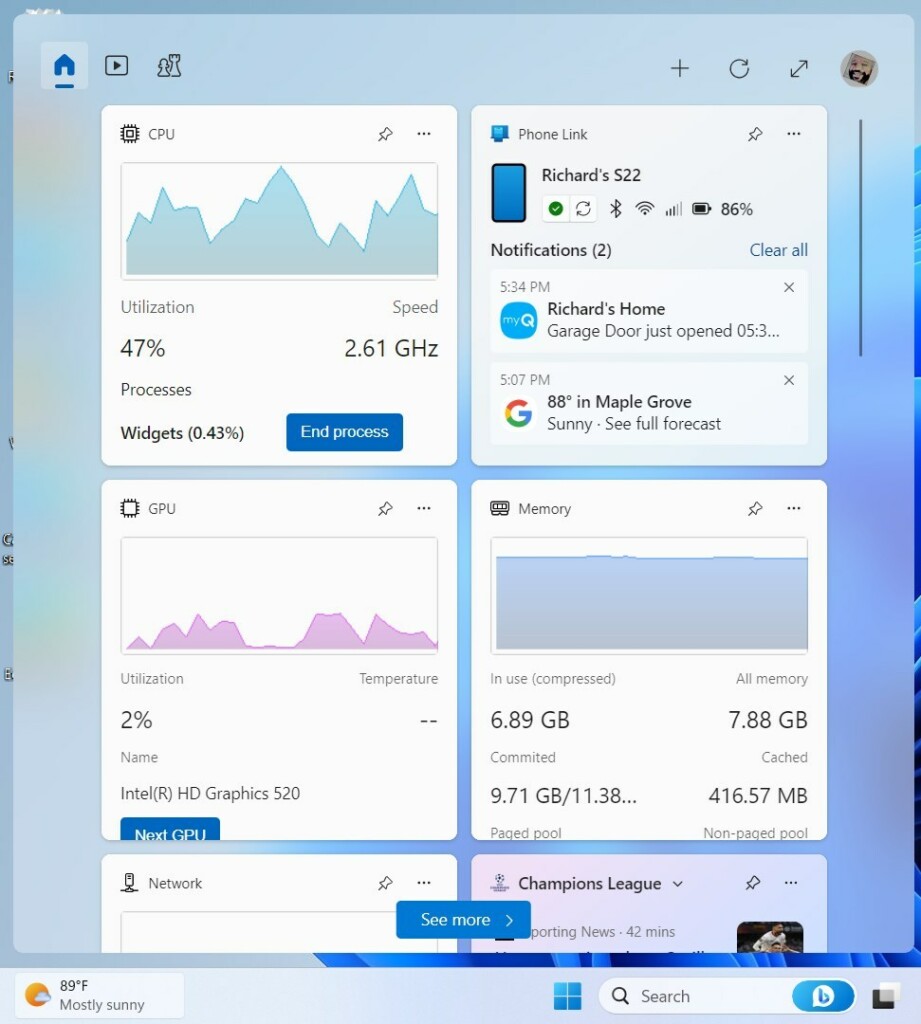
You can add Windows 11 resource widgets to your Widgets board to monitor system performance like CPU, Memory, and GPU usage.
These widgets are small panels providing real-time hardware telemetry, offering a quick visual dashboard of your PC’s health. They display live metrics such as processor utilization, RAM consumption, and graphics card temperature directly on your desktop.
For example, you can track your GPU temperature to quickly identify potential overheating issues without needing to open Task Manager.
Once configured, these widgets appear whenever you access the Windows 11 Widgets panel by pressing Windows Key + W, giving you instant insights into your hardware’s performance.
Install Dev Home from the Microsoft Store or Windows Terminal using the command `winget install –id Microsoft.DevHome -e`. After installation, open your Widgets board, click “Add” next to the desired hardware like CPU or Memory, and close the window.
Installing the Dev Home App
The new Windows Dev Home app is an open-source developer app that allows you to add special tools to track your system’s health. To get these, you need to install Dev Home from the Microsoft Store or by using the command line.
Steps to Install Dev Home
- Open the Windows Terminal app. Note: This step requires admin privileges.
- Type the following command and press Enter:
winget install --id Microsoft.DevHome -e - Wait for the success message to appear in the terminal.
Once the app is installed, open your Widgets board. Click the “Add” button next to the specific hardware you want to watch, such as your CPU or Memory. Close the window when you are finished.
Summary
By installing the Dev Home app, you unlock the ability to pin performance graphs to your Widgets board. This makes it possible to monitor your CPU, RAM, and GPU usage at a glance without needing to dig through system menus. Whether you are a developer or a casual user, these widgets provide a clean, efficient way to keep your system running smoothly.
Are 🪟 Windows 11 resource widgets available on all versions?
Yes, resource widgets provided by the Dev Home app are available on all modern versions of Windows 11. Ensure your system is fully updated via Windows Update to maintain compatibility with the latest widget board features and the Dev Home application.
Do I need to install third-party software for resource monitoring?
While you do not need traditional third-party monitoring software, you must install the official Microsoft Dev Home app. This app acts as a bridge to provide the necessary hardware telemetry data to your Windows Widgets board for real-time performance tracking.
Was this guide helpful?

About the Author
Richard
Tech Writer, IT Professional
Richard, a writer for Geek Rewind, is a tech enthusiast who loves breaking down complex IT topics into simple, easy-to-understand ideas. With years of hands-on experience in system administration and enterprise IT operations, he’s developed a knack for offering practical tips and solutions. Richard aims to make technology more accessible and actionable. He's deeply committed to the Geek Rewind community, always ready to answer questions and engage in discussions.




No comments yet — be the first to share your thoughts!