How to Reinstall Dev Home App in Windows 11

You can reinstall the Dev Home app on Windows 11 by uninstalling it via Settings and then reinstalling it from the Microsoft Store.
Dev Home is a Windows app built to streamline your development tasks. It offers tools for managing projects, configuring your system, and monitoring performance.
It lets you sideload applications (installing apps from outside the official Microsoft Store), enable Developer Mode (a setting that allows installing apps from any source), and manage special developer settings that go beyond what you normally find in Windows. For instance, Dev Home can help you create a dedicated Dev Drive for secure code storage.
When Dev Home glitches or stops working right, reinstalling it is a common fix. This process resets the app’s configuration, often solving the problem.
Uninstall Dev Home via Windows Terminal using PowerShell commands, then reinstall it from the Microsoft Store. This process resets the app and resolves common glitches.
How to Uninstall and Reinstall Dev Home
If Dev Home is acting up or you want to start fresh, follow these steps to uninstall and then reinstall the app.
Step 1Open Windows Terminal with PowerShell
Opening Windows Terminal and selecting the PowerShell tab is your first step to reinstalling Dev Home. This lets you run the commands needed to manage the app on your computer.
Here’s how to do that:
- Click the Start button or press the Windows key.
- Type Windows Terminal and select it from the list.
- Make sure the tab says PowerShell. If not, click the down arrow (˅) next to the plus (+) sign and choose PowerShell.
Read more about how to open Windows Terminal with PowerShell.
Step 2Uninstall Dev Home for Your User Account
Type or copy-paste this command into the PowerShell window, then press Enter:
Get-AppxPackage *Windows.DevHome* | Remove-AppxPackageStep 3 (Optional): Uninstall Dev Home for All Users
To uninstall Dev Home for everyone on your PC, you’ll need to open Windows Terminal as an administrator. This allows the system to remove the app from all user accounts, not just your own.
- Click the Start button.
- Type Windows Terminal.
- ⚠️ Admin Required: Right-click on Windows Terminal and select Run as administrator.
- Again, make sure you are in the PowerShell tab, then paste this command and press Enter:
Get-AppxPackage -AllUsers -PackageTypeFilter Bundle -Name "*Windows.DevHome*" | Remove-AppxPackage -AllUsersLearn more about running Windows Terminal as admin.
Step 4Reinstall Dev Home from Microsoft Store
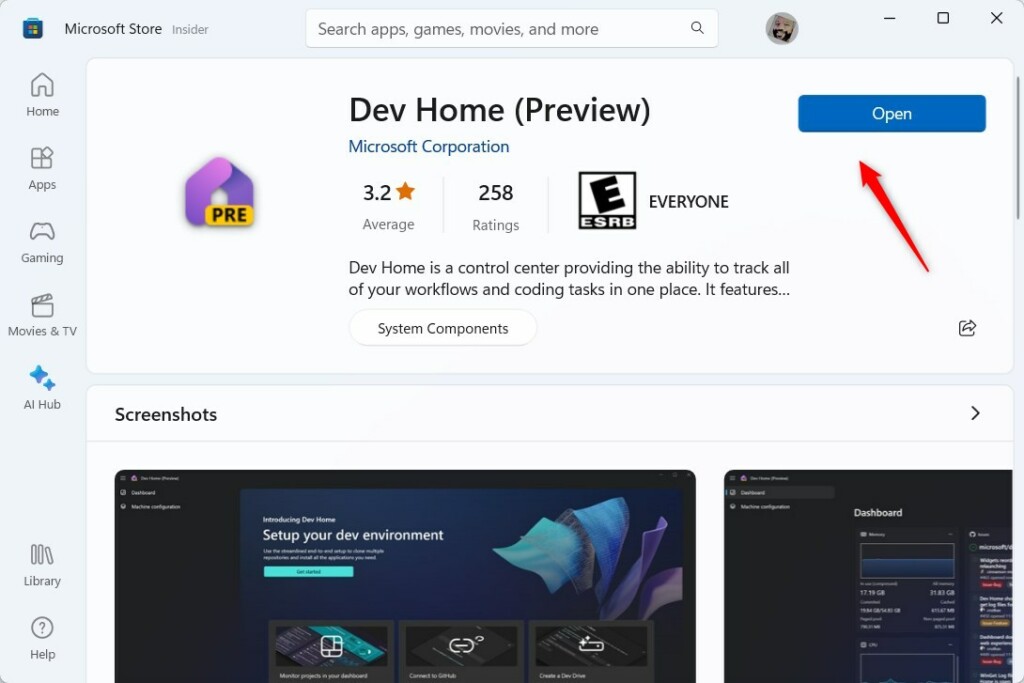
After removing Dev Home, you can easily reinstall it directly from the Microsoft Store. Simply search for the app and click ‘Get’ to download and install the latest version onto your computer.
- Open the Microsoft Store app on your PC.
- Search for Dev Home or click this link: Get Dev Home app
- Click the Get button to download and install the app.
Once installed, open the app from the Start menu or directly from the Store.
Note: If you uninstalled Dev Home for all users, each user will need to reinstall it themselves.
You’re all set!
Summary
Reinstalling Dev Home on Windows 11 is a great way to fix common issues and get the app working smoothly again. This process ensures you have access to its developer tools and settings for managing your projects and system performance.Is Dev Home discontinued?
Microsoft discontinued Dev Home in May 2025, meaning it’s no longer working on recent Windows versions. Some of its features are now being integrated into Windows Advanced Settings. Let me know if you have any other questions!
Is it okay to Uninstall Dev Home?
Although it’s generally safe to remove the Dev Home app on Windows 10 and 11 devices, err on the side of caution and create a backup for your system before making changes.
How to install Microsoft Dev Home?
To install Dev Home, search for it in the Microsoft Store, click on the app, and then click ‘Get’ to install it.
Was this guide helpful?

About the Author
Richard
Tech Writer, IT Professional
Richard, a writer for Geek Rewind, is a tech enthusiast who loves breaking down complex IT topics into simple, easy-to-understand ideas. With years of hands-on experience in system administration and enterprise IT operations, he’s developed a knack for offering practical tips and solutions. Richard aims to make technology more accessible and actionable. He's deeply committed to the Geek Rewind community, always ready to answer questions and engage in discussions.


No comments yet — be the first to share your thoughts!