How to Add or Remove a User on Ubuntu Linux


Adding or removing a user on Ubuntu Linux lets multiple people share one computer safely by giving each person a separate password and private home folder. Ubuntu assigns administrator powers to the first account created during setup, but you can create extra standard or admin accounts for family members, roommates, or guests at any time.
You can set up a new account using the adduser command in the Terminal, or delete an old one with the deluser command. Setting up separate logins keeps your personal documents private and stops other people from changing important system settings by mistake.
Add users with the `adduser username` command or via Settings Users. Remove users using `deluser username` or `deluser –remove-home username` for their files, or by selecting them in Settings Users and clicking Remove.
How to add User from the command line
You can add user Ubuntu Linux accounts quickly using the terminal by running the `sudo adduser` command followed by the new username you want to create. Ubuntu walks you through setting a password and entering profile details right in the window.
For example, to create a new user account named octopus, you would run the commands below:
sudo adduser octopus
When you run the commands above, you’ll be asked questions about the detail of the account you’re creating. You’ll have to enter and confirm a password, but providing answers for the others is optional.
Enter new UNIX password:
Retype new UNIX password:
passwd: password updated successfully
Changing the user information for octopus
Enter the new value, or press ENTER for the default
	Full Name []:
	Room Number []:
	Work Phone []:
	Home Phone []:
	Other []:
Is the information correct? [Y/n] Y
Type Y to create the account if the information you entered is correct.
Run the commands below to do so.
sudo usermod -aG sudo octopus
That's how one creates a user on Ubuntu Linux via the command line terminal.
How to add a User on Ubuntu Desktop
Adding a user Ubuntu Linux profile through the graphical desktop interface takes just a few clicks inside the main settings menu. You open Settings, go to the Users tab, unlock the settings panel with your administrator password, and create the new account.
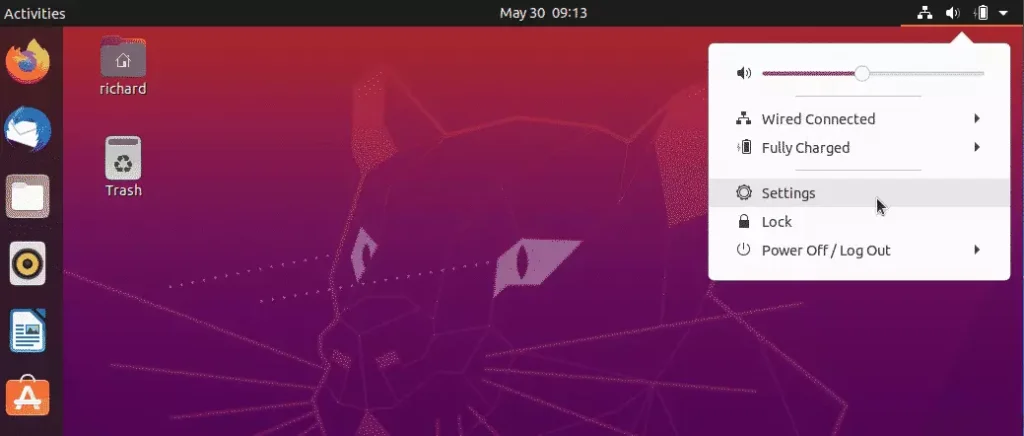
Click on System Menu's top and select Settings, as shown in the image below.
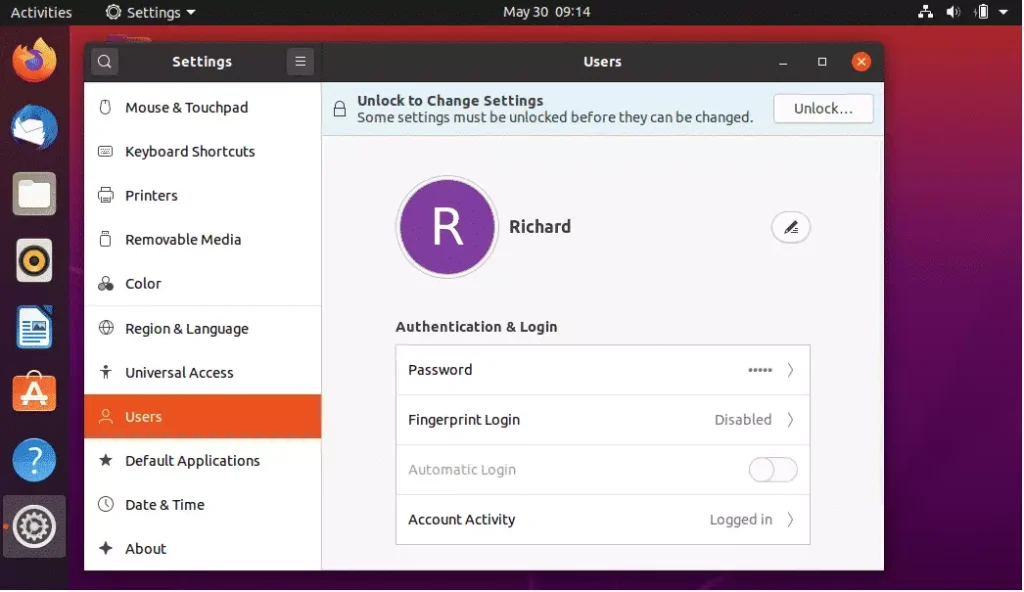
Then scroll down to Users on the item menu and select.
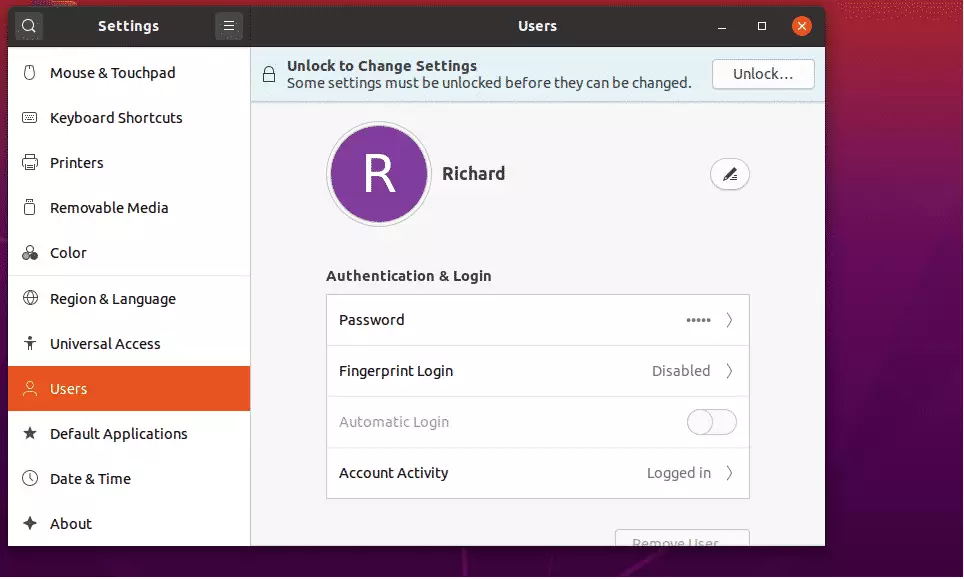
Next, click Unlock at the top right to edit or create new user accounts.
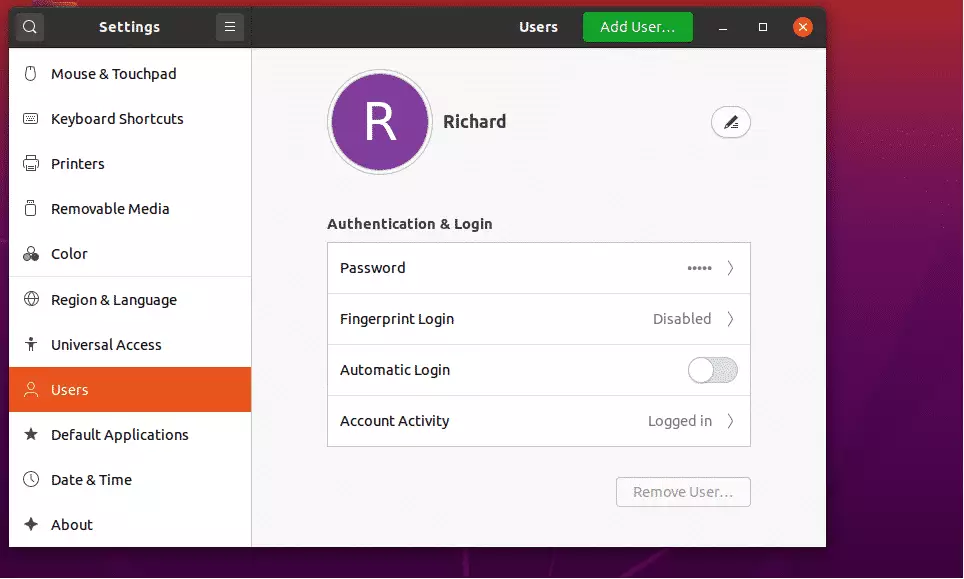
The Unlock button becomes Add Users. To add a new user, click Add Users and provide the user account details.
Then provide the User's full name and username and password.
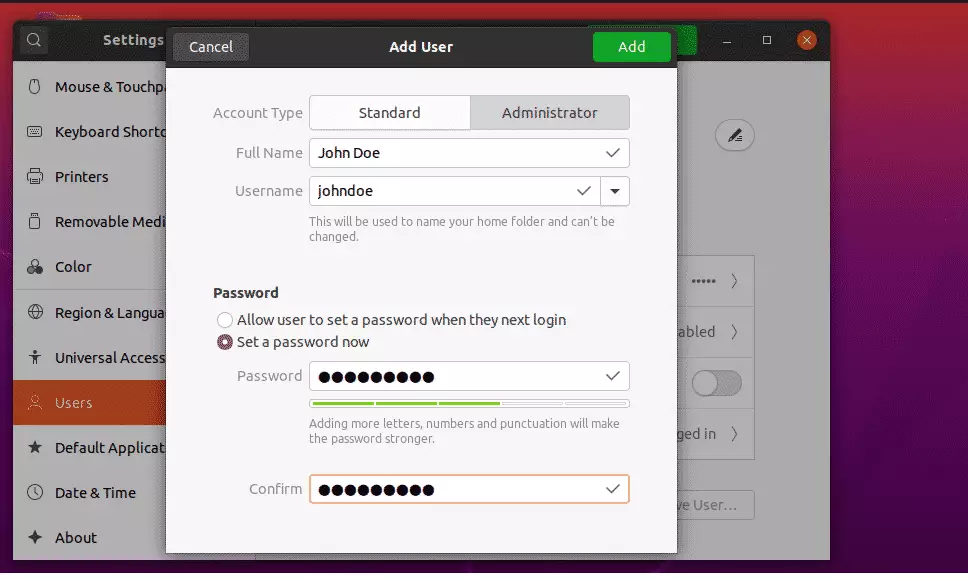
When you add the account details, click Add as shown Above.
How to delete a user on Ubuntu Linux
Deleting a user Ubuntu Linux account involves running the `sudo deluser` command in your terminal. You can keep the person's home folder with their files or use an extra flag to delete all of their personal files at the same time.
To delete the example user created above, run the commands below:
sudo deluser octopus
The command above will delete the User but not their files. To delete the User and files, run the commands below.
sudo deluser --remove-home octopus
Using an Ubuntu desktop, the same can be performed from the User settings window above. Select the user account and click Remove.
That should do it!
Conclusion:
- Adding or removing users in Ubuntu Linux is a straightforward process, whether using the command line or the desktop interface.
- The
addusercommand is recommended for creating new users due to its interactive nature. - It is important to manage user permissions effectively, especially when granting sudo privileges for administrative tasks.
- Deleting a user can be done without affecting their files, or you can choose to remove associated files as well.
- Understanding user management helps maintain security and organization within your Ubuntu system.
How do I add a user in Ubuntu Linux?
You can add a user in Ubuntu by opening the terminal and typing `sudo adduser username`. Replace 'username' with the name you want for the new account. The system will then guide you through setting up the account, including creating a password.
What does adduser do in Linux?
The `adduser` command in Linux is used to create new user accounts. It's a helpful script that walks you through the steps, asking for details like the new user's password and other information to set up their account properly.
How do I add a user in terminal?
To add a user using the terminal, type `sudo adduser newusername` and press Enter. You'll be prompted to enter and confirm a password for the new user. You can also add other details if you wish.
How do I add a new sudo user in Ubuntu?
First, add the user with `sudo adduser username`. Then, to give them sudo rights, add them to the 'sudo' group using `sudo usermod -aG sudo username`. This lets them run commands with administrative privileges.
Was this guide helpful?

About the Author
Richard
Tech Writer, IT Professional
Richard, a writer for Geek Rewind, is a tech enthusiast who loves breaking down complex IT topics into simple, easy-to-understand ideas. With years of hands-on experience in system administration and enterprise IT operations, he’s developed a knack for offering practical tips and solutions. Richard aims to make technology more accessible and actionable. He's deeply committed to the Geek Rewind community, always ready to answer questions and engage in discussions.



No comments yet — be the first to share your thoughts!