How to Hide Recent Mobile Content in Windows 11 Start Menu

You can hide recent mobile content in the Windows 11 Start menu to declutter your view and protect your privacy.
Windows 11’s Start menu can display content from your linked mobile device via the Phone Link app, showing recent photos, calls, or messages. The Phone Link app lets you sync your Android or iOS device with your PC.
This feature, available on Windows 11 builds like 22635.4805 and later, allows quick access to your phone’s data. However, you might want to disable this integration for a cleaner Start menu or added security.
Hiding this content is straightforward and prevents sensitive mobile information from appearing directly on your PC’s Start screen.
Open the Phone Link app and click the Settings gear. Select “Start menu personalization,” then toggle “Recent content” to disable it. This hides your mobile device’s recent content from the Windows 11 Start menu.
Show or Hide Recent Mobile Device Content in Start Menu
You can choose to show or hide recent mobile device content in your Windows 11 Start menu by changing a setting in the Phone Link app.
Here’s how to do it:
- Open the Phone Link app.
- Click the Settings button (gear) at the top right corner of your screen.
- Select “ Start menu personalization” from the menu.
- Under “Content” on the right, toggle the “Recent content” button to enable or disable your mobile device’s recent content on the Start menu.
You can also enable the feature and use the drop-down menu to selectively show or hide the items displayed on the Start menu. Your options include:
- Show recent phone in the Start menu
- Show recent messages in the Start menu
- Show recent calls in the Start menu
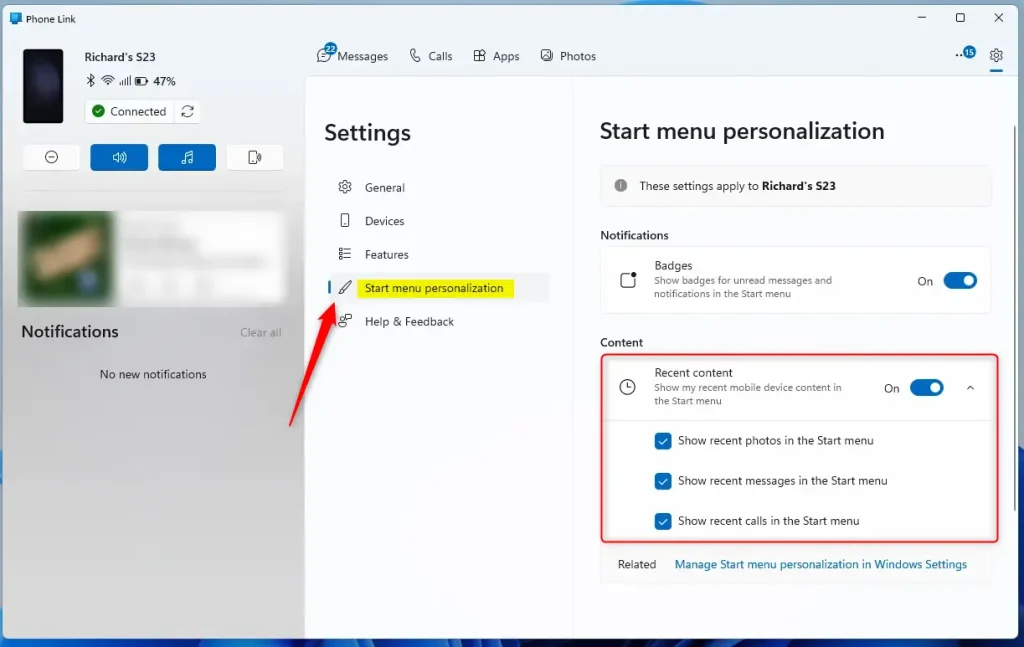
That’s it! Your Start menu will now display or hide your mobile device content based on your settings.
Summary
The Phone Link app makes your phone and Windows 11 PC work better together, and a recent update lets you easily control what mobile content appears in your Start menu.
How to hide content in recent apps?
Then tap the three dot at the top. Right tap setting now tap the onoff switch next to show recommended apps. If you turn this on you will see suggested app at the bottom of your recent. App screen.
Was this guide helpful?

About the Author
Richard
Tech Writer, IT Professional
Richard, a writer for Geek Rewind, is a tech enthusiast who loves breaking down complex IT topics into simple, easy-to-understand ideas. With years of hands-on experience in system administration and enterprise IT operations, he’s developed a knack for offering practical tips and solutions. Richard aims to make technology more accessible and actionable. He's deeply committed to the Geek Rewind community, always ready to answer questions and engage in discussions.


No comments yet — be the first to share your thoughts!