How to Hide Recent Mobile Content in Windows 11 Start Menu

Recent mobile content in the Windows 11 Start menu shows your latest phone photos, calls, and text messages on your desktop. Phone Link is a built-in app that connects your phone to your computer, and it feeds this recent phone activity into the Start menu .
Hiding this content keeps your personal texts and photos private, so anyone near your screen cannot see them. You need Windows 11 version 22635.4805 or newer to turn this feature off. To check your version, open Settings System About and look at the OS build line. If your build is older, the option will not appear in Phone Link. Install the latest Windows updates and the latest Phone Link update from the Microsoft Store, then check again.
Open the Phone Link app and click the Settings gear. Select “Start menu personalization,” then toggle “Recent content” to disable it. This hides your mobile device’s recent content from the Windows 11 Start menu .
Show or Hide Recent Mobile Device Content in Start Menu
You hide recent mobile content by changing one setting in the Phone Link app. Your latest phone photos and files then stop appearing on your PC screen. Your recent activity stays private and the Start menu stays clean. The setting only controls what the Start menu displays. Your phone stays paired with the PC, and nothing is deleted from either device.
Here’s how to do it. You do not need to restart the PC. The change applies as soon as you flip the toggle, though the Start menu may take a moment to refresh.
- Open the Phone Link app. If it is not pinned, select Start and type the app name to find it. You should see the Phone Link window with your paired phone. If it asks you to sign in or pair a phone first, do that before going further.
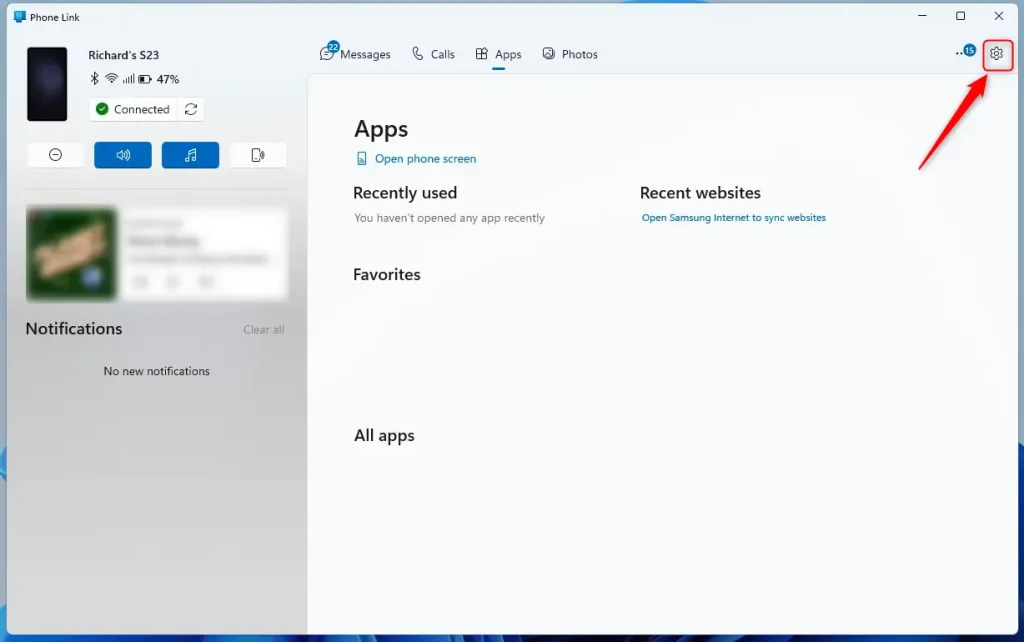
- Click the Settings button (the gear icon) at the top right corner of the window. The Phone Link settings page should open, with a list of categories.
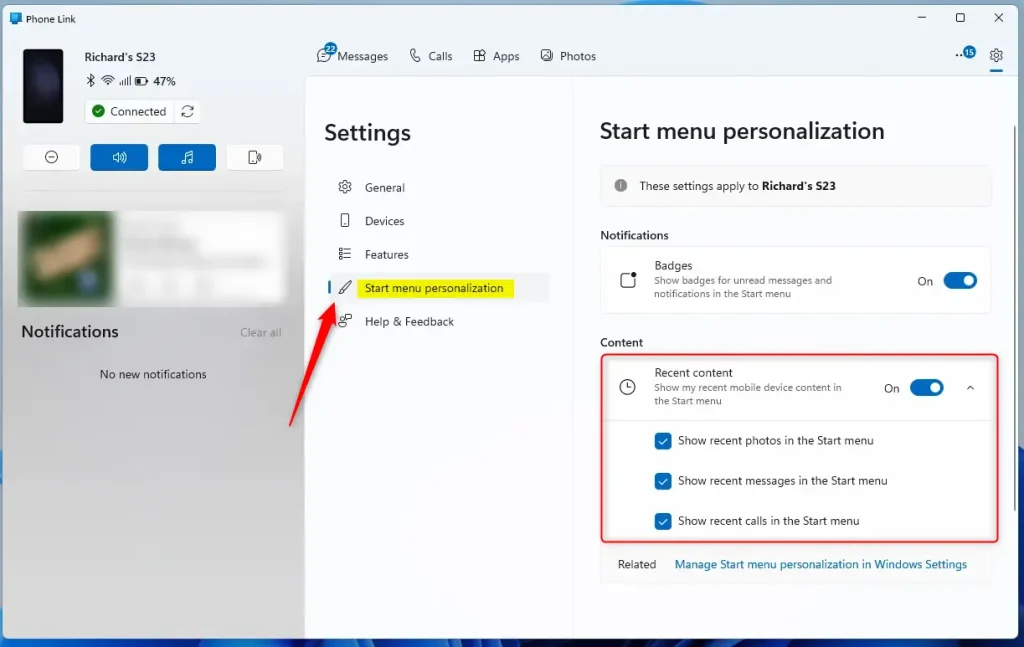
- Select Start menu personalization from the menu. If you do not see this entry, your Windows build or Phone Link version is probably too old. See the version note at the top. The Start menu settings should now appear on the right.
- Under Content on the right, switch the Recent content toggle to Off to hide your mobile device’s recent content from the Start menu . Switch it back to On to show that content again. This is also how you undo the change later.
The feature also has a drop-down menu that lets you show or hide specific items on the Start menu instead of everything at once. This is useful if you want to keep one type of content but hide another. For example, you could hide messages and still show recent photos. The available choices are:
- Show recent phone in the Start menu
- Show recent messages in the Start menu
- Show recent calls in the Start menu
Mobile device content now shows or hides on the Start menu based on your new preferences. To confirm, open the Start menu and check the recommended area. Content you turned off should be gone. If something still appears, close and reopen the Start menu, or sign out and back in, then check the setting again.
Summary
The Phone Link app connects your phone to your Windows 11 PC and lets you manage what appears in your Start menu. You can also turn off recommended apps by opening the app settings, selecting the menu, and switching off the recommendation toggle. Exact labels can vary a little between Phone Link versions, so look for the entry that mentions recommendations or Start menu personalization.
Have a question about this guide?
Answered by AI from this guide. Good questions may be added to this page — please don't include personal details.
Did this guide fix your problem?

About the Author
Richard
Tech Writer, IT Professional
Richard is a writer at Geek Rewind who turns complex IT tasks into clear, step-by-step guides. He draws on years of hands-on experience in system administration and enterprise IT operations, focusing on Windows, Linux and WordPress: the problems people actually run into, and the fixes that work. His server and WordPress guides come from systems he runs himself. Richard builds and maintains the platform behind Geek Rewind, from its Ubuntu servers and Nginx configuration to its custom WordPress plugins. Many new tutorials start with readers' questions, and he's always glad to answer them in the comments.
No comments yet — be the first to share your thoughts!