Enable or Disable Password Export in Microsoft Edge

This guide explains how to manage the password export feature in Microsoft Edge for Windows 11 and 12.
Microsoft Edge is the default browser for Windows. You can switch to their preferred or favorite browser to a different one whenever you like. Edge uses the same engine as Google Chrome.
Why do this? You may want to stop users from taking a list of all their passwords out of the browser for security reasons.
What happens when done? The option to save your passwords as a file will be hidden or blocked.
When you use Edge, you can export the passwords lets you save your passwords to a CSV file. This file contains secret data, so it must be kept safe.
Disable password export by setting the DWORD value PasswordExportEnabled to 0 in the Windows Registry under 🗝️HKEY_LOCAL_MACHINE\SOFTWARE\Policies\Microsoft\Edge or HKEY_CURRENT_USER\SOFTWARE\Policies\Microsoft\Edge. Alternatively, use the Group Policy Editor to set the “Enable password export” policy to Disabled.
Disable password export from Edge
You can stop people from exporting saved passwords from Microsoft Edge to keep your information safer. This guide shows you how to disable password export in Edge using a simple setting.
Using the Registry:
Open the Windows Registry. Always back up your registry or create a System Restore point before changing settings.
- For all users (HKLM): Go to 🗝️HKEY_LOCAL_MACHINE\SOFTWARE\Policies\Microsoft\Edge. This requires admin rights.
- For one user (HKCU): Go to 🗝️HKEY_CURRENT_USER\SOFTWARE\Policies\Microsoft\Edge.
Right-click in the folder, select New > DWORD (32-bit) Value, and name it PasswordExportEnabled. Set the value to 0 to stop exports.
Using Group Policy (gpedit.msc):
- Download the latest Microsoft Edge ADMX templates from the official Microsoft website.
- Copy the files to
C:\Windows\PolicyDefinitions. - Open
gpedit.msc. - Go to Computer Configuration > Administrative Templates > Microsoft Edge.
- Find Enable password export.
- Set it to Disabled to block the feature.
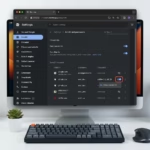
You can check the status by typing edge://settings/passwords in your address bar.
Conclusion
Turning off password export in Edge is a simple step to protect your accounts, but remember to handle any exported CSV files securely.
Was this guide helpful?

About the Author
Richard
Tech Writer, IT Professional
Richard, a writer for Geek Rewind, is a tech enthusiast who loves breaking down complex IT topics into simple, easy-to-understand ideas. With years of hands-on experience in system administration and enterprise IT operations, he’s developed a knack for offering practical tips and solutions. Richard aims to make technology more accessible and actionable. He's deeply committed to the Geek Rewind community, always ready to answer questions and engage in discussions.



No comments yet — be the first to share your thoughts!