Enable or Disable Microsoft Defender PUA Protection in Windows 11

This tutorial will show you how to turn on or off Microsoft Defender’s protection against potentially unwanted applications (PUA) in Windows 11.
What Are Potentially Unwanted Applications?
Potentially unwanted apps (PUA) aren’t viruses, but they can cause problems. They might show you ads, use your computer to mine cryptocurrency, or slow down your PC. Potentially unwanted applications (PUA) are programs that can make your computer run slowly, display surprise ads, or install other harmful software.
Microsoft Defender Antivirus automatically blocks detected PUA files. It stops them from downloading, moving, running, or installing. Blocked files get moved to quarantine, and you’ll get a notification when one is found.
Before You Start
⚠️ Admin Required: You must be signed in as an administrator to enable or disable PUA protection.
To download a test PUA file to check if your protection works: Feature Settings Check AMTSO | Detects Potentially Unwanted Applications (PUAs)
Learn more about PUA protection:
- Protect your PC from potentially unwanted applications – Microsoft Support
- Block potentially unwanted applications with Microsoft Defender Antivirus – Microsoft Defender for Endpoint
- How Microsoft identifies malware and potentially unwanted applications – Unified security operations
Option One: Microsoft Edge Settings
- Open Microsoft Edge.
- Click the three dots menu (Settings and more) in the top right corner. Press Alt+F on your keyboard.
- Click Settings.
- Click Privacy, search, and services in the left menu.
- Under Security, find Block potentially unwanted apps.
- Toggle it On (default) or Off based on what you want.

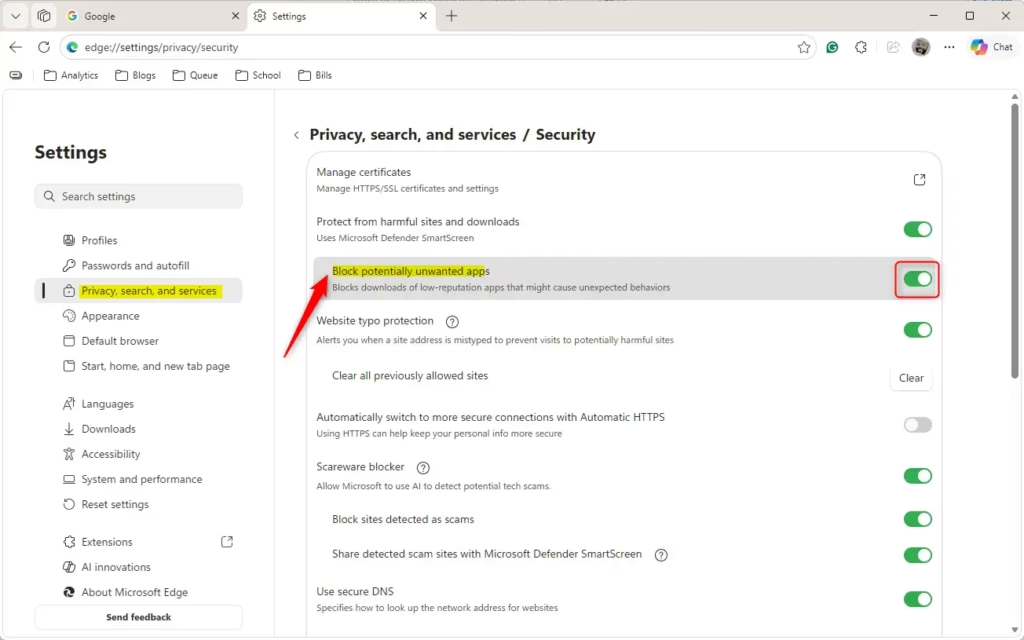
Note: If Microsoft Defender SmartScreen is turned off, this setting will be grayed out.
You can now close the Settings tab.
Option Two: Windows Security App
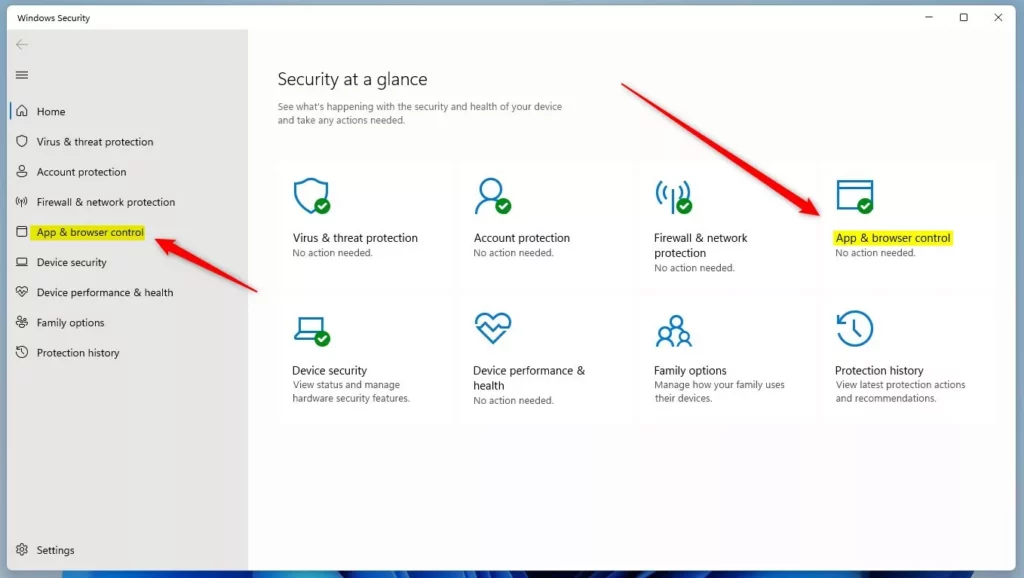
- Open Windows Security. You can search for it in the Start menu.
- Click App & browser control on the left side.
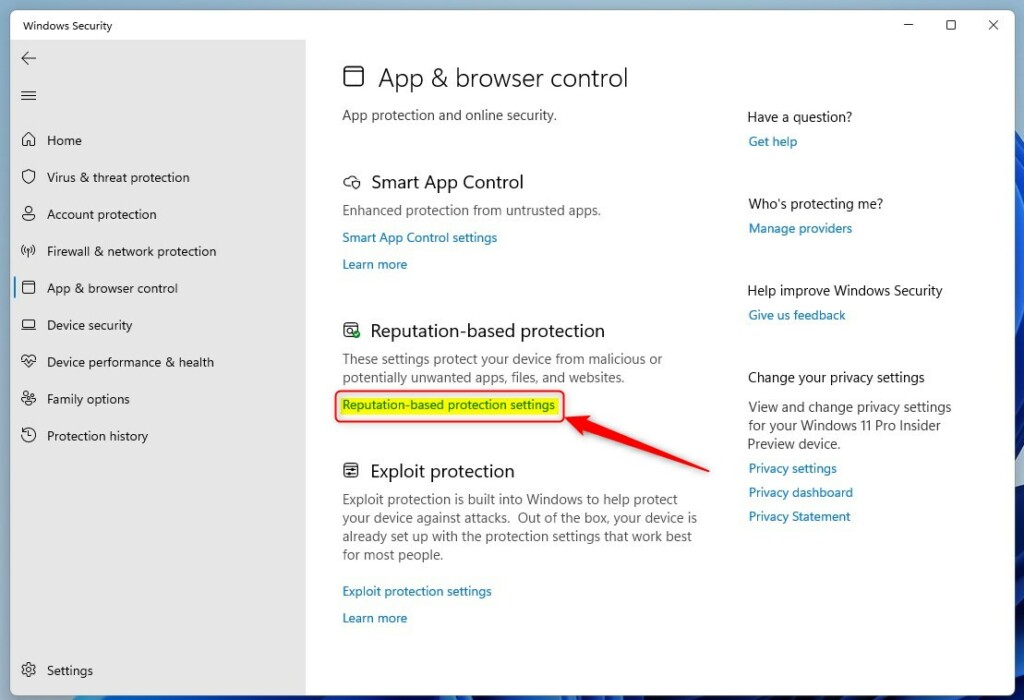
- Click Reputation-based protection settings.
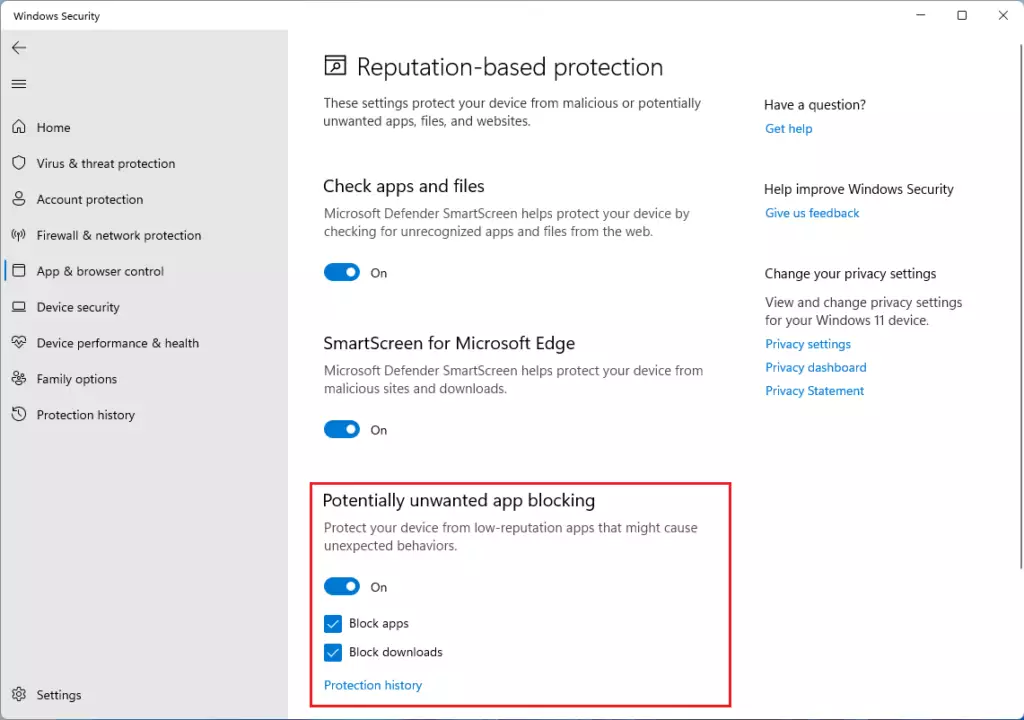
- Turn Potentially unwanted app blocking On (default) or Off.
When you turn it On, you get two options:
- Block apps: Finds PUA that you’ve already downloaded or installed. This works in any browser.
- Block downloads: Stops PUA while it’s downloading in Microsoft Edge.
You can turn each option on or off separately. You can now close Windows Security.
Option Three: PowerShell Command
⚠️ Admin Required: This requires administrator access.
Note: This method doesn’t affect the Microsoft Edge download blocking setting.
- Open Windows Terminal as an administrator. Search for it in the Start menu, then click “Run as administrator.”
- Select Windows PowerShell from the dropdown.
- Copy and paste one of the commands below and press Enter.
Turn off PUA protection (don’t block apps):
Set-MpPreference -PUAProtection 0or
Set-MpPreference -PUAProtection DisabledTurn on PUA protection and block apps (default):
Set-MpPreference -PUAProtection 1or
Set-MpPreference -PUAProtection EnabledAudit Mode (detect PUA but don’t block them):
Set-MpPreference -PUAProtection 2or
Set-MpPreference -PUAProtection AuditModeYou can now close Windows Terminal.
Option Four: Local Group Policy Editor
⚠️ Admin Required: This requires administrator access.
Note: Local Group Policy Editor only works on Windows 11 Pro, Enterprise, and Education versions. If you have Windows 11 Home, use Option Five instead.
Note: This method doesn’t affect the Microsoft Edge download blocking setting.
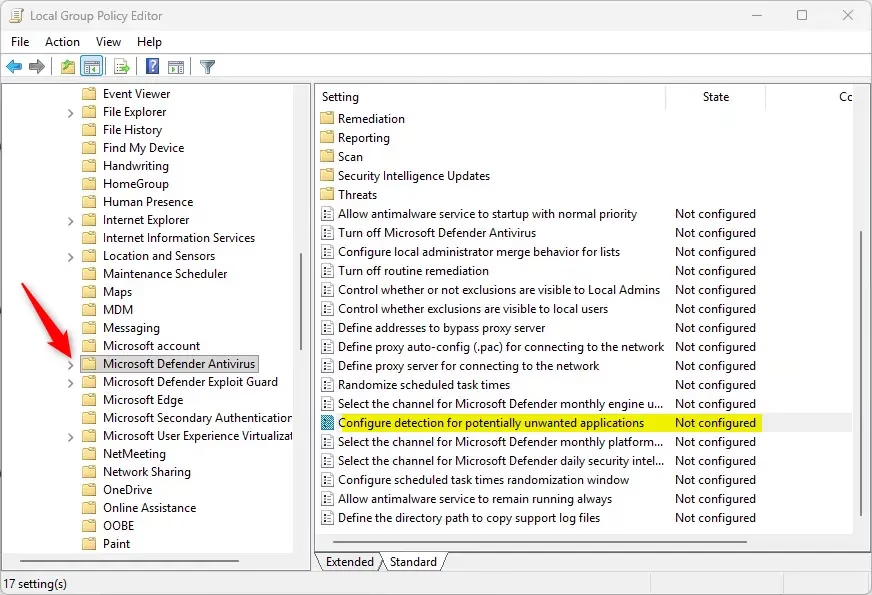
- Open the Local Group Policy Editor. Press Windows key + R, type
gpedit.msc, and press Enter. - Navigate to this location in the left pane:Code
Computer Configuration > Administrative Templates > Windows Components > Microsoft Defender Antivirus - In the right pane, find and double-click Configure detection for potentially unwanted applications.
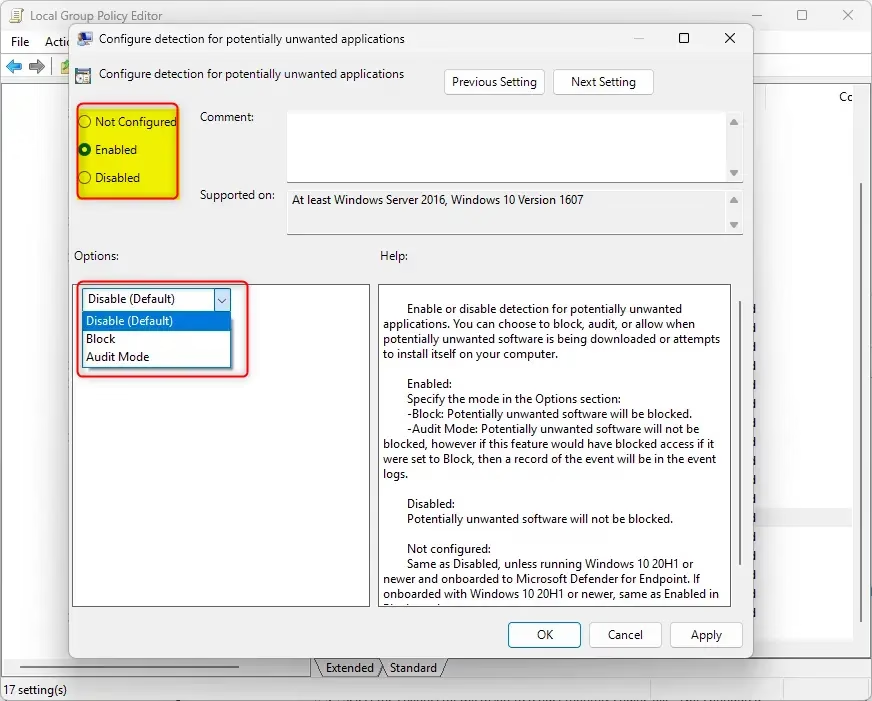
- Choose one of the options below:
Always Block PUA (recommended):
- Select the dot next to Enabled.
- In the Options dropdown, select Block.
- Click OK.
Audit Mode (detect but don’t block):
- Select the dot next to Enabled.
- In the Options dropdown, select Audit Mode.
- Click OK.
Always Disable PUA Protection:
- Select the dot next to Enabled.
- In the Options dropdown, select Disable.
- Click OK.
Allow Users to Change Settings (default):
- Select the dot next to Not Configured.
- Click OK.
You can now close the Local Group Policy Editor.
Option Five: Registry Editor
⚠️ Admin Required: This requires administrator access.
Note: This method doesn’t affect the Microsoft Edge download blocking setting.
Always Block PUA:
reg add "HKEY_LOCAL_MACHINE\SOFTWARE\Policies\Microsoft\Windows Defender" /v PUAProtection /t REG_DWORD /d 1 /fAudit Mode (detect but don’t block):
reg add "HKEY_LOCAL_MACHINE\SOFTWARE\Policies\Microsoft\Windows Defender" /v PUAProtection /t REG_DWORD /d 2 /fAlways Disable PUA Protection:
reg add "HKEY_LOCAL_MACHINE\SOFTWARE\Policies\Microsoft\Windows Defender" /v PUAProtection /t REG_DWORD /d 0 /fAllow Users to Change Settings (default):
reg delete "HKEY_LOCAL_MACHINE\SOFTWARE\Policies\Microsoft\Windows Defender" /v PUAProtection /fSummary
Potentially unwanted applications can slow down your computer and show unwanted ads. Windows 11 includes PUA protection in Microsoft Defender to keep your PC safe. You have five different ways to control this protection:
- Option One uses Microsoft Edge settings (easiest for Edge users)
- Option Two uses the Windows Security app (simple graphical interface)
- Option Three uses PowerShell commands (for advanced users)
- Option Four uses Group Policy Editor (Windows Pro/Enterprise only)
- Option Five uses Registry Editor (for all Windows versions)
For most users, Option Two (Windows Security) is the easiest method. You can choose to block apps, block downloads, or both. You can also enable Audit Mode to test PUA detection without blocking anything. Remember that you need administrator access to make these changes.
Was this guide helpful?

About the Author
Richard
Tech Writer, IT Professional
Richard, a writer for Geek Rewind, is a tech enthusiast who loves breaking down complex IT topics into simple, easy-to-understand ideas. With years of hands-on experience in system administration and enterprise IT operations, he’s developed a knack for offering practical tips and solutions. Richard aims to make technology more accessible and actionable. He's deeply committed to the Geek Rewind community, always ready to answer questions and engage in discussions.


No comments yet — be the first to share your thoughts!