

Modern Standby is a new sleep mode in Windows 11. It helps your computer save power while staying connected to the internet or your network. Think of it like your smartphone — your device can quickly “wake up” and still get notifications, emails, and alerts even when it’s sleeping.
This guide will show you how to turn Modern Standby network connectivity on or off. You can choose whether your device stays connected during sleep or saves more battery by disconnecting.
What is Modern Standby Network Connectivity?
Connected state: Your device stays connected to WiFi or other networks during sleep. You get updates and notifications right away.
Disconnected state: Your device turns off network connections during sleep. This can save battery but means no updates until you wake it up.
Managed by Windows: Windows decides when to keep the network on or off. It balances notifications and battery life.
Why Use Modern Standby?
Modern Standby helps you stay in touch without draining your battery as quickly. You get important notifications while your computer rests.
What Happens When You Change These Settings?
When you enable network connectivity, your device uses a little more power but stays up to date. When you disable it, your device saves battery but won’t receive updates until you wake it up.
How to Change Modern Standby Network Settings in Windows 11
Before you start, make sure your PC supports Modern Standby.
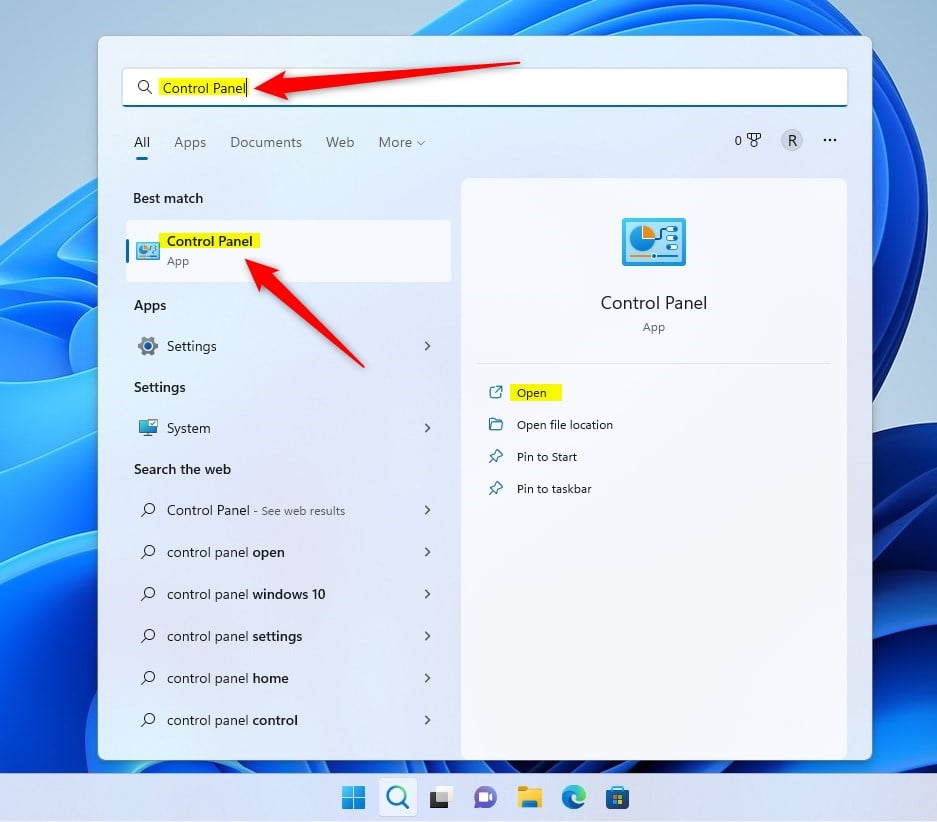
Step 1: Open Control Panel
- Click the Start menu (the Windows icon in the bottom-left corner).
- Type
Control Panelin the search box. - Click on the Control Panel app from the search results.
Step 2: Go to Power Options
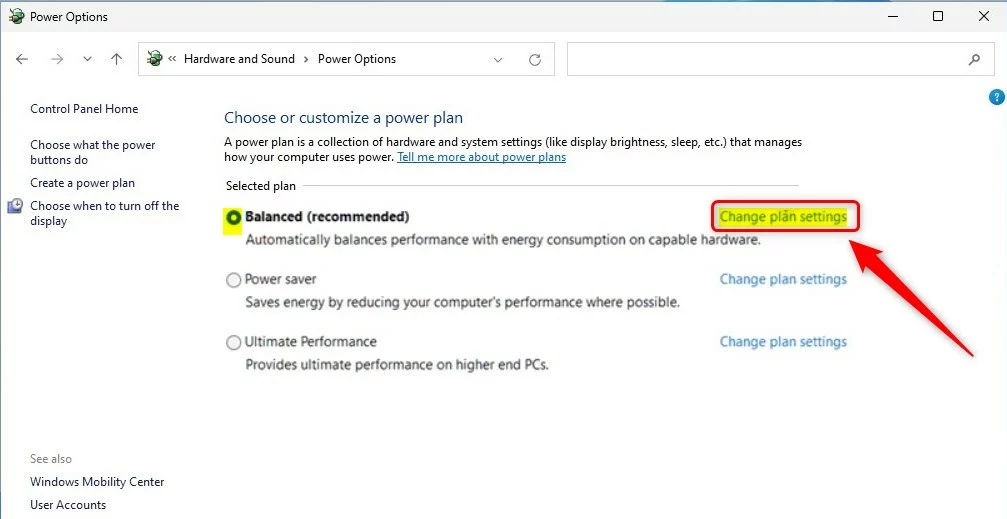
In Control Panel, click Hardware and Sound. Then select Power Options.
Path: Control Panel > Hardware and Sound > Power Options
Step 3: Change Power Plan Settings
Find your current active power plan. Click Change plan settings next to it.
Step 4: Open Advanced Power Settings
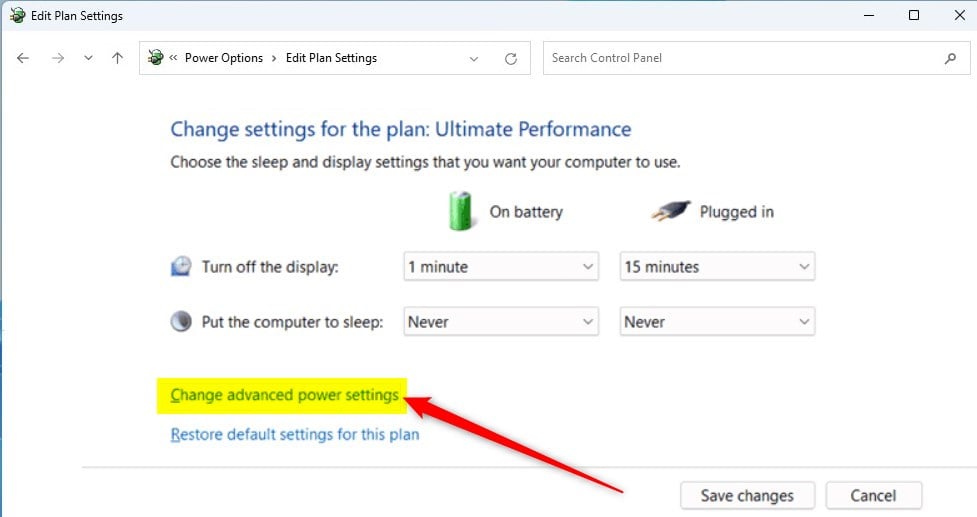
Click Change advanced power settings.
Step 5: Adjust Network Connectivity in Standby
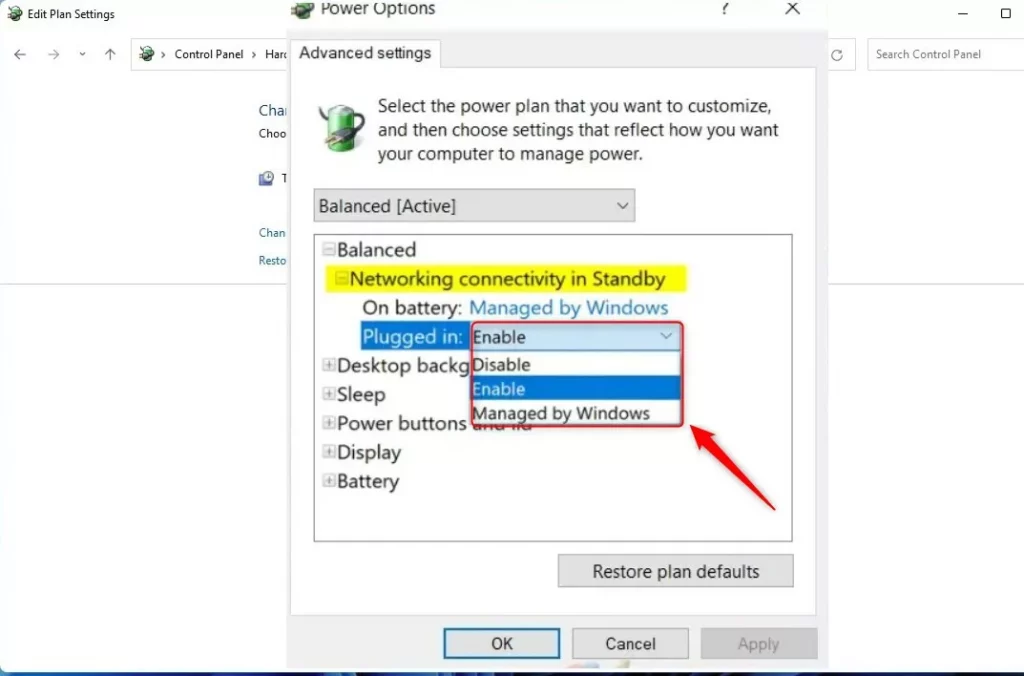
A new window will open. Scroll to find Network connectivity in Standby. You’ll see two sets of options:
- On battery: Choose Disable, Enable, or Managed by Windows.
- Plugged in: Choose Disable, Enable, or Managed by Windows.
Pick the settings that fit your needs:
- Enable: Stay connected during sleep.
- Disable: Disconnect to save battery.
- Managed by Windows: Let Windows decide what’s best.
When done, click OK to save your changes.
Alternative Method: Use Local Group Policy Editor
If you prefer, you can also change these settings using the Local Group Policy Editor. This tool is usually for more advanced users. But it works well if you want quick access to these settings.
Step 1: Open Local Group Policy Editor
- Click the Start menu.
- Type
Edit group policy. - Click on Edit group policy in the results.

Step 2: Go to Sleep Settings
In the left panel, follow this path:
Computer Configuration\Administrative Templates\System\Power Management\Sleep SettingsStep 3: Change Connectivity Settings ⚠️ Admin Access Required
On the right side, find these two settings:
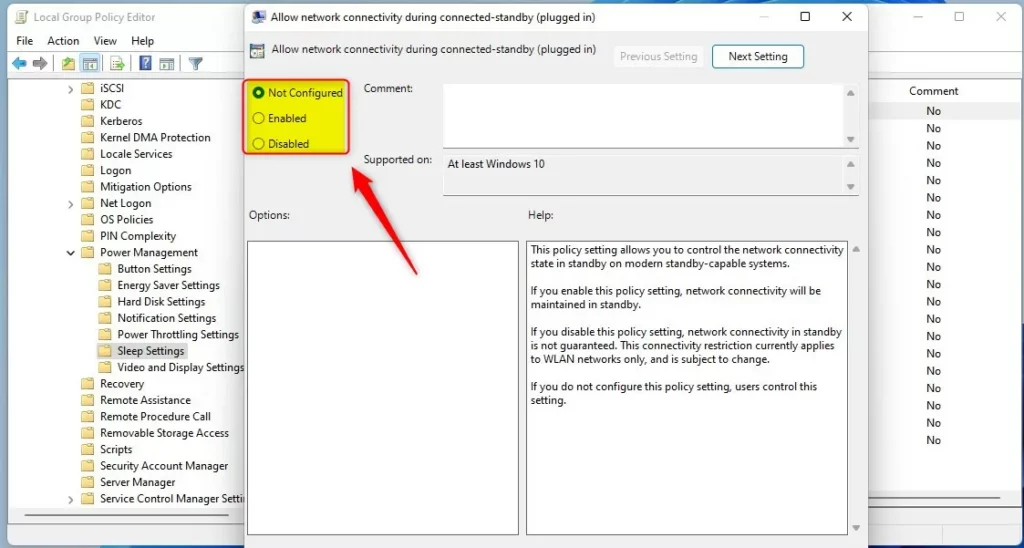
- Allow network connectivity during connected-standby (plugged in)
- Allow network connectivity during connected-standby (on battery)
Double-click each one. Then select:
- Not Configured (default)
- Enabled – Keep network connected during standby.
- Disabled – Network may disconnect during standby.
Click Apply and then OK for each setting.
Summary
- Modern Standby lets your computer stay connected to networks while sleeping.
- You can choose to keep the connection on, turn it off, or let Windows decide.
- Adjust these settings using Control Panel or Local Group Policy Editor.
- Changing these settings helps balance getting notifications and saving battery power.
By following these simple steps, you can control how your Windows 11 device uses the network during sleep. This way, you can find the best fit for your needs!



Leave a Reply