
This guide will help you stop your Windows 11 computer from saving files to drives that don’t have BitLocker encryption. Let’s explore why this matters and how to set it up.
Why Block Writing to Unprotected Drives?
BitLocker is a built-in Windows tool that protects your files by encrypting your drives. When you use BitLocker, only people with permission can open and change files on the drive. By blocking write access to unencrypted drives, you keep your data safe from accidental changes or security risks.
What Drives Can BitLocker Protect?
- External drives (like USB sticks)
- Internal fixed drives
- Your main Windows system drive
When BitLocker is turned on for your Windows system drive, it can unlock automatically when you start your PC if you have the right security chip (called TPM).
What Happens When You Block Unprotected Drives?
Windows lets you set a rule to block writing (saving or changing files) on any fixed drives that don’t have BitLocker protection. This means your computer will only allow changes on drives that are encrypted and secure. Unencrypted drives become read-only.
Method 1: Using Group Policy Editor
Follow these simple steps to set this up:
- Click the Start button and type
Edit group policy. Click to open the Local Group Policy Editor. - In the left panel, follow this path:
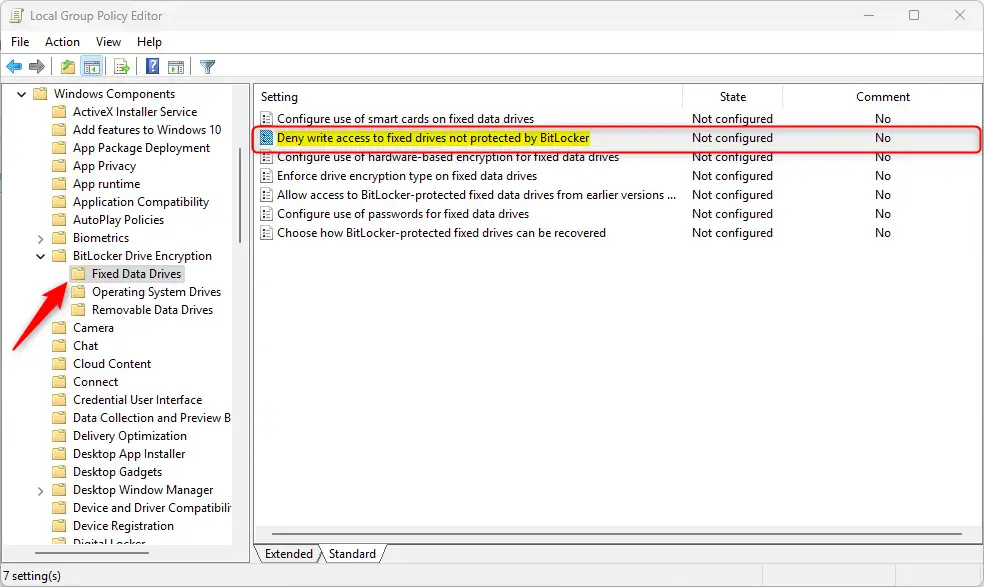
Computer Configuration > Administrative Templates > Windows Components > BitLocker Drive Encryption > Fixed Data Drives - In the right panel, find and double-click
Deny write access to fixed drives not protected by BitLocker. - Choose one of these options:
- Not Configured (default) – Same as Disabled below.
- Enabled – Blocks writing to drives without BitLocker. Those drives will be read-only.
- Disabled – Allows writing to all fixed drives, with or without BitLocker.
- Click OK to save your choice.
- Restart your computer to apply the changes.
Here’s a screenshot of the setting:
Method 2: Using Registry Editor
If you prefer, you can also make this change by editing the Windows Registry. Be careful when editing the Registry – it’s a good idea to make a backup first.
- [ADMIN REQUIRED] Open Registry Editor as an administrator:
- Click Start, type
regedit, right-click it and selectRun as administrator.
- Click Start, type
- Go to this location:
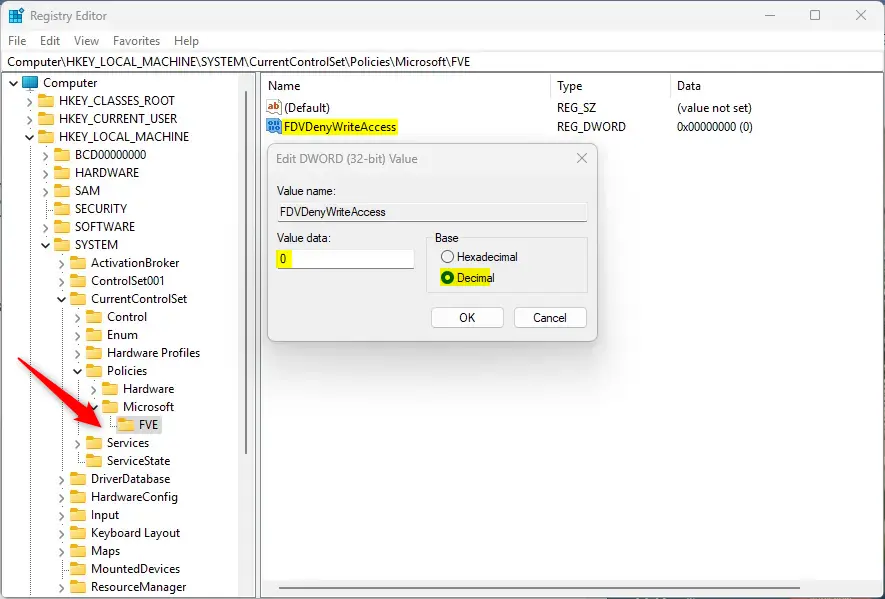
HKEY_LOCAL_MACHINE\SYSTEM\CurrentControlSet\Policies\Microsoft\FVE - Look for a value named
FDVDenyWriteAccessin the right pane. - If it doesn’t exist, right-click on the empty space, select
New > DWORD (32-bit) Value, and name itFDVDenyWriteAccess. - Double-click
FDVDenyWriteAccessand set its value to1to block writing on unprotected drives. - Click OK and close the Registry Editor.
- Restart your computer to make the change take effect.
If you want to allow writing again on unprotected drives, delete the FDVDenyWriteAccess entry or set its value to 0.
Summary
Using this setting helps keep your data safe by only allowing changes on drives protected by BitLocker. You can set this up easily with either the Group Policy Editor or Registry Editor. After setting it up, your PC will prevent writing to any unencrypted fixed drives, protecting your files from accidental changes or risks. If you want to learn more about turning on BitLocker, check out this helpful guide: How to Turn On BitLocker in Windows 11.

Leave a Reply Cancel reply