How to Enable or Disable Delete to Recycle Bin Confirmation Dialog in Windows 11

You can enable or disable the delete confirmation dialog in Windows 11 to control whether you see a prompt asking, “Are you sure you want to move this file to the Recycle Bin?” This setting helps prevent accidental deletion of important files by asking for your confirmation before they go to the Recycle Bin.
This prompt appears by default after a fresh installation of Windows 11. You can quickly turn this feature on or off directly from your Recycle Bin settings window.
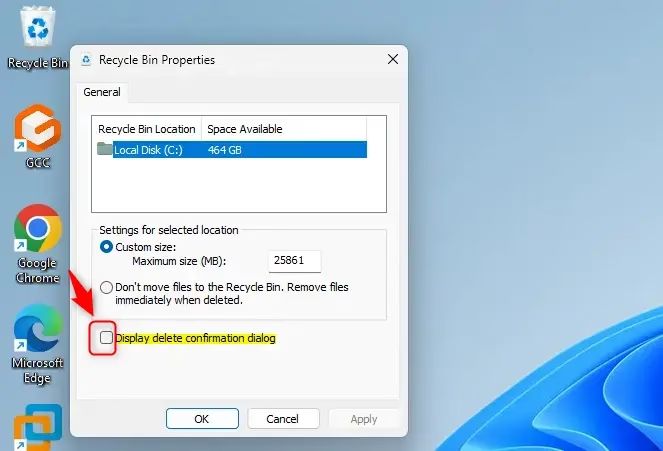
Right-click the Recycle Bin icon, select Properties, and then check or uncheck “Display delete confirmation dialog.” This setting controls whether Windows prompts you before sending files to the Recycle Bin.
Why This Matters
The delete confirmation dialog in Windows 11 acts as a safety net, letting you double-check before files go to the Recycle Bin.
By default, Windows doesn’t ask you to confirm when you delete something to the Recycle Bin. Some people like having a confirmation dialog pop up to make sure they really want to delete a file. This tutorial shows you how to turn that confirmation on or off.
What Happens
Turning on the delete confirmation dialog in Windows 11 means you’ll get an ‘Are you sure?’ prompt before files go to the Recycle Bin.
Important to know: If you delete a file that’s too large for your Recycle Bin’s size limit, Windows will always show a confirmation dialog, asking if you want to permanently delete it.
Each user account on your computer has its own separate Recycle Bin. Each hard drive or partition also has its own Recycle Bin settings.
USB flash drives and memory cards don’t have a Recycle Bin by default. Files deleted from these drives are gone forever unless you enable the Recycle Bin for them.
Option 1Use Recycle Bin Properties
You can easily turn the delete confirmation dialog in Windows 11 on or off using your Recycle Bin’s Properties.
- Right-click on the Recycle Bin icon on your desktop.
- Click Properties. (see screenshot below)
- Check the box next to Display delete confirmation dialog to turn it on. Uncheck it to turn it off.
- Click OK.
Option 2Use Group Policy Editor
For a system-wide change, you can use the Group Policy Editor to manage the delete confirmation dialog in Windows 11, though it requires admin rights.
Option 2: Use Group Policy Editor (Admin privileges required) This method works for everyone on the computer or specific groups, and applies to all your hard drives and partitions.
Note: Group Policy Editor is only available in Windows Pro, Enterprise, and Education editions. If you have Windows Home edition, use Option Three instead.
- Open the Group Policy Editor for all users, specific users, or all users except administrators. The choice depends on who you want this setting to apply to.
- In the left pane, navigate to:
User Configuration > Administrative Templates > Windows Components > File Explorer
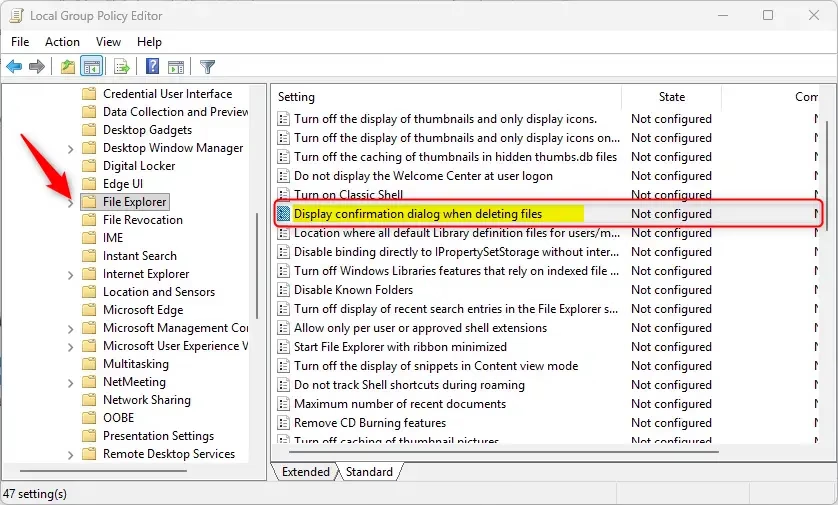
- In the right pane, find and double-click the policy called Display confirmation dialog when deleting files.
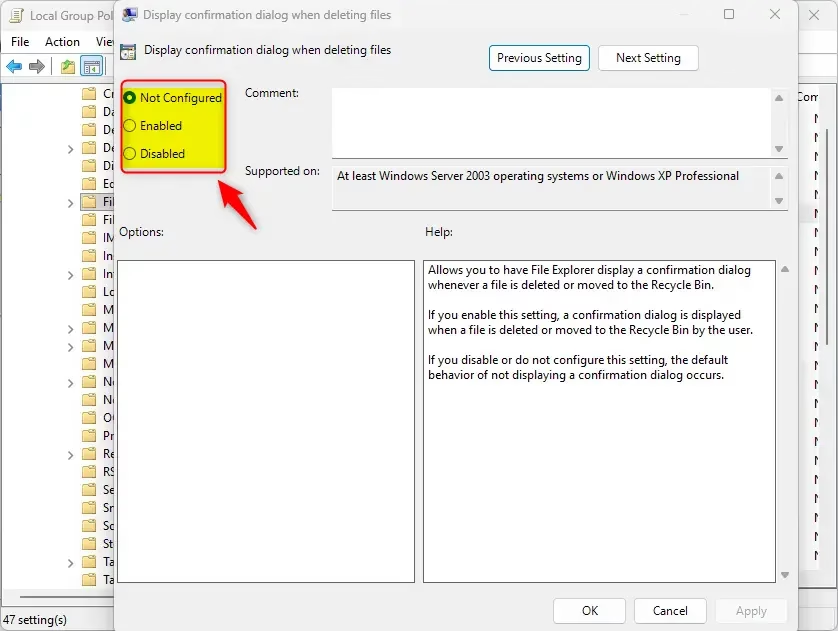
To Always Show the Delete Confirmation Dialog
Select Enabled and click OK.
Note: This setting will override the Recycle Bin Properties option from Option One. Users won’t be able to turn off the confirmation dialog.
To Use the Default Setting (No Confirmation Dialog)
Select Not Configured and click OK. This lets users choose their own setting using Option One.
- You can now close the Group Policy Editor.
Option 3Use Registry Editor
The Registry Editor offers another way to control the delete confirmation dialog in Windows 11 for all users, especially useful for Windows Home users.
Option 3: Use Registry Editor (Admin privileges required) This method works for all users, all hard drives, and all partitions. It’s also the one to use if you have Windows Home edition.
- Open Windows Terminal as an administrator. (Right-click it and select Run as administrator.)
- Run one of the commands below, depending on what you want.
To Always Show the Delete Confirmation Dialog
Copy and paste this command:
reg add "HKCU\Software\Microsoft\Windows\CurrentVersion\Policies\Explorer" /v ConfirmFileDelete /t REG_DWORD /d 1 /f
reg add "HKLM\SOFTWARE\Microsoft\Windows\CurrentVersion\Policies\Explorer" /v ConfirmFileDelete /t REG_DWORD /d 1 /f
To Use the Default Setting (No Confirmation Dialog)
Copy and paste this command:
reg delete "HKCU\Software\Microsoft\Windows\CurrentVersion\Policies\Explorer" /v ConfirmFileDelete /f
reg delete "HKLM\SOFTWARE\Microsoft\Windows\CurrentVersion\Policies\Explorer" /v ConfirmFileDelete /f
Summary
Windows 11 lets you choose if you see a delete confirmation dialog, with simple ways like Recycle Bin Properties or more advanced methods like Group Policy or Registry Editor.
- Option One is the simplest. Right-click the Recycle Bin icon and check or uncheck the confirmation box in Properties. This only affects your account.
- Option Two uses Group Policy Editor. It works for all users or specific user groups. It only works on Windows Pro, Enterprise, and Education editions.
- Option Three uses the Registry. It works for all users and works on all Windows editions, including Home. You must run Windows Terminal as an administrator.
Choose whichever method works best for your needs. All three methods accomplish the same thing—they just work for different situations.
How do I delete confirmation in 🪟 Windows 11?
To enable delete confirmation in Windows 11, right-click the Recycle Bin icon, select Properties, and check the ‘Display delete confirmation dialog’ box.
How to display delete confirmation dialog?
You can display the delete confirmation dialog by right-clicking the Recycle Bin icon and choosing Properties. In the settings window that appears, check the ‘Display delete confirmation dialog’ option. Once you click OK, Windows will require your manual confirmation before moving any files or folders into the Recycle Bin.
When we delete a file, the dash file dialog box appears to confirm the deletion.?
The delete confirmation dialog appears in Windows 11 when the ‘Display delete confirmation dialog’ setting is turned on in your Recycle Bin properties.
How do I turn off delete confirmation?
To turn off delete confirmation in Windows 11, right-click the Recycle Bin icon, go to Properties, and uncheck the ‘Display delete confirmation dialog’ box.
Was this guide helpful?

About the Author
Richard
Tech Writer, IT Professional
Richard, a writer for Geek Rewind, is a tech enthusiast who loves breaking down complex IT topics into simple, easy-to-understand ideas. With years of hands-on experience in system administration and enterprise IT operations, he’s developed a knack for offering practical tips and solutions. Richard aims to make technology more accessible and actionable. He's deeply committed to the Geek Rewind community, always ready to answer questions and engage in discussions.


No comments yet — be the first to share your thoughts!