How to Resize Recycle Bin on Windows 11

You can resize the Recycle Bin on Windows 11 to manage its disk space usage.
The Recycle Bin acts as a temporary storage for deleted files, preventing immediate permanent deletion and allowing you to restore them. Windows 11 assigns a default disk space allocation to the Recycle Bin, which can vary based on your drive size.
For example, on a 1TB hard drive, Windows 11 might reserve approximately 5% of that space for the Recycle Bin. Adjusting this size is useful if you frequently delete large files or need to free up more storage space on your PC.
Right-click the Recycle Bin icon on your desktop and select Properties. Choose a drive, select Custom size, and enter your desired size in MB. Click OK to save.
Why resize the Recycle Bin?
You should resize it if you often lose files because the bin fills up too fast. By increasing the size, your deleted items will stay safe for a longer period. You can also choose to delete files instantly to free up space immediately.
What happens when done?
Once you’ve made these changes, your computer will manage your deleted files according to your new rules. If you increase the size, you will have more breathing room before files are permanently removed. If you choose to delete files immediately, be careful, because you won’t be able to recover them from the bin.
How to change your Recycle Bin size
You can adjust these settings through the desktop icon or the file menu. Learn more about storage management here.
- Find the Recycle Bin icon on your desktop.
- Right-click the icon and choose Properties.
Alternatively, you can open the Recycle Bin folder, click the three dots (…) in the top menu, and select Properties.
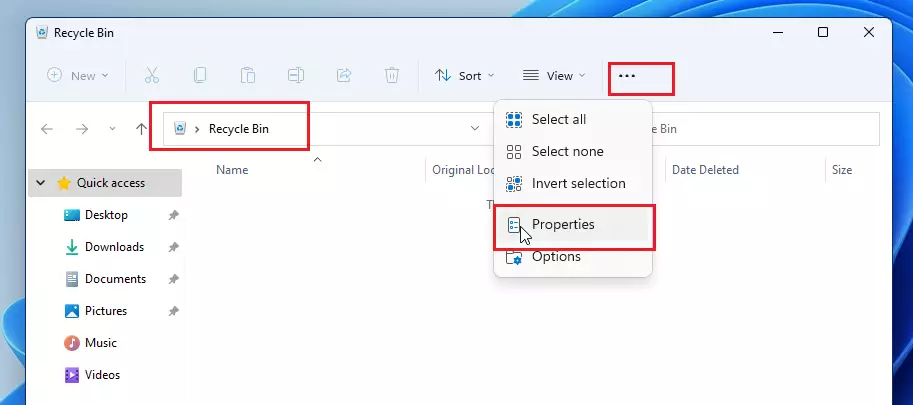
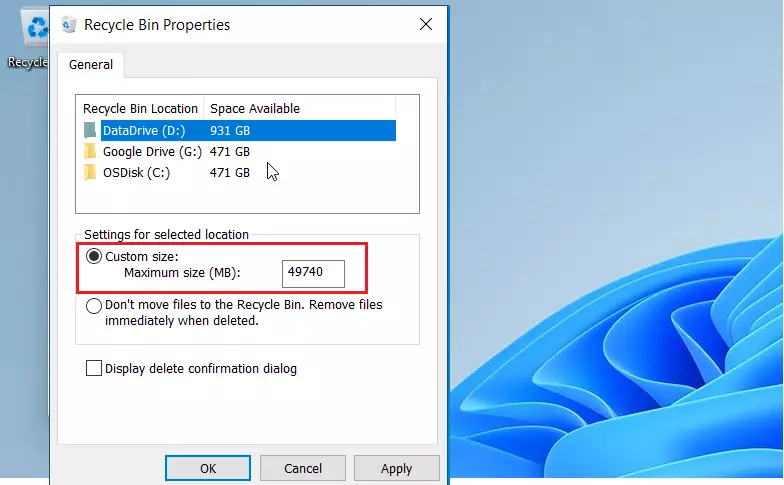
- In the Properties window, you will see a list of your hard drive volumes.
- Select the drive you want to change.
- Under the “Settings for selected location” section, click the Custom size bubble.
- Type in your preferred size in Megabytes (MB).
- Click OK to save your changes.
Pro Tip: Bypassing the Recycle Bin
Want to permanently delete a file so it doesn’t even hit the Recycle Bin? Use the Shift+Del keyboard shortcut. This is a good move for sensitive files you need gone right away. Keep in mind, you can’t get these files back from the bin after this.
Managing Storage Space
If your disk space is low, the Recycle Bin might be taking up too much room. You can use Storage Sense to automatically clear the bin. Go to Settings > System > Storage > Storage Sense to configure this. You can also use the Disk Cleanup tool to remove temporary files from 📁C:\Windows\System32 or other system directories.
Important Security Note
Important Note: Most people can change these settings, but if you’re on a restricted network or a shared computer, you might need administrator privileges to change system-wide storage settings. If you encounter an access denied error, check your user account permissions in the Control Panel.
Summary
Resizing your Recycle Bin gives you better control over how long deleted files stay on your computer. Whether you need more storage space or a longer safety net for accidental deletions, these settings help you manage your files effectively. Always be cautious when choosing to delete files immediately, as this action cannot be undone. Use the Shift+Del shortcut for quick permanent removal and rely on Storage Sense to keep your drive clean.
Does changing the Recycle Bin size affect all drives?
No. When you open the Recycle Bin properties, you will see a list of your hard drive partitions (think of these as your C: drive, D: drive, etc.). You must select each drive individually to set a custom size for that specific partition. Changing the size for your C: drive does not automatically apply those same settings to your external or secondary hard drives.
How do I recover files after bypassing the Recycle Bin?
Once you use Shift+Del or bypass the bin, files are not moved to the Recycle Bin. Your computer just marks them as deleted in its file system. You will need third-party data recovery software to scan your drive for these files. Stop using the drive immediately to prevent the data from being overwritten.
Why is my Recycle Bin icon not updating after changing settings?
If your icon does not update, right-click on the desktop and select Refresh. Sometimes the Windows Explorer process needs a moment to register the change in the C:\$RECYCLE.BIN folder. If it still fails, you may need to restart your computer to force the system to refresh the icon state.
Was this guide helpful?

About the Author
Richard
Tech Writer, IT Professional
Richard, a writer for Geek Rewind, is a tech enthusiast who loves breaking down complex IT topics into simple, easy-to-understand ideas. With years of hands-on experience in system administration and enterprise IT operations, he’s developed a knack for offering practical tips and solutions. Richard aims to make technology more accessible and actionable. He's deeply committed to the Geek Rewind community, always ready to answer questions and engage in discussions.


You write:
“If you’re exited about Windows 11, keep reading out posts on it.”
I’m sure you mean: If you’re excited about Windows 11, keep reading our posts on it.
Thank you! Updated.
[…] a multi-drive computer, each drive or partition will have its own hidden $Recycle.Bin system folder and […]
[…] has multiple hard drives, partitions, or external hard drives, each drive will have its own hidden $Recycle.Bin system folder at the root of each volume. By default, removable drives, such […]