How to Create a Recovery Drive in Windows 11

This guide will help you make a special USB drive that can fix your Windows 11 PC if it stops working. This USB is called a recovery drive. It helps you open Windows’ advanced repair tools to fix problems, restore your PC, or even reinstall Windows.
Why Make a Recovery Drive?
If your PC won’t start normally, you can use this recovery drive to fix it. You can restore your system to an earlier state or recover your PC without losing everything.
It’s a smart idea to create a recovery drive now, before you have any problems. If your computer has a big issue later, like hardware failure, this drive can save you. Since Windows updates often, it’s good to make a new recovery drive every year. Note that your personal files and apps you added won’t be saved on this drive.
What You Need
- A USB flash drive with at least 16 GB of free space (32 GB or more is better if you want to back up system files).
- Your Windows 11 PC.
How to Create a Recovery Drive
- Plug in your USB drive. Remember, this drive will be erased, so save anything important first.
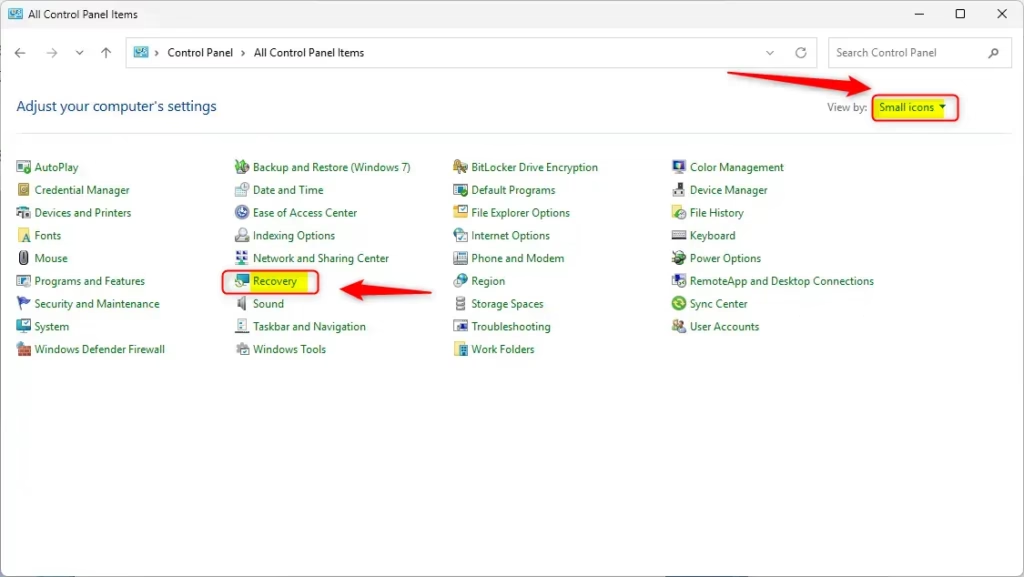
- Open Control Panel:
- Click the Start button or press the Windows key.
- Type
Control Paneland open it. - Make sure the view is set to Small icons or Large icons.
- Find and click Recovery.
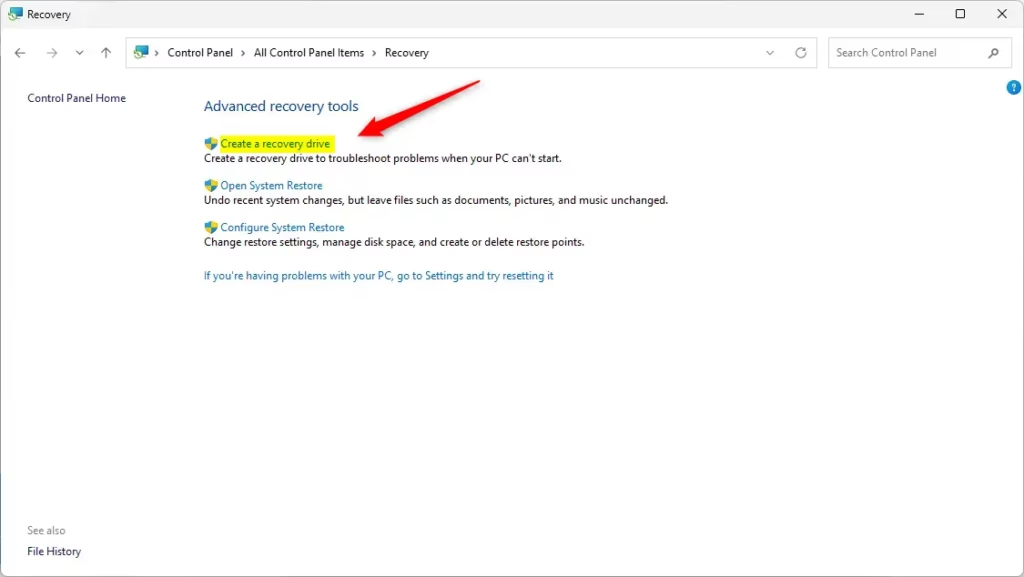
- Click Create a recovery drive. This opens the Recovery Drive tool.
- Check Back up system files to the recovery drive if you want to reinstall Windows from the drive. (This needs a bigger USB, usually 32-64 GB.) Then click Next.
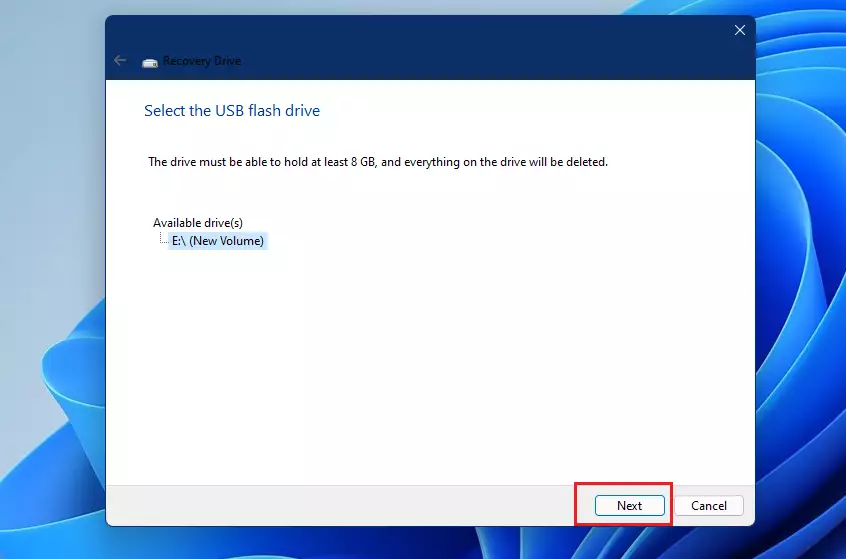
- Select your USB drive and click Next.
- Click Create to start making the recovery drive. This can take some time as Windows copies files.
- When done, click Finish. Your recovery drive is ready!
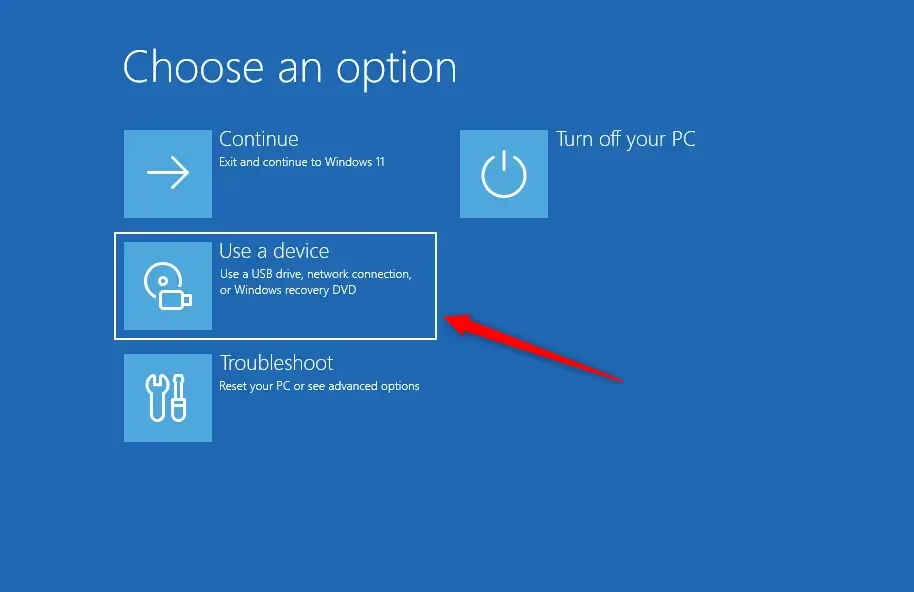
Example: Booting Your PC With the Recovery Drive
If your PC won’t start properly, you can boot from this USB drive to open Windows’ repair tools (called Advanced Startup or WinRE).
Important Tips
- USB size: Use a USB drive with at least 16 GB. For backing up system files, use 32-64 GB.
- Data loss: Creating the recovery drive erases everything on the USB, so save your files first.
- Update yearly: Make a new recovery drive every year to keep it up-to-date.
- Personal files not saved: Your photos, documents, and apps won’t be copied to the recovery drive.
- Recovery options: This drive lets you reset Windows, restore from a backup, or fix startup problems.
Making a recovery drive now helps you avoid big headaches later. It’s like having a safety net for your Windows 11 PC!
More Help from Microsoft
- Create a Recovery Drive – Microsoft Support Official guide on creating a recovery drive.
- Recovery options in Windows – Microsoft Support Learn about all the ways to recover your Windows PC.
- USB Recovery Drive for Surface Devices
Summary
A recovery drive is a USB drive that contains Windows repair tools. It helps you fix your PC if it won’t start normally. To create one, you need a USB drive with at least 16 GB of space, then use the Recovery tool in Windows Control Panel to prepare it. The process takes some time but is worth doing now, before problems happen. Remember to make a new recovery drive every year since Windows updates frequently. Your personal files won’t be saved on the drive, so don’t rely on it for backups. If your PC ever has serious issues, this recovery drive can help you restore or reinstall Windows.
Was this guide helpful?

About the Author
Richard
Tech Writer, IT Professional
Richard, a writer for Geek Rewind, is a tech enthusiast who loves breaking down complex IT topics into simple, easy-to-understand ideas. With years of hands-on experience in system administration and enterprise IT operations, he’s developed a knack for offering practical tips and solutions. Richard aims to make technology more accessible and actionable. He's deeply committed to the Geek Rewind community, always ready to answer questions and engage in discussions.




No comments yet — be the first to share your thoughts!