How to Change Narrator Audio Output in Windows 11

Why would you want to change Narrator’s audio output? Narrator is a built-in Windows tool that reads text aloud on your screen. It helps people who have difficulty seeing. If you have multiple speakers or headphones connected to your computer, you can choose which one Narrator uses to speak.
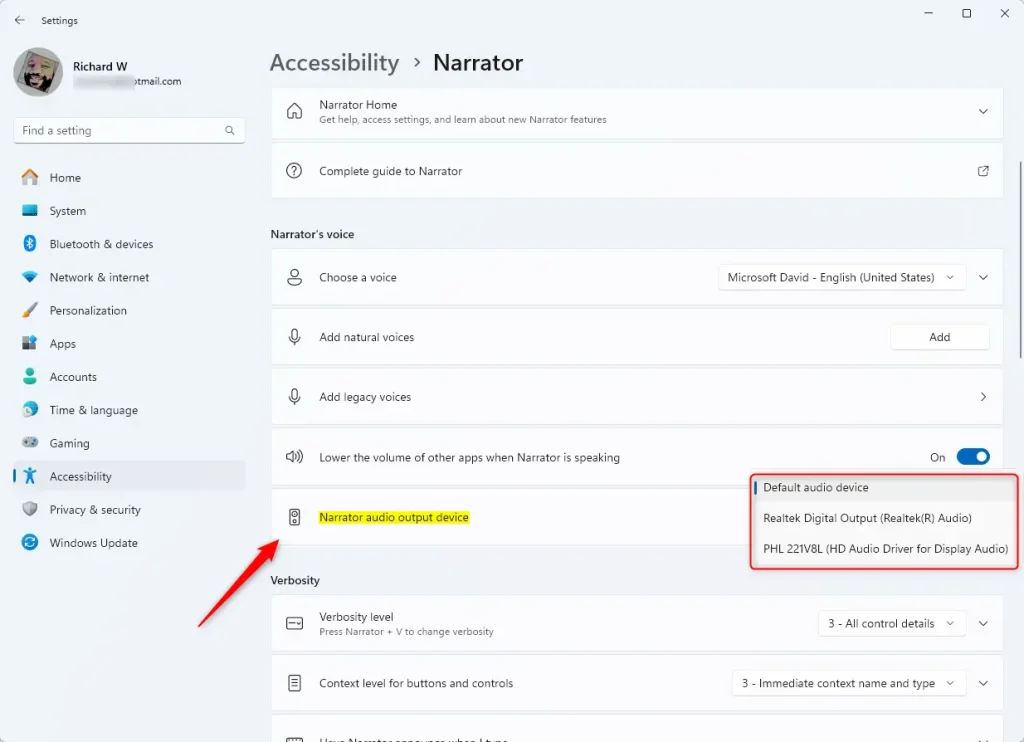
Open Settings, navigate to Accessibility, then Narrator, and select your desired audio output device from the “Narrator audio output device” dropdown. This lets you choose specific speakers or headphones for Narrator.
What happens when you change the audio output? Narrator will play its voice through the audio device you select instead of the default one. This is useful if you want to hear Narrator through specific headphones, external speakers, or a different audio device.
Narrator is a tool built into Windows that reads words aloud and describes what’s on your screen. It’s designed for people who are blind or have low vision.
You can do many things with Narrator, such as:
- Turn keyboard shortcuts on or off
- Make Narrator start automatically
- Change voice, speed, and volume
- Add or remove natural voices
- Lower other app volumes while Narrator speaks
If your computer has more than one sound device (like speakers and headphones), you can pick which one Narrator uses. Changing the audio device also helps if sound isn’t working correctly or if you want Narrator’s voice to come from specific speakers or headphones.
How to Change Narrator’s Audio Output Device in 🪟 Windows 11
Follow these simple steps:
Step 1Open Windows Settings
- Click the Start button (the Windows icon at the bottom left) and then click Settings.
- Or press the keyboard keys ⊞ Win+I together to open Settings quickly.
Step 2Go to Accessibility
- In the Settings window, find and click Accessibility on the left side.
Step 3Open Narrator Settings
- On the right side, click Narrator to see its options.
Step 4Choose the Audio Output Device
- Scroll to the section called “Narrator’s voice”.
- Click on Narrator audio output device.
- You will see a list of sound devices connected to your PC (like speakers or headphones). Pick the one you want Narrator to use.
- If you choose Default audio device, Narrator will use the main device that Windows is set to play sound through.
That’s all! Now Narrator should speak through the audio device you picked.
Summary
You can change which speakers or headphones the Narrator uses in Windows 11. This makes it easier for people who need Narrator to hear it clearly on their preferred device. Changing the audio device can also help fix sound problems or make sure Narrator works well with your devices. If you want to learn more about turning Narrator on or off, or changing its voice, check out the linked guides above.
What does the Narrator do in 🪟 Windows 11?
Narrator is a screen-reading application that's built into Windows 11, so there's nothing you need to download or install. This guide describes how to use the Narrator with Windows so that you can start using apps, browsing the web, and more.
Is Windows Narrator good?
“Narrator is useful in a pinch but offers limited functionality, particularly with browsers and web apps,” Thompson explains. “My students encountered navigation issues and sometimes silence when using Narrator to navigate the deeper levels of a Windows operating system ( control panel applets, etc.).”
Was this guide helpful?

About the Author
Richard
Tech Writer, IT Professional
Richard, a writer for Geek Rewind, is a tech enthusiast who loves breaking down complex IT topics into simple, easy-to-understand ideas. With years of hands-on experience in system administration and enterprise IT operations, he’s developed a knack for offering practical tips and solutions. Richard aims to make technology more accessible and actionable. He's deeply committed to the Geek Rewind community, always ready to answer questions and engage in discussions.



No comments yet — be the first to share your thoughts!