This tutorial shows you how to turn the guest browsing feature on or off in Microsoft Edge. This works for all users on Windows 10 and Windows 11. What is…
This tutorial will show you how to delete saved website passwords in Microsoft Edge for your account in Windows 11. Why Delete Saved Passwords? You might want to delete saved…
This article explains how to enable or disable the Picture-in-Picture feature in Microsoft Edge, the default browser for Windows 11. Users can adjust settings via the browser or through the Windows Registry. Picture-in-Picture allows videos to be viewed while browsing other tabs, enhancing productivity.
This article outlines how to enable or disable Copilot mode in Microsoft Edge on Windows 11. Introduced in version 136.0.3240.92 and later, Copilot mode offers productivity prompts next to the search box. Users can manage this feature in settings or via the edge://flags/#edge-copilot-mode link if not visible.
This article outlines how to adjust the URL copy-paste format in Microsoft Edge, enhancing user control. Users can switch between copying URLs as hyperlinked titles or plain text via the browser’s settings. This feature improves functionality and workflow efficiency in both traditional and updated versions of Edge.
This article outlines how to configure Google Chrome to use the system's default printer by adjusting the PrintPreviewUseSystemDefaultPrinter setting in the Windows Registry. It emphasizes the importance of backing up the registry and provides guidance on creating and modifying registry keys. Rebooting may be necessary for changes to take effect.
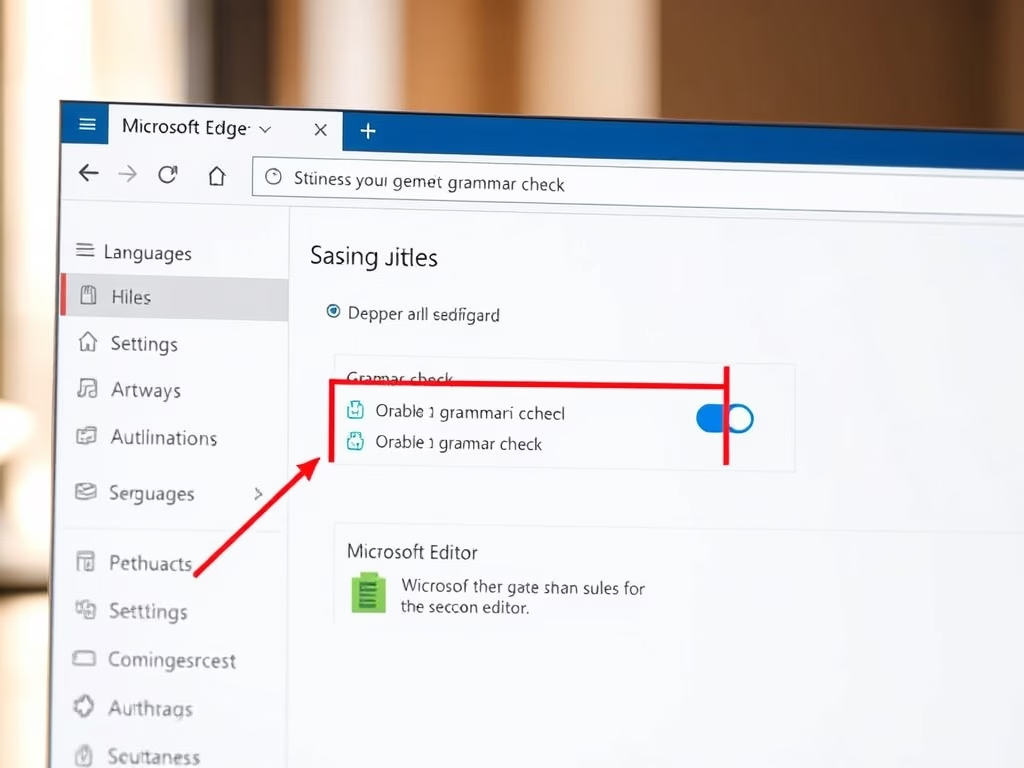
This article details how to enable or disable grammar and spell check assistance in Microsoft Edge, the default browser in Windows 11. Users can adjust settings via Edge's interface or Windows Registry. Microsoft Editor provides advanced writing support, with reminders to back up the registry before changes to avoid potential issues.
This article outlines how to enhance device security by blocking external extensions in Google Chrome. By using the BlockExternalExtensions policy in the Windows Registry, users can prevent the installation of third-party extensions, which may pose security risks. Backing up the registry and rebooting is recommended after making changes.
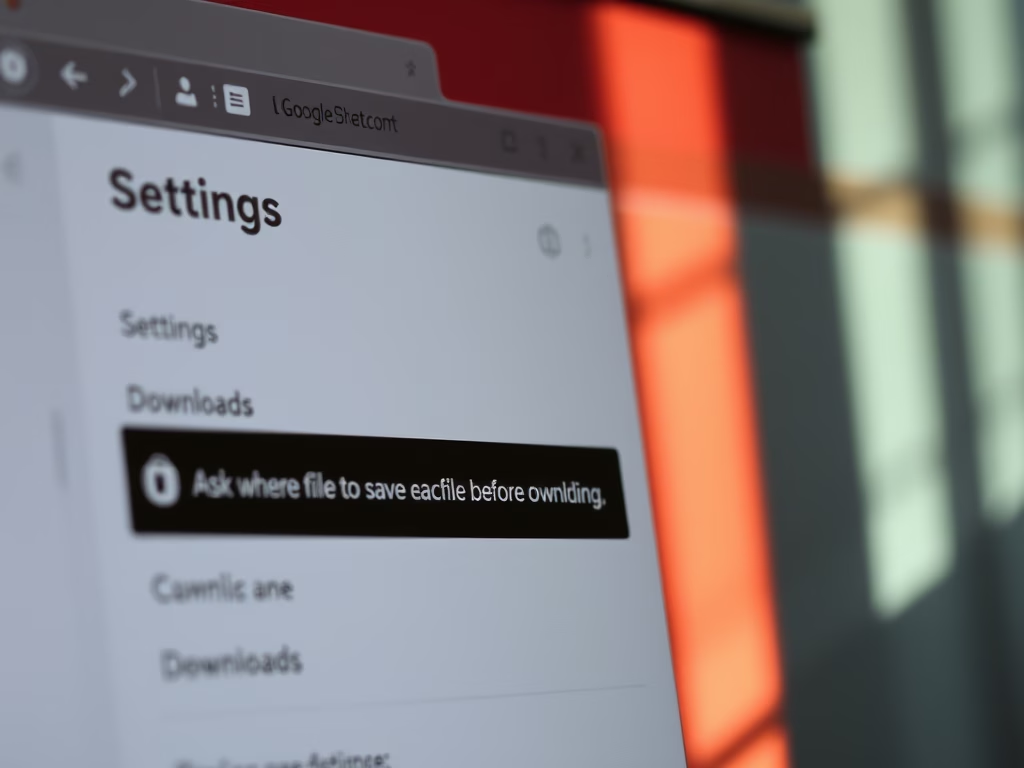
This article outlines how to enable or disable the "Ask where to save each file before downloading" option in Google Chrome. Users can adjust this setting through the Chrome settings menu or using the Windows Registry Editor. Proper backup procedures are recommended when modifying the registry to ensure system safety.
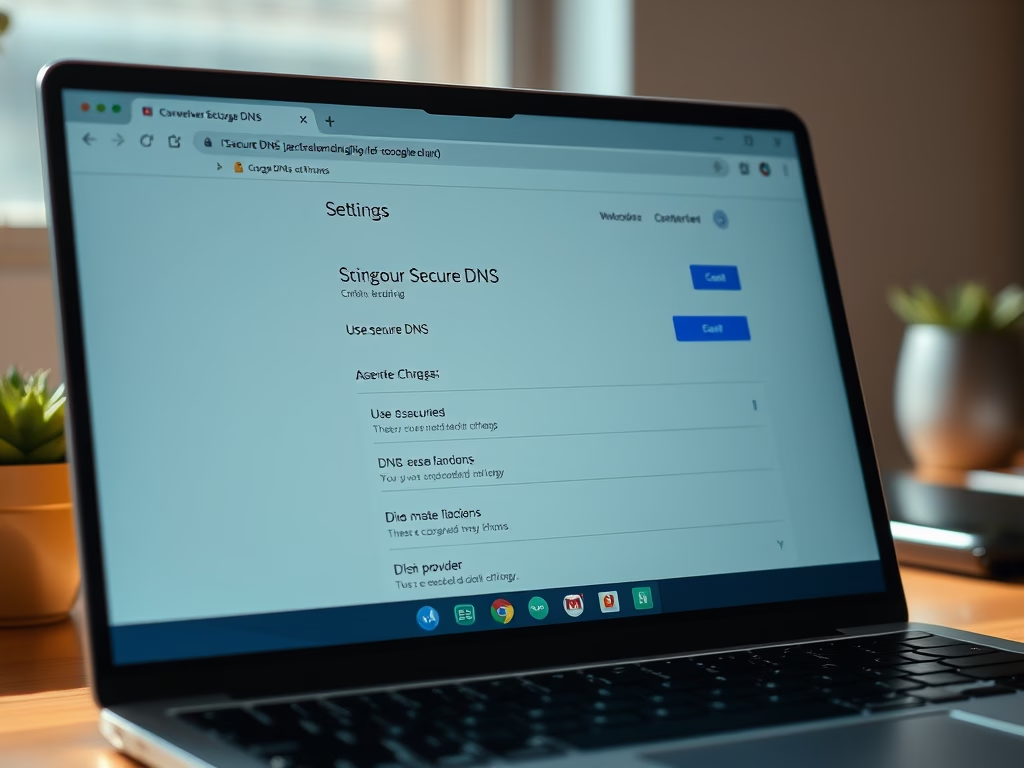
This article details the process of selecting a DNS-over-HTTPS resolver URI template in Google Chrome. Users can configure this through the browser settings or the Windows Registry Editor. Various DNS providers can be set using the DnsOverHttpsTemplates policy, enabling secure DNS connections in Chrome for enhanced privacy.
The article explains how to enable or disable secure DNS (DNS over HTTPS) in Google Chrome using the DnsOverHttpsMode policy. Users can change settings through the browser interface or Windows Registry. It outlines different modes (off, automatic, secure), emphasizes backing up the registry, and notes that a restart may be needed for changes to take effect.
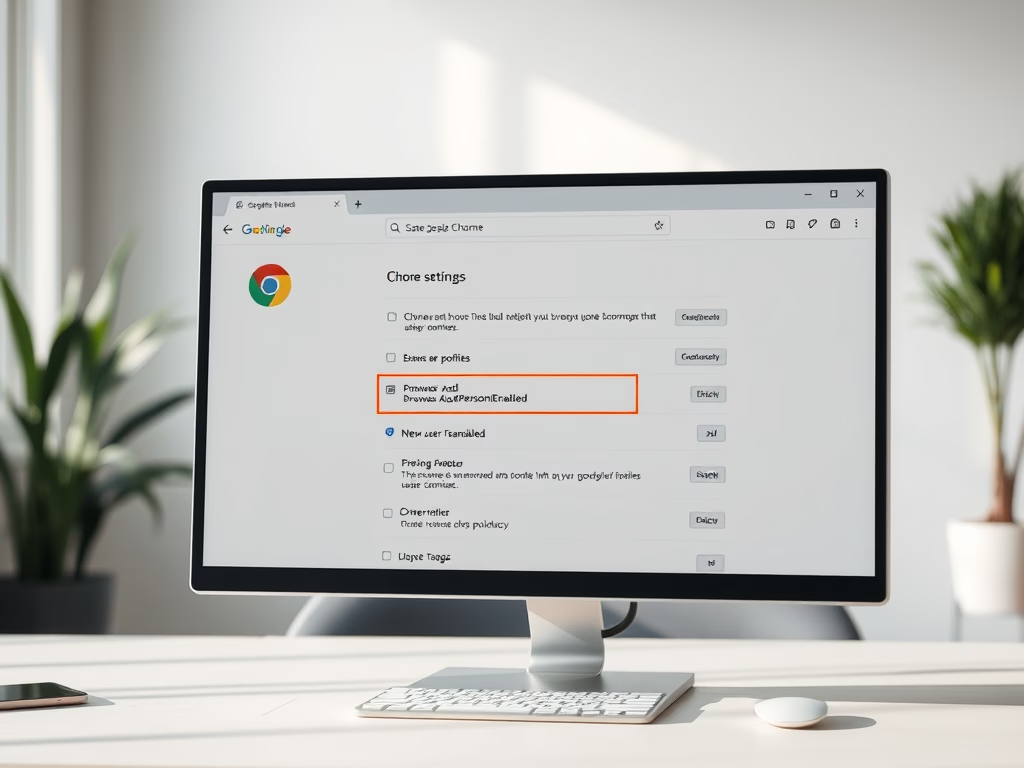
This article discusses how to enable or disable the option to add new profiles in Google Chrome using the Windows Registry Editor. It details the necessary steps to modify the BrowserAddPersonEnabled policy, emphasizing the importance of backing up the registry before changes and rebooting the computer for them to take effect.
This article explains how to manage Google Chrome's background mode using the BackgroundModeEnabled policy. Users can toggle this feature through Chrome settings or the Windows Registry. It emphasizes the importance of backing up the registry before making changes and provides steps to enable or disable background apps effectively.
The article details methods to enable or disable graphics acceleration in Google Chrome. Users can manage this through the Chrome settings or the Windows Registry Editor. Disabling graphics acceleration may resolve browser malfunctions. Always back up the registry before making changes for optimal performance and a better browsing experience.
This article outlines how to configure Google Chrome to automatically delete browsing data upon exiting the browser. By using the ClearBrowsingDataOnExitList policy, users can select which data types, such as browsing history and cookies, are removed. Careful consideration is advised, as this action permanently deletes local personal data.