How to Enable Scareware Blocker in Windows 11 Edge

You enable the Scareware blocker in Windows 11 Edge to protect yourself from malicious websites that impersonate security warnings.
Scareware blockers actively identify and block fake virus alerts and aggressive pop-ups designed to trick you into calling fraudulent support numbers or downloading malware.
This feature, built into Microsoft Edge, helps you avoid costly scams by preventing malicious sites from manipulating your browser.
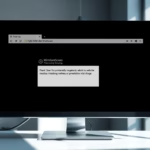
When the Scareware blocker is active, Edge automatically exits full-screen mode if a scam is detected, halts loud audio, and displays a clear warning, allowing you to safely close the dangerous page.
Option One: Change settings for your account
- Open Microsoft Edge.
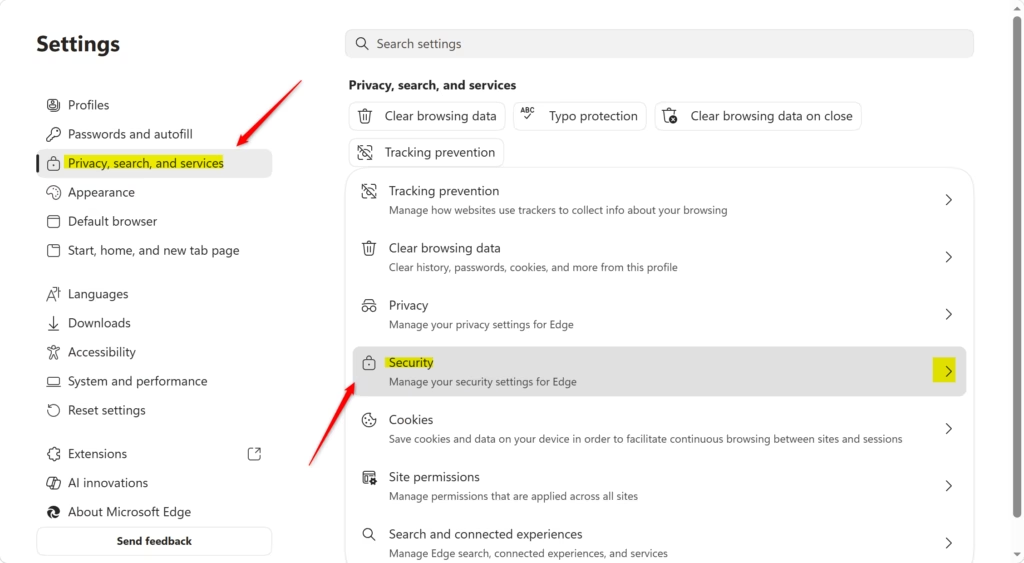
- Click the Settings and more button (the 3 dots in the top right corner) and select Settings.
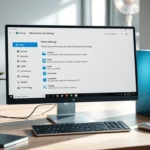
- Click Privacy, search, and services on the left.
- Scroll down to the Security section.

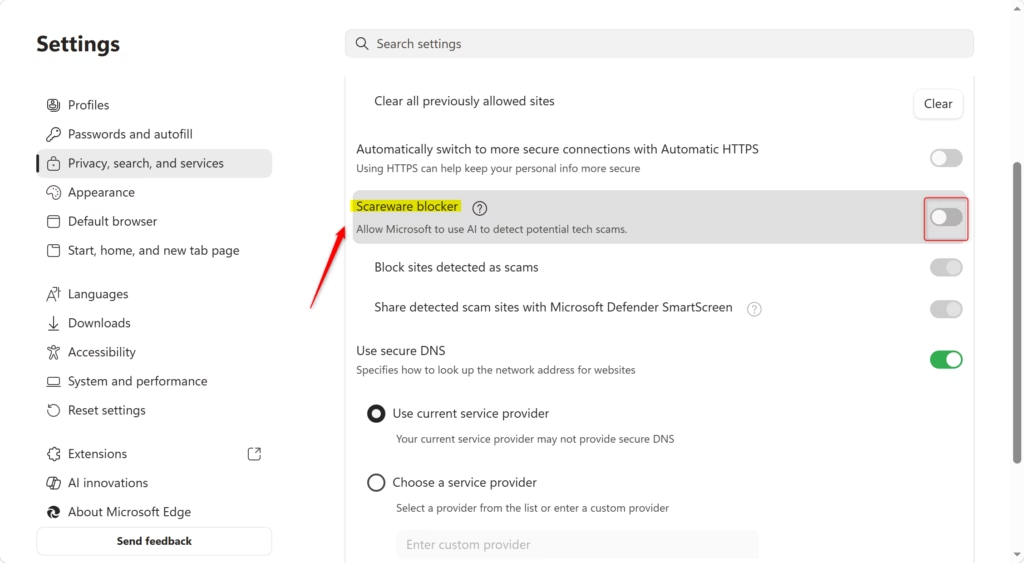
To Turn On Scareware Blocker:
- Make sure Scareware blocker is turned on.
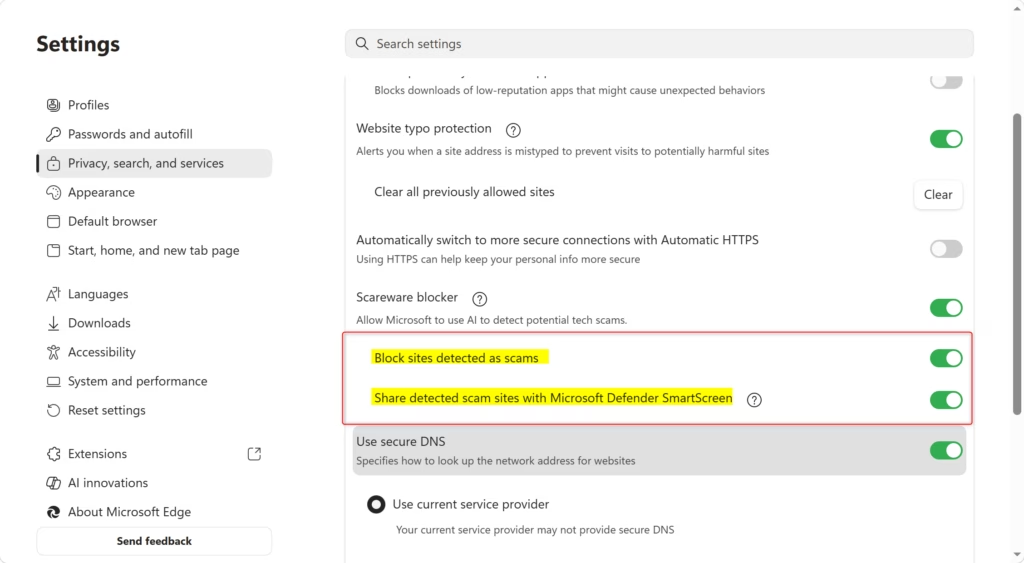
- If you are on version 142 or higher, you can also toggle Block sites detected as scams.
- You can also choose to toggle Share detected scam sites with Microsoft Defender SmartScreen.
To Turn Off Scareware Blocker:
- Simply toggle the Scareware blocker switch to off.
- Close the settings tab when you are finished.
Option Two: Change settings for all users (Registry)
Note: You must be signed in as an administrator to use these steps.
This method uses the registry to enforce settings for everyone on the computer. Using these settings will gray out the options in the main menu for other users.
Always Enable Scareware Blocker:
reg add "HKEY_LOCAL_MACHINE\SOFTWARE\Policies\Microsoft\Edge" /v ScarewareBlockerProtectionEnabled /t REG_DWORD /d 1 /f
Disable Scareware Blocker:
reg add "HKEY_LOCAL_MACHINE\SOFTWARE\Policies\Microsoft\Edge" /v ScarewareBlockerProtectionEnabled /t REG_DWORD /d 0 /f
Default User Choice:
reg delete "HKEY_LOCAL_MACHINE\SOFTWARE\Policies\Microsoft\Edge" /v ScarewareBlockerProtectionEnabled /f
Option Three: Manage scam site blocking for all users
Note: You must be signed in as an administrator to use these steps.
Always Enable:
reg add "HKEY_LOCAL_MACHINE\SOFTWARE\Policies\Microsoft\Edge" /v ScarewareBlockerBlocksDetectedSitesEnabled /t REG_DWORD /d 1 /f
Disable:
reg add "HKEY_LOCAL_MACHINE\SOFTWARE\Policies\Microsoft\Edge" /v ScarewareBlockerBlocksDetectedSitesEnabled /t REG_DWORD /d 0 /f
Default User Choice:
reg delete "HKEY_LOCAL_MACHINE\SOFTWARE\Policies\Microsoft\Edge" /v ScarewareBlockerBlocksDetectedSitesEnabled /f
Option Four: Manage scam sharing for all users
Note: You must be signed in as an administrator to use these steps.
Disable:
reg add "HKEY_LOCAL_MACHINE\SOFTWARE\Policies\Microsoft\Edge" /v ScarewareBlockerSendDetectedSitesToSmartScreenEnabled /t REG_DWORD /d 0 /f
Default User Choice:
reg delete "HKEY_LOCAL_MACHINE\SOFTWARE\Policies\Microsoft\Edge" /v ScarewareBlockerSendDetectedSitesToSmartScreenEnabled /f
References: Protecting more Edge users with expanded Scareware blocker availability and real-time protection Stand up to scareware with scareware blocker, now available in preview in Microsoft Edge Scareware blocker | Microsoft Edge Microsoft Edge Browser Policy Documentation ScarewareBlockerAllowListDomains
Summary
The Scareware blocker is a security feature in Microsoft Edge that protects you from fake websites designed to trick you. You can easily toggle it in your browser settings, or use registry edits if you are an administrator who needs to manage these settings for multiple users on the same computer.
Was this guide helpful?

About the Author
Richard
Tech Writer, IT Professional
Richard, a writer for Geek Rewind, is a tech enthusiast who loves breaking down complex IT topics into simple, easy-to-understand ideas. With years of hands-on experience in system administration and enterprise IT operations, he’s developed a knack for offering practical tips and solutions. Richard aims to make technology more accessible and actionable. He's deeply committed to the Geek Rewind community, always ready to answer questions and engage in discussions.


No comments yet — be the first to share your thoughts!