

This article describes steps to turn on or off “Show accent color on title bars and windows borders” in Windows 11.
Windows 11 can have solid pixel borders around the title bars, windows borders, and apps.
The color is active around the window borders and title bars when the window is in active view. This is because windows in the background don’t have the accent color around them.
Suppose you don’t want to see colors around windows, borders, and title bars. In that case, you can quickly disable the accent color decorations around windows borders and title bars using Windows Settings app.
Below is how to do that.
How to turn on or off show accent color on title bars and windows border in Windows 11
As described above, if you don’t want to see colors around windows borders and title bars, you can quickly disable the accent color decorations around windows borders and title bars using Windows Settings app.
Below is how to disable accent color options around windows borders and title bars.
Windows 11 has a centralized location for the majority of its settings. As a result, everything can be done, from system configurations to creating new users and updating Windows from its System Settings pane.
To get to System Settings, you can use the Windows key + I shortcut or click on Start ==> Settings, as shown in the image below:

Alternatively, you can use the search box on the taskbar and search for Settings. Then select to open it.
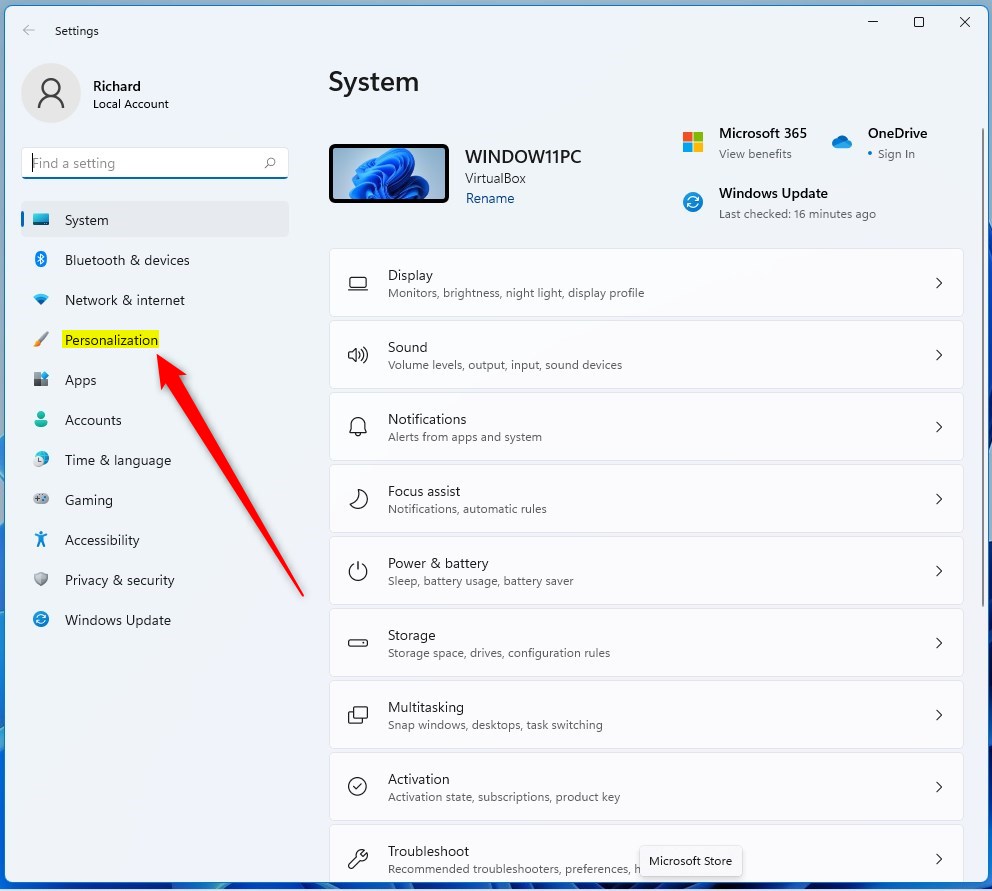
Windows Settings pane should look similar to the image below. In the Windows Settings app, click Personalization on the left.
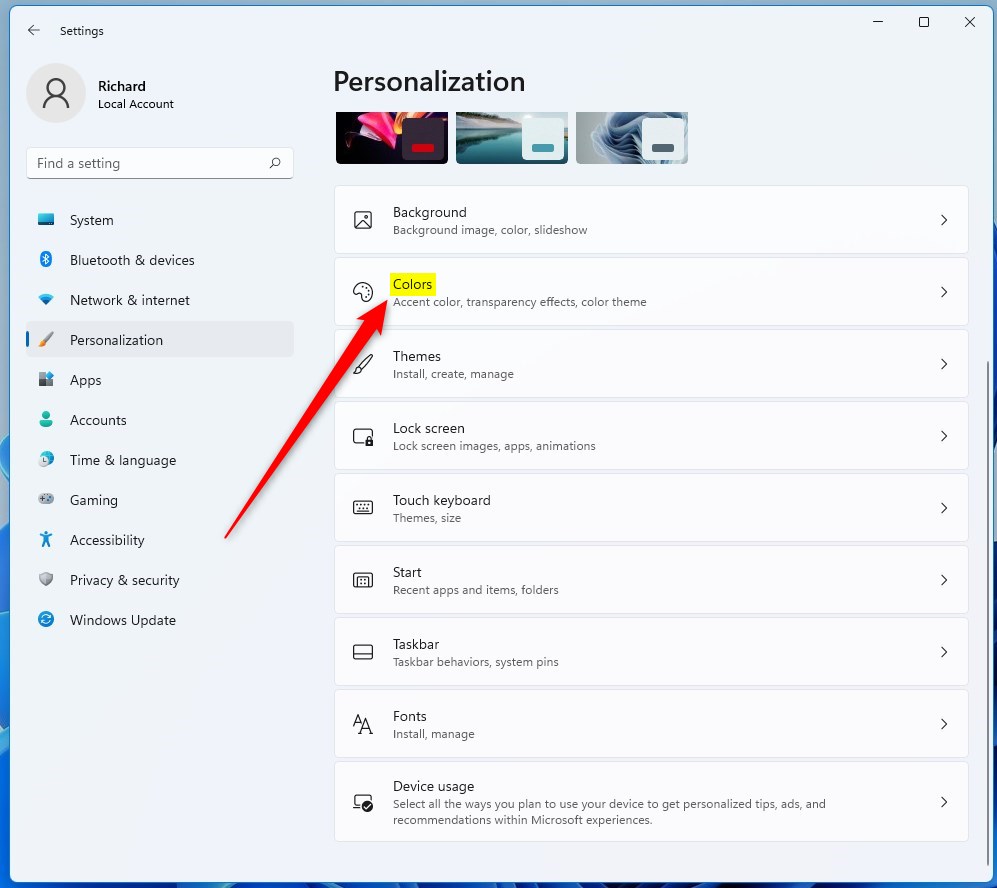
On the right, select the Colors tile to expand.
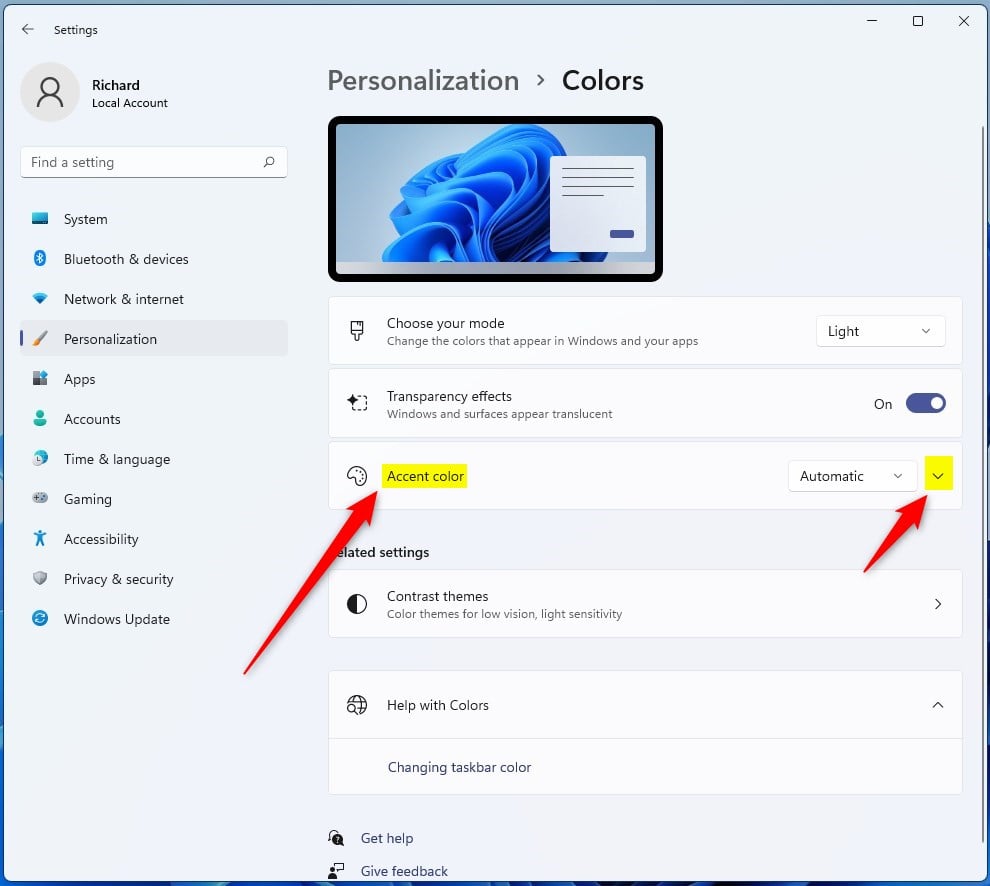
On Personalization -> Colors settings panel, click on the Accent color tile to expand.
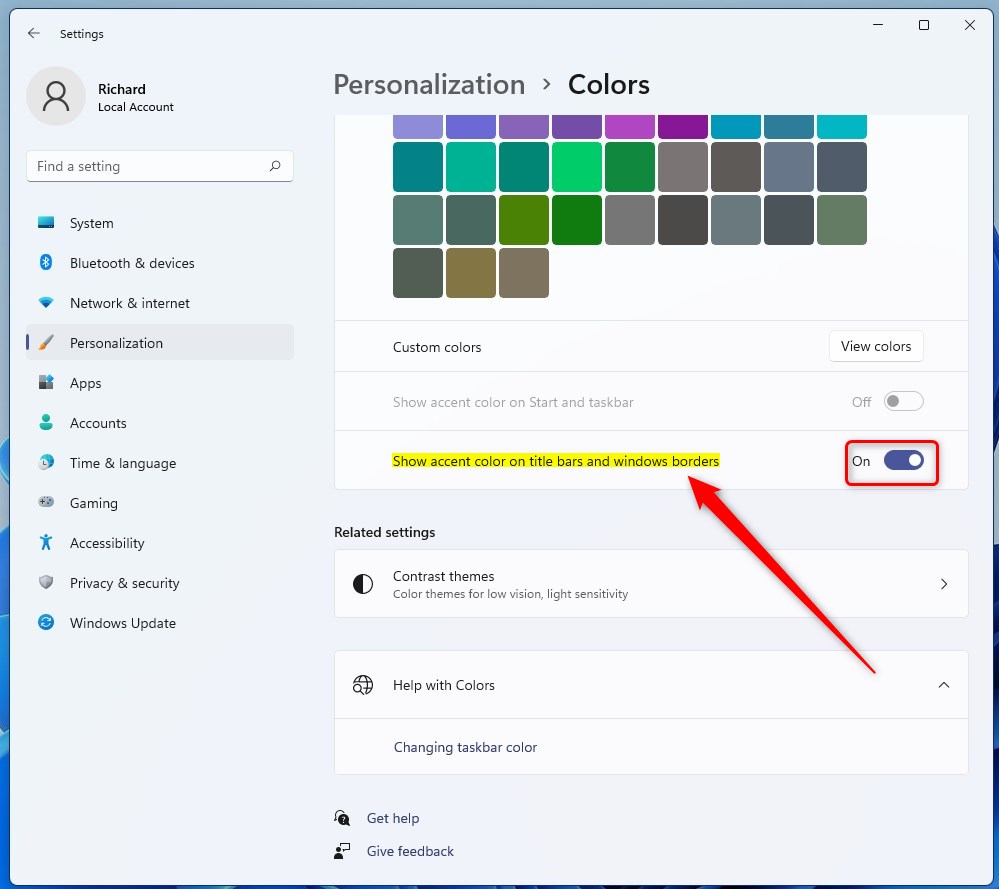
On the Personalization -> Color -> Accent color settings pane, toggle the switch button to the On position to “Show accent color on title bars and windows borders.”
To disable it, toggle the switch button back to Off.
Once disabled, active windows and apps will no longer show accent color around their borders and title bars.
That should do it!
Conclusion:
- Enabling or disabling the “Show accent color on title bars and Windows borders” in Windows 11 can be done through the Windows Settings app.
- Access the setting by navigating to Personalization -> Colors and then toggling the switch for Accent color to enable or disable the feature.
- Once disabled, windows and apps will no longer display accent colors around their borders and title bars.
- For additional assistance or feedback, the comment form below is available.



Leave a Reply