How to Safely Eject External Drives in Ubuntu


This post describes steps to safely eject or remove external storage devices in Ubuntu Linux.
When you attach external storage devices to Ubuntu Linux, it is recommended that you safely remove them before unplugging them from your computer.
Like other operating systems, Ubuntu Linux allows you to attach external devices, including USB flash drives and optical discs like CDs or DVDs. System processes and applications may use the data when external drives are connected.
If you unplug a device, you run the risk of unplugging while an application is still using it. This could result in some of your files being lost or damaged.
Below is how to safely eject external drives from Ubuntu Linux.
How to safely eject the external drive in Ubuntu Linux
As described above, if you unplug a device, you run the risk of unplugging while an application is still using it. This could result in some of your files being lost or damaged.
From the Activities overview, search for and open Files.
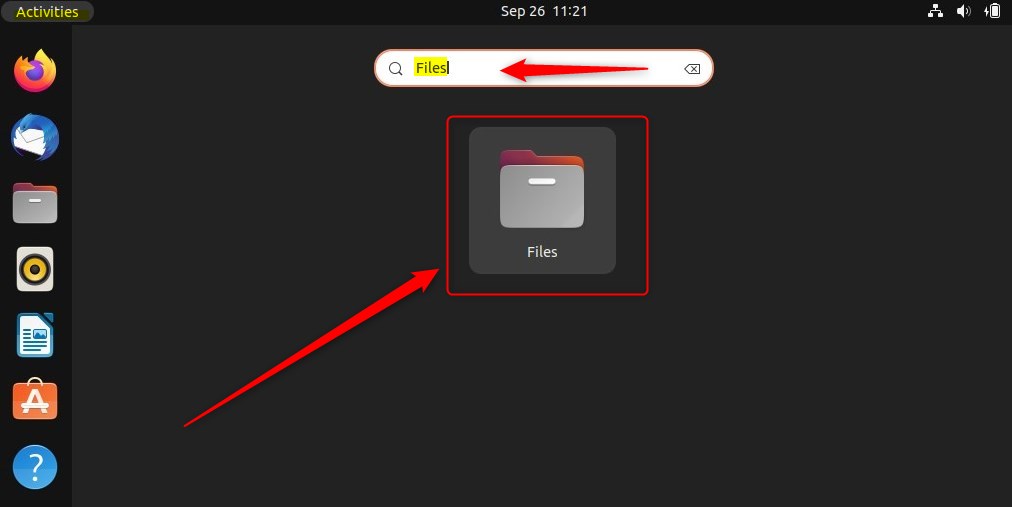
Ubuntu Linux File Manager has its icon on the Dock by default. Open File Manager.
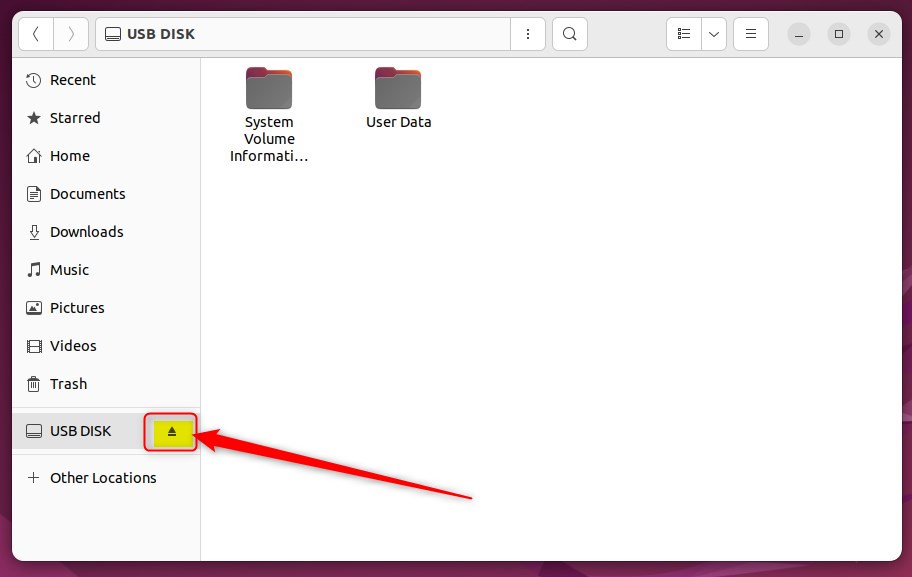
Locate the device in the sidebar. It should have a small eject icon next to the name. Click the eject icon to remove or eject the device safely.
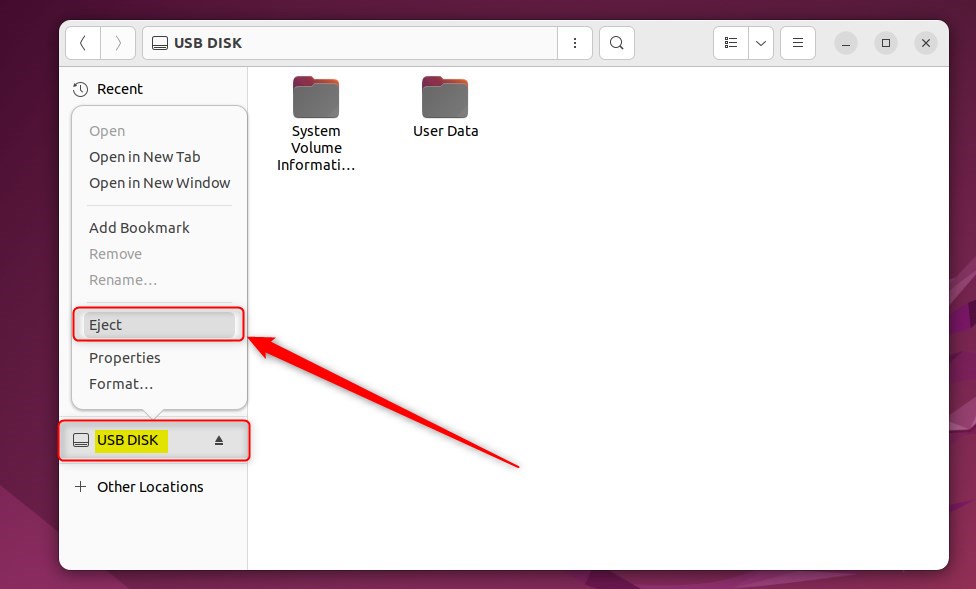
Alternatively, right-click the device’s name in the sidebar and select Eject.
If any files on the device are open and in use by an application, you cannot remove the device safely. You will be prompted with a window telling you Volume is busy.
To safely remove the device, click Cancel.
Close all the files on the device. Click the eject icon to remove or eject the device safely.
That should do it!
Conclusion:
- Safely ejecting external storage devices in Ubuntu Linux is crucial to prevent data loss or damage.
- Utilize the “Files” application to eject external drives from Ubuntu Linux safely.
- Always ensure that files on the device are closed and not in use by any application before ejecting the device.
- Following these steps will help maintain the integrity of your data and prevent any potential loss or damage to your files.
Frequently Asked Questions
How do I safely eject a USB drive in Ubuntu?
What happens if I unplug my external drive without ejecting it?
Why can't I eject my external drive in Ubuntu?
Is there a keyboard shortcut to eject drives in Ubuntu?
Can I eject optical discs like CDs or DVDs in Ubuntu the same way as USB drives?
Was this guide helpful?

About the Author
Richard
Tech Writer, IT Professional
Richard, a writer for Geek Rewind, is a tech enthusiast who loves breaking down complex IT topics into simple, easy-to-understand ideas. With years of hands-on experience in system administration and enterprise IT operations, he’s developed a knack for offering practical tips and solutions. Richard aims to make technology more accessible and actionable. He's deeply committed to the Geek Rewind community, always ready to answer questions and engage in discussions.


No comments yet — be the first to share your thoughts!