Enable Slow Keys in Ubuntu: A Step-by-Step Guide


You enable Slow Keys in Ubuntu to introduce a delay, preventing accidental key presses from registering.
Slow Keys is an accessibility feature that requires you to hold down a key for a set duration before the system recognizes it, which is perfect if you experience hand tremors or frequently press multiple keys simultaneously.
You can customize this hold duration, for example, setting it to a specific 0.5-second delay, to tailor your typing experience in Ubuntu. This feature is an excellent tool for improving typing accuracy and accessibility on your PC.
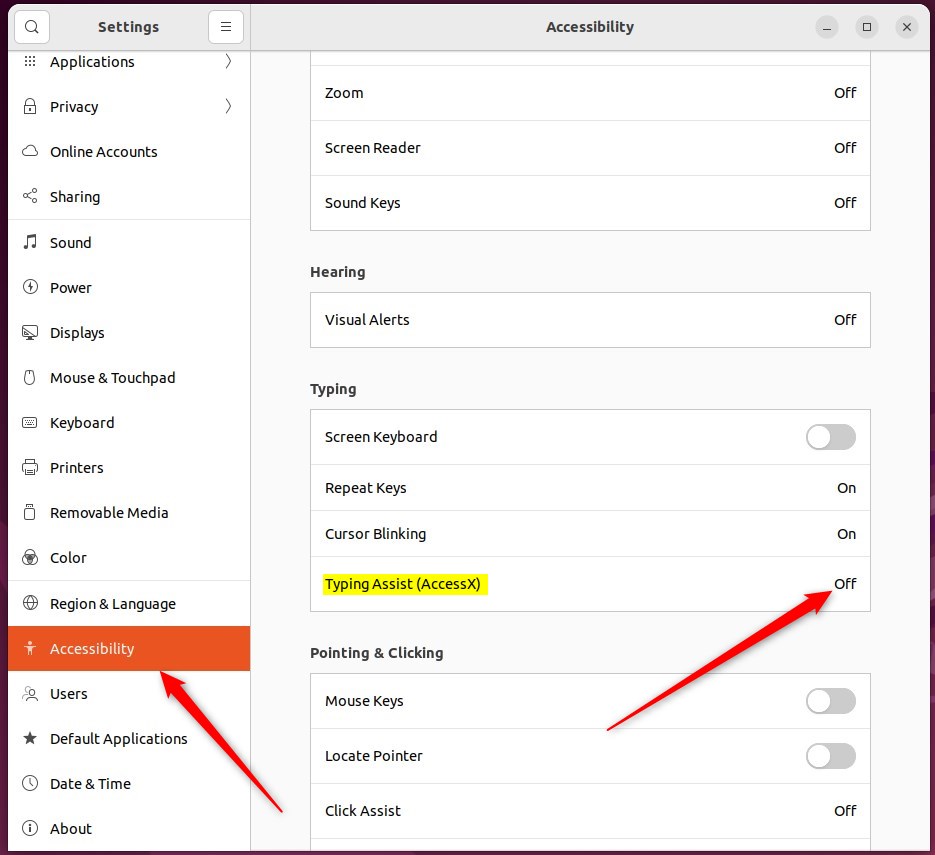
Open Settings, navigate to Accessibility, then Typing Assist (AccessX), and toggle Slow Keys to On. You can also enable keyboard toggling in the same menu.
How to enable or disable slow keys in Ubuntu Linux
This feature tells Ubuntu Linux to disregard keys not held down for a certain period before they appear.
Below is how to turn it on or off in Ubuntu Linux.
You’ll find most of Ubuntu’s settings in one central place. From system configurations to creating new users and updating software, it’s all managed in the System Settings panel.

Alternatively, click the System menu in the top-right corner of your desktop’s top bar.
Then, select Settings, as highlighted below.

In the Settings app, click on the Accessibility tile to open the panel.

In the System Settings -> Accessibility panel, under Typing, select Typing Assist (AccessX), highlighted below.
On the Typing Assist window, toggle the Slow Keys button to the On position to enable.
To disable it, toggle the button to the Off position.
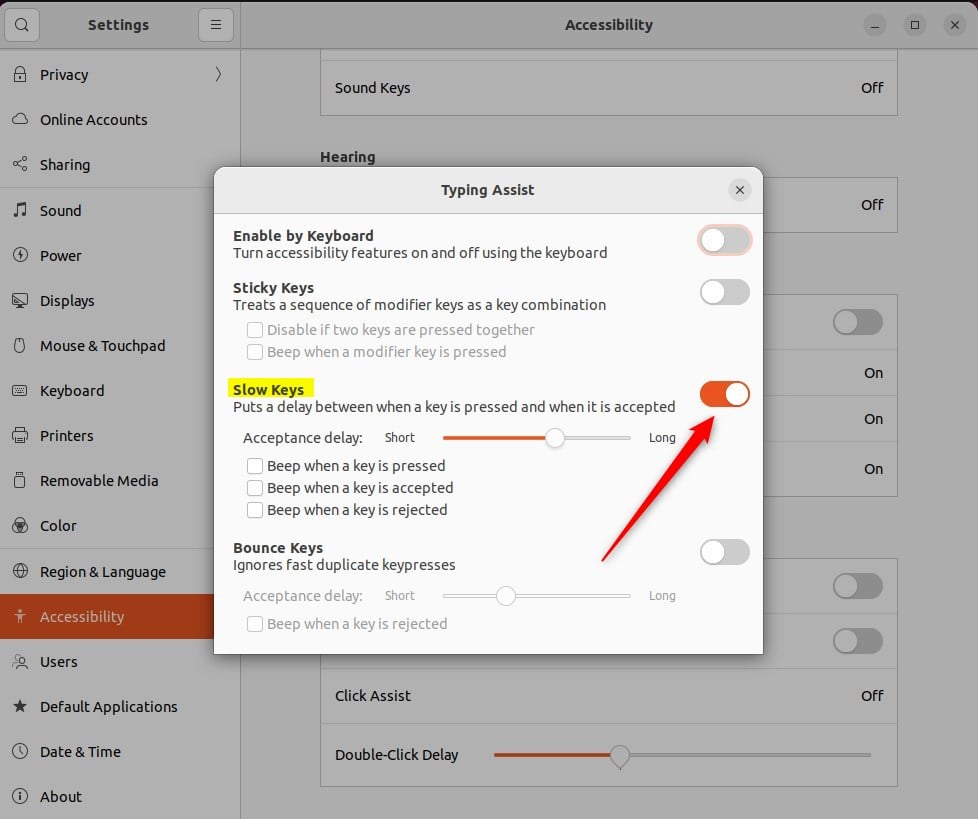
You can also switch the Enable by Keyboard switch to turn slow keys on and off from the keyboard. When selecting this option, you can press and hold Shift for eight seconds to enable or disable slow keys.
That should do it! You can now close the Settings app.
Conclusion:
- Enabling Slow Keys in Ubuntu Linux can benefit individuals with typing difficulties, particularly those who tend to strike keys or accidentally experience hand tremors.
- The feature instructs Ubuntu Linux to ignore keys that are not held down for a certain period, aiding in accurate and intentional keystrokes.
- Following the outlined steps, users can easily enable or disable Slow Keys and even utilize the convenient ‘Enable by Keyboard’ switch for added accessibility.
Was this guide helpful?

About the Author
Richard
Tech Writer, IT Professional
Richard, a writer for Geek Rewind, is a tech enthusiast who loves breaking down complex IT topics into simple, easy-to-understand ideas. With years of hands-on experience in system administration and enterprise IT operations, he’s developed a knack for offering practical tips and solutions. Richard aims to make technology more accessible and actionable. He's deeply committed to the Geek Rewind community, always ready to answer questions and engage in discussions.


No comments yet — be the first to share your thoughts!