How to Setup MariaDB Master Slave Replication on Ubuntu


MariaDB master-slave replication on Ubuntu synchronizes data between two MariaDB database servers, designating one as the master and others as slaves that automatically mirror its changes.
This setup provides critical data redundancy, acting as a real-time backup. It also enhances performance by allowing read operations to be distributed across multiple slave servers.
You configure this by setting up a primary MariaDB instance (the master) and then configuring one or more secondary instances (slaves) to continuously receive and apply binary log events from the master. This ensures your data is safe and your application scales effectively.
Server Preparation
You need two servers for this. One will be the master and the other will be the slave.
Primary = 192.168.1.1
Slave = 192.168.1.2
Install MariaDB
You must install MariaDB on both servers. Note: This step requires admin privileges.
sudo apt update
sudo apt-get install mariadb-server mariadb-client
After the installation, use these commands to make sure the service is running correctly.
For Ubuntu 16.04:
sudo systemctl stop mysql.service
sudo systemctl start mysql.service
sudo systemctl enable mysql.service
For Ubuntu 18.04:
sudo systemctl stop mariadb.service
sudo systemctl start mariadb.service
sudo systemctl enable mariadb.service
Next, secure your database by running this command. Note: This step requires admin privileges.
sudo mysql_secure_installation
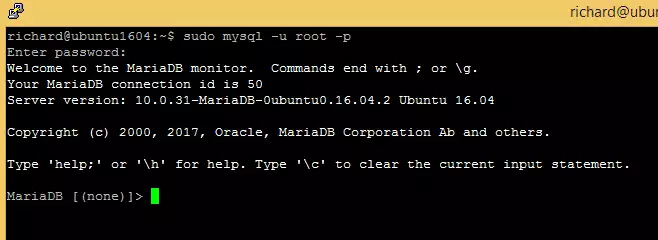
Follow the prompts to set a root password and remove test settings. To check if it works, log in with this command:
sudo mysql -u root -p
Configure the Master Server
The master server is the source of truth. Open the configuration file to make changes. Note: This step requires admin privileges.
sudo nano /etc/mysql/mariadb.conf.d/50-server.cnf
Update the file with these settings:
#
# * Basic Settings
#
user            = mysql
pid-file        = /var/run/mysqld/mysqld.pid
socket          = /var/run/mysqld/mysqld.sock
port            = 3306
basedir         = /usr
datadir         = /var/lib/mysql
tmpdir          = /tmp
lc-messages-dir = /usr/share/mysql
skip-external-locking

# Instead of skip-networking the default is now to listen only on
# localhost which is more compatible and is not less secure.

log-bin
bind-address            = 192.168.1.1
server_id               = 1
log-basename            = master1
Restart the server to apply the changes:
sudo systemctl restart mariadb.service
sudo systemctl restart mysql.service
Now, log in to create a user for replication. Note: This step requires admin privileges.
sudo mysql -u root -p
Create the user account:
CREATE USER 'replication_user'@'192.168.1.2' IDENTIFIED BY 'new_password_here';
Grant permission to the user:
GRANT REPLICATION SLAVE ON *.* TO 'replication_user'@'192.168.1.2';
View the master details:
SHOW MASTER STATUS;
You will see output similar to this:
MariaDB [(none)]> SHOW MASTER STATUS;
+--------------------+----------+--------------+------------------+
| File               | Position | Binlog_Do_DB | Binlog_Ignore_DB |
+--------------------+----------+--------------+------------------+
| master1-bin.000001 |      315 |              |                  |
+--------------------+----------+--------------+------------------+
1 row in set (0.00 sec)

MariaDB [(none)]>
Make sure to write down the File and Position numbers. You will need them for the next part.
Setup the Slave Server
Log in to your slave server and open its configuration file. Note: This step requires admin privileges.
sudo nano /etc/mysql/mariadb.conf.d/50-server.cnf
Update the file with these settings:
#
# * Basic Settings
#
user            = mysql
pid-file        = /var/run/mysqld/mysqld.pid
socket          = /var/run/mysqld/mysqld.sock
port            = 3306
basedir         = /usr
datadir         = /var/lib/mysql
tmpdir          = /tmp
lc-messages-dir = /usr/share/mysql
skip-external-locking

# Instead of skip-networking the default is now to listen only on
# localhost which is more compatible and is not less secure.

log-bin
bind-address            = 192.168.1.2
server_id               = 2
Restart the slave server:
sudo systemctl restart mariadb.service
sudo systemctl restart mysql.service
Log in to the slave server:
sudo mysql -u root -p
Stop the slave process:
STOP SLAVE;
Link the slave to the master using the details you wrote down earlier:
CHANGE MASTER TO
MASTER_HOST='192.168.1.1',
MASTER_USER='replication_user',
MASTER_PASSWORD='type_replication_user_password',
MASTER_LOG_FILE='master1-bin.000001',
MASTER_LOG_POS=315;
Start the slave process:
START SLAVE;
Test the connection with these commands:
SHOW SLAVE STATUS G
You should see confirmation like this:
Slave_IO_Running: Yes
Slave_SQL_Running: Yes
Summary
You have successfully configured MariaDB replication. By following these steps, you have linked a slave server to a master server. Any data written to the master will now be automatically copied to the slave, ensuring your data is protected against failure. For further reading, check out %📂%LNK0%% and %📂%LNK1%%.
[Y/n]
[Y/n]
[Y/n]
[Y/n]
[Y/n]
[mysqld]
[mysqld]
What is MariaDB master and slave replication?
How do I install MariaDB on Ubuntu?
What are the steps to secure my MariaDB installation?
How can I check if MariaDB is running on my server?
What is the purpose of the server ID in MariaDB replication?
Was this guide helpful?

About the Author
Richard
Tech Writer, IT Professional
Richard, a writer for Geek Rewind, is a tech enthusiast who loves breaking down complex IT topics into simple, easy-to-understand ideas. With years of hands-on experience in system administration and enterprise IT operations, he’s developed a knack for offering practical tips and solutions. Richard aims to make technology more accessible and actionable. He's deeply committed to the Geek Rewind community, always ready to answer questions and engage in discussions.


No comments yet — be the first to share your thoughts!