How to Modify your Windows backup Configuration in Windows 11

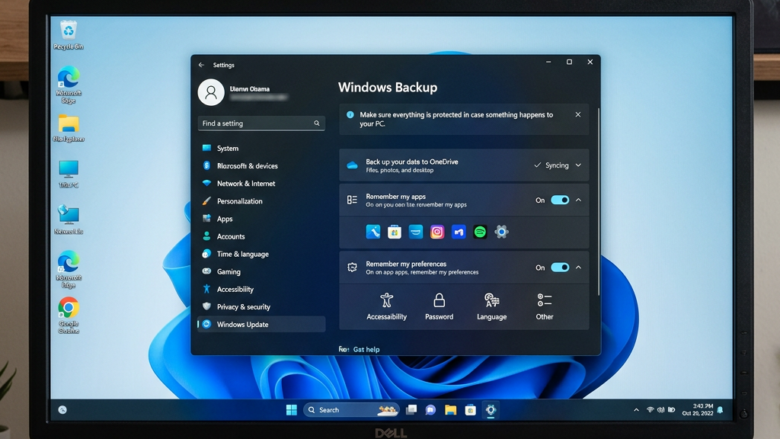
Windows Backup lets you choose what to save and where. If your backup is already set up in Windows 11, you can easily change its settings. This means you can decide exactly which files and folders get backed up.
For example, you might decide to stop backing up your Downloads folder but add your Photos folder instead. Or maybe you want to make sure certain system settings are included. Adjusting these settings helps ensure your backup only saves what you truly need and keeps your important information safe.
It’s straightforward to modify your backup plan. A few simple steps let you tailor it to your specific needs.
Change Your Backup Settings
Let’s explore how to make changes. You do this in the Windows Settings app. Let’s get started.
How to Find Your Backup Settings
You can open your Windows 11 backup settings by searching for “Windows Backup” in the Start menu or by going directly through the Settings app.
Using the Start Menu: Click the Start button. Type “Windows Backup”. You should see the Windows Backup app in the search results. Click it to open.
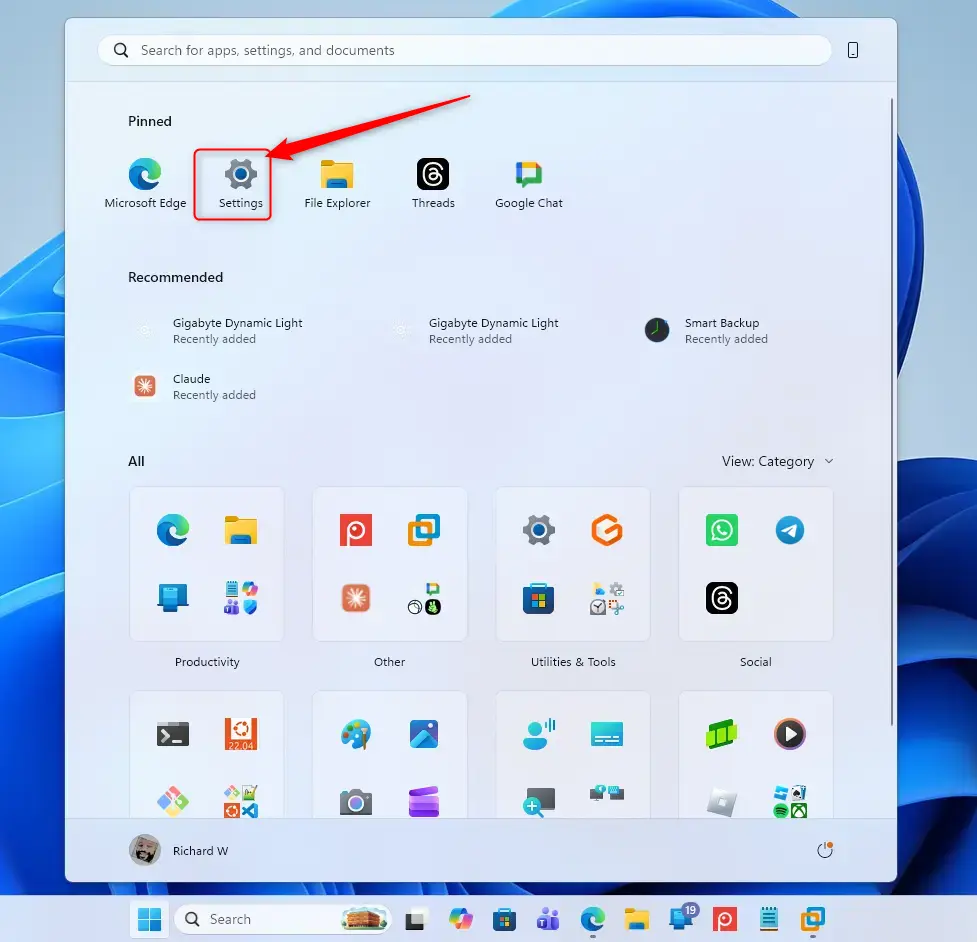
Using the Settings App Directly: You can also go straight to Settings. Click the Start button. Then, click the Settings cogwheel icon. When Settings opens, click on Accounts on the left side. Then, click on Windows backup on the right side.
Change Which Folders Are Saved
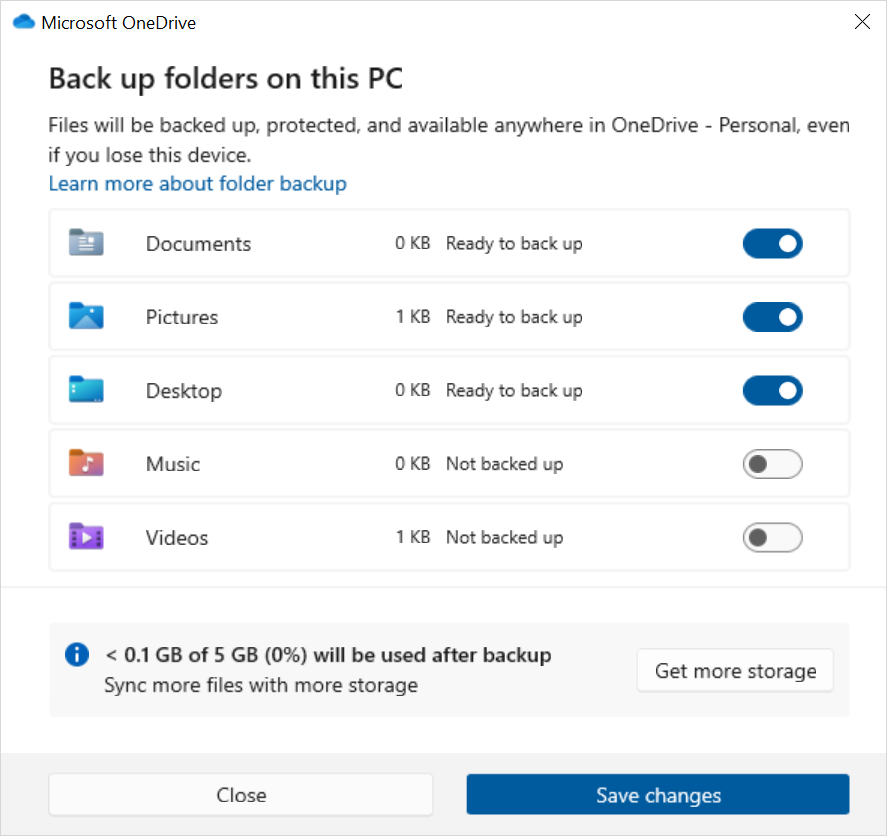
You can easily change which personal folders are saved to OneDrive from the Windows Backup screen to manage your cloud storage and ensure important files are backed up.
On the Windows backup screen, look for the part about OneDrive folder syncing (this is when files in specific folders on your PC are automatically copied to your Microsoft cloud storage). You will probably see an option like Manage sync settings.
Click on that option.
This will show a list of your main folders (like Desktop, Documents, Pictures, and so on).
Simply click the switch next to each folder. Turn it On if you want it saved to OneDrive. Turn it Off if you don’t want that folder synced anymore.
Manage App Backups
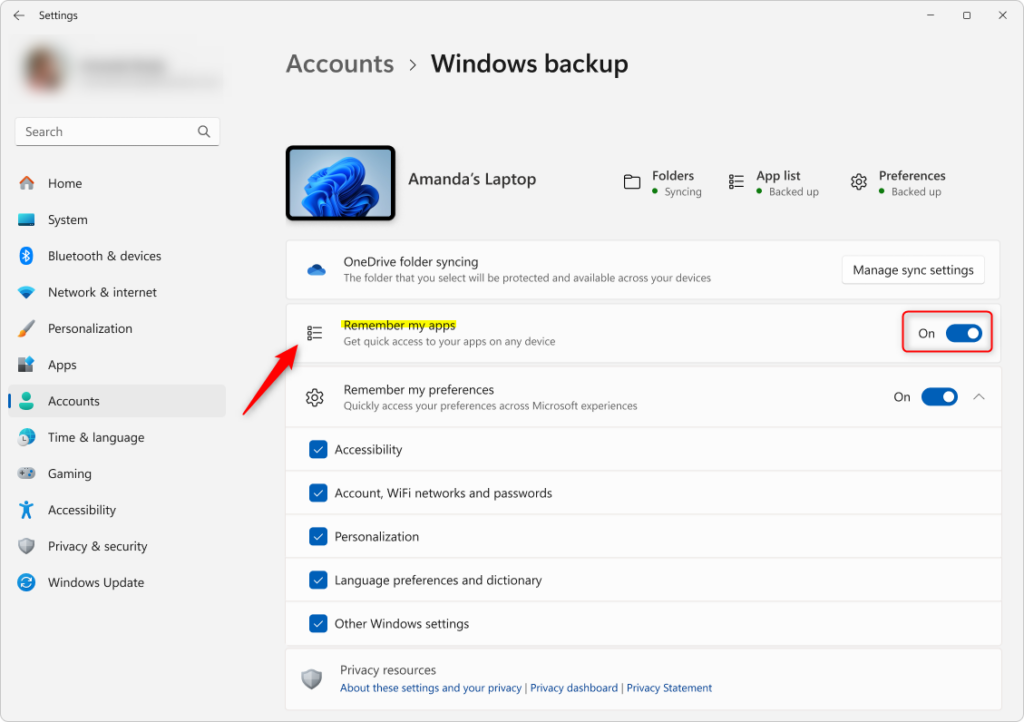
Windows Backup can remember the apps you’ve installed, which is helpful when setting up a new PC, and you can turn this feature on or off from the main backup screen.
On the main Windows backup screen, find the setting for apps. It might say something like Remember my apps or Get quick access to apps on Windows device.
Use the switch to turn this feature On or Off. If it’s on, Windows will try to remember your installed apps. This makes them easy to reinstall on a new device.
Change Settings and Preferences Backups
You can choose which Windows settings, like Wi-Fi passwords and personalization choices, are saved by finding the ‘Remember my preferences’ section on the Windows backup screen.
Scroll down on the Windows backup screen. Look for a section called something like Remember my preferences.
Here, you will see a list of different types of settings. Each type will have a checkbox next to it.
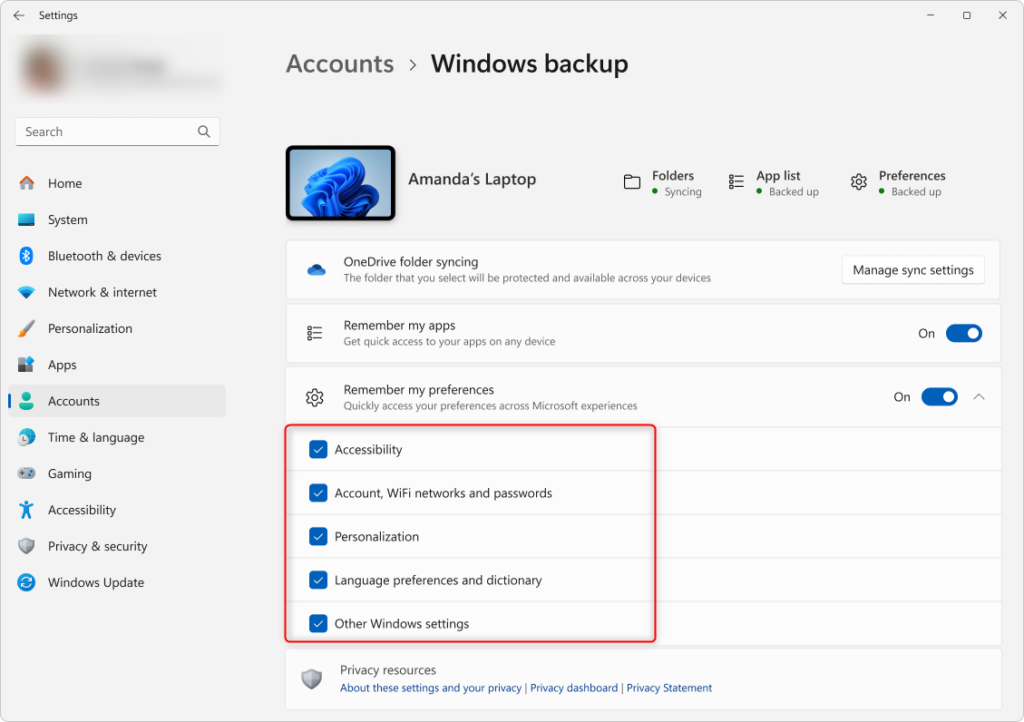
Check the box for any setting type you want Windows Backup to save. Uncheck any you don’t want backed up.
What Is Saved?
- Personalization: This includes your wallpaper, accent colors, theme settings, and how your Start menu looks. It’s what makes your PC feel like yours.
- Accounts, Wi-Fi network, and passwords: Very useful! This means you don’t have to remember all those Wi-Fi passwords when you get a new computer.
- Language preferences and dictionary: If you type in different languages or have custom words for your dictionary, this will save them.
- Other Windows settings: This is a general category. It can include things like your File Explorer settings, notification choices, and some basic device settings like printer or mouse options. For work or school accounts, your IT department might control this setting.
Reference:
Summary
You can easily change your Windows backup configuration to save specific folders to OneDrive, remember your installed apps, and back up settings like Wi-Fi passwords and personalization preferences.
Was this guide helpful?

About the Author
Richard
Tech Writer, IT Professional
Richard, a writer for Geek Rewind, is a tech enthusiast who loves breaking down complex IT topics into simple, easy-to-understand ideas. With years of hands-on experience in system administration and enterprise IT operations, he’s developed a knack for offering practical tips and solutions. Richard aims to make technology more accessible and actionable. He's deeply committed to the Geek Rewind community, always ready to answer questions and engage in discussions.


No comments yet — be the first to share your thoughts!