How to Use Different Backgrounds on Each Display or Desktop on Windows 11

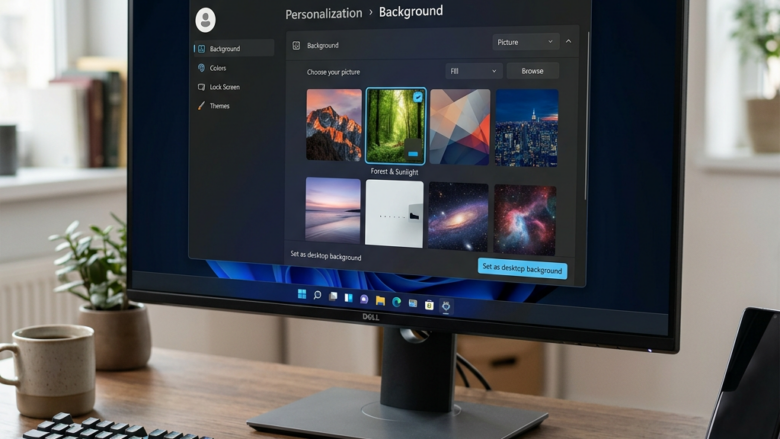
Setting different background images for each monitor in Windows 11 lets you personalize your multi-display setup. This feature allows each of your screens to show a unique picture, rather than repeating the same one.
Windows 11 supports easily assigning distinct wallpapers to each connected display. This means your main monitor can have one background, while a second or third monitor displays something completely different.
This is especially helpful if you use multiple monitors for different tasks, like having work applications on one screen and entertainment on another. You can even set up different backgrounds for each virtual desktop you create, giving you up to 10 unique looks on a single monitor.
To set different backgrounds on each display, find the image file, right-click it, and select “Set as desktop background.” Windows will assign it to your main screen. Repeat this process with a different image file for each additional monitor.
Using Different Backgrounds on Each Screen
Windows 11 makes it easy to set a different background image for each of your monitors, letting you personalize each screen or match it to what you’re doing.
Why do this? To give each monitor a unique look or to match the task you’re doing on that screen.
What happens when done? Each monitor will show the background image you assigned to it.
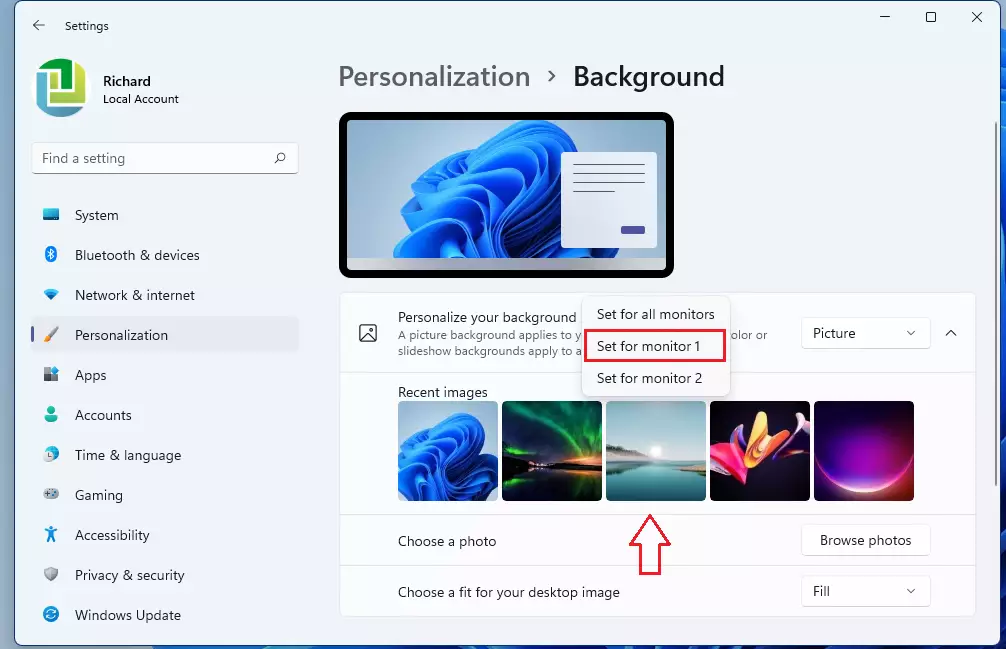
- Open Background Settings: Again, right-click on your desktop and choose “Personalize.” Then go to “Background.” Make sure you have “Picture” selected as your background type.
- Find Your Image: In the “Personalize your background” section, look at “Recent images” or click “Browse” to find the picture you want.
- Assign to a Specific Screen: This is important. Instead of right-clicking the preview in the settings window, find the actual image file on your computer. Right-click on the image file (like a .jpg or .png) you want to use.
- Set as Desktop Background: In the menu that appears, click “Set as desktop background.” This image will now be on your main screen.
- Repeat for Other Screens: To set a different background for your other monitors, just do steps 3 and 4 again with a different image file. Right-click on the second image file and choose “Set as desktop background.” Windows knows you have more than one screen and will put this new image on your second monitor.
Customizing Backgrounds with Multiple Desktops
Windows’ Multiple Desktops feature helps you stay organized by letting you create separate virtual desktops (think of them as extra, distinct workspaces). Each one can house its own set of applications and arrangement. Making these desktops visually distinct with custom backgrounds is a great way to manage them.
Assigning Unique Backgrounds to Each Virtual Desktop
Windows 11 lets you assign a unique background image to each virtual desktop, helping you quickly tell your work space from your personal space just by looking at the screen.
Why do this? To easily tell apart your different virtual desktops and make switching between them more intuitive.
What happens when done? Each virtual desktop will have its own unique background image.
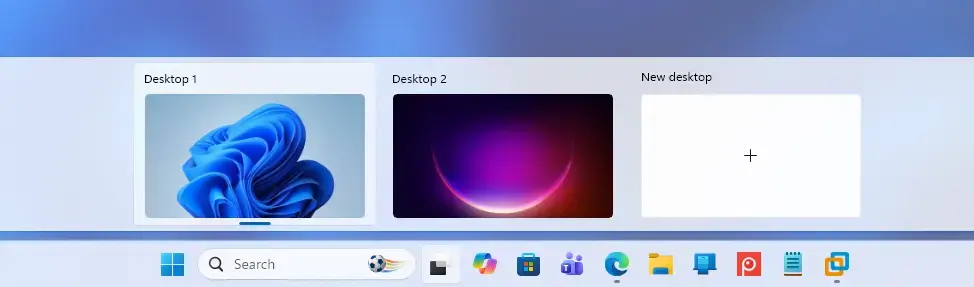
- Open Task View: The easiest way to see your virtual desktops is to click the “Task View” button on your taskbar (it looks like two squares on top of each other). Or, press
Windows key + Tab. - Create New Desktops (If Needed): At the top of the Task View screen, you’ll see small pictures of your current desktops. If you need more, click the “+ New desktop” button.
- Choose the Desktop to Change: Click on the small picture of the desktop you want to change. This will switch you to that desktop, and you’ll see its current background.
- Change the Background: Now, right-click on any empty space on this desktop. Choose “Personalize.” Go to “Background” and pick your picture, a solid color, or a slideshow. This change will only affect the desktop you have open right now.
- Repeat for Other Desktops: Go back to Task View (
Windows key + Tab). Click on another desktop’s small picture. Then, repeat step 4 to set a different background for it. Keep doing this for each virtual desktop you want to set up.
Reference:
Summary
Windows 11 makes it simple to change your desktop backgrounds, letting you use one picture for all your screens or pick different ones for each monitor and virtual desktop.
Was this guide helpful?

About the Author
Richard
Tech Writer, IT Professional
Richard, a writer for Geek Rewind, is a tech enthusiast who loves breaking down complex IT topics into simple, easy-to-understand ideas. With years of hands-on experience in system administration and enterprise IT operations, he’s developed a knack for offering practical tips and solutions. Richard aims to make technology more accessible and actionable. He's deeply committed to the Geek Rewind community, always ready to answer questions and engage in discussions.
No comments yet — be the first to share your thoughts!