How to Always keep these sites active when using Sleeping tabs in Microsoft Edge


You can prevent specific websites from sleeping in Microsoft Edge by adding them to the “Always keep these sites active” list.
Sleeping Tabs is a Microsoft Edge feature designed to free up system resources by putting inactive tabs to sleep, but this list ensures your chosen sites remain instantly accessible.
When you add a site, Edge bypasses its sleeping tab functionality for that specific tab, ensuring it loads immediately upon switching back to it.
This configuration is especially useful for frequently used services or sites you need to access quickly, like your email or a project management tool, even if you haven’t interacted with them for extended periods.
Add your preferred websites to the “Always Keep These Sites Active” list in Edge’s System and performance settings. This prevents those tabs from sleeping, ensuring they load instantly. Click “Add site,” enter the URL, and click “Add” to save it.
What Happens When You Do This?
When you add a site to the “Always Keep These Sites Active” list, Microsoft Edge will not put that tab to sleep, even if you haven’t used it for a while. This means the website will load instantly the next time you switch to it. Your computer might use a little more memory because these tabs are always running, but you get faster access to the sites you care about most.
Steps to Keep Your Sites Active
- Open Edge Settings
First, open Microsoft Edge. Click on the three dots...in the top right corner. This will open a menu. Then, click on Settings.
You can also typeedge://settings/systemedge://settingsinto the address bar and press Enter. This will take you straight to the right page. - Go to System and Performance
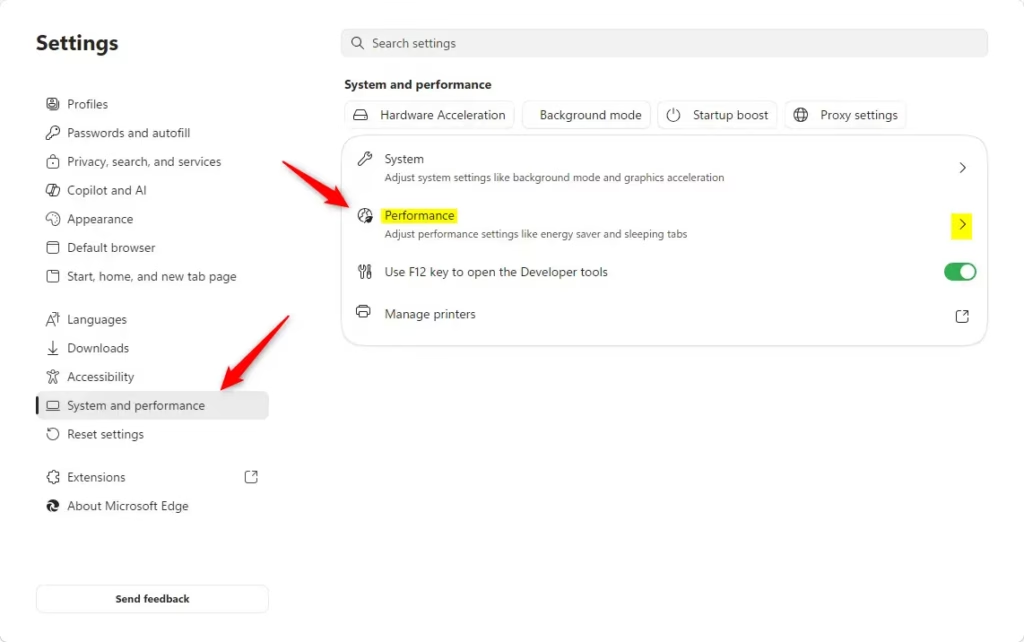
In the Settings menu, look for System and performance on the left side. Click on it. - Find the “Always Keep These Sites Active” Section
Under the System and performance settings, you will see a section called Performance. Click on it.
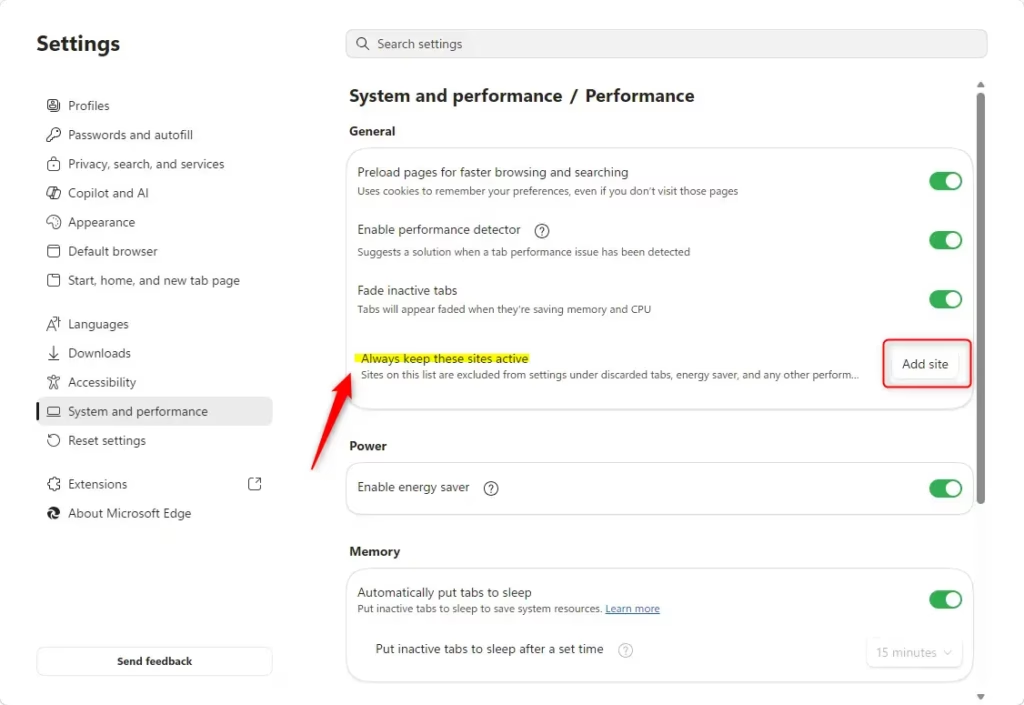
Scroll down until you see a section named Always keep these sites active. This is where you tell Edge which sites should never sleep. - Add a Site to Your List
Click the Add site button. A small box will pop up.
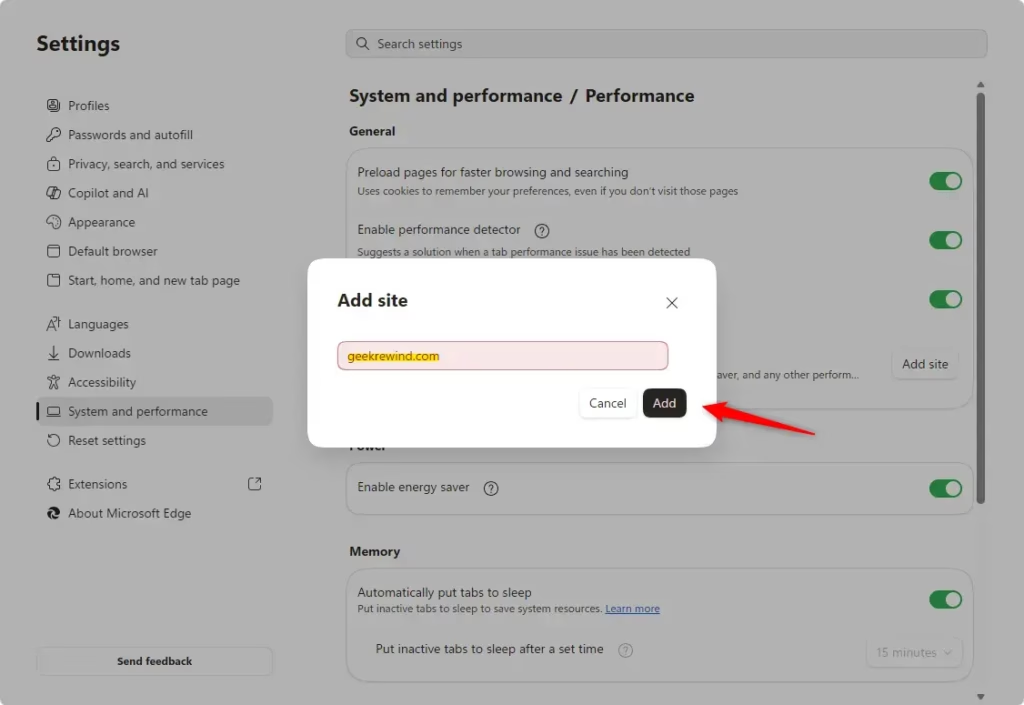
Type the full web address (URL) of the site you want to keep active. For example, to keep your email always active, you might typehttps://mail.google.comhttps://mail.google.com/.
After typing the address, click the Add button next to it.
You can add more sites by repeating this step for each one. - Manage Your List
Changed your mind? No problem. On the same page where you added sites, you’ll see a list of all the sites you’ve chosen.
Next to each site, there are three dots.... Click these dots to see options. You can choose to Edit the web address or Remove the site from the list completely.

Reference:
https://support.microsoft.com/en-us/edge/learn-about-performance-features-in-microsoft-edge
Summary
By adding your most-used websites to the “Always Keep These Sites Active” list in Microsoft Edge, you ensure they never go into sleep mode. This means these tabs will load instantly every time you click on them, giving you a smoother browsing experience for the sites you need most.
Was this guide helpful?

About the Author
Richard
Tech Writer, IT Professional
Richard, a writer for Geek Rewind, is a tech enthusiast who loves breaking down complex IT topics into simple, easy-to-understand ideas. With years of hands-on experience in system administration and enterprise IT operations, he’s developed a knack for offering practical tips and solutions. Richard aims to make technology more accessible and actionable. He's deeply committed to the Geek Rewind community, always ready to answer questions and engage in discussions.




No comments yet — be the first to share your thoughts!