How to Set screen Time limits on Windows 11 with Microsoft Family Safety


You set screen time limits on Windows 11 using Microsoft Family Safety to manage device usage for your children.
Microsoft Family Safety allows you to schedule specific times and durations for device access, helping your family establish a healthier digital balance.
This built-in Windows 11 feature lets you control how long your kids use their PCs, with options to set daily time limits or schedule specific blocks of time.
For example, you can ensure your child completes homework before they get two hours of playtime on weekdays and unlimited access on weekends.
You’ll find these controls within the Microsoft Family Safety app or website, making it easy to manage your family’s digital wellbeing.
Set screen time limits by navigating to Screen Time settings within Microsoft Family Safety, either on the device or online. Choose a specific day, set the allowed total time and schedule specific blocks, then copy these limits to other days as needed and save your changes.
Setting Daily and Weekly Screen Time Limits
This is where you control the time limits. You can set specific times and decide how long devices can be used each day of the week.
Find Screen Time Settings
On the device or platform you want to manage (like Windows or Xbox), look for the ‘Screen time’ option. You’ll typically find it under the main settings menu.
Choose a Day
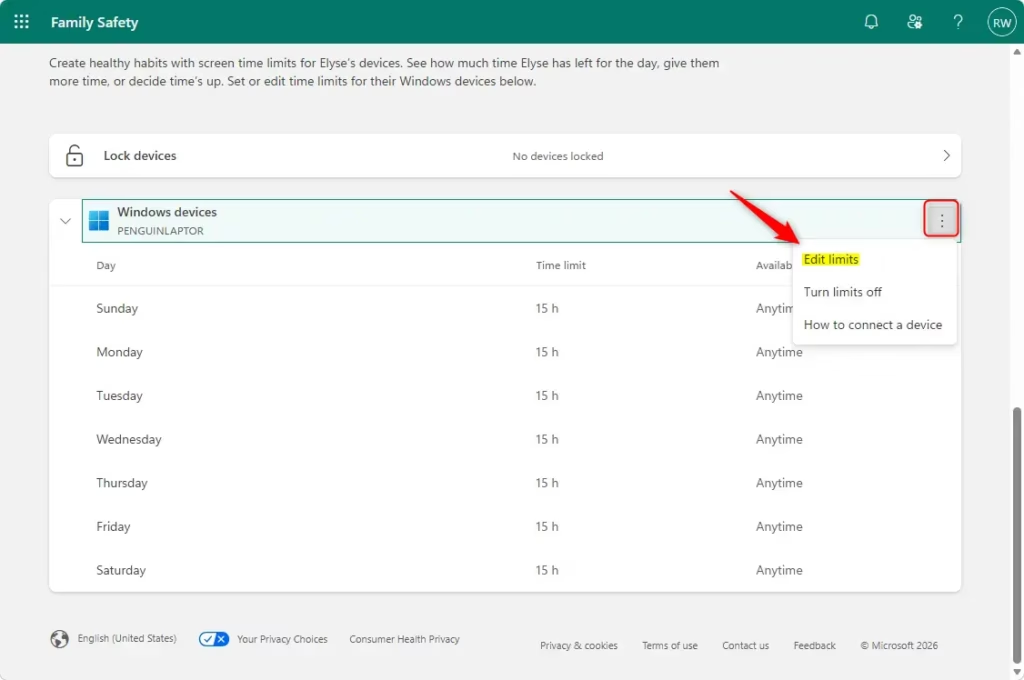
You’ll see a calendar view of the week. Click on a specific day, like Monday, to start setting limits for it. You can decide how much total time is allowed for the day and set specific time blocks.
For example, you might want to allow 2 hours of computer time on school days but 4 hours on weekends. You can also set ‘quiet times’ when devices are not allowed, perhaps during homework or bedtime.
Apply Limits to Other Days
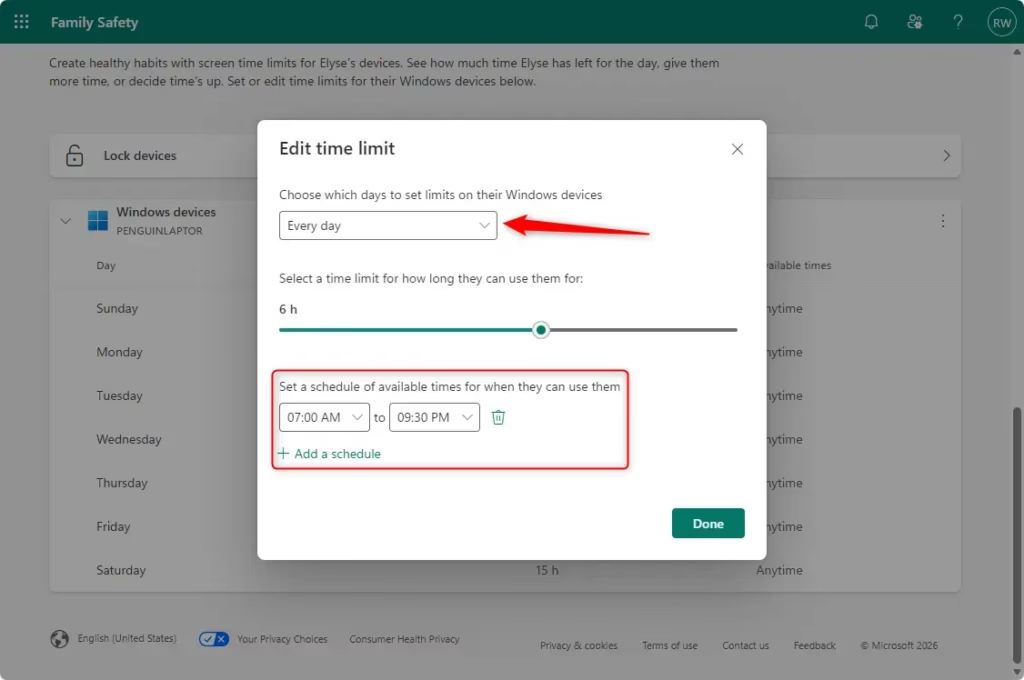
This feature saves a lot of time! Once you’ve set limits for one day, you won’t have to repeat the process for every single day. Look for an option to copy these settings to other days. You can often choose specific days, like applying Monday’s settings to Tuesday through Friday, or select ‘Every day’ to apply them across the entire week.
Be careful: When applying limits to ‘Every day,’ make sure this is truly what you want for all seven days, including weekends, before you confirm.
Save Your Settings
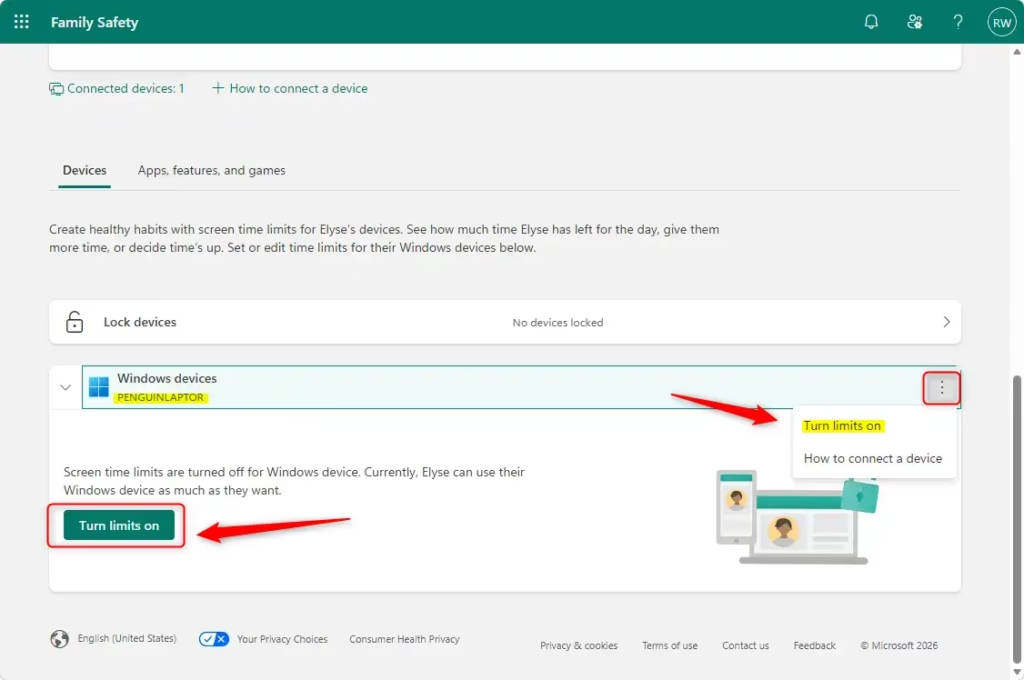
Once you have set up the schedule for the days you want, make sure to save your changes. There is usually a ‘Done’ or ‘Save’ button. If the limits don’t seem to be working, look for an option to ‘Turn limits on’. Make sure this is selected.
Managing Screen Time Online
Prefer using a bigger screen or don’t have the app handy? You can manage these settings through a web browser. It works very similarly.
Go to the Family Safety Website
Visit the Microsoft Family Safety website. You’ll need to sign in with your organizer account.account.microsoft.com/family
Pick Your Family Member
Like in the app, you’ll see sections for your family members. Click on the person whose screen time you want to manage. You’ll only see people who are part of your Microsoft family group listed here.
Choose the Device Type
You’ll see options for different devices, including Windows, Xbox, and Mobile. Click on the one you want to manage. Keep in mind that mobile screen time limits mostly work on Android devices.
Set Your Schedule
Click on a specific day of the week to start setting time limits and schedules. You can add time ranges and set the total time allowed each day. Use the checkboxes to apply these settings to multiple days or the whole week.
Good tip: When setting limits for mobile devices, make sure the family member’s device is connected to the internet and has the Family Safety app running. This helps the limits sync correctly.
Save Your Changes
When you’re happy with the schedule, click ‘Finished’ or a similar button to save. If you don’t see the limits working, look for the ‘Turn limits on’ option and select it.
Reference:
https://support.microsoft.com/en-us/family-safety/set-screen-time-limits-across-devices
Summary
Setting screen time limits on Windows 11 using Microsoft Family Safety helps you create a healthier digital balance for your family. You can create daily and weekly schedules, set specific time limits, and even schedule ‘quiet times’ when devices can’t be used. You can manage these settings either through the app or online via the Microsoft Family Safety website. This helps ensure your family members use their devices in a balanced way, freeing up time for other activities.
Was this guide helpful?

About the Author
Richard
Tech Writer, IT Professional
Richard, a writer for Geek Rewind, is a tech enthusiast who loves breaking down complex IT topics into simple, easy-to-understand ideas. With years of hands-on experience in system administration and enterprise IT operations, he’s developed a knack for offering practical tips and solutions. Richard aims to make technology more accessible and actionable. He's deeply committed to the Geek Rewind community, always ready to answer questions and engage in discussions.



No comments yet — be the first to share your thoughts!