How to Move Open Applications Between Desktops on Windows 11

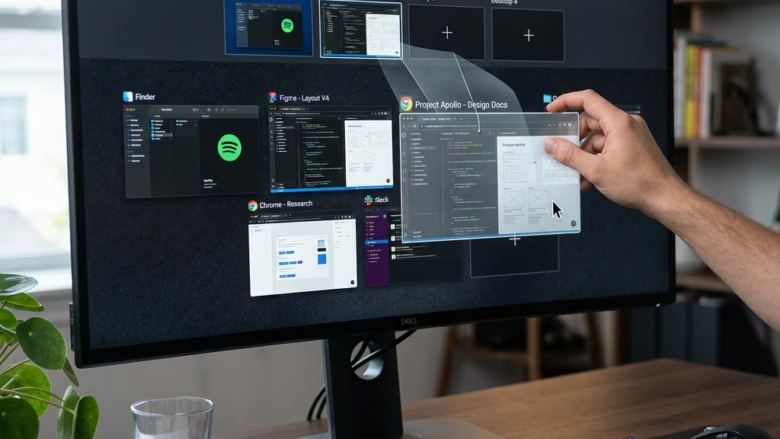
You can move open applications between virtual desktops in Windows 11 using the Task View feature.
Task View allows you to manage multiple virtual desktops, essentially creating separate screen spaces for different tasks or applications. This is incredibly useful for organizing your workflow and keeping your main desktop clutter-free.
For instance, if you have your work emails open on Desktop 1 and want to move your social media app to Desktop 2, Windows 11 makes this a simple drag-and-drop process. This feature is built directly into Windows 11, so you won’t need any extra software.
Method 1Drag and Drop in Task View
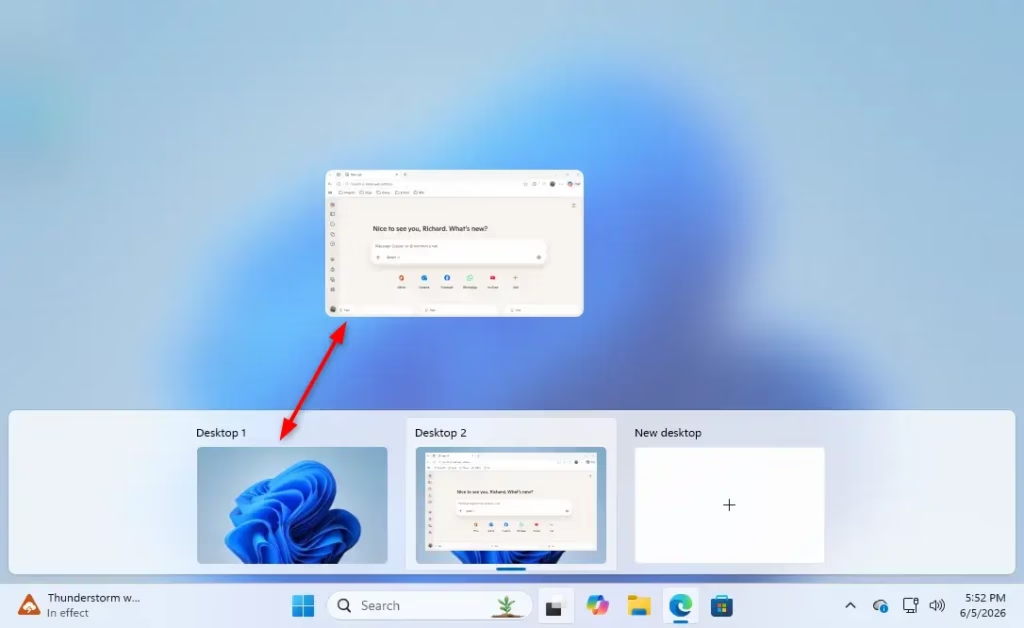
This is the most visual way to move your apps. You can see everything and drag it where you want it.
- Open Task View: Press the Windows key + Tab key together. Or, click the Task View icon on your taskbar.
- Find the App Window: You will see small pictures (thumbnails) of all the apps you have open. Find the one you want to move.
- Click and Drag: Click on the app’s thumbnail and hold down your left mouse button.
- Drag to the Other Desktop: While still holding the mouse button, drag the app’s thumbnail over to the thumbnail of the desktop you want to move it to. You’ll see your different desktops listed at the top of Task View.
- Let Go to Drop: When the app’s thumbnail is over the desktop you want, release the mouse button. That’s it! The app is now on that desktop.
Method 2Using the Right-Click Menu
This method is great if you prefer using menus instead of dragging.
- Open Task View: Press Windows key + Tab key or click the Task View icon on your taskbar.
- Find Your App: Look for the thumbnail of the app you want to move.
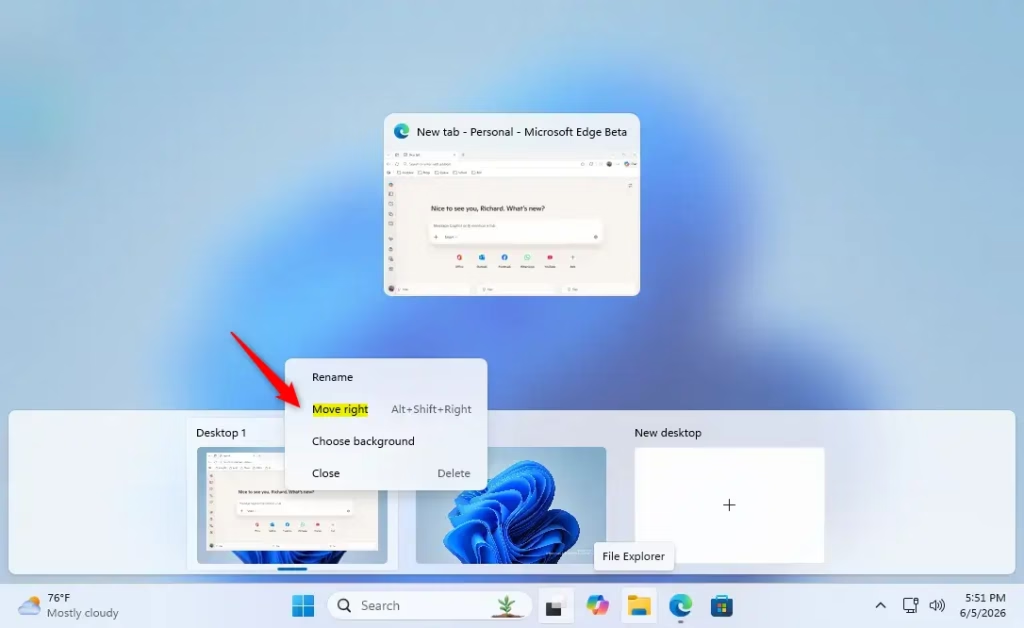
- Right-Click the App: Instead of dragging, right-click directly on the app’s thumbnail.
- Select ‘Move to’: A small menu will appear. Click on the option that says ‘Move to’.
- Choose Where to Move It: Another small menu will show up with all your available desktops. Click on the name or thumbnail of the desktop you want to move the app to.
Why Move Apps Between Desktops?
Moving apps between your virtual desktops helps you keep your computer screen tidy. You can keep work apps separate from personal apps, or group apps you use for a specific task together. This makes it easier to focus and find what you need quickly without too many windows open on one screen.
What Happens When You Move an App?
When you move an app from one virtual desktop to another, it disappears from the original desktop and appears on the new one. All your work within that app is saved, and it will be there waiting for you on the new desktop. Your other open apps remain on their original desktops.
Reference:
Summary
You can move open applications between your Windows 11 virtual desktops using either the drag-and-drop feature in Task View or the right-click ‘Move to’ option. This helps keep your workspace organized and allows you to quickly switch between different tasks or projects.
Was this guide helpful?

About the Author
Richard
Tech Writer, IT Professional
Richard, a writer for Geek Rewind, is a tech enthusiast who loves breaking down complex IT topics into simple, easy-to-understand ideas. With years of hands-on experience in system administration and enterprise IT operations, he’s developed a knack for offering practical tips and solutions. Richard aims to make technology more accessible and actionable. He's deeply committed to the Geek Rewind community, always ready to answer questions and engage in discussions.

No comments yet — be the first to share your thoughts!