How to Turn On or Off Let Windows Keep Me Connected with Cellular Connection in Windows 11

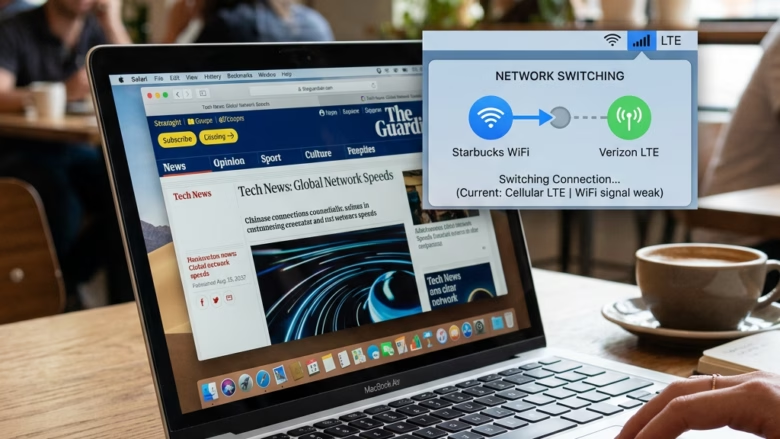
You can turn on or off the “Let Windows keep me connected” feature in Windows 11 to manage your cellular data usage.
This setting allows your Windows 11 PC to automatically connect to a cellular network when Wi-Fi isn’t available, similar to how your smartphone uses mobile data.
Enabling this feature requires your PC to have a cellular modem and a valid SIM card or eSIM. For example, many business laptops and tablets come equipped with this capability.
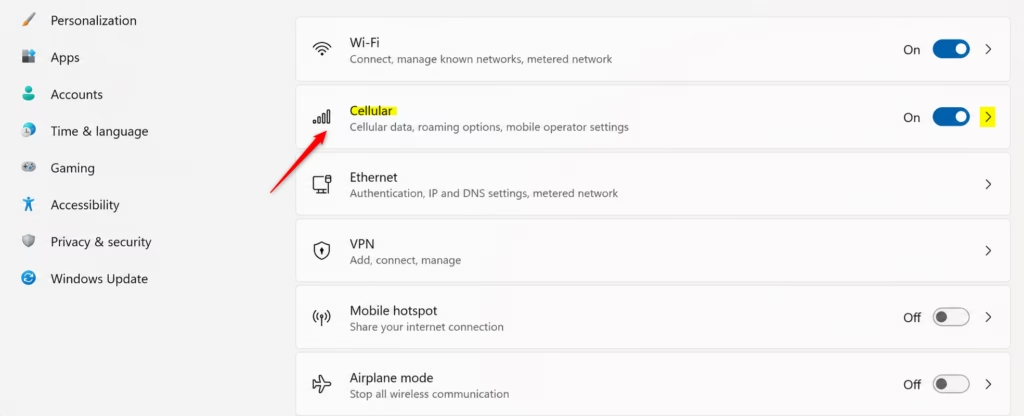
You can find this option within the Network & internet settings in Windows 11, under the Cellular section.
Using Cellular Data in 🪟 Windows 11
You’ll need a SIM card or eSIM and a data plan from your mobile provider. That’s the first piece. Now, how do you ensure Windows uses this cellular connection when your usual internet, like Wi-Fi, fails? That’s where the ‘Let Windows keep me connected’ setting comes in handy.
Why do we need this? This setting acts as a smart backup. It automatically switches you to a cellular network if your primary internet connection drops. This way, you remain online without any manual intervention.
What happens when done? With this feature enabled, Windows will automatically use your cellular data if your Wi-Fi or wired internet connection goes out. If it’s disabled, you’ll need to manually activate your cellular connection whenever you want to use it.
Step 1Find Your Cellular Settings
Let’s find these settings. They aren’t hard to locate.
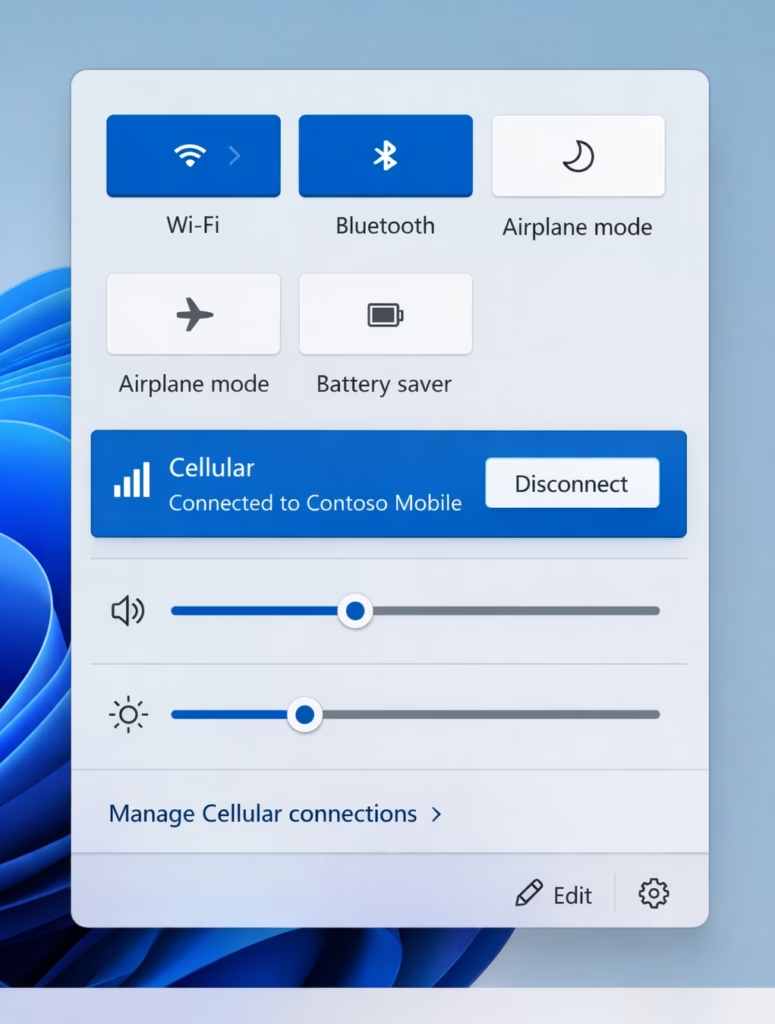
- Look at the bottom right of your screen, near the clock. Click the icon that looks like a Wi-Fi signal or a globe. This opens the Network quick settings.
- In this panel, look for a “Cellular” section. If you don’t see it, click the small arrow (
>) next to “ Wi-Fi” or “Mobile hotspot” to see more options. - You should see the name of your mobile company listed under “Cellular.”
Step 2Turn On Automatic Connection
Now that you’ve found the Cellular settings, let’s configure Windows for automatic connection.
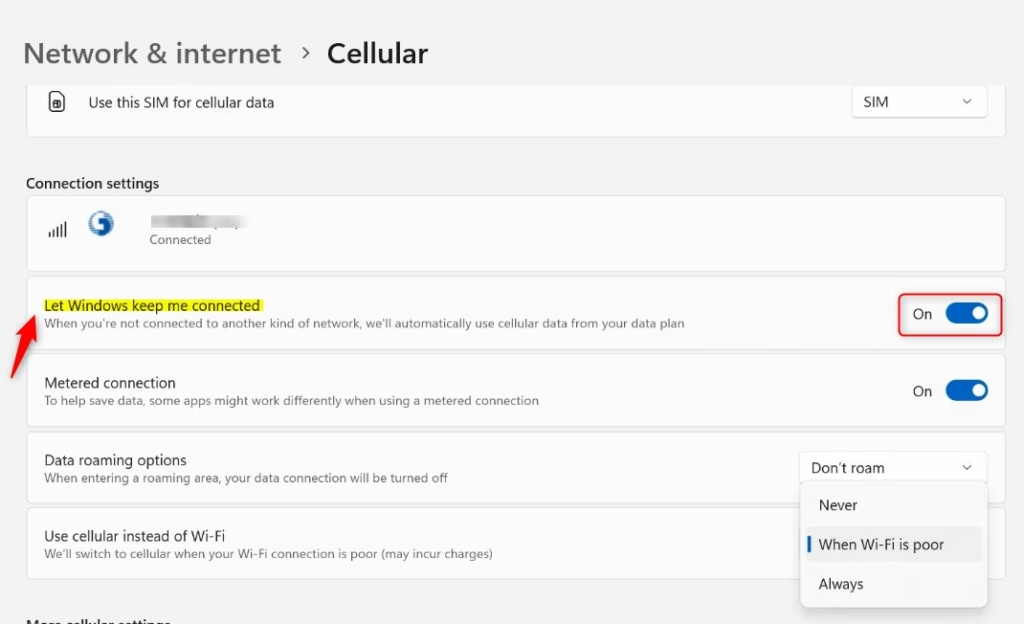
- In the Cellular quick settings panel, find the switch for “Let Windows keep me connected.”
- If the switch is On, Windows will automatically use your cellular data when you are not connected to Wi-Fi or a wired internet cable. This is usually best for staying connected all the time.
- If you want to choose when to use your cellular data each time, turn this switch Off . If it’s off, you’ll need to click “Connect” in the Cellular settings yourself when you want to use it.
Helpful Tip: For most people, keeping ‘Let Windows keep me connected’ turned on is beneficial. It ensures you maintain internet access while you’re on the move or if your Wi-Fi signal falters. Just be mindful of your data consumption, which we’ll cover later!
Step 3Connect Manually (If “Keep Me Connected” is Off)
If you’ve disabled automatic connection, or if it’s not working as expected, here’s how to connect manually.
- Go back to the Network quick settings panel (click the network icon on your taskbar).
- Find the “Cellular” section.
- If “Let Windows keep me connected” is off, you should see a “Connect” button. Click it.
- You might need to type in a username, password, and the Access Point Name (APN). This information is specific to your mobile company. It might have come with your SIM card, your device, or your modem.
Reference:
Summary
The ‘Let Windows keep me connected’ feature in Windows 11 allows your computer to automatically use cellular data when Wi-Fi or wired internet isn’t available. You can find this setting within the Network quick settings panel. Enabling it provides seamless connectivity, whereas disabling it requires you to manually connect. This is useful for staying online while traveling, but always keep your mobile data plan limits in mind. [Your Mobile Operator]
Was this guide helpful?

About the Author
Richard
Tech Writer, IT Professional
Richard, a writer for Geek Rewind, is a tech enthusiast who loves breaking down complex IT topics into simple, easy-to-understand ideas. With years of hands-on experience in system administration and enterprise IT operations, he’s developed a knack for offering practical tips and solutions. Richard aims to make technology more accessible and actionable. He's deeply committed to the Geek Rewind community, always ready to answer questions and engage in discussions.

No comments yet — be the first to share your thoughts!