How to Hide or Show Recent Files on Start Menu in Windows 11

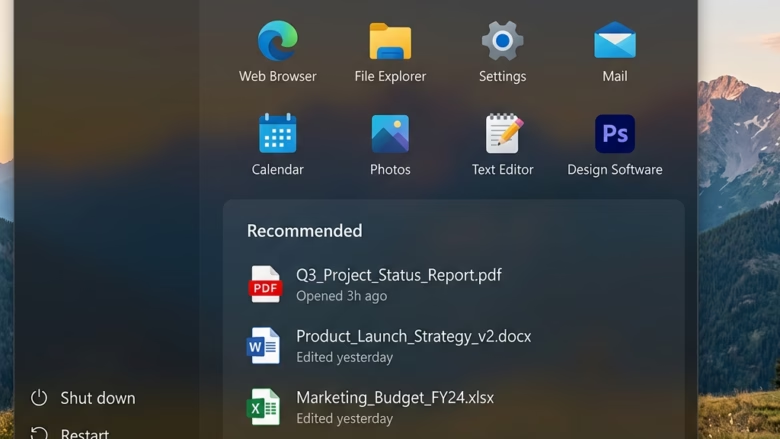
You can hide or show recent files on your Windows 11 Start menu by adjusting a single setting.
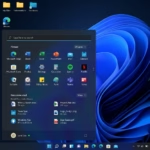
The Start menu’s “Recommended” section, sometimes called “Recent” in builds like 26300.8553, displays files you’ve recently accessed. This feature helps you quickly jump back into your work.
Disabling this option prevents those files from appearing in the Start menu, but it won’t affect how recent files are displayed elsewhere on your PC.
Option 1Using the Settings App
This is a straightforward way to change the setting.
- Open the Settings app. You can do this by pressing the Windows key + I on your keyboard.
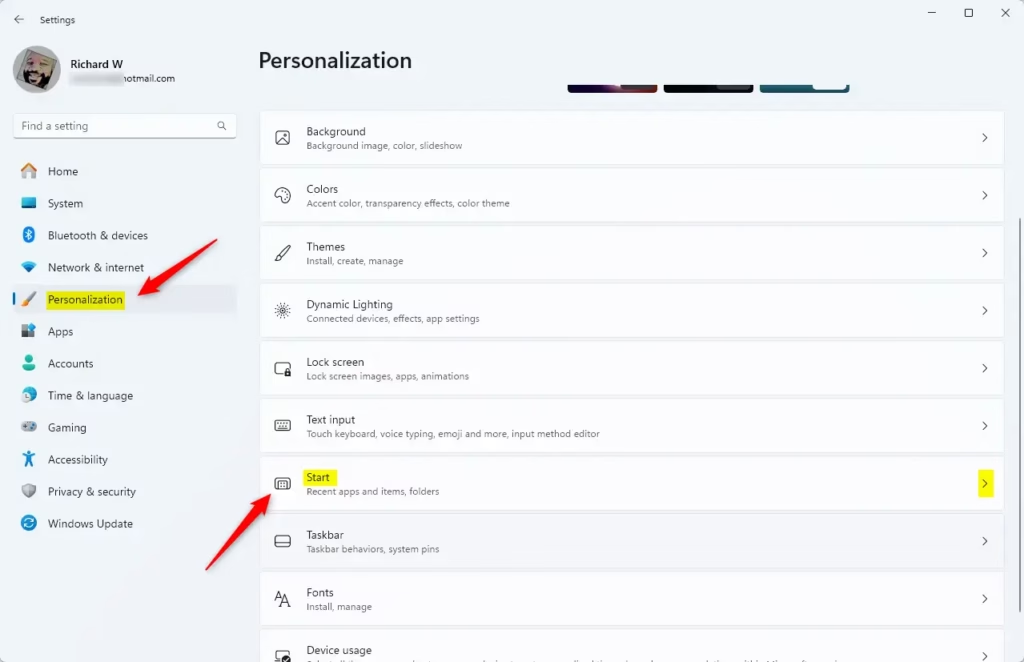
- On the left side, click on Personalization. Then, on the right side, click on Start.
- Look for the Layout options section. You will see a setting called Show recent and suggested files.
- Check the box next to this setting if you want to show recent files (this is the default). Uncheck the box if you want to hide recent files.
- You can now close the Settings window if you wish.
Why do this? This lets you control what appears in the Start menu to keep it tidy or easily find your recent work.
What happens when done? Files you have recently opened will either show up in the Start menu’s “Recent” or “Recommended” section, or they will be hidden from that section.
Option 2Using the Registry Editor
This method is for more advanced users and needs administrator permissions to run.
To Show Recent Files on the Start Menu (Default)
This setting is already turned on by default.
- First, you need to open the Registry Editor. Search for “regedit” in the Windows search bar and open it. You might be asked for administrator permission.
- Navigate to the following path in the Registry Editor:
HKEY_CURRENT_USER\Software\Microsoft\Windows\CurrentVersion\Explorer\Advanced - Look for a value named
Start_TrackDocs. - Double-click on
Start_TrackDocs. - Make sure the Value data is set to
1. - Click OK.
To Hide Recent Files on the Start Menu
This will remove recent files from the Start menu.
- Open the Registry Editor by searching for “regedit” and opening it. You might need administrator permission.
- Go to this path:
HKEY_CURRENT_USER\Software\Microsoft\Windows\CurrentVersion\Explorer\Advanced - Find the value named
Start_TrackDocs. - Double-click on
Start_TrackDocs. - Change the Value data to
0. - Click OK.
Why do this? Some users prefer a cleaner Start menu without automatically displayed recent files for privacy or simplicity.
What happens when done? After changing the registry value and restarting your computer or logging out and back in, the recent files will be hidden from the Start menu’s “Recent” or “Recommended” section.
Summary
You can choose to show or hide recent files on your Windows 11 Start menu. The most direct way is through the Settings app under Personalization > Start. For more control or if you prefer using advanced tools, you can also modify the Windows Registry. Showing recent files helps you quickly access documents you’ve worked on, while hiding them can keep your Start menu cleaner and more private.
Was this guide helpful?

About the Author
Richard
Tech Writer, IT Professional
Richard, a writer for Geek Rewind, is a tech enthusiast who loves breaking down complex IT topics into simple, easy-to-understand ideas. With years of hands-on experience in system administration and enterprise IT operations, he’s developed a knack for offering practical tips and solutions. Richard aims to make technology more accessible and actionable. He's deeply committed to the Geek Rewind community, always ready to answer questions and engage in discussions.

No comments yet — be the first to share your thoughts!