How to Manage Startup Apps in Windows 11 to Improve Boot Speed

You manage startup apps in Windows 11 by disabling programs that automatically launch when your computer starts up. This is a crucial step to improve how fast your PC loads.
Startup apps are programs set to open automatically when Windows 11 finishes loading. This can significantly slow down how fast your PC starts up.
Disabling unnecessary startup applications, like those that don’t need to run the moment you log in, can reduce your Windows 11 startup time by several seconds. Your PC will then feel much faster.
When you control which apps launch at startup, you free up valuable system resources like RAM and CPU power. Your computer will then be ready to use almost immediately after you sign in.
Disable unnecessary startup apps through Windows 11 Settings or Task Manager. Open Settings > Apps > Startup, or press Ctrl+Shift+Esc for Task Manager, then disable apps with high startup impact to improve boot speed.
Using the 🪟 Windows 11 Settings Menu
The Windows 11 Settings menu is the simplest way to manage startup apps, letting you easily turn on or off programs that launch automatically when you start your computer.
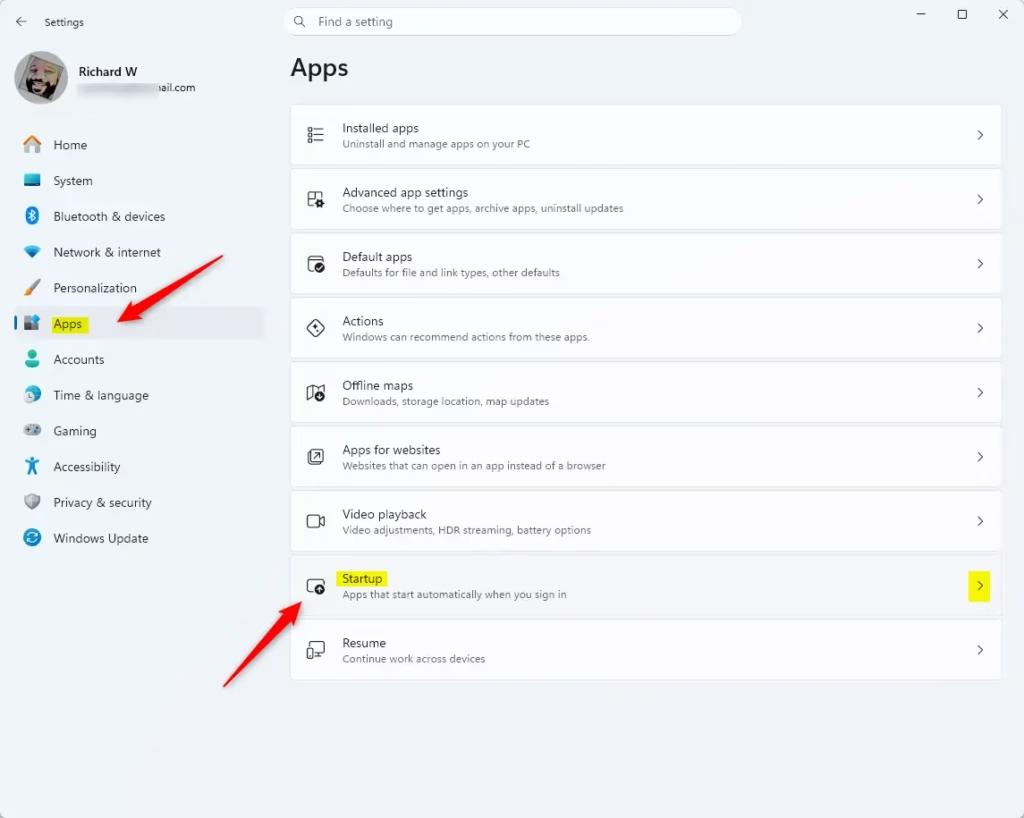
- Open the Start menu and click on the Settings gear icon.
- Select Apps from the left-hand sidebar.
- Click on Startup in the main window.
- You will see a list of apps. Look for the toggle switch next to each app.
- Switch the toggle to Off for any app you do not need immediately upon logging in.
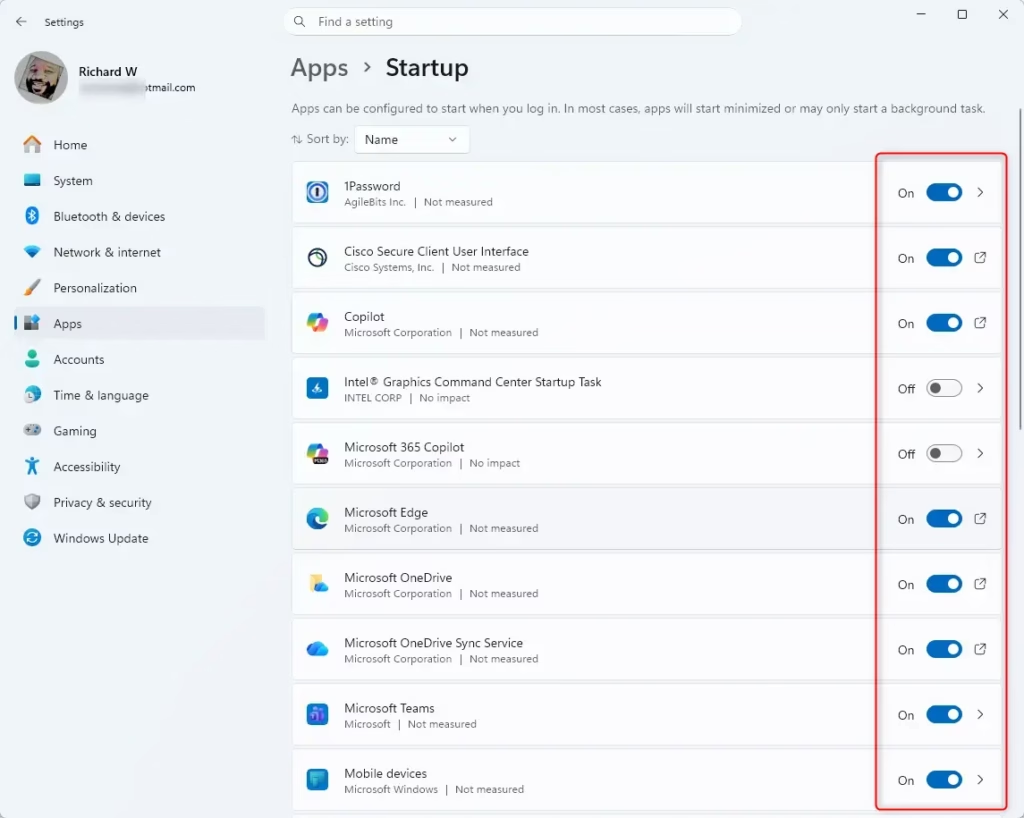
Note: Be careful not to disable system-critical tools like your antivirus software or audio drivers.
Using Task Manager for Advanced Control
Task Manager gives you more control over startup apps in Windows 11, showing you which programs are slowing down your computer the most when it boots up.
- Press Ctrl+Shift+Esc on your keyboard to open the Task Manager.
- If you see a small window, click More details at the bottom.
- Click on the Startup apps tab on the left.
- Review the list. Look at the Startup impact column.
- Right-click any app that shows “High” impact and select Disable.
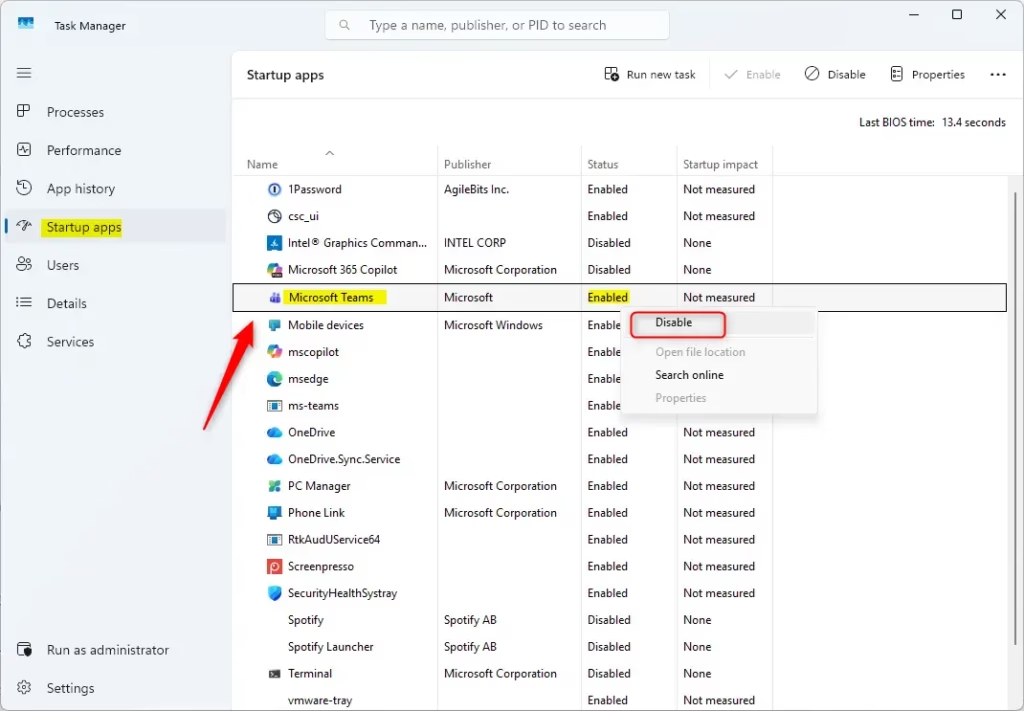
Interpreting Startup Impact: “High” means the app significantly slows your boot. “Medium” and “Low” have a smaller effect. “Not measured” usually means the app was recently installed or is not currently running.
Command Line Management with PowerShell
PowerShell, a command-line tool, lets you manage startup apps in Windows 11 and provides a detailed list showing where each program is set to launch from.
Type the following command to list startup items: Get-CimInstance Win32_StartupCommand | Select-Object Name, Command, Location
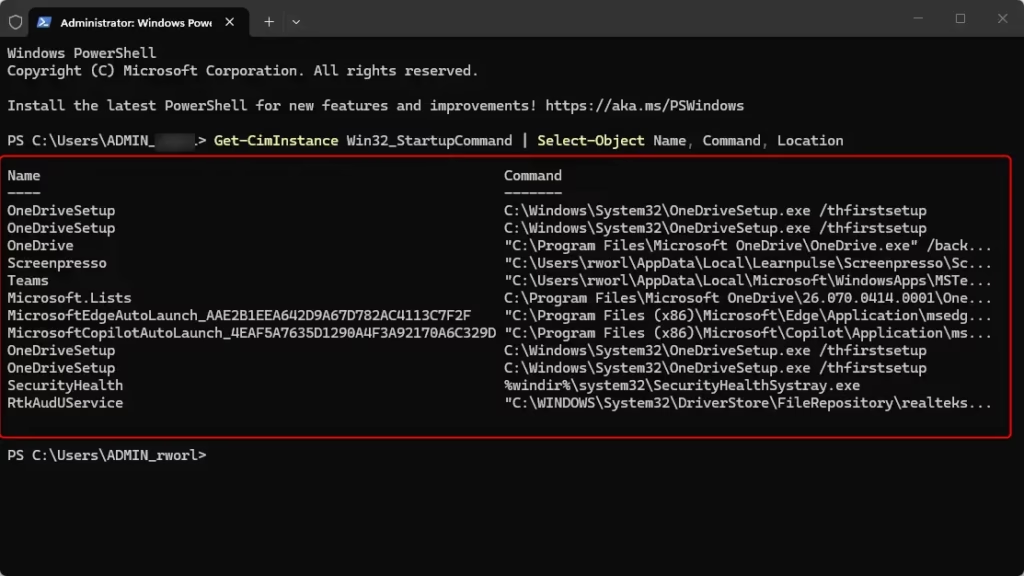
This helps you see exactly where a program is launching from, such as the registry or a specific folder.
Third-Party Tool: Sysinternals Autoruns
For a deep dive into every single process that starts with Windows, use the official Microsoft Sysinternals Autoruns tool. It shows hidden tasks and services that Task Manager might miss. It is the gold standard for system resource management.
Windows Services vs. Startup Apps
Startup apps are programs you see, like Spotify or Steam. Windows Services (accessible via services.msc) are background processes that keep the system running. Warning: Do not disable services unless you are an expert, as this can break core system functions like networking or audio.
When to Avoid Disabling
Do not disable these items: Security software (Antivirus), Audio drivers (Realtek, etc.), Graphics control panels (NVIDIA, AMD), or Touchpad/Keyboard utilities. Disabling these can cause your hardware to stop working correctly.
Summary
To make your Windows 11 computer start faster, you need to manage which apps launch automatically when you turn it on, using tools like Settings or Task Manager.
Does disabling startup apps affect Windows background services?
No, disabling startup apps does not affect essential Windows background services. Startup apps are user-level programs that launch at login, while services are system-level processes. Disabling startup apps only stops programs you interact with, leaving critical system services untouched to ensure your computer remains stable and functional.
How do I identify which startup apps are causing high CPU usage?
You can identify startup apps causing high CPU usage in Windows 11 by opening Task Manager and looking at the ‘Startup impact’ column, which flags apps that slow down your boot.
Is there a difference between ‘Startup’ and ‘Background’ apps in 🪟 Windows 11?
In Windows 11, startup apps run automatically when you sign in, helping to speed up your computer’s boot time, while background apps run quietly after you’ve logged in and can be managed separately.
Was this guide helpful?

About the Author
Richard
Tech Writer, IT Professional
Richard, a writer for Geek Rewind, is a tech enthusiast who loves breaking down complex IT topics into simple, easy-to-understand ideas. With years of hands-on experience in system administration and enterprise IT operations, he’s developed a knack for offering practical tips and solutions. Richard aims to make technology more accessible and actionable. He's deeply committed to the Geek Rewind community, always ready to answer questions and engage in discussions.



No comments yet — be the first to share your thoughts!