How To Fix Windows 11 Wi-Fi Connection Issues

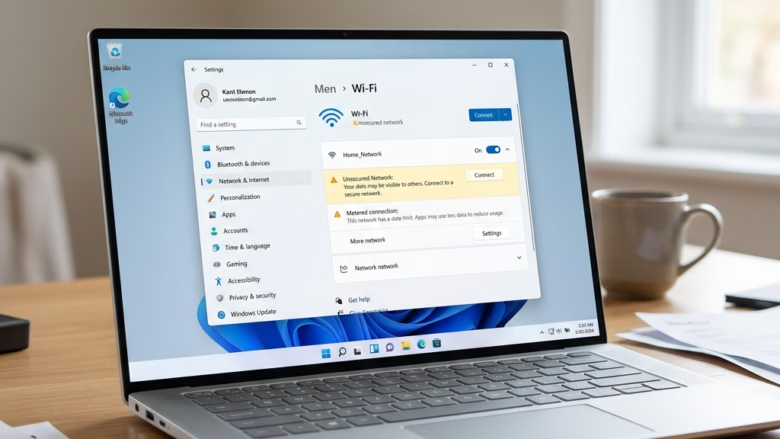
You fix Windows 11 Wi-Fi connection issues by troubleshooting common software and hardware conflicts. This often involves restarting your PC and router, updating your network adapter driver, or resetting network settings.
Many Windows 11 users encounter Wi-Fi problems like “No Internet” or slow speeds due to outdated drivers or minor software glitches. These issues prevent your computer from properly communicating with your wireless router.
For instance, a missing or corrupted network driver, like the Realtek RTL8821CE Wi-Fi adapter driver, frequently causes these disruptions. By following targeted steps, you can restore your internet connection.
Completing these fixes ensures your Windows 11 device reliably connects to your Wi-Fi network, giving you stable internet access without error messages.
You can fix Windows 11 Wi-Fi issues by running the Network Troubleshooter, checking Airplane Mode, and reinstalling your network adapter driver. Resetting your DNS and TCP/IP stack can also resolve connection problems.
1Run the Network Troubleshooter
Windows 11 comes with a built-in “doctor” for your network. It can often find and fix problems automatically.
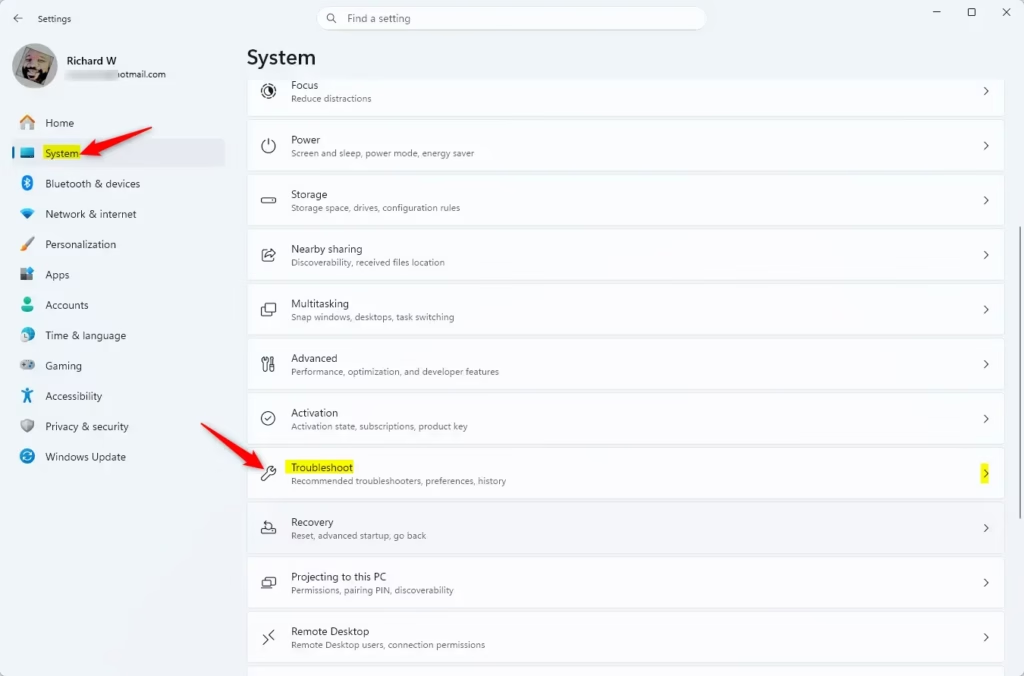
- Open the Start Menu and select Settings.
- Go to System > Troubleshoot.
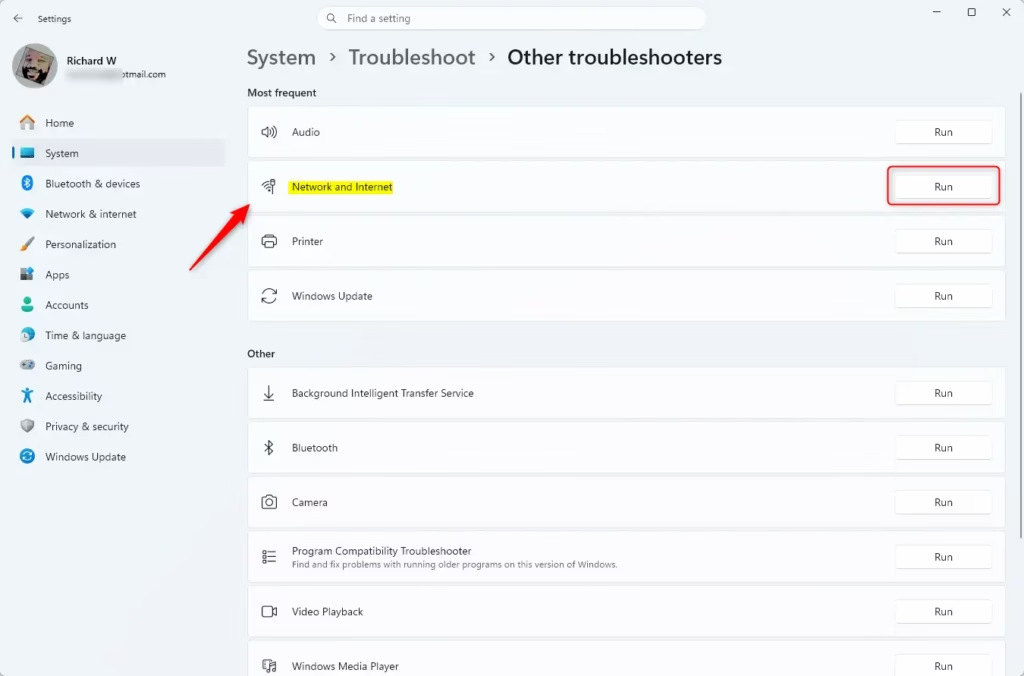
- Click Other troubleshooters.
- Find Network and Internet and click the Run button.
2Check Airplane Mode and Physical Switches
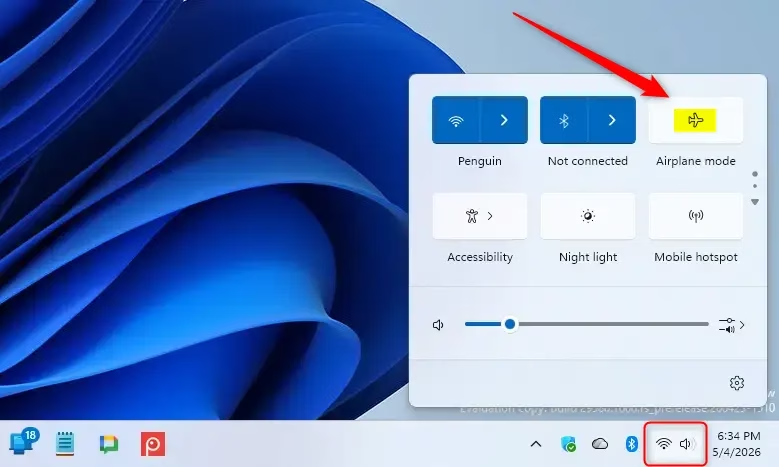
Your Windows 11 Wi-Fi might be off because Airplane mode is accidentally turned on, which disables all wireless connections.
- Click the Quick Settings icon in the bottom-right corner of your taskbar.
- Ensure the Airplane mode button is not highlighted in blue.
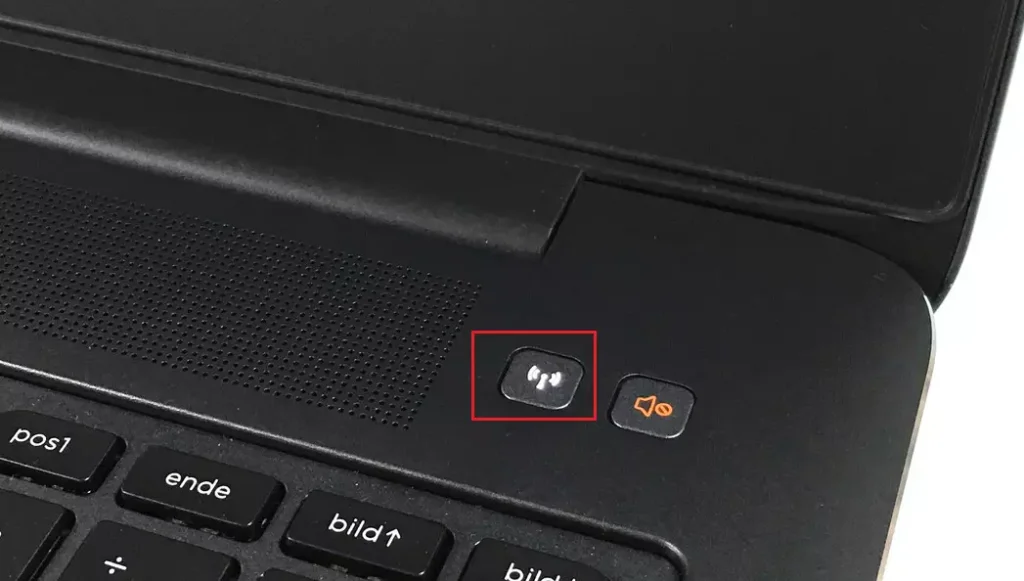
- Check the side of your laptop. Some devices have a physical switch or a function key (like F2 or F12) that toggles wireless hardware on or off.
3Generate a Wireless Network Report
Windows can create a helpful report that logs your Wi-Fi activity, which is great for figuring out exactly what’s going wrong.
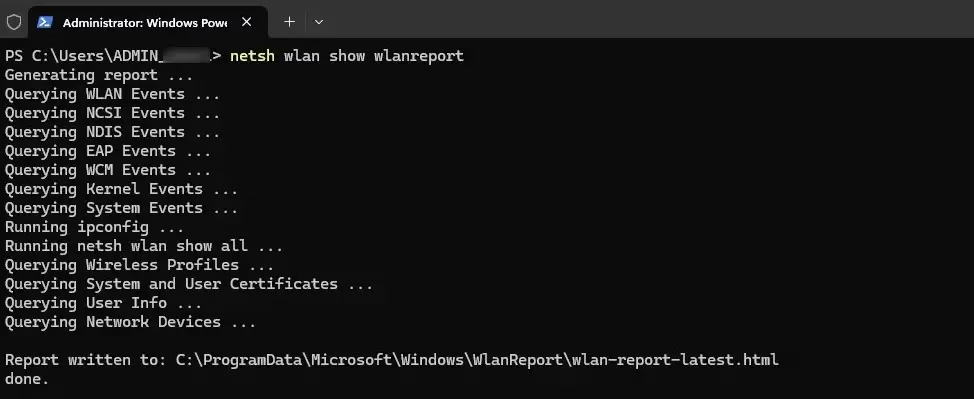
- Right-click the Start button and select Terminal (Admin).
- Type
netsh wlan show wlanreportand press Enter. - Open the file path shown in the results to view your report.
4Flush DNS and Reset TCP/IP Stack (Admin Privileges Required)
Resetting your computer’s network settings by flushing the DNS and resetting the TCP/IP stack can fix many stubborn Windows 11 Wi-Fi connection issues.
- Press the Windows Key and type cmd.
- Right-click Command Prompt and select Run as administrator.
- Type these commands one by one, pressing Enter after each:Command Prompt
ipconfig /flushdns
netsh int ip reset
netsh winsock reset - Restart your computer.
5Check for Interference and Frequency Standards
Your Wi-Fi might be struggling due to channel congestion. Modern routers use 802.11ac or 802.11ax standards. If you are on a crowded 2.4GHz frequency, try switching to 5GHz in your router settings to reduce interference.
6Uninstall and Reinstall the Network Adapter Driver
Uninstalling and then reinstalling your network adapter driver can fix Windows 11 Wi-Fi problems if the driver files have become corrupted.
- Right-click the Start button and select Device Manager.
- Expand the Network adapters section.
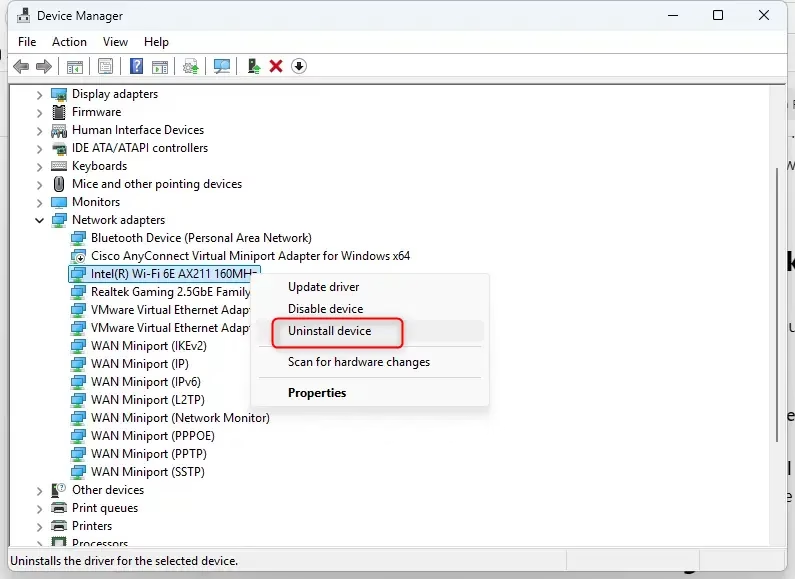
- Right-click your wireless adapter and choose Uninstall device.
- Restart your PC. Windows will automatically detect the hardware and install a fresh driver.
7Disable Wi-Fi Power Saving Mode
Windows 11 may turn off your Wi-Fi to save power, so disabling the Wi-Fi power saving mode can help keep your connection stable.
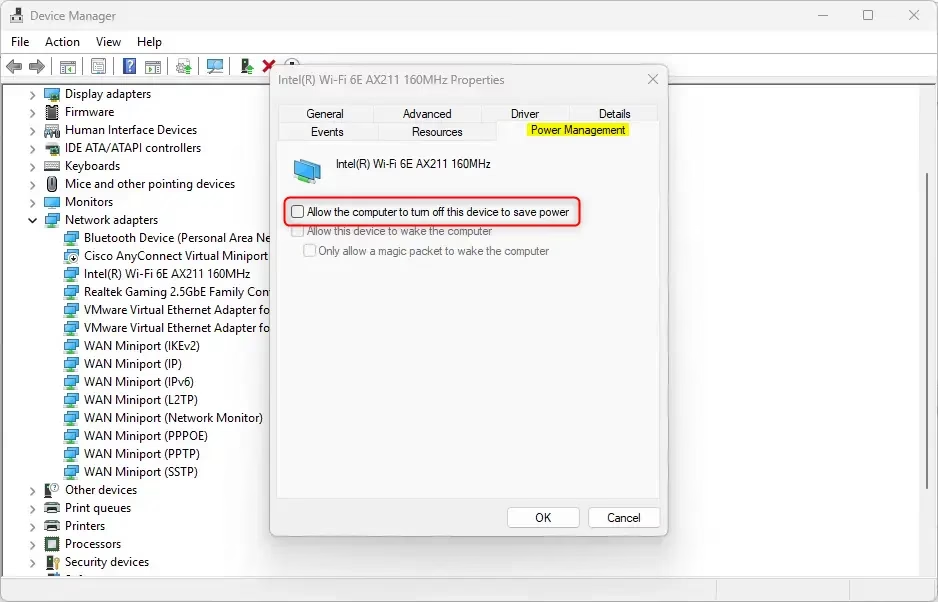
- In Device Manager, right-click your network adapter and select Properties.
- Go to the Power Management tab.
- Uncheck the box that says Allow the computer to turn off this device to save power.
- Click OK.
8Third-Party Antivirus Warning
Some antivirus programs act as a firewall that blocks your connection. If you have a third-party security suite, try disabling it temporarily to see if your Wi-Fi starts working again.
Summary
Fixing Windows 11 Wi-Fi issues usually means checking hardware, resetting network settings, and making sure drivers are up-to-date.
Why does my Wi-Fi show ‘Disabled’ even when the switch is on?
This usually means the network adapter is disabled in Windows settings or the driver is malfunctioning. Check the Network Connections folder in the Control Panel to ensure your Wi-Fi adapter is enabled. If it is, try reinstalling the driver via Device Manager to fix the software conflict.
Does changing my DNS server help with Wi-Fi connectivity?
Yes, changing your DNS can help if your Wi-Fi connects but cannot load websites. By switching to public DNS providers like Google (8.8.8.8) or Cloudflare (1.1.1.1) in your network adapter settings, you can often bypass slow or broken DNS servers provided by your internet service provider.
Was this guide helpful?

About the Author
Richard
Tech Writer, IT Professional
Richard, a writer for Geek Rewind, is a tech enthusiast who loves breaking down complex IT topics into simple, easy-to-understand ideas. With years of hands-on experience in system administration and enterprise IT operations, he’s developed a knack for offering practical tips and solutions. Richard aims to make technology more accessible and actionable. He's deeply committed to the Geek Rewind community, always ready to answer questions and engage in discussions.



No comments yet — be the first to share your thoughts!